
Iproda T1045A
iProda T1045A 10.1 inch Android Tablet User Manual
Comprehensive instructions for your iProda T1045A Android Tablet.
1. Introducció
This manual provides detailed instructions for the setup, operation, maintenance, and troubleshooting of your iProda T1045A 10.1 inch Android Tablet. Please read this manual thoroughly before using your device to ensure proper functionality and to maximize your user experience.
The iProda T1045A is a 10.1-inch tablet featuring an HD IPS display with 1280x800 resolution, powered by a 64-bit Quad-core processor running Android 9 Pie. It includes 3GB RAM, 64GB internal storage expandable up to 128GB via TF card, dual-band Wi-Fi, HDMI output, and a 5000mAh battery for extended use.
2. Producte acabatview
2.1 Contingut del paquet
En obrir el paquet, comproveu que hi hagi tots els elements:
- iProda T1045A 10.1 inch Android Tablet
- Cable USB
- Adaptador d'alimentació
- Manual d'usuari (aquest document)

Image: Contents of the iProda T1045A tablet package.
2.2 Disseny del dispositiu
Familiarize yourself with the physical components and ports of your tablet:
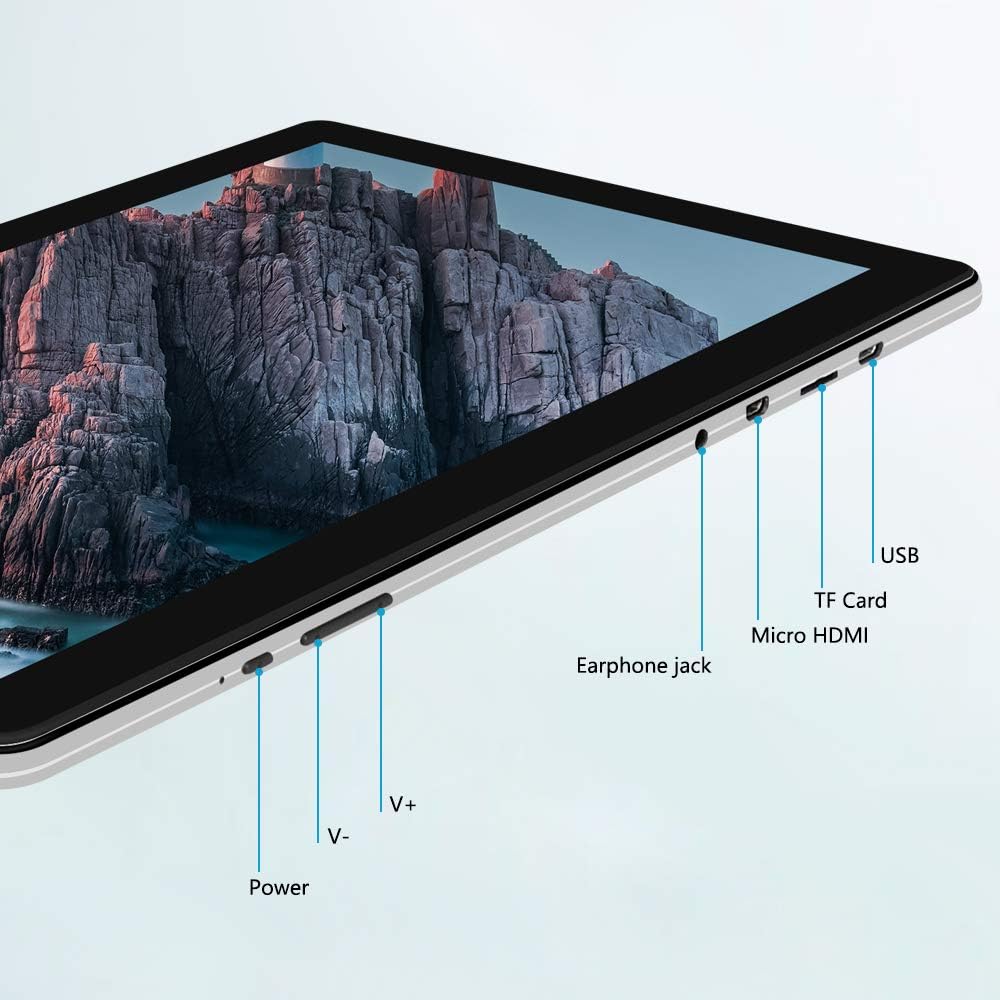
Imatge: Lateral view of the iProda T1045A tablet highlighting port locations.
- Botó d'encesa: Press and hold to power on/off or restart the tablet. Short press to turn the screen on/off.
- Botons de volum (V+, V-): Ajusteu el volum d'àudio.
- Presa per a auriculars: Connecteu auriculars de 3.5 mm.
- Ranura per a targetes TF: Insert a microSD card for expandable storage (up to 128GB).
- Port micro HDMI: Connect to an external display using a Micro HDMI to HDMI cable.
- Port USB: Connect to a computer for data transfer or for charging the device.
3. Configuració
3.1 Càrrega inicial
Before first use, fully charge the tablet. Connect the provided USB cable to the tablet's USB port and the power adapter, then plug the adapter into a wall outlet. The charging indicator will typically illuminate. A full charge may take several hours.
3.2 Engegada/apagada
- Per encendre: Manteniu premut el botó d'engegada fins que la pantalla s'encengui.
- Per apagar: Mantingueu premut el botó d'engegada fins que aparegui un menú d'engegada a la pantalla. Seleccioneu "Apagar" i confirmeu.
- Per reiniciar: From the power menu, select "Restart".
- Pantalla activada/desactivada: Briefly press the Power button to turn the screen off (sleep mode) or wake it up.
3.3 Assistent de configuració inicial
The first time you power on the tablet, you will be guided through an initial setup process. Follow the on-screen prompts to:
- Seleccioneu el vostre idioma preferit.
- Connecteu-vos a una xarxa Wi-Fi.
- Configura el teu compte de Google (opcional, però recomanat per a les baixades d'aplicacions).
- Configura la configuració de data i hora.
3.4 Inserting a TF Card (MicroSD)
To expand the tablet's storage:
- Locate the TF card slot on the side of the tablet.
- Carefully insert a microSD card (up to 128GB) into the slot with the gold contacts facing down until it clicks into place.
- Per treure-la, empenyeu suaument la targeta cap a dins fins que surti.
4. Instruccions de funcionament
4.1 Navegació bàsica
The iProda T1045A uses a touch-sensitive screen for navigation:
- Toca: Seleccioneu un element o obriu una aplicació.
- Mantén premut: Accedir a menús contextuals o moure icones.
- Llisca: Desplaça't per les llistes o canvia entre les pantalles d'inici.
- Pessigar: Apropar o allunyar les imatges i web pàgines.
4.2 Connexió Wi-Fi
Per connectar-se a una xarxa sense fils:
- Vés a Configuració > Xarxa i Internet > Wi-Fi.
- Activa/desactiva el Wi-Fi On.
- Seleccioneu la xarxa desitjada de la llista.
- Introduïu la contrasenya si us demana i, a continuació, toqueu Connecta't.
The tablet supports both 2.4G and 5G dual-band Wi-Fi for faster and more stable connections.
4.3 Vinculació Bluetooth
To pair with Bluetooth devices (e.g., headphones, speakers):
- Vés a Configuració > Dispositius connectats > Bluetooth.
- Commuta el Bluetooth On.
- Assegureu-vos que el dispositiu Bluetooth estigui en mode d'emparellament.
- Select your device from the list of available devices and follow any on-screen prompts to complete pairing.
4.4 Ús de les càmeres
The tablet is equipped with a 2MP front camera and a 5MP rear camera.
- Obriu el Càmera application from the app drawer.
- Toqueu la icona de la càmera per canviar entre la càmera frontal i la posterior.
- Tap the shutter button to take photos or start/stop video recording.

Image: Tablet in use, showcasing its camera capabilities.
4.5 Connecting to an External Display (HDMI)
To display your tablet's screen on a larger monitor or TV:
- Connect one end of a Micro HDMI cable to the tablet's Micro HDMI port.
- Connect the other end of the cable to an HDMI input on your external display.
- Select the correct HDMI input source on your external display.
- The tablet's screen content should now be mirrored on the external display.
4.6 Gestió d'aplicacions
The tablet runs Android 9 Pie and supports applications from the Google Play Store.
- Instal·lació d'aplicacions: Obriu el Play Store aplicació, cerqueu l'aplicació que desitgeu i toqueu Instal·lar.
- Desinstal·lació d'aplicacions: Tap and hold an app icon on the home screen or in the app drawer, then drag it to "Uninstall" or select "App info" and choose "Uninstall". Alternatively, go to Configuració > Aplicacions i notificacions, seleccioneu l'aplicació i toqueu Desinstal·la.
5. Manteniment
5.1 Neteja del dispositiu
To clean your tablet:
- Power off the tablet before cleaning.
- Feu servir un drap suau i sense borrissol, lleugerament humitampesbandit amb aigua o un netejador de pantalles per netejar la pantalla i la carcassa.
- Eviteu l'ús de productes químics agressius, netejadors abrasius o humitat excessiva.
5.2 Actualitzacions de programari
Periodically check for software updates to ensure optimal performance and security:
- Vés a Configuració > Sistema > Avançat > Actualització del sistema.
- Follow the on-screen instructions to download and install any available updates. Ensure your tablet is sufficiently charged or connected to power during updates.
5.3 Gestió d'emmagatzematge
To manage internal storage and the TF card:
- Vés a Configuració > Emmagatzematge.
- Aquí pots view storage usage, free up space, and manage files on both internal storage and the inserted TF card.
6. Solució De Problemes
This section addresses common issues you might encounter with your iProda T1045A tablet.
6.1 El dispositiu no s'encén
- Ensure the tablet is sufficiently charged. Connect it to the power adapter and allow it to charge for at least 30 minutes before attempting to power on again.
- Try holding the Power button for 10-15 seconds to force a restart.
6.2 Problemes de connexió Wi-Fi
- Verify that Wi-Fi is enabled in Configuració.
- Assegureu-vos que esteu introduint la contrasenya de Wi-Fi correcta.
- Reinicieu el router Wi-Fi i la tauleta.
- Try connecting to a different Wi-Fi network to determine if the issue is with the tablet or the network.
6.3 Rendiment lent
- Tanca les aplicacions de fons innecessàries.
- Clear cached data for apps in Configuració > Aplicacions i notificacions > [Nom de l'aplicació] > Emmagatzematge i memòria cau > Esborra la memòria cau.
- Ensure sufficient free storage space. Uninstall unused apps or move large files to a TF card.
- Reinicieu la tauleta.
6.4 La bateria s'esgota ràpidament
- Redueix la brillantor de la pantalla.
- Desactiva el Wi-Fi, el Bluetooth i el GPS quan no els utilitzis.
- Tanca les aplicacions en segon pla que consumeixen molta energia.
- Comprova l'ús de la bateria a Configuració > Bateria per identificar aplicacions que consumeixen molta energia.
- Ensure the tablet is not allowed to run below 15% charge frequently, as this can impact battery longevity.
6.5 Restabliment de fàbrica
Si es produeixen problemes persistents, un restabliment de fàbrica els pot resoldre. Avís: Això esborrarà totes les dades de la tauleta. Fes una còpia de seguretat de les dades importants abans de continuar.
- Vés a Configuració > Sistema > Avançat > Restablir opcions.
- Seleccioneu Esborra totes les dades (restabliment de fàbrica).
- Confirma la teva decisió i segueix les instruccions que apareixen a la pantalla.
7. Especificacions
Below are the technical specifications for the iProda T1045A tablet:
| Nom del model | T1045A |
| Sistema operatiu | Android 9 Pie |
| Mida de la pantalla | 10.1 polzades |
| Resolució de visualització | 1280 x 800 pixels (HD IPS) |
| Processador | MediaTek Quad-core 1.5Ghz |
| RAM | 3 GB |
| Emmagatzematge intern | SSD de 64 GB |
| Emmagatzematge ampliable | Up to 128 GB via TF Card (MicroSD) |
| Coprocessador gràfic | ARM Mali-T720 MP2 |
| Càmera posterior | 5 MP |
| Càmera frontal | 2 MP |
| Capacitat de la bateria | Polímer de liti de 5000 mAh |
| Durada mitjana de la bateria | Fins a 8 hores |
| Connectivitat sense fil | Dual-Band Wi-Fi (802.11a/b/g/n), Bluetooth 4.0 |
| Ports | 1x USB 2.0, 1x Micro HDMI, 3.5mm Earphone Jack, TF Card Slot |
| Dimensions | 34.5 x 19.7 x 5.5 cm |
| Pes | 550 g |

Image: Key performance specifications of the tablet.

Image: Tablet portability and battery details.
8. Garantia i Suport
8.1 Garantia del producte
The iProda T1045A tablet comes with a 12 mesos de garantia des de la data de compra. Aquesta garantia cobreix els defectes de fabricació i els mals funcionaments en condicions d'ús normal. No cobreix els danys causats per un mal ús, accidents, reparacions no autoritzades o desgast normal.
8.2 Atenció al client
If you encounter any issues not covered in the troubleshooting section or require further assistance, please contact iProda customer support. Refer to your purchase documentation or the iProda official weblloc per obtenir informació de contacte.
When contacting support, please have your tablet's model number (T1045A) and purchase details readily available.
Ask a question about this manual
Ask about setup, troubleshooting, compatibility, parts, safety, or missing instructions. Manuals+ will review the question and use this page’s manual context to help answer it.