
1. Introducció
Thank you for choosing the OMOTON 2.4G Wireless Keyboard and Mouse Combo. This product provides a reliable and efficient wireless solution for your computing needs. This manual will guide you through the setup, operation, and maintenance of your new device.

Image 1: OMOTON 2.4G Wireless Keyboard and Mouse Combo (White)
2. Contingut del paquet
- 1 x teclat sense fils
- 1 x ratolí sense fil
- 1 x Receptor USB
- 1 x Manual d'usuari (aquest document)
3. Guia de configuració
Follow these steps to set up your OMOTON Wireless Keyboard and Mouse Combo:
- Install Mouse Battery and Retrieve USB Receiver: Remove the back cover of the mouse. Take out the USB receiver stored inside. Insert one (1) AA battery into the mouse, ensuring correct polarity. Replace the back cover.
- Install Keyboard Battery: Locate the battery compartment on the underside of the keyboard. Insert one (1) AA battery, observing the correct polarity. Close the battery compartment cover.
- Connecteu el receptor USB: Connecteu el receptor USB a un port USB disponible de l'ordinador.
- Connexió automàtica: The keyboard and mouse will automatically connect to your computer within a few seconds. No additional drivers or software installation is required.

Image 2: Location of battery slots and USB receiver in the mouse.
Ajust de l'angle del teclat
For enhanced typing comfort, you can adjust the keyboard's angle. Pull out the two stands located on the underside of the keyboard to elevate the rear, providing an ergonomic tilt.
Video 1: Demonstrates battery installation for the mouse and keyboard, USB receiver connection, and adjusting the keyboard stand for comfortable use.
4. Funcionament
Ús general
Once connected, the keyboard and mouse function as standard input devices. The keyboard features a compact layout with function keys (F1-F12) that can be accessed directly or in combination with the 'Fn' key for multimedia and system controls. The mouse offers precise cursor control and quiet clicks.

Image 3: Illustration of the ergonomic design for comfortable use of the mouse and keyboard.
Mode d'estalvi d'energia
To conserve battery life, both the keyboard and mouse are equipped with an automatic sleep mode. If left idle for approximately 15 minutes, the devices will enter sleep mode. To reactivate them, simply press any button on the keyboard or move the mouse.
Mouse DPI Level
The mouse operates at a 1600 DPI (Dots Per Inch) level, providing precise control for various tasks. This sensitivity is suitable for general computing and ensures smooth tracking on multiple surfaces.

Image 4: The mouse features 1600 DPI for precise control and is rated for 3 million clicks.
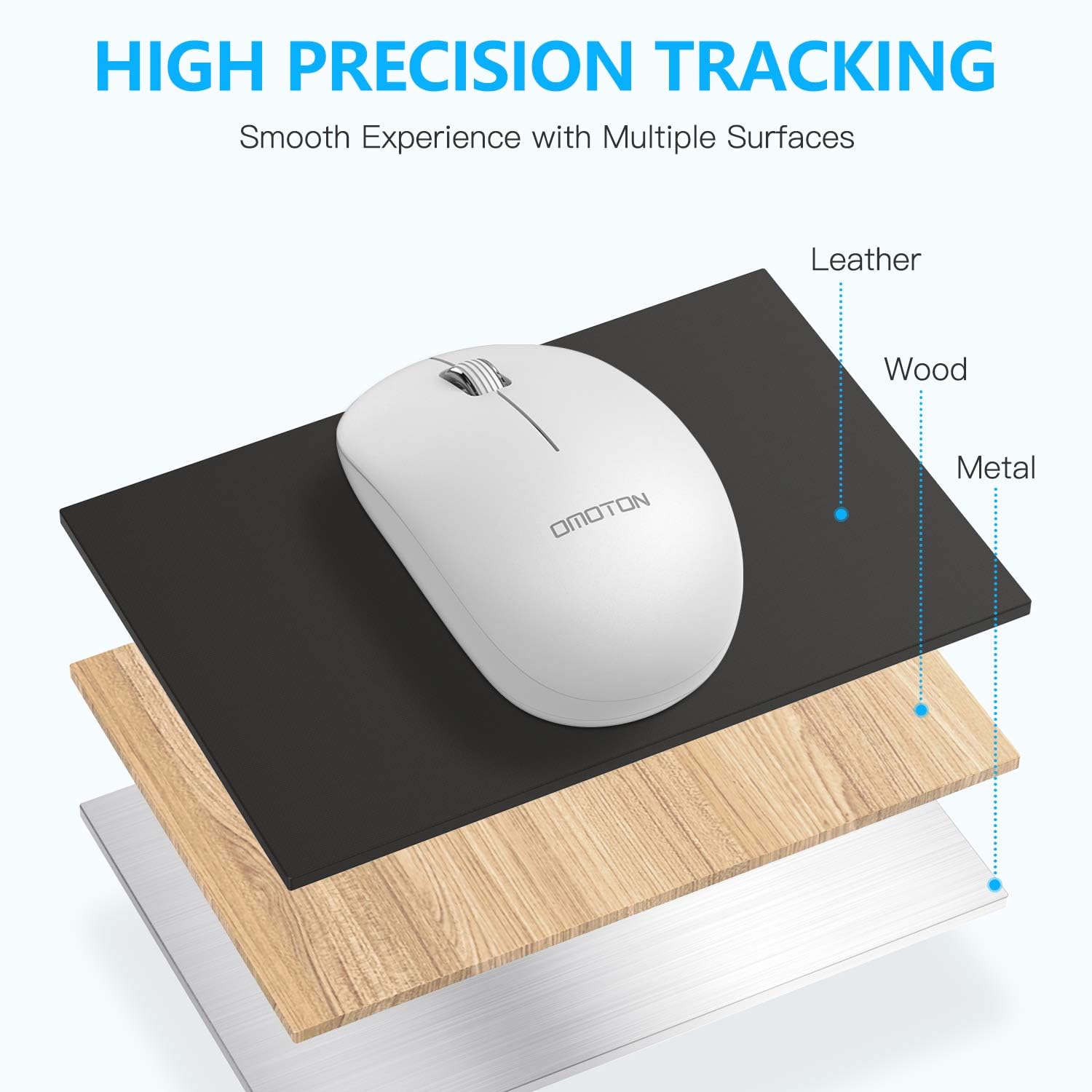
Image 5: The mouse offers high precision tracking on surfaces such as leather, wood, and metal.
5. Manteniment
Canvi de bateria
When the devices stop responding or exhibit intermittent behavior, it may be time to replace the batteries. Refer to Section 3, Steps 1 and 2, for instructions on how to replace the AA batteries in both the mouse and keyboard.
Instruccions de neteja
To maintain optimal performance and appearance, clean your keyboard and mouse regularly. Use a soft, dry, lint-free cloth to wipe down the surfaces. For stubborn dirt, slightly dampen the cloth with water or a mild, non-abrasive cleaner. Avoid using harsh chemicals or submerging the devices in liquid.
6. Solució De Problemes
- No Connection or Intermittent Connection:
- Assegureu-vos que el receptor USB estigui connectat correctament a un port USB que funcioni de l'ordinador.
- Check if the batteries in both the keyboard and mouse are correctly installed and have sufficient charge. Replace batteries if necessary.
- Move the keyboard and mouse closer to the USB receiver to rule out range issues (operating range is within 10 meters).
- Prova de connectar el receptor USB a un port USB diferent de l'ordinador.
- Reinicieu l'ordinador.
- Mouse Deactivates Frequently:
- The mouse enters power-saving mode after 15 minutes of inactivity. Move the mouse or click a button to reactivate it.
- If the mouse deactivates too quickly or requires replugging the USB receiver, ensure the battery is fresh.
- Keyboard Lag or Skipped Actions:
- This can indicate low battery. Replace the keyboard battery.
- Ensure there are no strong wireless interferences nearby (e.g., other 2.4GHz devices).
- Apropa el teclat al receptor USB.
7. Especificacions

Image 6: Dimensions of the OMOTON Wireless Keyboard and Mouse.
| Característica | Detall |
|---|---|
| Marca | OMOTON |
| Tecnologia de connectivitat | Sense fil de 2.4 GHz (receptor USB) |
| Sistemes compatibles | Windows XP / 7 / 8 / 10 / Vista |
| Dimensions del teclat | 289.0 x 140.0 x 25.6 mm (aprox. 11.38 x 5.51 x 1.01 polzades) |
| Dimensions del ratolí | 100.3 x 60.0 x 37.6 mm |
| Interval d'operació | Within 10 meters (33 feet) |
| Keyboard Keys Number | 79 claus |
| Mouse DPI Level | 1600 ppp |
| Sleep Time (Inactivity) | 15 minuts |
| Piles necessàries | 2x AA (1 for keyboard, 1 for mouse - not included) |
| Pes de l'article | Aprox. 1.12 lliures |
8. Garantia i Suport
OMOTON products are designed for reliability and performance. For any questions, technical support, or warranty inquiries, please contact OMOTON customer service through your purchase platform or the official OMOTON weblloc web. Si us plau, conserveu el comprovant de compra per a reclamacions de garantia.