
cimetech KF10
cimetech EasyTyping KF10 Wireless Keyboard and Mouse Combo Instruction Manual
Model: KF10
Marca: cimetech
1. Introducció
Thank you for choosing the cimetech EasyTyping KF10 Wireless Keyboard and Mouse Combo. This product is designed to provide a comfortable, quiet, and efficient typing and navigation experience for your computer. Featuring advanced 2.4G wireless technology and silent scissor switch keys, this combo offers seamless connectivity and ergonomic comfort. Please read this manual carefully to ensure proper setup and operation.
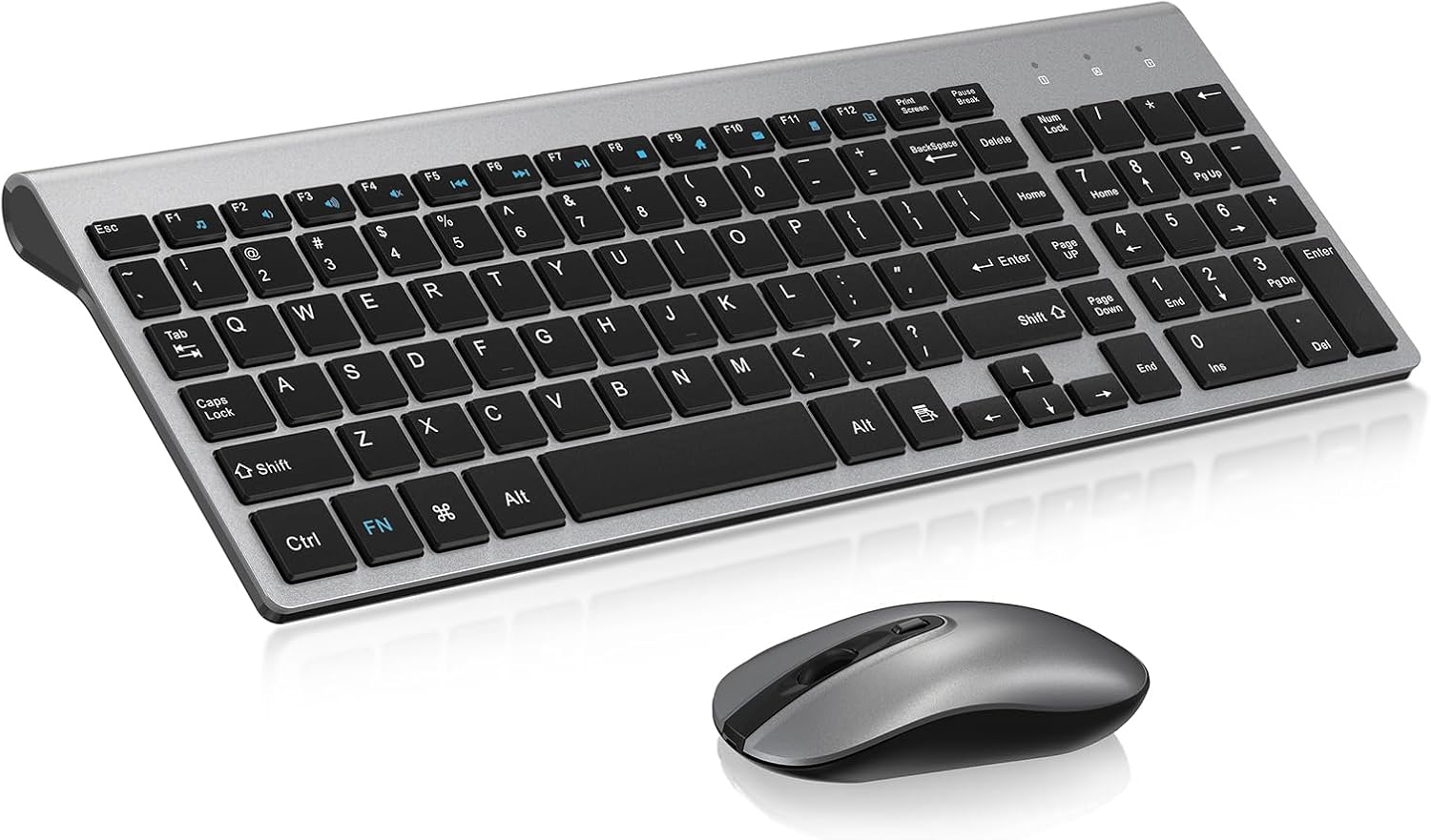
Image: The cimetech EasyTyping KF10 Wireless Keyboard and Mouse Combo, showcasing el seu disseny elegant.
2. Característiques clau
- Tecnologia sense fil 2.4G: Enjoy a stable and reliable connection up to 10 meters (33 feet), providing wireless freedom without cable constraints.
- Receptor USB únic: Both the keyboard and mouse connect via a single nano USB receiver, simplifying setup and freeing up valuable USB ports. The receiver is conveniently stored inside the mouse's battery compartment.
- Silent Scissor Switch Keys: The keyboard features a scissor switch key design, ensuring uniform force distribution, low sound, short key travel (2.5mm), and smooth pressing. This provides a comfortable, quiet, and labor-saving typing experience, reducing noise by up to 90%.

Imatge: Detallada view of the scissor switch key mechanism, highlighting advanced technology.

Image: Visual comparison illustrating 50% shorter key travel of EasyTyping keys versus traditional keys.
- Effortless Rebound: Accurate and fast typing without delay, with smooth and even rebound for long-lasting typing without wrist fatigue.
- Disseny ergonòmic: The keyboard features an 8-degree tilted angle to help release wrist pressure, promoting healthy typing habits and reducing hand fatigue.
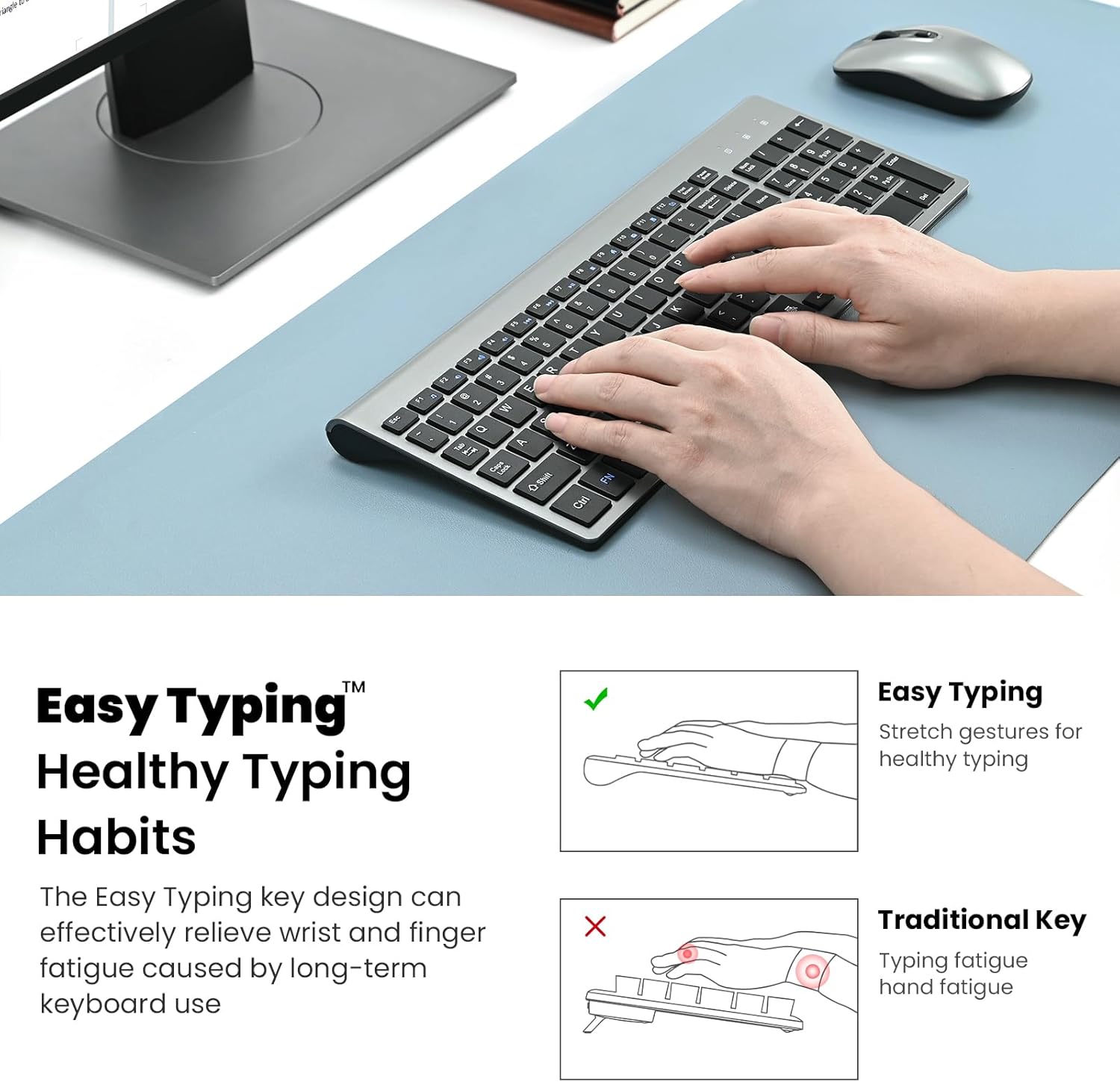
Image: Illustration demonstrating healthy typing habits and the ergonomic design of the keyboard.
- DPI del ratolí ajustable: The mouse offers adjustable DPI settings (default 1600 DPI) for precise cursor control.
- Estalvi d'energia: Both the keyboard and mouse are equipped with on/off switches to conserve battery life when not in use.
- Àmplia compatibilitat: Compatible with various operating systems including PC, Laptop, Mac, and Windows.
3. Instruccions de configuració
Follow these simple steps to set up your cimetech EasyTyping KF10 Wireless Keyboard and Mouse Combo:
- Localitza el receptor USB: The nano USB receiver is stored in the battery compartment of the mouse. Open the battery cover on the underside of the mouse and carefully remove the receiver.
- Insereix les piles:
- Per al Ratolí: Insert one (1) AA battery into the mouse battery compartment, ensuring correct polarity (+/-).
- Per al Teclat: Insert two (2) AAA batteries into the keyboard battery compartment, ensuring correct polarity (+/-).
- Connecteu el receptor: Insert the nano USB receiver into an available USB port on your computer (PC, laptop, Mac).
- Dispositius d'encesa: Turn on the keyboard and mouse using their respective on/off switches. The power indicator light on the keyboard will briefly illuminate.
- Connexió automàtica: The keyboard and mouse are plug-and-play. Your computer should automatically detect and connect to the devices within a few seconds. No additional drivers are typically required.
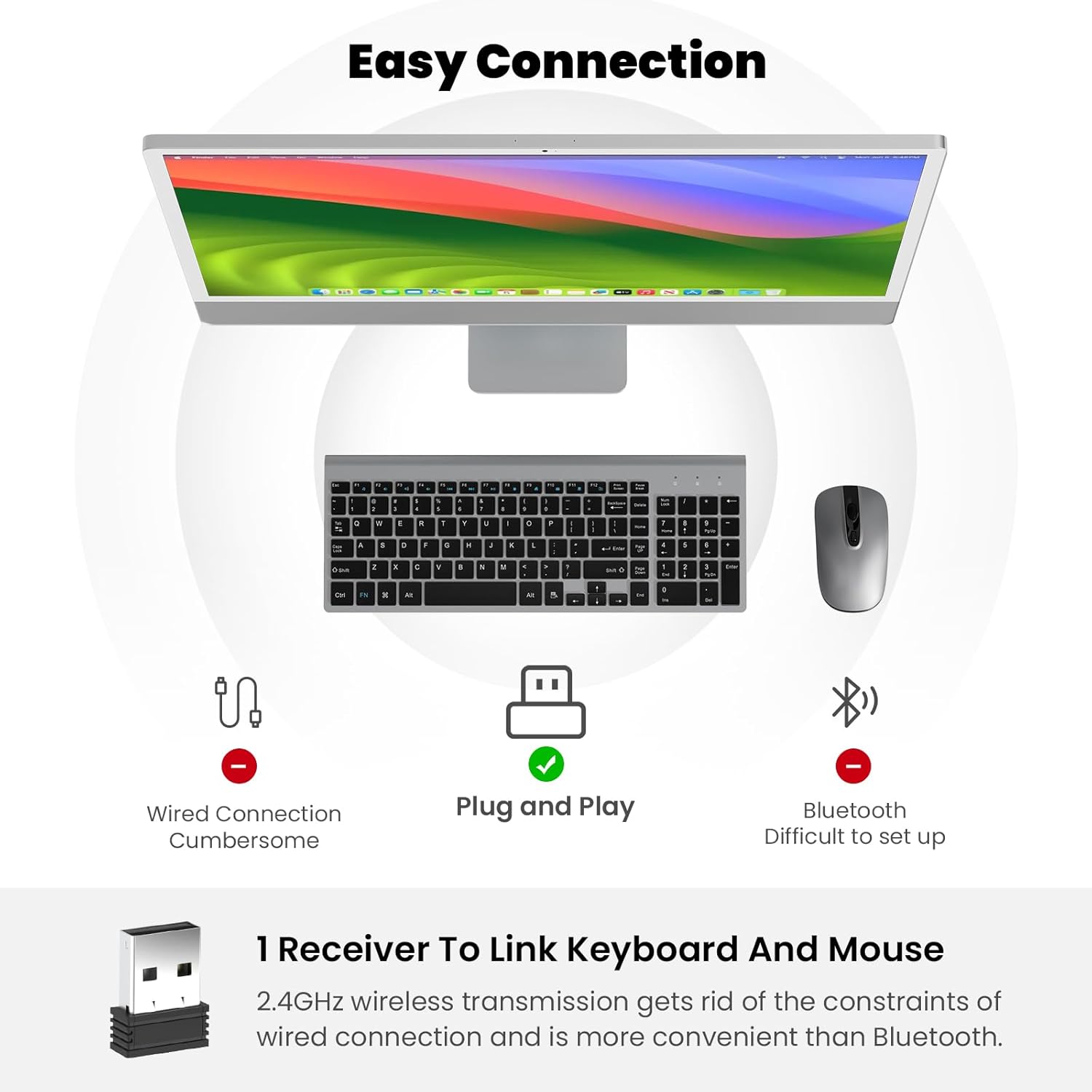
Image: Visual guide to the Easy Connection process, highlighting the single USB receiver and indicator lights.
Video: Official seller video demonstrating the setup process for the wireless keyboard and mouse combo, including locating and inserting the USB receiver.
4. Instruccions de funcionament
4.1 Ús del teclat
Simply begin typing. The scissor switch keys provide a responsive and quiet experience. The keyboard includes a full numeric keypad for convenient data entry.
- Tecles de funció (F1-F12): These keys often have secondary multimedia or shortcut functions (e.g., volume control, media playback, screen brightness). These functions are typically activated by pressing the 'Fn' key simultaneously with the desired F-key. Refer to your computer's operating system for specific function key mappings.
- Llums indicadores: The keyboard features indicator lights for Num Lock, Caps Lock, and a Power Indicator to show battery status or connection.
4.2 Ús del ratolí
Move the mouse to control the cursor on your screen. The silent click design ensures a quiet working environment.
- Clic esquerre/dret: Botons estàndard del ratolí per als menús de selecció i contextuals.
- Roda de desplaçament: Use the scroll wheel for vertical scrolling through documents and web pàgines.
- Ajust de DPI: The mouse may have a button (often near the scroll wheel) to cycle through different DPI settings, allowing you to adjust cursor sensitivity to your preference.
5. Manteniment
- Neteja: Use a soft, dry, lint-free cloth to clean the surface of the keyboard and mouse. For stubborn dirt, slightly dampal drap amb aigua o una solució de neteja suau. No utilitzeu productes químics o materials abrasius.
- Substitució de la bateria: When the devices stop responding or the power indicator light on the keyboard blinks, it's time to replace the batteries. Follow the instructions in the 'Setup' section for battery insertion.
- Emmagatzematge: When not in use for extended periods, turn off both the keyboard and mouse using their respective on/off switches to conserve battery life. Store the USB receiver in the mouse's battery compartment to prevent loss.
- Condicions ambientals: Avoid exposing the devices to extreme temperatures, direct sunlight, high humidity, or liquids.
6. Solució De Problemes
| Problema | Possible solució |
|---|---|
| El teclat/ratolí no respon |
|
| Connexió amb retard o intermitent |
|
| El cursor del ratolí és erràtic o no es mou suaument |
|
| Tecles específiques que no funcionen |
|
7. Especificacions
- Model: KF10
- Marca: cimetech
- Connectivitat: Sense fil 2.4G (receptor USB)
- Interval sense fil: Fins a 10 metres (33 peus)
- Dimensions del teclat: 14.37 x 5.51 x 0.24 polzades (36.5 x 14 x 0.6 cm)
- Total Item Weight (Keyboard & Mouse): 1.32 lliures (0.6 kg)
- Bateria del teclat: 2 piles AAA (no incloses)
- Bateria del ratolí: 1 x piles AA (no incloses)
- Tipus de clau: Interruptor de tisora
- DPI del ratolí: Adjustable (Default 1600 DPI)
- Compatibilitat: PC, Laptop, Mac, Windows
8. Garantia i Suport
cimetech is committed to providing high-quality products and excellent customer service. If you encounter any issues not covered in this manual or require further assistance, please do not hesitate to contact our customer support team. Our sales customer service provides perfect technical support and can quickly deal with any technical problems you may encounter.
Please retain your proof of purchase for any warranty claims. Specific warranty terms and conditions may vary by region and retailer.
Ask a question about this manual
Ask about setup, troubleshooting, compatibility, parts, safety, or missing instructions. Manuals+ will review the question and use this page’s manual context to help answer it.