
Introducció
Welcome to the Havit TH650A RGB Gaming Headset and Headphone Stand Set. This manual provides detailed instructions for setting up, operating, and maintaining your new gaming accessories. Please read thoroughly before use to ensure proper functionality and to maximize your product experience.
Què hi ha a la caixa
- Havit TH650A RGB Gaming Headset
- RGB Headphone Stand with Phone Holder and 2 USB Ports
- USB Cable (for stand power/data)
- 3.5mm Audio Cable (for headset)
- Y-Splitter Cable (for PC with separate audio/mic jacks)

Producte acabatview
Havit TH650A RGB Gaming Headset
The Havit TH650A Gaming Headset features 50mm dynamic drivers for clear audio, soft and breathable earmuffs for comfort, and an adjustable headband. It includes a flexible microphone and integrated volume control with a mic switch. The earcups feature dynamic RGB lighting.


Suport d'auriculars RGB
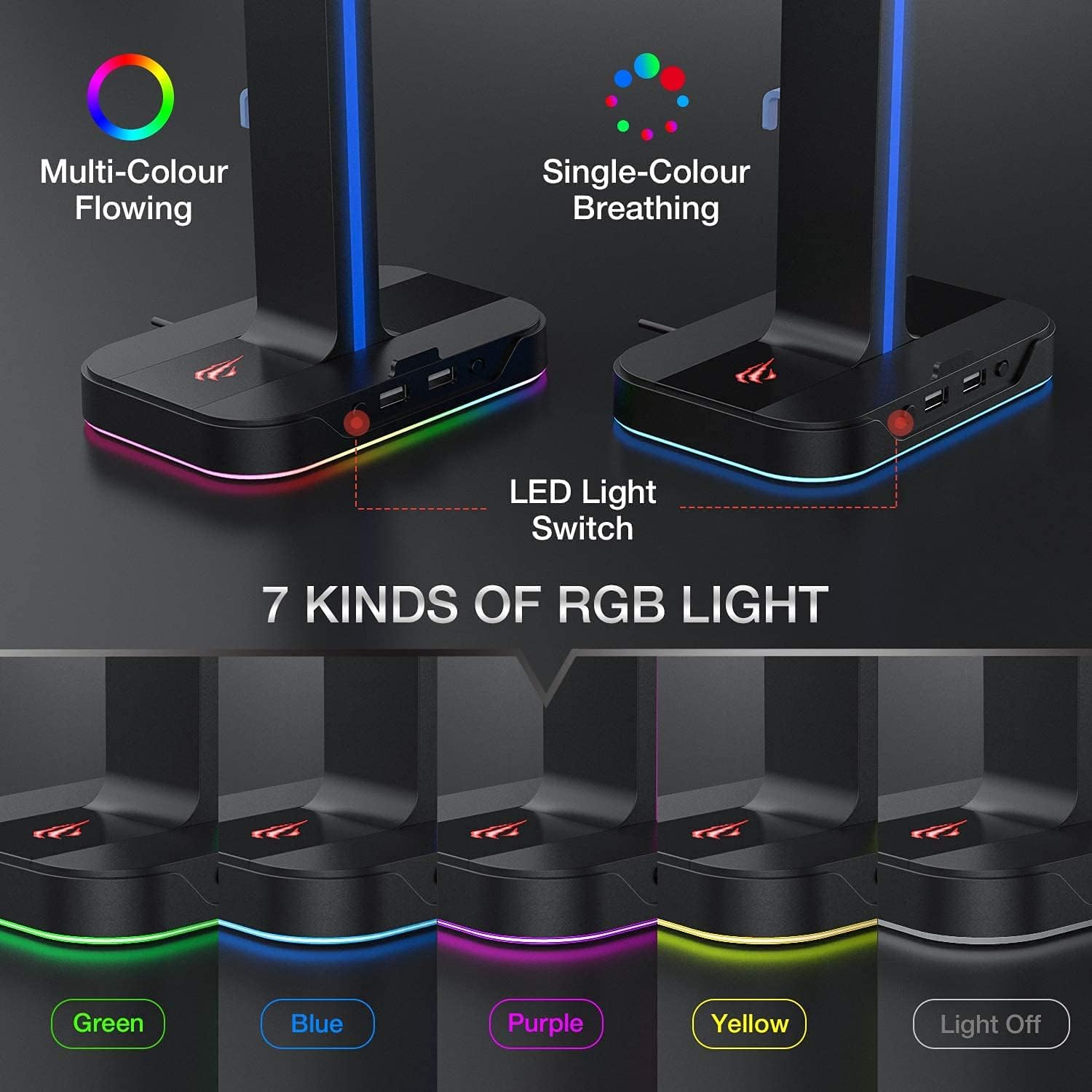
The accompanying RGB Headphone Stand provides a stable storage solution for your headset. It features a built-in phone holder, two USB 2.0 ports for data transfer and charging, and customizable RGB lighting with multiple modes.

Instruccions de configuració
Headphone Stand Setup
- Connect the provided USB cable to the stand's USB-C port (if applicable, or micro-USB) and plug the other end into a USB port on your computer or a compatible power adapter.
- Place the headphone stand on a stable, flat surface.
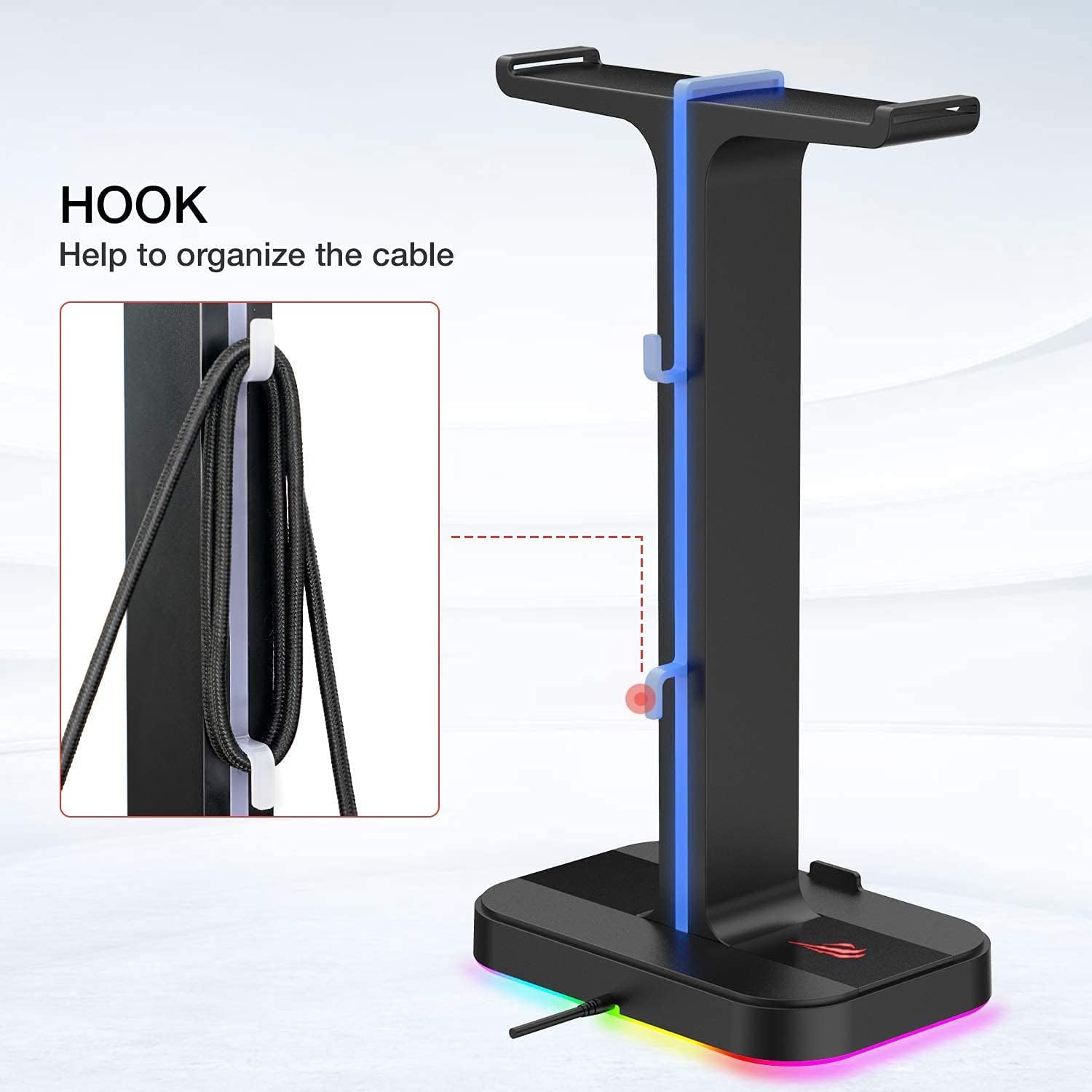
- Utilize the integrated cable management hooks on the stand to organize the USB cable for a tidy setup.
Connexió d’auriculars
- Connect the 3.5mm audio jack from the Havit TH650A headset to the 3.5mm audio port on your computer, gaming console controller, or the headphone stand (if it has an audio pass-through).
- If your computer has separate audio and microphone jacks, use the included Y-splitter cable. Plug the headset's 3.5mm jack into the splitter, then plug the green splitter jack into your computer's audio output and the pink splitter jack into your computer's microphone input.
- For RGB lighting on the headset, ensure the headset's USB connector is plugged into a powered USB port (e.g., on your computer or the headphone stand).

Instruccions de funcionament
Ús d'auriculars
Adjust the headband for a comfortable fit. Position the microphone close to your mouth for optimal voice clarity.
Use the in-line volume control wheel to adjust audio levels. The microphone can be muted using the dedicated switch on the headset cable.
Headphone Stand Features
The two USB 2.0 ports on the stand can be used to connect other peripherals like a mouse or keyboard, or to charge small devices.
The integrated phone holder provides a convenient place to rest your smartphone.
Control d'il·luminació RGB
Auriculars RGB
The headset's RGB lighting activates automatically when its USB connector is plugged into a powered USB port. The lighting cycles through various colors.
Stand RGB
The headphone stand features a dedicated LED light switch. Press this button to cycle through 7 different RGB lighting modes, including multi-color flowing and single-color breathing effects. Press and hold the button to turn the RGB lighting off.

Manteniment
To ensure longevity and optimal performance, keep the headset and stand clean and free from dust.
Use a soft, dry cloth to wipe down surfaces. Avoid using harsh chemicals or abrasive materials.
Store the headset on the stand when not in use to prevent damage and keep your desk organized.
Resolució de problemes
No hi ha so dels auriculars
- Ensure the 3.5mm audio jack is fully inserted into the correct port.
- Check your device's audio settings to confirm the Havit TH650A is selected as the output device and volume is not muted.
- If using the Y-splitter, ensure both jacks are correctly plugged into their respective ports.
El micròfon no funciona
- Verify the microphone mute switch on the headset cable is in the "unmuted" position.
- Check your device's sound settings to ensure the Havit TH650A microphone is selected as the input device and its volume is not muted.
Les llums RGB no funcionen
- For the headset, ensure its USB connector is securely plugged into a powered USB port.
- For the stand, ensure its main USB cable is connected to a powered USB port. Press the LED light switch on the stand to cycle through modes or turn it on.
USB Ports on Stand Not Functioning
- Ensure the stand's main USB cable is properly connected to a powered USB 2.0 or 3.0 port on your computer.
- Some devices may require additional power; ensure the connected USB port provides sufficient power.
Especificacions
| Característica | Detall |
|---|---|
| Marca | haver |
| Número de model | TH650A |
| Tecnologia de connectivitat | Amb cable |
| Conector d'auriculars | 3.5 mm Jack |
| Mida del controlador d'àudio | 50 mil·límetres |
| Interval de freqüència | 20 Hz - 20,000 Hz |
| Control de soroll | Aïllament acústic |
| Total USB 2.0 Ports (on stand) | 2 |
| Built-In Media (on stand) | Suport de telèfon |
| Dispositius compatibles | Desktops, PS4, PS5, Xbox |
Garantia i Suport
For warranty information and technical support, please refer to the official Havit weblloc web o contacteu directament amb el servei d'atenció al client. Conserveu el rebut de compra per a reclamacions de garantia.

