
1. Introducció
This manual provides instructions for the Lexmark CS331dw Color Single-Function Laser Printer. It covers setup, operation, maintenance, and troubleshooting to ensure optimal performance and longevity of your device. The Lexmark CS331dw is designed for efficient color printing in office environments, offering a print speed of up to 24 pages per minute.
2. Informació de seguretat
Read all safety information before using the printer to prevent injury and damage to the product. Keep this guide for future reference.
- Seguretat elèctrica: Connect the printer to a properly grounded electrical outlet. Do not use damaged power cords.
- Calor: Certain internal and external parts of the printer can become hot during operation. Avoid touching these areas.
- Cartutxos de tòner: Handle toner cartridges carefully. If toner gets on your skin or clothing, wash it off immediately with soap and cold water. Do not incinerate toner cartridges.
- Ventilació: Assegureu-vos que hi hagi una ventilació adequada al voltant de la impressora per evitar el sobreescalfament.
- Col·locació: Place the printer on a stable, level surface. Avoid placing it near water or in excessively humid environments.
3. Què hi ha a la caixa
Verifiqueu que tots els components siguin presents en desembalar-lo:
- Lexmark CS331dw Color Printer
- Cartutxos de tòner inicials (negre, cian, magenta, groc)
- Cable d'alimentació
- Guia de configuració i documentació
4. Producte acabatview
Familiarize yourself with the main components of your Lexmark CS331dw printer.
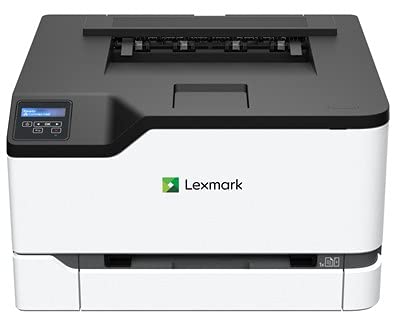
Figura 1: Frontal view of the Lexmark CS331dw Color Printer, showing the paper tray and output bin.
- Tauler de control: Features push buttons for navigation and status indicators.
- Standard Input Tray: Situat a la part inferior frontal, té capacitat per a 250 fulls.
- Ranura d'alimentació manual: For single-sheet printing of special media.
- Safata de sortida: Located at the top, where printed pages are collected.
- Ports posteriors: Includes Ethernet port for network connectivity and power input.
5. Configuració
5.1 Desembalatge i col·locació
- Traieu la impressora del seu embalatge.
- Remove all protective tapes and packing materials from the exterior and interior of the printer. Refer to the setup guide for specific locations.
- Place the printer on a sturdy, level surface with adequate space for ventilation and access to power and network connections.
5.2 Càrrega de paper
- Pull out the standard input tray.
- Ajusteu les guies del paper perquè coincideixin amb la mida del paper que carregueu.
- Load paper with the print side facing up. Do not overfill the tray.
- Empenyeu suaument la safata cap a dins de la impressora.
5.3 Connexió de l'alimentació i la xarxa
- Connecteu el cable d'alimentació a la impressora i després a una presa de corrent amb connexió a terra.
- Per a la impressió en xarxa, connecteu un cable Ethernet des del vostre encaminador de xarxa o canvieu-lo al port Ethernet de la part posterior de la impressora.
- Premeu el botó d'engegada per encendre la impressora.
5.4 Instal·lació del controlador
Install the latest printer drivers from the official Lexmark support website. Follow the on-screen instructions for installation. For mobile printing, download the Lexmark Mobile Print app on your smartphone.
6. Instruccions de funcionament
6.1 Impressió bàsica
- Assegureu-vos que la impressora estigui engegada i connectada a l'ordinador o a la xarxa.
- Obriu el document o la imatge que voleu imprimir a l'ordinador.
- Seleccioneu Imprimeix des del menú de l'aplicació (per exemple, File > Imprimeix).
- Choose the Lexmark CS331dw from the list of available printers.
- Adjust print settings such as paper size, orientation, color/monochrome, and number of copies.
- Feu clic Imprimeix.
6.2 Impressió mòbil
Use the Lexmark Mobile Print app to print directly from your smartphone or tablet. Ensure your mobile device is connected to the same network as the printer.
6.3 Loading Envelopes and Special Media
For envelopes or other special media, use the manual feed slot. Load one sheet at a time, following the on-screen prompts or printer control panel instructions for media type and size selection.
7. Manteniment
7.1 Substitució dels cartutxos de tòner
Quan un cartutx de tòner estigui baix o buit, el tauler de control de la impressora mostrarà un missatge. Substituïu els cartutxos de la manera següent:
- Obriu la coberta frontal de la impressora.
- Locate the empty toner cartridge (Black, Cyan, Magenta, or Yellow).
- Grasp the handle of the cartridge and pull it straight out.
- Unpack the new Lexmark genuine toner cartridge and gently shake it to distribute the toner.
- Introduïu el cartutx nou a la ranura corresponent fins que encaixi al seu lloc.
- Tanqueu la coberta frontal.
7.2 Neteja de la impressora
Una neteja regular ajuda a mantenir la qualitat d'impressió i allarga la vida útil de la impressora.
- Exterior: Netegeu l'exterior amb un suau, damp, drap sense borrissol. No utilitzeu productes de neteja abrasius.
- Interior: Periodically open the front cover and gently remove any loose toner or paper dust with a dry, lint-free cloth. Avoid touching sensitive components.
7.3 Eliminació d'embussos de paper
If a paper jam occurs, the printer will display an error message. Follow the on-screen instructions or these general steps:
- Apagueu la impressora i desconnecteu el cable d'alimentació.
- Open the covers and trays as indicated by the error message or as necessary to access the jammed paper.
- Carefully pull the jammed paper in the direction of the paper path. Avoid tearing the paper.
- Assegureu-vos que s'hagin eliminat tots els fragments de paper.
- Tanqueu totes les cobertes i safates, connecteu el cable d'alimentació i engegueu la impressora.
8. Solució De Problemes
Aquesta secció tracta problemes comuns que podeu trobar.
- La impressora no respon:
- Comproveu les connexions d'alimentació i assegureu-vos que la impressora estigui engegada.
- Verify network cable connection (Ethernet).
- Reinicieu la impressora i l'ordinador.
- Assegureu-vos que els controladors de la impressora estiguin correctament instal·lats i actualitzats.
- Mala qualitat d'impressió:
- Check toner levels for all colors (Black, Cyan, Magenta, Yellow).
- Ensure you are using genuine Lexmark toner cartridges.
- Realitzeu un calibratge de la qualitat d'impressió des del tauler de control o des de la configuració del controlador de la impressora.
- Clean the printer's interior as described in the Maintenance section.
- Embussos de paper:
- Refer to Section 7.3 for detailed instructions on clearing paper jams.
- Assegureu-vos que el paper estigui carregat correctament i que no estigui massa ple.
- Feu servir els tipus i gramatges de paper recomanats.
9. Especificacions
| Característica | Especificació |
|---|---|
| Número de model | 40N9120 |
| Tecnologia d'impressió | Làser |
| Sortida de la impressora | Color |
| Velocitat màxima d'impressió (color) | 24 ppm |
| Velocitat màxima d'impressió (monocrom) | 24 ppm |
| Resolució màxima d'impressió en color | 600 x 600 ppp |
| Resolució màxima d'impressió en blanc i negre | 600 ppp |
| Tecnologia de connectivitat | Ethernet |
| Mètode de control | Aplicació, botó |
| Color de tinta | Negre, Cian, Magenta, Groc |
| Tipus de tinta de la impressora | Tòner |
| Capacitat màxima del full d'entrada | 251 |
| Capacitat de fulls de sortida | 251 |
| Impressió a doble cara | Sí |
| Dimensions del producte (LxWxH) | 15.52 x 16.19 x 9.59 polzades |
| Pes de l'article | 35.5 lliures (16.1 kg) |
| Wattage | 395 watts |
10. Garantia i Suport
Lexmark provides a standard warranty for this product. For detailed warranty information, please refer to the warranty card included with your printer or visit the official Lexmark weblloc. Per obtenir assistència tècnica, descàrregues de controladors i recursos addicionals, visiteu www.lexmark.com/support.