
1. Introducció
This user manual provides comprehensive instructions for the NETVIP Dual Band WiFi Range Extender (Model: ZQ1211). This device is designed to extend the coverage of your existing Wi-Fi network, eliminating dead zones and providing a stronger, more reliable wireless signal throughout your home or office. It supports both 2.4GHz and 5GHz frequency bands for versatile connectivity.

Image: The NETVIP Dual Band WiFi Range Extender, a white rectangular device with four external antennas, plugged into a wall socket. Indicator lights are visible on the front panel.
2. Característiques del producte
- Connectivitat de banda dual: Supports both 2.4GHz (up to 300Mbps) and 5GHz (up to 867Mbps) Wi-Fi bands for a combined speed of 1200Mbps.
- Cobertura ampliada: Designed to eliminate Wi-Fi dead zones and extend wireless signal to hard-to-reach areas.
- Funció WPS: Easy one-touch setup for quick connection to your router.
- Ports Ethernet: Includes LAN and WAN/LAN ports for wired connections to devices like smart TVs, gaming consoles, or PCs.
- Compatibilitat amb diversos dispositius: Can connect up to 10 wireless devices simultaneously with stable performance.
- LED de força del senyal: Helps in finding the optimal location for installation by indicating signal strength.

Image: A graphic illustrating the benefits of dual-band Wi-Fi. The 5GHz band (867Mbps) is shown for interference-free HD video and gaming, while the 2.4GHz band (300Mbps) is for basic internet applications and more supported devices.

Image: A cutaway diagram of a multi-story house showing a router on the ground floor and the Wi-Fi extender on the second floor, illustrating how the extender helps eliminate Wi-Fi dead zones by extending coverage.
3. Producte acabatview
Familiarize yourself with the components of your NETVIP WiFi Range Extender:
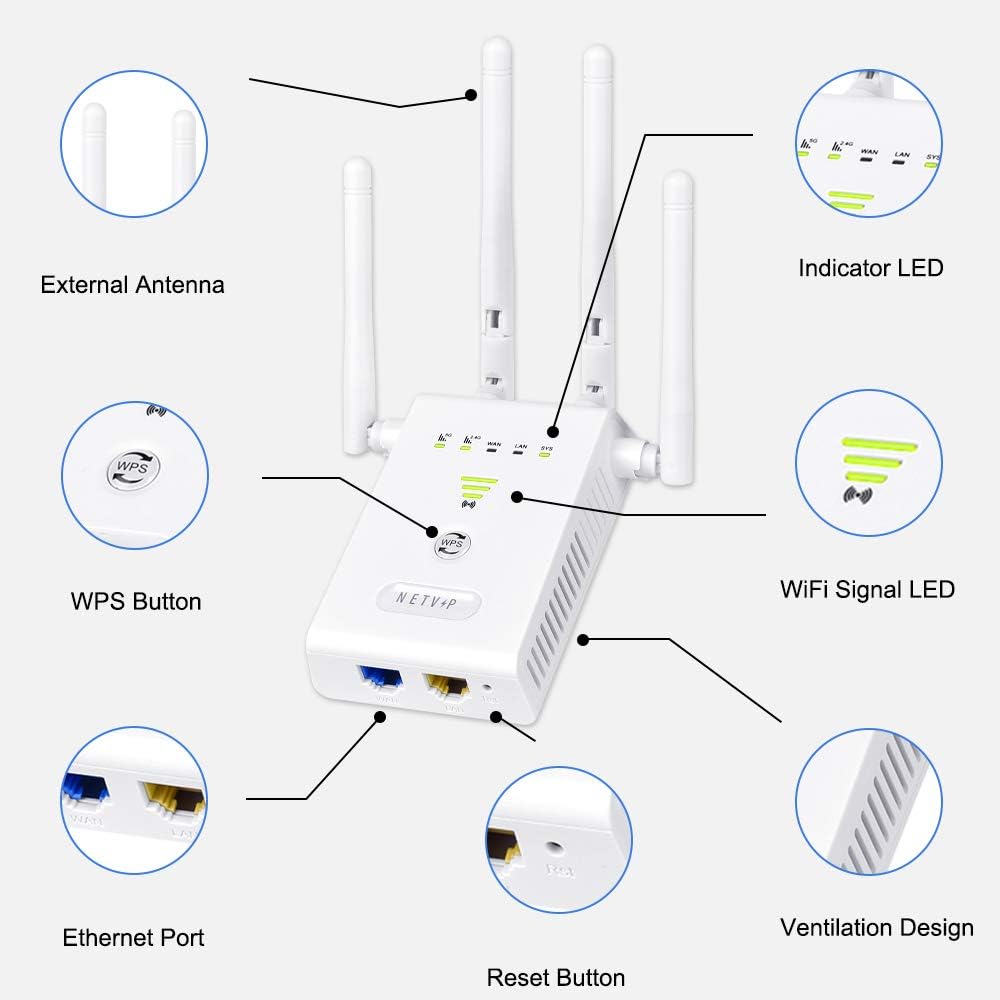
Image: A detailed diagram of the Wi-Fi extender with labels pointing to its key components: External Antennas, Indicator LEDs (2.4G, 5G, WAN, LAN, SYS), WiFi Signal LED, WPS Button, Ethernet Ports (LAN/WAN), and Reset Button, and Ventilation Design.
- Antenes externes: Four adjustable antennas for optimal signal reception and transmission.
- LED indicadors: Lights indicating status for 2.4G, 5G, WAN, LAN, and System (SYS).
- WiFi Signal LED: Indicates the strength of the Wi-Fi signal received by the extender.
- Botó WPS: For quick and easy setup with WPS-enabled routers.
- Ethernet Ports (LAN/WAN): For connecting wired devices or for setting up in AP/Router mode.
- Botó de restabliment: S'utilitza per restaurar el dispositiu a la configuració de fàbrica.
- Disseny de ventilació: Ensures proper heat dissipation for stable operation.
4. Instruccions de configuració
4.1. WPS One-Touch Connection
The easiest way to set up your extender is using the WPS (Wi-Fi Protected Setup) function. Ensure your router supports WPS.
- Plug the NETVIP extender into a power outlet near your main router.
- Espereu que el LED d'engegada s'encengui fixament.
- Premeu el botó WPS del vostre encaminador amfitrió.
- Within 2 minutes, press the WPS button on the WiFi Repeater.
- Wait for 1-2 minutes for the connection to establish. The Wi-Fi Signal LED on the extender should turn solid, indicating a successful connection.

Image: A visual guide demonstrating the three steps for WPS setup: 1. Press WPS on host router, 2. Press WPS on WiFi Repeater, 3. Wait for 1-2 minutes for successful setup.
4.2. Manual Setup (Via Web Navegador)
If your router does not support WPS or if you prefer manual configuration, follow these steps:
- Plug the NETVIP extender into a power outlet near your main router.
- Connect your computer or mobile device to the extender's Wi-Fi network (e.g., "NETVIP_Extender" or similar, usually without a password initially).
- Obre a web navegador i introduïu l'adreça IP predeterminada (p. ex., 192.168.10.1) or the default domain name (check the manual or device label for specifics, common ones are wifi.repeater or ap.setup).
- Log in using the default username and password (usually "admin" for both, check the device label or included quick start guide).
- Follow the on-screen wizard to select your desired operating mode (Repeater, AP, or Router).
- If in Repeater mode, select your existing Wi-Fi network and enter its password. You can choose to keep the same SSID or create a new one for the extended network.
- Save the settings and wait for the extender to restart.
- Once restarted, the Wi-Fi Signal LED should indicate a strong connection. You can now unplug the extender and move it to an optimal location.
5. Modes de funcionament
The NETVIP WiFi Range Extender supports multiple operating modes to suit various networking needs:
- Mode de repetidor: Extends the range of your existing wireless network. This is the most common mode for eliminating Wi-Fi dead zones.
- Mode AP (punt d'accés): Converts a wired network connection into a wireless one. Ideal for areas with only wired internet access, allowing wireless devices to connect.
- Mode d'encaminador: Functions as a primary router, creating a new private network. This mode is typically used when you have a modem but no router.

Image: A diagram illustrating the use of the LAN/WAN port to connect wired devices such as a printer, laptop, desktop computer, or game console to the extender, creating a wired connection for these devices.
6. Col·locació òptima
For best performance, place the extender in a location where it can receive a strong signal from your main router and also effectively transmit to the areas needing coverage. The Signal Strength LED can assist you:

Image: A close-up of the extender's front panel showing the Signal Strength LED. It indicates that three bars mean Strong Signal, two bars mean Medium Signal, and one bar means Weak Signal. Aim for a strong or medium signal.
- Place the extender roughly halfway between your router and the Wi-Fi dead zone.
- Avoid placing it near large metal objects, concrete walls, or other devices that emit electromagnetic interference (e.g., microwaves, cordless phones).
- Ensure the Signal Strength LED indicates a strong or medium signal from your router. If it's weak, move the extender closer to the router.
7. Manteniment
- Reinici regular: Periodically restarting the extender (unplugging and plugging back in) can help maintain optimal performance.
- Actualitzacions de firmware: Comproveu el del fabricant weblloc (www.netvip.com) for any available firmware updates. Updates can improve performance and security.
- Neteja: Feu servir un drap suau i sec per netejar el dispositiu. No utilitzeu netejadors líquids ni aerosols.
- Medi ambient: Keep the device in a cool, dry place, away from direct sunlight and excessive heat or moisture.
8. Solució De Problemes
If you encounter issues with your NETVIP WiFi Range Extender, try the following solutions:
| Problema | Solució |
|---|---|
| Cannot connect to the extender's Wi-Fi network. | Ensure the extender is powered on. Try restarting the extender. Verify you are selecting the correct network name (SSID). |
| No internet access after connecting to the extender. | Check the connection between the extender and your main router (Signal Strength LED). Ensure the extender is configured correctly (e.g., entered the correct password for your main Wi-Fi network). Restart both the extender and your main router. |
| Slow internet speed through the extender. | Relocate the extender to a position where it receives a stronger signal from your main router (check Signal Strength LED). Reduce interference from other electronic devices. Ensure your main internet connection is stable. |
| La configuració del WPS ha fallat. | Ensure your router supports WPS and that you pressed both WPS buttons within the required timeframe. Try the manual setup method via web navegador. |
| Forgot login password for web pàgina de gestió. | Press and hold the Reset button on the extender for 5-10 seconds until the LEDs flash. This will restore the extender to factory default settings, and you can then log in with the default credentials. |
9. Especificacions
| Característica | Detall |
|---|---|
| Número de model | ZQ1211 |
| Marca | NETVIP |
| Velocitat de transferència de dades | 1200 megabits per segon (Mbps) |
| Classe de banda de freqüència | Doble banda (2.4 GHz i 5 GHz) |
| Tipus de connector | RJ45 (Ethernet) |
| Dispositius compatibles | Encaminador |
| Dimensions del producte | 4.72 x 4.13 x 1.97 polzades |
| Pes de l'article | 7.2 unces |

Image: A bar chart illustrating the data transfer rates for the 2.4 GHz (300 Mbps) and 5 GHz (867 Mbps) bands, emphasizing the dual wireless band support.
10. Garantia i Suport
For warranty information and technical support, please refer to the documentation included with your product or visit the official NETVIP weblloc. Conserveu el rebut de compra per a reclamacions de garantia.
For further assistance, you may also contact NETVIP customer service through their official channels.
