Introducció
This manual provides essential information for setting up, operating, maintaining, and troubleshooting your SYSTEMTREFF PC AMD Ryzen 7 5700G. Please read this manual thoroughly before using your new computer to ensure proper functionality and longevity.

Imatge: Anvers view of the SYSTEMTREFF PC, showcasing its transparent side panel and illuminated internal components.
Guia de configuració
Follow these steps to set up your SYSTEMTREFF PC.
1. Desembalatge i col·locació
- Carefully remove the PC from its packaging. Retain all packaging materials for future transport or service.
- Place the PC on a stable, flat surface with adequate ventilation. Ensure there is sufficient space around the computer for airflow, especially at the front, rear, and top vents.
- Avoid placing the PC near heat sources, in direct sunlight, or in areas with excessive dust or humidity.

Imatge: Diversos views of the PC case illustrating its physical dimensions for proper placement.
2. Connexió de perifèrics
Connecteu el monitor, el teclat, el ratolí i altres dispositius als ports adequats.
- Monitor: Connect your monitor to the HDMI or DVI-D port on the rear of the PC. Ensure the cable is securely fastened.
- Teclat i ratolí: Connect your USB keyboard and mouse to any available USB ports (USB 2.0 or USB 3.0/3.2). PS/2 ports are also available for compatible devices.
- Àudio: Connect speakers or headphones to the audio output jack (green) and a microphone to the microphone input jack (pink) on the rear or front panel.
- Xarxa: For a wired connection, connect an Ethernet cable from your router to the RJ45 LAN port on the rear. For wireless connectivity, ensure the included USB Wi-Fi stick is connected.
- Potència: Connect the power cable to the power supply unit (PSU) at the rear of the PC, then plug the other end into a grounded electrical outlet.

Imatge: Detallada view of the available front and rear ports for connecting various peripherals.
Instruccions de funcionament
1. Primer arrencada i configuració inicial
- After connecting all peripherals, press the power button located on the top front of the PC.
- The system will boot into Windows 10 Pro. Follow the on-screen instructions to complete the initial Windows setup, including region, language, and user account creation.
- Drivers for all components are pre-installed, ensuring a plug-and-play experience.
2. Ús bàsic
- Encès/apagat: Press the power button to turn on. To shut down, click the Start button in Windows, then select Power > Shut down.
- Reinicia: Per reiniciar el sistema, feu clic al botó Inici i, a continuació, seleccioneu Energia > Reinicia.
- Mode de repòs: To put the system into sleep mode, click the Start button, then select Power > Sleep.
- Connectivitat: The PC supports Wi-Fi and Bluetooth for wireless connections. Use the Windows settings to connect to wireless networks or pair Bluetooth devices.

Imatge: Examples of typical usage scenarios for the PC, including productivity, entertainment, and gaming.
Manteniment
Regular maintenance helps ensure the optimal performance and longevity of your PC.
1. Neteja
- Exterior: Utilitzeu un suau, damp cloth to clean the exterior of the case. Avoid abrasive cleaners.
- Pols: Periodically clean dust from the vents and fans using compressed air. Ensure the PC is powered off and unplugged before cleaning. The case features a mesh front and side panel for improved airflow and dust filtration.

Image: Features of the PC case designed for efficient cooling and maintenance access.
2. Actualitzacions de programari
- Comproveu i instal·leu regularment si hi ha actualitzacions de Windows per garantir l'estabilitat i la seguretat del sistema.
- Keep your graphics drivers updated for optimal performance, especially for gaming and multimedia applications.
Resolució de problemes
Aquesta secció tracta problemes comuns que podeu trobar.
Sense poder
- Assegureu-vos que el cable d'alimentació estigui connectat correctament tant a l'ordinador com a la presa de corrent.
- Verify that the power switch on the back of the power supply unit (PSU) is in the 'On' position.
- Test the outlet with another device to confirm it is functional.
No es mostra al monitor
- Check that the monitor is powered on and its video cable is securely connected to the PC's HDMI or DVI-D port.
- Ensure the monitor input source is correctly selected (e.g., HDMI 1, DVI).
- If you have multiple display outputs, try connecting to a different port.
Alentiment o congelació del sistema
- Tanca les aplicacions innecessàries que s'executen en segon pla.
- Check for sufficient free space on your drives, especially the C: drive (SSD).
- Executeu una anàlisi de virus per comprovar si hi ha programari maliciós.
- Assegureu-vos que l'ordinador tingui una ventilació adequada i que no s'escalfi massa.
Especificacions
Detailed technical specifications of your SYSTEMTREFF PC.
| Component | Especificació |
|---|---|
| Processador | AMD Ryzen 7 5700G (8 Cores, up to 4.6 GHz Turbo) |
| Gràfics | Integrated AMD Radeon RX Vega 8 (4GB, 2000 MHz, DirectX 12.1) |
| RAM | 32 GB de DDR4 a 3200 MHz |
| Emmagatzematge | 1TB M.2 NVMe SSD + 2TB HDD |
| Sistema operatiu | Windows 10 Pro (64-bit, pre-installed) |
| Font d'alimentació | 500 watts |
| Connectivitat | Wi-Fi, Bluetooth, Gigabit LAN (RJ45) |
| Ports davanters | 1x USB 3.0, 2x USB 2.0, Entrada/Sortida d'àudio |
| Ports posteriors | HDMI 4K HD, DVI-D, PS/2, 4x USB 3.2, 2x USB 2.0, HD 7.1 Sound, RJ45 LAN |
| Dimensions (AxAxP) | 45 x 20.5 x 38.5 cm |
| Pes | 12 kg |

Image: Visual summary of the PC's core performance components.


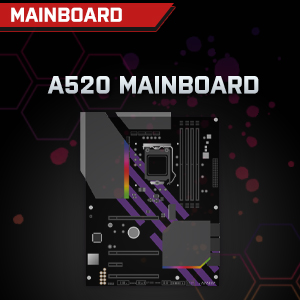

Image: Individual component representations for CPU, RAM, Graphics, Storage, Mainboard, and Power Supply.
Garantia i Suport
SYSTEMTREFF is committed to providing excellent customer service.
- Garantia del fabricant: Your SYSTEMTREFF PC comes with a 36-month (3-year) manufacturer's warranty. This warranty covers defects in materials and workmanship under normal use.
- Control de qualitat: All individually assembled PCs undergo a quality control check before shipment.
- Devolucions: In case of issues, SYSTEMTREFF offers free returns.
- Contacte amb l'assistència: For technical assistance, warranty claims, or any other inquiries, please contact SYSTEMTREFF customer support. Contact details can typically be found on the manufacturer's official weblloc web o la documentació inclosa amb la compra.

Image: Information regarding warranty, ease of setup, and customer support availability.


