
1. Producte acabatview
The Victrix Gambit Gaming Headset offers both wireless and wired connectivity for versatile use with Xbox One, Xbox Series X|S, and PC. Designed for competitive gaming, it features Dolby Atmos surround sound, 50mm HD speaker drivers, and a bi-directional noise-canceling microphone.

Image 1.1: The Victrix Gambit Gaming Headset, showcasing its sleek black design and over-ear cups.

Image 1.2: The Victrix Gambit headset highlighting its dual wireless and wired modes for home and tournament play.
2. Instruccions de configuració
2.1 Contingut del paquet
- Auriculars de joc Victrix Gambit
- Dongle USB sense fils
- Cable d'àudio de 3.5 mm amb controls en línia
- Cable de càrrega USB
- Manual d'usuari (aquest document)
2.2 Càrrega dels auriculars
Before initial use, fully charge the headset. Connect the USB charging cable to the headset's charging port and to a powered USB port (e.g., console, PC, or USB wall adapter). The LED indicator will show charging status.
2.3 Wireless Connection (Xbox/PC)
- Insert the wireless USB dongle into an available USB port on your Xbox console or PC.
- Engegueu els auriculars prement i mantenint premut el botó d'engegada fins que l'indicador LED s'il·lumini.
- The headset and dongle should automatically pair. A solid LED on both indicates a successful connection.
- If pairing does not occur automatically, press the pairing button on the USB dongle, then press and hold the Power/Pairing button on the headset until the LED flashes rapidly, then becomes solid.
2.4 Wired Connection (3.5mm)
For wired use or tournament play, connect the supplied 3.5mm audio cable from the headset's 3.5mm port to your controller or device's audio jack. The headset will automatically switch to wired mode.
3. Funcionament dels auriculars
3.1 Encès/Apagat
- Encès: Press and hold the Power button on the headset until the LED illuminates.
- Apagar: Premeu i manteniu premut el botó d'engegada fins que el LED s'apagui.
3.2 Volume and Audio Controls
The headset features on-ear controls for convenient audio adjustments.

Image 3.1: Close-up of the headset's right earcup, showing the power button, mode switch, and game/chat balance dial.
- Volum mestre: Use the volume dial on the earcup to adjust the overall audio level.
- Equilibri del joc/xat: Use the dedicated dial to balance game audio and chat volume.
- Interruptor de mode: Toggle between different audio modes or profiles if available (refer to specific software for customization).
3.3 Ús del micròfon
The bi-directional noise-canceling microphone ensures clear communication.

Image 3.2: The flexible boom microphone of the Victrix Gambit headset, designed for clear voice capture.
- Girar per silenciar: Flip the microphone boom arm upwards to mute the microphone. Flip it down to unmute.
- Monitorització del micròfon: The headset may offer a three-stage mic monitor. Adjust this feature through the headset's companion software on PC or console settings to hear your own voice feedback.
3.4 Dolby Atmos Integration
The headset includes integrated Dolby Atmos for immersive surround sound. A lifetime subscription is included. Ensure Dolby Atmos is enabled in your console or PC audio settings for the best experience.
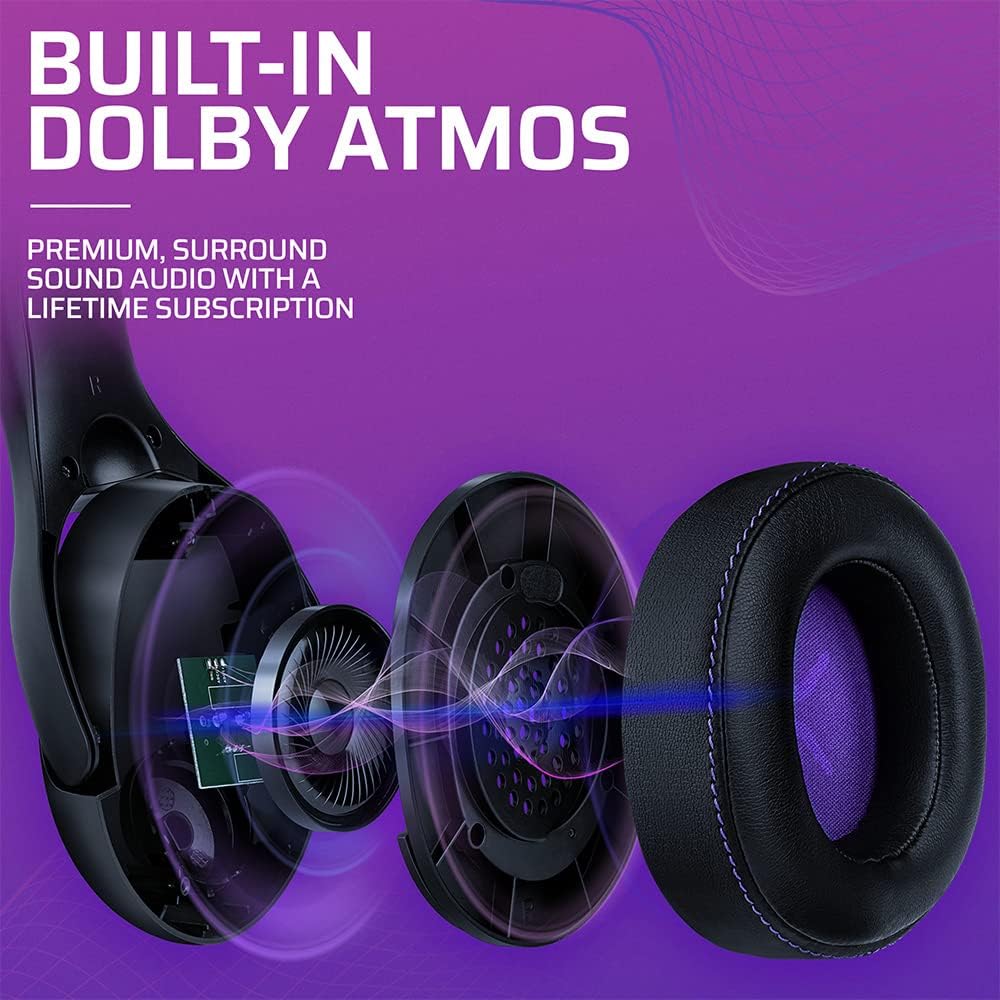
Imatge 3.3: Una explosió view of the Victrix Gambit earcup, illustrating the 50mm speaker drivers and the audio waves representing Dolby Atmos sound.
4. Manteniment
4.1 Neteja
- Use a soft, dry cloth to clean the headset's surfaces.
- For earcups, gently wipe with a damp cloth and mild soap solution if necessary, then dry thoroughly. Avoid excessive moisture.
- No utilitzeu productes químics ni productes de neteja abrasius.
4.2 Emmagatzematge
Guardeu els auriculars en un lloc fresc i sec, allunyat de la llum solar directa i de temperatures extremes. Eviteu col·locar objectes pesats a sobre dels auriculars per evitar que es facin malbé.
4.3 Cura de la bateria
Per allargar la durada de la bateria, eviteu descarregar completament els auriculars amb freqüència. Carregueu-los regularment, fins i tot si no els feu servir durant períodes prolongats.
5. Solució De Problemes
5.1 Sense àudio
- Ensure the headset is powered on and properly paired (for wireless) or connected (for wired).
- Check the volume levels on the headset, your console/PC, and the game/application.
- Verify that the correct audio output device is selected in your system settings.
- For wireless, try re-pairing the headset with the USB dongle.
5.2 El micròfon no funciona
- Assegureu-vos que el micròfon estigui abaixat (activat).
- Check microphone input settings on your console/PC and in-game chat settings.
- Verify that the correct microphone input device is selected in your system settings.
- Prova el micròfon amb una altra aplicació o dispositiu si és possible.
5.3 Problemes de connectivitat
- Sense fil: Ensure the USB dongle is securely plugged in. Try a different USB port. Move closer to the dongle to rule out range issues.
- Amb cable: Ensure the 3.5mm cable is fully inserted into both the headset and the device. Try a different 3.5mm cable if available.
5.4 Els auriculars no es carreguen
- Ensure the USB charging cable is securely connected to both the headset and a powered USB port.
- Prova un altre port USB o cable de càrrega.
- Verifiqueu que la font d'alimentació estigui activa.
6. Especificacions
| Número de model | 049-003-NA |
| Connectivitat | Wireless (USB Dongle, up to 12.19 meters range), Wired (3.5mm audio cable) |
| Controladors d'altaveus | HD de 50 mm |
| Tecnologia d'àudio | Dolby Atmos (lifetime subscription included) |
| Micròfon | Bi-directional, Noise-Canceling, Flip-to-Mute |
| Bateria | 1 bateria de liti-ió (inclosa) |
| Dimensions (L x A x A) | 1 x 260.4 x 215.9 cm |
| Pes | 610 grams |
| Compatibilitat | Microsoft Xbox One, Xbox Series X|S, PC |
7. Informació de la garantia
For detailed warranty information, please refer to the official PDP weblloc web o la targeta de garantia inclosa amb l'embalatge del producte. Els termes i condicions de la garantia poden variar segons la regió.
8. Atenció al client
If you encounter any issues or have questions not covered in this manual, please contact PDP customer support. Visit the official PDP website for support contact details, FAQs, and additional resources.