
1. Introducció
This manual provides detailed instructions for the installation, operation, and maintenance of your MekedeTech Android Car Radio Stereo. Please read this manual thoroughly before using the product to ensure proper function and safety.
2. Producte acabatview
2.1 Característiques clau
- Sistema operatiu Android 13
- 10-inch Touch Screen Display (1024x600 resolution)
- 4 Core Processor, 2GB RAM, 32GB ROM
- Built-in Wireless CarPlay and Android Auto
- Integrated Bluetooth for hands-free calling and wireless music streaming
- Built-in Wi-Fi for internet connectivity
- Support for Steering Wheel Control
- GPS Navigation with support for various map applications
- Rear Camera input support
- Split Screen Display functionality
- Mirror Link for smartphone integration
2.2 Compatibilitat
This head unit is designed for Honda Civic models from 2006 to 2011. Please verify your vehicle's dashboard size and configuration before installation.
Nota important: This unit does not support vehicles with a factory amplifier or those with a passenger airbag on/off switch in the original radio location.
2.3 Què hi ha a la caixa
- 1 x 10-inch Car Touch Screen Head Unit
- 1 x micròfon extern
- 1 x cable d'alimentació
- 1 x cable RCA
- 1 x Reversing Cable
- 1 x Antena GPS
- 1 x cable USB
- 1 x 4G Antenna (if applicable to specific model variant)

Image: Comparison of a Honda Civic dashboard before and after the installation of the MekedeTech Android Car Radio Stereo.

Imatge: Frontal view of the MekedeTech Android Car Radio Stereo, showcasing its 10-inch display and the Android operating system interface.

Imatge: Part posterior view of the MekedeTech Android Car Radio Stereo, detailing the various connection ports for power, RCA, USB, and other accessories.

Image: MekedeTech brand logo.
3. Informació de seguretat
- Always ensure the vehicle is turned off and the battery is disconnected before beginning any installation or wiring work.
- Improper installation can lead to electrical shorts, damage to the vehicle's electrical system, or personal injury. If you are unsure about any step, consult a professional installer.
- No feu servir el dispositiu de manera que us distregui de la conducció. Prioritzeu sempre la seguretat viària.
- Eviteu exposar la unitat a temperatures extremes, a la llum solar directa durant períodes prolongats o a una humitat excessiva.
- Use only approved accessories and wiring provided with the unit or recommended by MekedeTech.
4. Guia d'instal·lació
Installation of the MekedeTech Android Car Radio Stereo requires basic automotive electrical knowledge. It is recommended to have the unit installed by a qualified professional.
4.1 Comprovacions prèvies a la instal·lació
- Verify all components listed in "What's in the Box" are present.
- Ensure the unit is compatible with your Honda Civic model (2006-2011) and does not have a factory ampmés viu.
- Desconnecteu el terminal negatiu de la bateria del vehicle per evitar curtcircuits.
4.2 Connexions de cablejat
Connect the provided wiring harnesses to the corresponding ports on the head unit and your vehicle's wiring.
- Cable de corrent: Connect the main power harness to the vehicle's power supply. Ensure proper connection of constant power (B+), accessory power (ACC), and ground (GND).
- Cable RCA: Use for external amplifier connections, subwoofer output, or auxiliary audio/video input/output.
- Cable USB: Connect the USB extension cable for external USB devices, such as flash drives or for wired CarPlay/Android Auto (if applicable).
- Antena GPS: Munteu l'antena GPS en un lloc amb llum clara view del cel, normalment al tauler de control o sota el parabrisa, assegurant-se que no estigui obstruït per metall.
- Micròfon extern: Connect the external microphone for improved call quality during hands-free operation. Position it near the driver for optimal voice pickup.
- Reversing Cable: Connect this cable to your vehicle's reverse light signal and the video input for a rear camera. This enables automatic display of the rear camera feed when shifting into reverse.
- 4G Antenna (Optional): If your unit includes 4G connectivity, connect the 4G antenna and mount it appropriately for best signal reception.

Image: Icons representing various GPS navigation applications supported by the head unit.
4.3 Muntatge de la unitat principal
- Carefully remove the factory radio and dashboard trim.
- Connect all necessary wiring harnesses to the new head unit.
- Secure the MekedeTech head unit into the dashboard opening using the appropriate mounting brackets.
- Reinstall the dashboard trim, ensuring all clips are properly seated.
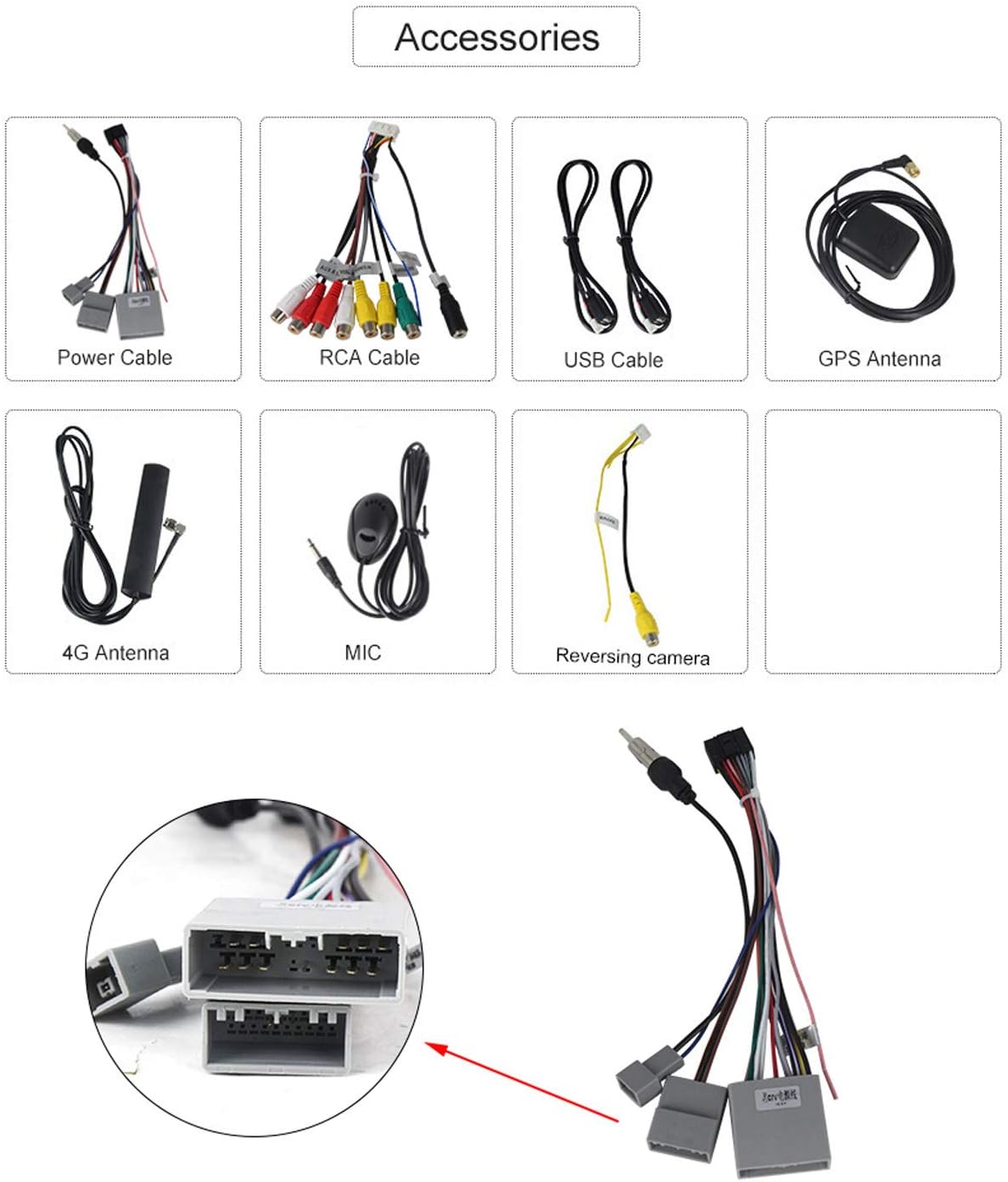
Image: The MekedeTech Android Car Radio Stereo fully installed in the dashboard of a Honda Civic, displaying its large screen and seamless integration.
5. Instruccions de funcionament
5.1 Engegada i configuració inicials
- Torneu a connectar el terminal negatiu de la bateria del vehicle.
- Turn on the vehicle's ignition. The head unit should power on automatically.
- Follow the on-screen prompts for initial setup, including language selection, time zone, and Wi-Fi connection.

Image: Android operating system logo, indicating the system running on the head unit.
5.2 Funcions bàsiques
- Pantalla d'inici: Navigate through applications and widgets.
- Control de volum: Ajusteu el volum amb els controls en pantalla o els botons del volant (si estan configurats).
- Ràdio: Access FM/AM radio stations.
- Music/Video Player: Play media from internal storage, USB devices, or streaming apps.
5.3 Connectivitat Bluetooth
Vincula el teu telèfon intel·ligent mitjançant Bluetooth per a trucades mans lliures i reproducció d'àudio.
- Go to the Bluetooth settings on the head unit.
- Activeu el Bluetooth al vostre telèfon intel·ligent i cerqueu els dispositius disponibles.
- Select the head unit's name (e.g., "MekedeTech Car Stereo") from your phone's list and confirm the pairing code.
- Once paired, you can make/receive calls and play music wirelessly.

Image: Bluetooth icon indicating wireless connectivity for audio and calls.
5.4 Connexió Wi-Fi
Connect to a Wi-Fi hotspot (e.g., from your smartphone) to access online features, download apps, and browse the internet.
- Navigate to the Wi-Fi settings on the head unit.
- Activeu el Wi-Fi i seleccioneu la xarxa desitjada de la llista.
- Introduïu la contrasenya si se us demana i connecteu-vos.

Image: Wi-Fi connection icon, demonstrating internet access for applications.
5.5 CarPlay sense fil i Android Auto
Connect your iPhone or Android smartphone wirelessly to access navigation, music, messages, and other apps in a car-friendly interface.
- Ensure Bluetooth and Wi-Fi are enabled on both the head unit and your smartphone.
- Open the "CarPlay" or "Android Auto" application on the head unit.
- Follow the on-screen instructions to pair your phone. For Android Auto, you may need to install the Android Auto app on your phone.
5.6 Navegació GPS
Utilize the built-in GPS module and pre-installed or downloaded navigation apps for turn-by-turn directions.
- Ensure the GPS antenna is properly installed and has a clear signal.
- Open your preferred navigation application (e.g., Google Maps, iGO, Navitel).
- Enter your destination and follow the voice and visual prompts.
5.7 Control del volant (SWC)
Configure your vehicle's steering wheel buttons to control the head unit's functions (e.g., volume, track skip, mode).
- Access the "Steering Wheel Control" settings in the head unit's menu.
- Follow the on-screen instructions to program each button by pressing the button on your steering wheel and then selecting the corresponding function on the screen.

Image: Interface for programming steering wheel controls on the head unit.
Pantalla dividida 5.8
Run two applications simultaneously on the screen, such as navigation and music player.
- Open the first application.
- Press and hold the recent apps button (usually a square icon) or drag from the side to activate split-screen mode.
- Seleccioneu la segona aplicació que voleu que es mostri a l'altra meitat de la pantalla.

Imatge: Example of the split-screen feature, displaying navigation and a music player simultaneously.
5.9 Enllaç de mirall
Mirror your smartphone's screen onto the head unit display.
- Open the "Mirror Link" application on the head unit.
- Follow the instructions to connect your smartphone, typically via USB or Wi-Fi.

Image: Illustration of the Mirror Link function, showing a smartphone screen duplicated on the head unit.
5.10 Pantalla de la càmera posterior
When a compatible rear camera is connected and the vehicle is in reverse, the head unit will automatically display the camera feed.
- Ensure the reversing cable is correctly connected to the vehicle's reverse light signal.
- The camera feed will appear on the screen when reverse gear is engaged.

Image: Rear camera view displayed on the head unit screen, complete with parking guidelines.
6. Manteniment
- Neteja de pantalla: Feu servir un drap suau i sense borrissol per netejar suaument la pantalla. Per a taques difícils, fregueu lleugeramentampNetegeu el drap amb aigua o un netejador de pantalles. Eviteu productes químics agressius o materials abrasius.
- Actualitzacions de programari: Periodically check for software updates through the system settings or MekedeTech's official weblloc per garantir un rendiment òptim i l'accés a noves funcions.
- Atenció general: Mantingueu la unitat lliure de pols i deixalles. Assegureu-vos que hi hagi una ventilació adequada al voltant de la unitat per evitar el sobreescalfament.
7. Solució De Problemes
| Problema | Causa possible | Solució |
|---|---|---|
| Sense poder | Connexió d'alimentació fluixa; fusible fundit; problema amb la bateria del vehicle. | Check power cable connections. Inspect vehicle fuses and replace if necessary. Verify vehicle battery health. |
| Sense so | Volume too low; Mute activated; Incorrect audio source; Wiring issue; Incompatible with factory ampmés viu. | Increase volume. Check mute status. Select correct audio source. Verify speaker wiring. Note: Not compatible with factory ampaixecadors. |
| Bluetooth no connectat | Bluetooth desactivat al dispositiu/unitat; Dispositiu no en mode d'emparellament; Interferències. | Ensure Bluetooth is enabled on both devices. Put phone in pairing mode. Try restarting both devices. |
| Senyal GPS perdut/inexact | GPS antenna obstructed or improperly installed; Software issue. | Assegureu-vos que l'antena GPS tingui una visió clara view del cel. Comproveu la connexió de l'antena. Reinicieu la unitat. |
| La pantalla tàctil no respon | Error temporal de programari; Danys a la pantalla. | Restart the unit. If issue persists, contact customer support. |
| CarPlay/Android Auto no funciona | Incorrect connection method; App not installed/updated; Phone settings. | Ensure correct wireless/wired connection. Update phone apps. Check phone permissions for CarPlay/Android Auto. |
For further assistance, please refer to the support section or contact MekedeTech customer service.
8. Especificacions
| Característica | Detall |
|---|---|
| Sistema operatiu | Android 13 |
| Processador | 4 Nucli |
| RAM | 2 GB |
| Emmagatzematge intern (ROM) | 32 GB |
| Mida de la pantalla | 10 polzades |
| Resolució de visualització | 1024 x 600 |
| Connectivitat | Bluetooth, USB, Wi-Fi |
| Característiques especials | Bluetooth, Spotify, Touchscreen, WiFi, Wireless CarPlay, Android Auto |
| Map Type Support | North America, Satellite (via compatible apps) |
| Tipus de muntatge | Tauler de control |
| Dimensions del producte | 9.84 x 5.71 x 1.18 polzades |
| Pes de l'article | 4.19 lliures |
9. Garantia i Suport
MekedeTech products are designed for reliability and performance. For warranty information, please refer to the documentation included with your purchase or visit the official MekedeTech weblloc.
If you encounter any issues not covered in this manual or require technical assistance, please contact MekedeTech customer support through their official channels. When contacting support, please have your product model number (4 Core 2G+32G) and purchase details ready.
