
1. Producte acabatview
The Yanzeo SR691 is a high-performance UHF RFID integrated reader designed for long-distance identification applications. It features a 9dBi antenna and supports a reading distance of 3-8 meters. The reader is built with an IP67 rating, making it suitable for outdoor environments. It offers multiple communication interfaces including RS232, RS485, and Wiegand, ensuring versatile integration into various systems. This device supports ISO18000-6C/EPC Gen2 and ISO18000-6B protocols, operating within the wide frequency band of 860-960MHz.

Figura 1: Frontal view of the Yanzeo SR691 UHF RFID Reader with approximate dimensions (26cm x 26cm x 3.2cm).
2. Contingut del paquet
Before proceeding with the installation, please verify that all items listed below are present in your package:
- Yanzeo SR691 UHF RFID Reader
- Adaptador d'alimentació
- Suport de muntatge i cargols
- USB to RS232/RS485 Converter Cable
- Bloc de terminals de cablejat

Figure 2: Included components: RFID reader, power adapter, mounting hardware, and connection cables.
3. Instruccions de configuració
3.1. Connexió física
- Connectar l'alimentació: Connect the provided power adapter to the reader's power input port. Ensure the power source matches the reader's voltage requisits.
- Connect to Computer (for configuration): Use the USB to RS232/RS485 converter cable to connect the reader to your computer's USB port. This connection is typically used for initial setup and software configuration.
- Muntatge (opcional): Secure the reader using the provided mounting bracket and screws in the desired location. Ensure the antenna has a clear line of sight to the area where RFID tags serà llegit.
Video 1: Demonstrates connecting the RFID reader to a computer via a USB to RS232/RS485 converter and powering it on. The video also shows the reader's indicator light activating upon successful power connection.
3.2. Instal·lació del controlador
After connecting the reader to your computer, you may need to install the appropriate USB-Serial driver. This driver is usually provided on a CD with the product or can be downloaded from the manufacturer's website. Once installed, verify the assigned COM port in your computer's Device Manager.
4. Instruccions de funcionament
4.1. Configuració del programari
Use the provided RFID Demo software for configuration and testing. The software interface allows you to manage reader settings and perform tag operacions.
- Selecció d'idioma: In the software, navigate to the 'Language' menu and select 'English' for easier operation.
- Connexió del port: Go to the 'Connect' tab. Select 'Serial Interface' and choose the correct COM port identified in Device Manager (e.g., COM3). Click 'Connect' to establish communication with the reader.
- Card Type Selection: In the 'Base Settings' or 'EPC(GEN 2) Read&Write' tab, select the appropriate 'Card Type'. Options typically include 'EPCGEN 2 Multi-Tag', 'ISO18000-6B', or 'EPCGEN 2 Single-Tag', depending on the tags estàs utilitzant.
- Configuració de freqüència: Adjust the hopping value based on your region. The software provides options for 'China', 'America', and 'Europe', which set the frequency range accordingly (e.g., America: 902.0 - 928.0 MHz, Europe: 860.0 - 870.0 MHz).
- Control del timbre: The buzzer can be enabled or disabled in the settings.
- Mode de commutació: Select 'Low Trigger' for continuous reading or 'Close' for manual triggering.
Video 2: Demonstrates the software interface, including language selection, COM port connection, setting card types (e.g., EPCGEN2 Multi-Tag, ISO18000-6B), configuring frequency bands for different regions (China, America, Europe), and enabling/disabling the buzzer.
4.2. Reading RFID Tags
Once the reader is connected and configured:
- Navigate to the 'Read Demo' tab in the software.
- Click 'Start Reading Tags' to begin the tag identification process.
- Col·loqueu RFID tags within the reading range of the SR691 reader. The software will display the identified tag data (e.g., EPC, Hex Card) in a list.
- The 'Count' and 'Sum' fields will update to show the number of unique tags and total reads, respectively.
Video 3: Shows the RFID reader actively scanning and displaying multiple UHF RFID tags on the software interface, demonstrating its long-range reading capability.
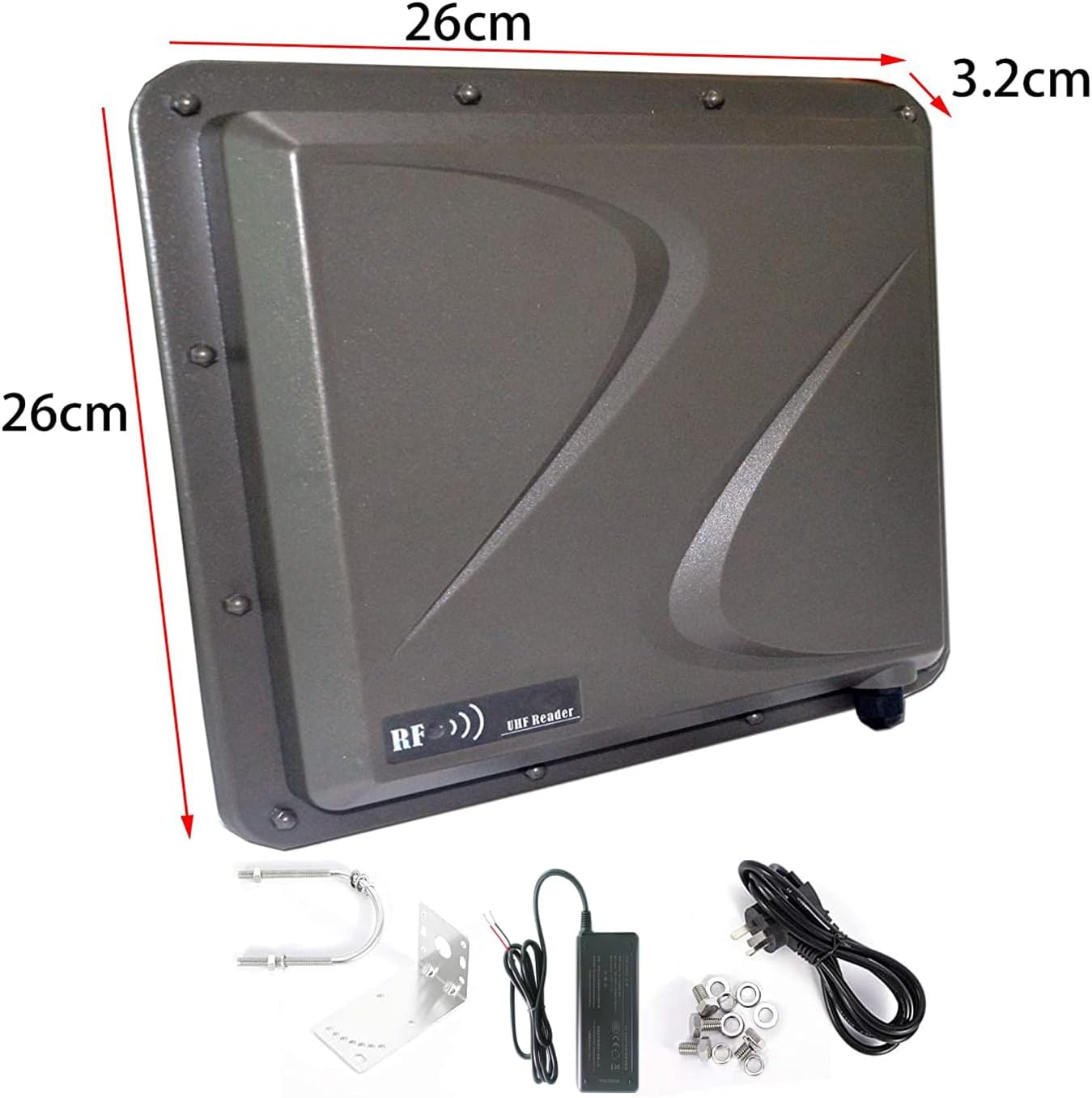
Figura 3: Esquena view of the RFID reader, showing the mounting points and cable entry.
5. Manteniment
To ensure optimal performance and longevity of your Yanzeo SR691 UHF RFID Reader, follow these maintenance guidelines:
- Neteja: Regularly clean the exterior of the reader with a soft, dry cloth. Avoid using abrasive cleaners or solvents that could damage the casing.
- Protecció del medi ambient: Although the device has an IP67 rating for outdoor use, avoid prolonged exposure to extreme weather conditions or direct water immersion.
- Inspecció del cable: Periodically check all cables for any signs of wear, damage, or loose connections. Replace damaged cables immediately.
- Actualitzacions de firmware: Comproveu el del fabricant website for any available firmware updates. Follow the provided instructions carefully for any update procedures.
6. Solució De Problemes
If you encounter issues with your Yanzeo SR691 UHF RFID Reader, refer to the following common troubleshooting steps:
- Reader Not Powering On: Ensure the power adapter is securely connected to both the reader and a functional power outlet. Check the power indicator light on the reader.
- No Connection to Software: Verify that the USB-Serial driver is correctly installed and the correct COM port is selected in the software. Try restarting the software and reconnecting the USB cable.
- No es pot llegir Tags:
- Assegureu-vos tags are within the optimal reading range and orientation.
- Check that the correct 'Card Type' (e.g., EPCGEN 2 Multi-Tag) is selected in the software.
- Verify that the frequency settings match your region.
- Confirm that the 'Trigger Mode' is set appropriately (e.g., 'Low Trigger' for continuous reading).
- Ensure there are no metallic obstructions or sources of interference near the reader or tags.
- Inconsistent Reads: This could be due to environmental interference, incorrect power settings, or tags being too close or too far from the reader. Adjust power settings in the software if applicable.
If the issue persists after following these steps, please contact technical support.
7. Especificacions
| Característica | Especificació |
|---|---|
| Marca | Yanzeo |
| Model | SR691 |
| Tipus d'antena | Integrated 9dBi Antenna |
| Interval màxim | 9 Meters (typical 3-8m) |
| Freqüència | 860-960MHz (wide band) |
| Protocols compatibles | ISO18000-6C/EPC Gen2, ISO18000-6B |
| Interfícies | RS232, RS485, Wiegand |
| Valoració ambiental | IP67 (Outdoor) |
| Nombre de canals | 1 |
| Nombre d'articles | 1 |
8. Garantia i Suport
The Yanzeo SR691 UHF RFID Reader comes with a 6-month warranty from the date of purchase. This warranty covers manufacturing defects and malfunctions under normal use conditions.
For technical assistance, troubleshooting, or warranty claims, please contact Yanzeo customer support through the official website or your point of purchase. Please have your product model and purchase details ready when contacting support.