
1. Introducció
The i-tec USB-C Quattro Docking Station is designed to expand the connectivity of your USB-C enabled laptop or tablet, allowing for connection of up to four external displays, multiple USB peripherals, Gigabit Ethernet, and audio devices. It also provides up to 85W Power Delivery to charge your host device. This manual provides detailed instructions for setting up, operating, and maintaining your docking station.
2. Contingut del paquet
Si us plau, verifiqueu que tots els elements que s'enumeren a continuació siguin presents al vostre paquet:
- i-tec USB-C Quattro Docking Station
- Adaptador d'alimentació
- Cable d'alimentació
- Cable USB-C a USB-C
- Guia d'inici ràpid

Figura 2.1: Package Contents. The image displays the docking station, its power adapter, a power cable, and a quick setup guide.
3. Producte acabatview
Familiarize yourself with the ports and indicators on your i-tec USB-C Quattro Docking Station.
3.1 Tauler frontal

Figura 3.1: Front Panel. This image shows the front of the docking station with a power button, microphone input jack, headphone output jack, one USB-C data port, and one USB 3.0 port.
- Botó d'encesa: To power on/off the docking station.
- Microphone Jack (3.5mm): Connecteu un micròfon.
- Presa d'auriculars (3.5 mm): Connecteu auriculars o altaveus.
- Port de dades USB-C: For connecting USB-C peripherals.
- Port USB 3.0: For connecting USB 3.0/2.0 peripherals.
3.2 Panell posterior

Figura 3.2: Rear Panel. This image displays the rear of the docking station, featuring the DC 20V power input, USB-C PD host connection, two DisplayPort outputs, two HDMI outputs, a Gigabit Ethernet (LAN) port, and four additional USB 3.0 ports.
- Entrada d'alimentació DC 20V: Connecteu l'adaptador d'alimentació inclòs.
- USB-C PD Host Port: Connect to your laptop/tablet for data, video, and power delivery.
- 2x DisplayPort: Connect external monitors via DisplayPort cables.
- 2x HDMI: Connect external monitors via HDMI cables.
- GLAN (RJ-45) Port: Connecteu-vos a una xarxa per cable.
- 4 ports USB 3.0: Connect USB 3.0/2.0 peripherals.
4. Instruccions de configuració
Follow these steps to set up your i-tec USB-C Quattro Docking Station:
- Connectar l'alimentació: Connect the power adapter to the DC 20V input on the rear of the docking station, then plug the power cable into a wall outlet.
- Connecta't al dispositiu amfitrió: Use the provided USB-C to USB-C cable to connect the docking station's USB-C PD Host Port to your laptop's USB-C port. Ensure your laptop's USB-C port supports DisplayPort Alternate Mode and Power Delivery for full functionality.
- Connecteu pantalles externes: Connect your monitors to the DisplayPort and/or HDMI ports on the rear of the docking station. You can connect up to four displays simultaneously.
- Connecteu els perifèrics: Plug your USB devices (keyboard, mouse, external drives) into the available USB 3.0 or USB-C data ports. Connect an Ethernet cable to the GLAN port for wired network access. Connect headphones/speakers and a microphone to the respective audio jacks on the front panel.
- Encès: Press the power button on the front of the docking station. Your operating system should automatically detect the connected devices.
- Instal·lació del controlador (si cal): For optimal performance or specific features, visit www.i-tec.cz/setup to download and install any required drivers for your operating system.
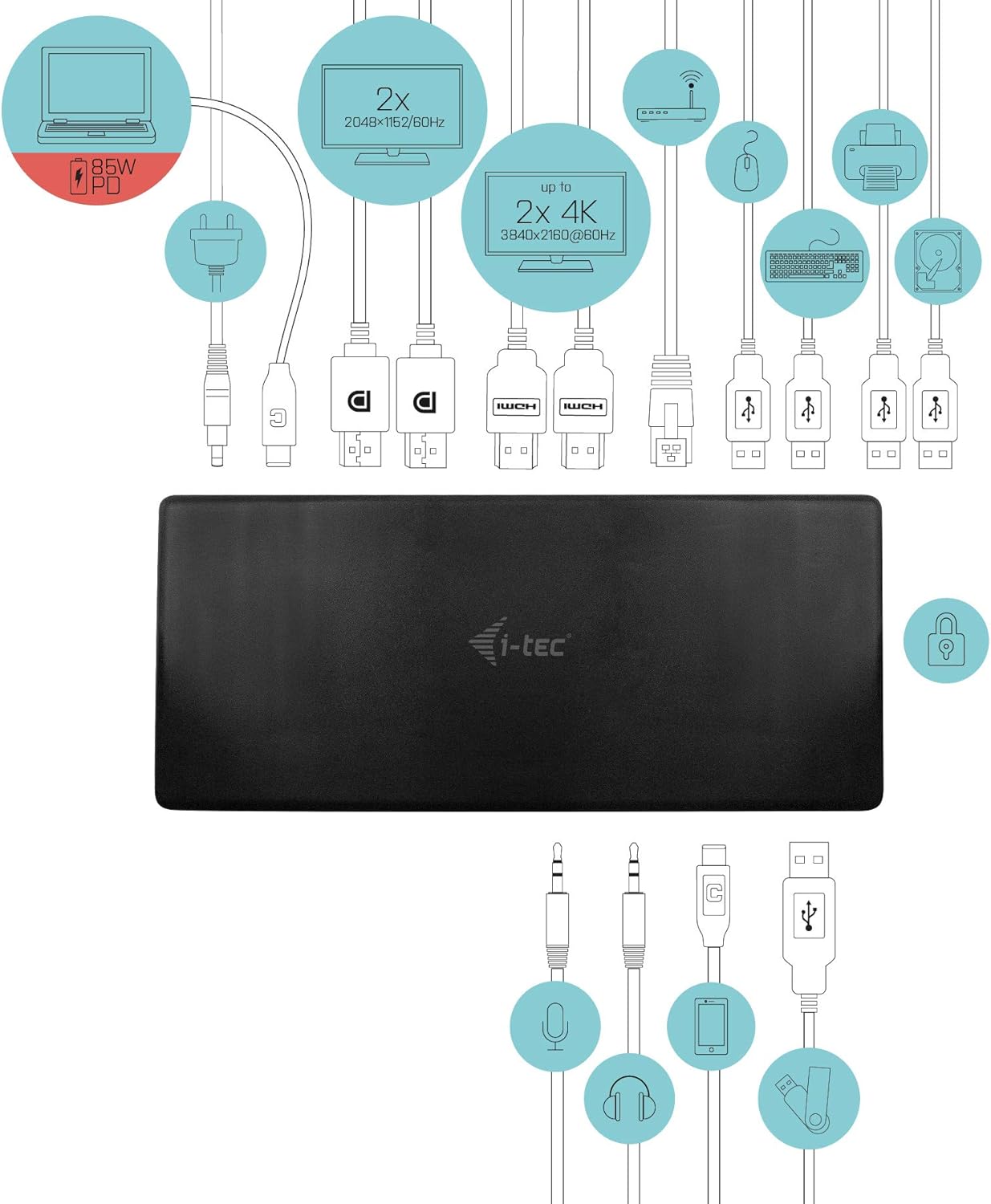
Figura 4.1: Connection Diagram. This diagram shows the various connections to the docking station, including power, host laptop, multiple monitors (DisplayPort and HDMI), Ethernet, and USB peripherals like a mouse, keyboard, and external storage.
5. Instruccions de funcionament
Once set up, your docking station provides enhanced functionality for your workspace.
5.1 Configuració de diverses pantalles
The docking station supports up to four external displays. You can configure these displays in various modes (extended, mirrored) through your operating system's display settings.
- Resolucions: Supports up to 2x 2048x1152@60Hz and 2x 4K/60Hz, depending on your host device's capabilities and display connections.
- Windows: Right-click on the desktop, select 'Display settings' to arrange and configure your monitors.
- macOS: Go to 'System Preferences' > 'Displays' to adjust settings.

Figura 5.1: Four-Display Setup Example. This image illustrates a workstation with a laptop connected to the docking station, driving four external monitors simultaneously, showcasing a multi-tasking environment.
5.2 Lliurament d'energia
The USB-C PD Host Port provides up to 85W of power to charge your connected laptop or tablet, eliminating the need for a separate power adapter for your host device.
Connectivitat USB 5.3
Utilize the 5x USB 3.0 ports and 1x USB-C data port for connecting various peripherals such as external hard drives, USB flash drives, keyboards, mice, and printers. USB 3.0 ports offer high-speed data transfer.
5.4 Gigabit Ethernet
The GLAN RJ-45 port provides a stable and high-speed wired internet connection (10/100/1000 Mbps), which is often more reliable than Wi-Fi.
5.5 Audio Functionality
Connect your headphones, speakers, or microphone to the 3.5mm audio jacks on the front panel for integrated audio input and output.

Figura 5.2: Productivity Setup. This image shows a professional desk environment where the docking station facilitates a multi-monitor setup for enhanced productivity, displaying various applications and data across four screens.
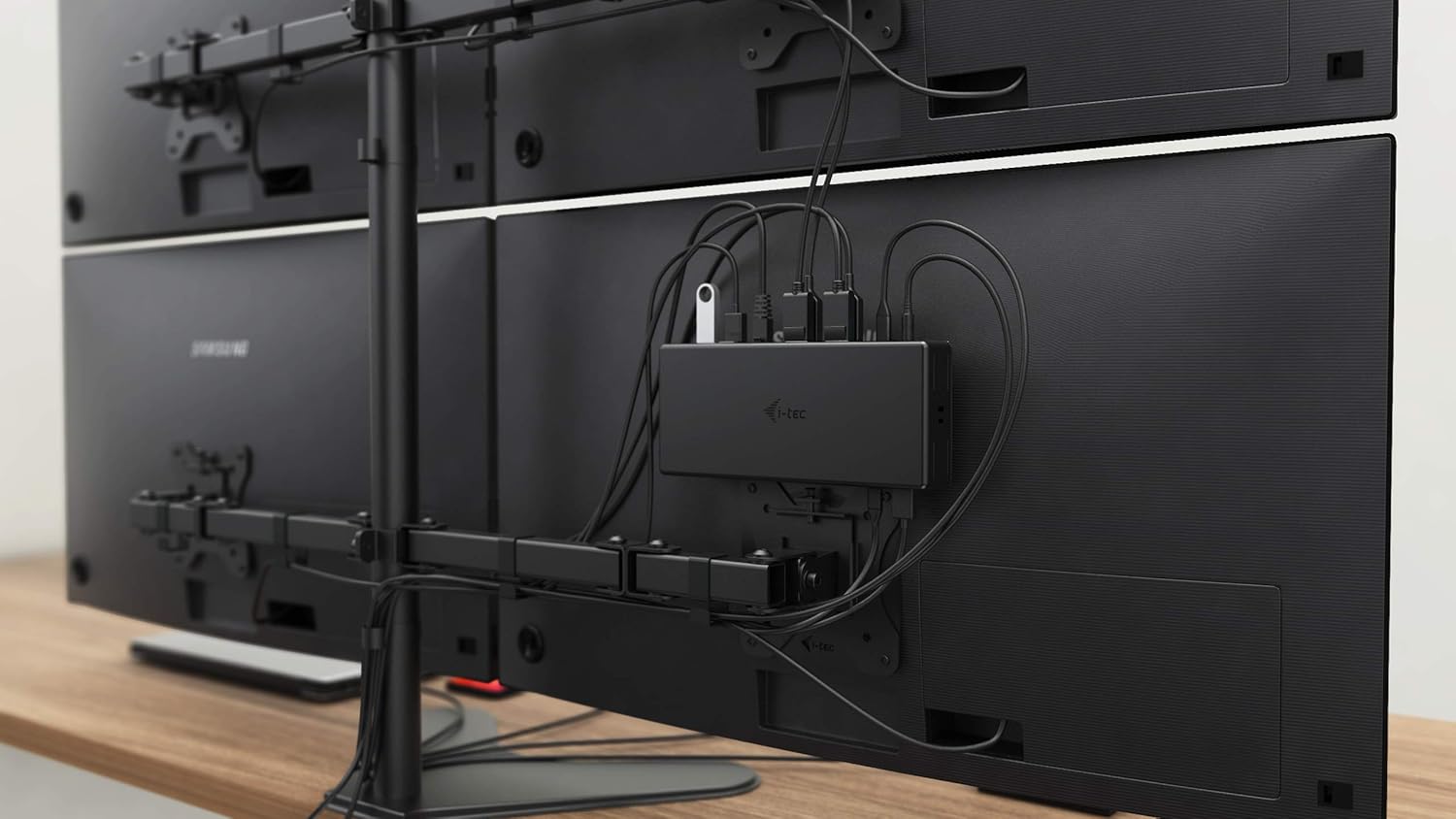
Figura 5.3: VESA Mounting. The docking station is shown mounted vertically on the back of a VESA-compatible monitor, demonstrating its space-saving installation capability and organized cable routing.

Figura 5.4: Connected Workstation. This image provides a close-up of the docking station on a desk, connected to a laptop via USB-C, and featuring various peripherals plugged into its front ports, including a USB drive and audio devices.
6. Manteniment
Per garantir la longevitat i el rendiment òptim de la vostra estació d'acoblament, seguiu aquestes pautes de manteniment:
- Neteja: Feu servir un drap suau i sec per netejar l'exterior de l'estació d'acoblament. No utilitzeu netejadors líquids ni aerosols.
- Ventilació: Assegureu-vos que l'estació d'acoblament estigui col·locada en una zona ben ventilada per evitar el sobreescalfament. No bloquegeu cap obertura de ventilació.
- Manipulació: Avoid dropping or subjecting the docking station to strong impacts.
- Medi ambient: Mantingueu el dispositiu allunyat de temperatures extremes, humitat i llum solar directa.
- Gestió de cables: Ensure cables are not excessively bent or strained to prevent damage to ports and cables.
7. Solució De Problemes
Si teniu problemes amb l'estació d'acoblament, consulteu els problemes i solucions habituals següents:
7.1 Sense sortida de pantalla
- Comproveu les connexions: Ensure all display cables (HDMI/DisplayPort) are securely connected to both the docking station and the monitors.
- Connexió de l'amfitrió: Verify the USB-C cable from the docking station is firmly connected to your laptop's USB-C port.
- Potència: Confirm the docking station is powered on and receiving power from the adapter.
- Compatibilitat amb portàtils: Assegureu-vos que el port USB-C del vostre portàtil admeti el mode alternatiu de DisplayPort.
- Conductors: Install the latest drivers from www.i-tec.cz/setup.
- Configuració de la pantalla: Adjust your operating system's display settings to detect and extend/mirror displays.
7.2 USB Devices Not Working
- Torneu a connectar: Disconnect and reconnect the USB device to a different port on the docking station.
- Potència: Assegureu-vos que l'estació d'acoblament estigui engegada.
- Connexió de l'amfitrió: Verify the USB-C connection to your laptop.
- Consum d'energia: If connecting high-power USB devices, ensure the docking station's power adapter is correctly connected and providing sufficient power.
7.3 No Network Connection (GLAN)
- Comprovació del cable: Assegureu-vos que el cable Ethernet estigui connectat correctament tant a l'estació d'acoblament com al vostre encaminador/mòdem.
- Encaminador/Mòdem: Verifiqueu que el vostre encaminador/mòdem funciona correctament.
- Conductors: Ensure the latest network drivers are installed for the docking station.
7.4 Laptop Not Charging (Power Delivery)
- Adaptador d'alimentació: Confirm the docking station's power adapter is correctly connected and functioning.
- Cable USB-C: Ensure the USB-C cable connecting the dock to your laptop supports Power Delivery.
- Compatibilitat amb portàtils: Verify your laptop's USB-C port supports Power Delivery input.
8. Especificacions
| Característica | Detall |
|---|---|
| Número de model | C31QUATTRODOCKPDUK |
| Marca | i-tec |
| Dimensions del producte | 10 x 2 x 2.7 polzades (25.4 x 5.08 x 6.86 cm) |
| Pes de l'article | 10.2 unces (0.29 kg) |
| Interfície del maquinari | DisplayPort, Ethernet, HDMI, USB, USB 3.0, USB Type C |
| Dispositius compatibles | Laptop, Monitor, Tablet with USB-C (DisplayPort Alt Mode & Power Delivery support recommended) |
| Ports USB totals | 6 (5x USB 3.0, 1x USB-C Data) |
| Ports HDMI totals | 2 |
| DisplayPort total | 2 |
| Ethernet | Gigabit Ethernet (RJ-45) |
| Preses d'àudio | 1x Microphone (3.5mm), 1x Headphone (3.5mm) |
| Lliurament d'energia | Up to 85W to host device |
| Color | Negre |
| Sistemes operatius | Windows 10, macOS, Android, Linux |
9. Informació de la garantia
The i-tec USB-C Quattro Docking Station is covered by a manufacturer's warranty. Please refer to the warranty card included in your package or visit the official i-tec weblloc web per obtenir informació detallada sobre els termes i condicions de la garantia. Conserveu el comprovant de compra per a reclamacions de garantia.
10. Atenció al client
For further assistance, technical support, or to download the latest drivers and firmware, please visit the official i-tec support weblloc:
You may also find helpful resources and FAQs on the product's dedicated setup page: www.i-tec.cz/setup