
1. Introducció
This manual provides detailed instructions for the setup, operation, maintenance, and troubleshooting of your cimetech 2.4G Wireless Keyboard and Mouse Combo. Please read this manual thoroughly before using the product to ensure optimal performance and longevity.

Image: The cimetech Wireless Keyboard and Mouse Combo, featuring the full-size keyboard, ergonomic mouse, and the compact USB receiver.
2. Configuració
2.1. Unpacking and USB Receiver Location
Carefully remove the keyboard and mouse from their packaging. The 2.4G USB receiver is typically stored within the battery compartment of the mouse or keyboard for safekeeping during transit. Locate and remove the USB receiver before proceeding with battery installation.

Image: The USB receiver is conveniently stored inside the battery compartment of the keyboard.
2.2. Instal·lació de la bateria
The keyboard requires two AAA batteries, and the mouse requires one AA battery (batteries not included). Follow these steps:
- Open the battery compartment cover on the underside of the keyboard.
- Introduïu dues piles AAA, assegurant-vos de la polaritat correcta (+/-).
- Tanqueu la tapa del compartiment de la bateria.
- Obriu la tapa del compartiment de la bateria a la part inferior del ratolí.
- Inseriu una pila AA, assegurant-vos de la polaritat correcta (+/-).
- Tanqueu la tapa del compartiment de la bateria.
2.3. Connecting to Your Device (Plug and Play)
The cimetech Wireless Combo uses a single USB receiver for both devices:
- Plug the 2.4G USB receiver into an available USB port on your computer or laptop.
- Turn on the keyboard using the ON/OFF switch located on its underside.
- Turn on the mouse using the ON/OFF switch located on its underside.
- Your computer should automatically detect and install the necessary drivers. The keyboard and mouse are now ready for use.
3. Operating the Combo
3.1. Característiques del teclat
- Disseny a mida completa: The keyboard features a full-size layout with 99 keys, including a numeric keypad for efficient data entry.
- Disseny ultra prim: El seu professional primfile (14.5x5.8x0.2 inches) makes it portable and suitable for various environments.
- Tecles silencioses: The keys are designed for reduced noise, providing a quiet typing experience.
- Ergonomic Tilt: The keyboard is designed with a tilt angle to promote a comfortable typing position, reducing wrist fatigue.

Imatge: Lateral view of the cimetech keyboard, illustrating its ergonomic tilt angle for comfortable use.
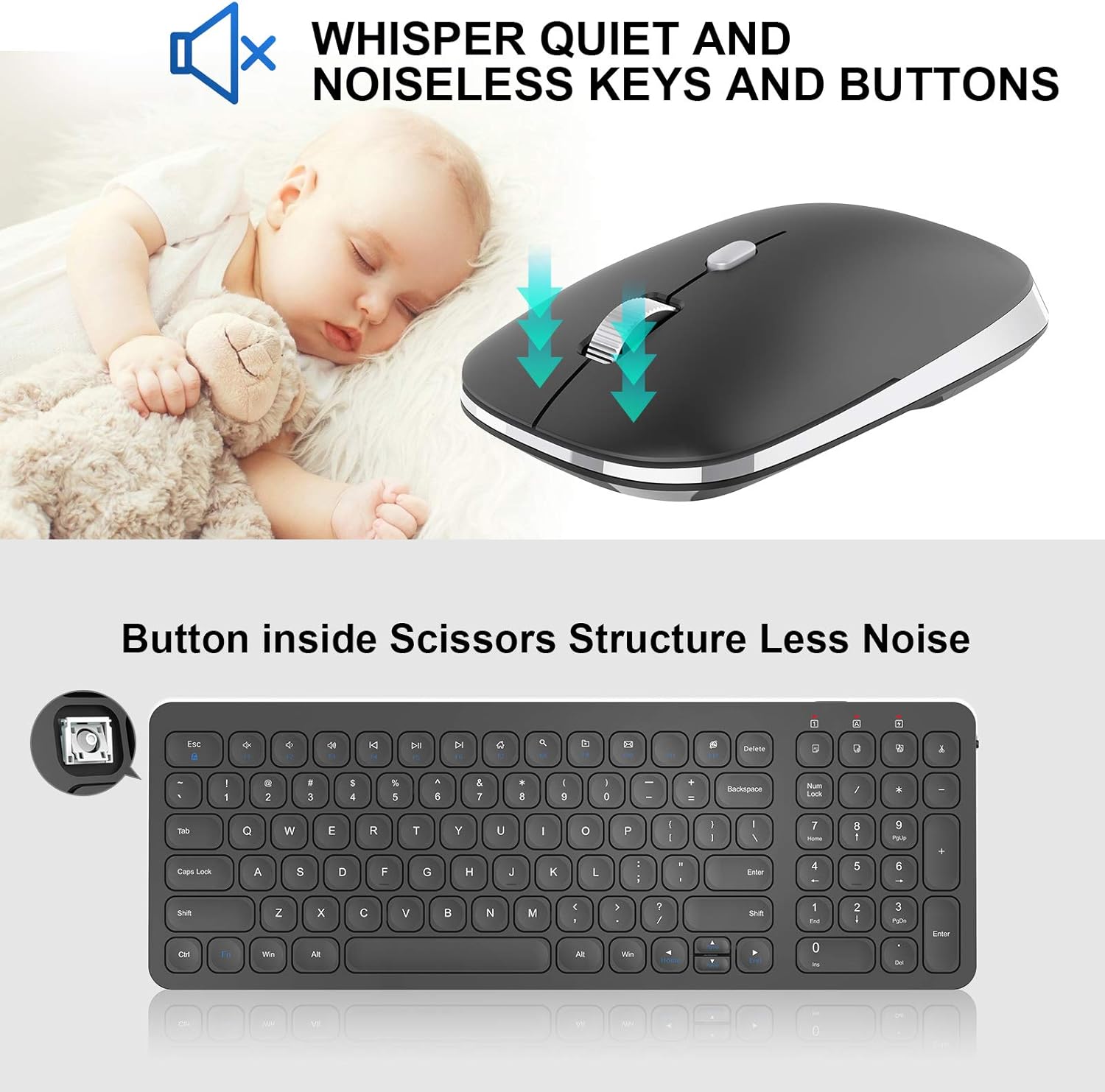
Image: Close-up of the mouse, highlighting its silent click mechanism, and a graphic indicating quiet operation for both mouse and keyboard keys.
3.2. Tecles de drecera multimèdia
The keyboard includes dedicated multimedia hotkeys for quick access to various functions:
- FN + F1-F12: Access functions such as music playback, volume control, internet browser, email, and more. Refer to the key legends for specific functions.

Image: A visual guide to the 12 multimedia shortcut keys on the cimetech keyboard, enabling quick access to various system functions.
3.3. Característiques del ratolí
- Clic silenciós: The mouse features silent click buttons to minimize disturbance in quiet environments.
- Forma contornejada: Designed for comfortable grip and extended use.
- Ajust de DPI: The mouse may include a button to adjust DPI (dots per inch) sensitivity, allowing you to customize cursor speed.
4. Manteniment
4.1. Substitució de la bateria
When the devices stop responding or the indicator light (if present) signals low battery, replace the batteries:
- For the keyboard, replace the two AAA batteries.
- For the mouse, replace the one AA battery.
- Assegureu-vos de la polaritat correcta durant la instal·lació.
4.2. Neteja
Per mantenir un rendiment i una higiene òptims:
- Use a soft, dry cloth to wipe the surfaces of the keyboard and mouse.
- Per a la brutícia persistent, lleugerament dampNetegeu el drap amb aigua o una solució de neteja suau. Eviteu l'excés d'humitat.
- No utilitzeu netejadors abrasius ni dissolvents.
5. Solució De Problemes
If you encounter issues with your cimetech Wireless Keyboard and Mouse Combo, try the following solutions:
- Sense resposta: Ensure both the keyboard and mouse are turned on and have fresh batteries. Check that the USB receiver is securely plugged into a working USB port on your computer.
- Connexió endarrerida o intermitent: Move the devices closer to the USB receiver. Ensure there are no large metal objects or other wireless devices interfering with the 2.4G signal.
- El cursor del ratolí no es mou: Check the mouse's laser sensor for any obstructions. Ensure the mouse is on a suitable surface.
- Les claus no funcionen: If specific keys are not responding, try cleaning around the keys. If the entire keyboard is unresponsive, refer to the 'No Response' steps.
- Torna a emparellar: In rare cases, you might need to re-pair the devices with the receiver. Consult the manufacturer's website or support for specific re-pairing instructions if needed.
6. Especificacions
| Característica | Detall |
|---|---|
| Marca | cimetech |
| Model (teclat) | KF31 |
| Model (ratolí) | TM013 |
| Tecnologia de connectivitat | Sense fil 2.4G (receptor USB) |
| Dispositius compatibles | Laptop, Personal Computer (Windows XP / Vista / 7 / 8 / 10) |
| Dimensions del teclat | 14.5 x 5.8 x 0.2 polzades (aprox.) |
| Pes de l'article | 1.3 lliures |
| Característiques especials | Ergonomic, Lightweight, Portable, Silent Click Mouse, Multimedia Hotkeys |

Image: Diagram illustrating the dimensions of the cimetech Wireless Keyboard and Mouse, highlighting their compact and ultra-thin profiles.
7. Garantia i Suport
For warranty information, technical support, or further assistance, please refer to the product packaging or visit the official cimetech weblloc. Conserveu el rebut de compra per a reclamacions de garantia.
També podeu visitar el cimetech Store on Amazon per obtenir més informació sobre el producte i recursos d'assistència.