
Introducció
Thank you for choosing the iClever BK10 Bluetooth Wireless Keyboard. This manual provides detailed instructions on how to set up, operate, and maintain your keyboard to ensure optimal performance. Please read this manual carefully before use and retain it for future reference.
Contingut del paquet
- Teclat sense fil Bluetooth iClever BK10
- Cable de càrrega USB
- Manual d'usuari
Especificacions
| Marca | iClever |
| Número de model | BK10 |
| Tecnologia de connectivitat | Bluetooth |
| Dispositius compatibles | Android 9+, ChromeOS (BT 4.0+), Windows 10/11, iPadOS 13.4+, macOS 10.15+ |
| Disposició del teclat | AZERTY |
| Nombre de claus | 78 |
| Tipus de canvi | Interruptor de tisora |
| Font d'alimentació | Funciona amb bateria |
| Dimensions del producte | 43 L x 14 W x 2.5 H centímetres |
| Material intern | Acrilonitril butadiè estirè, acer inoxidable |
Configuració
1. Càrrega inicial
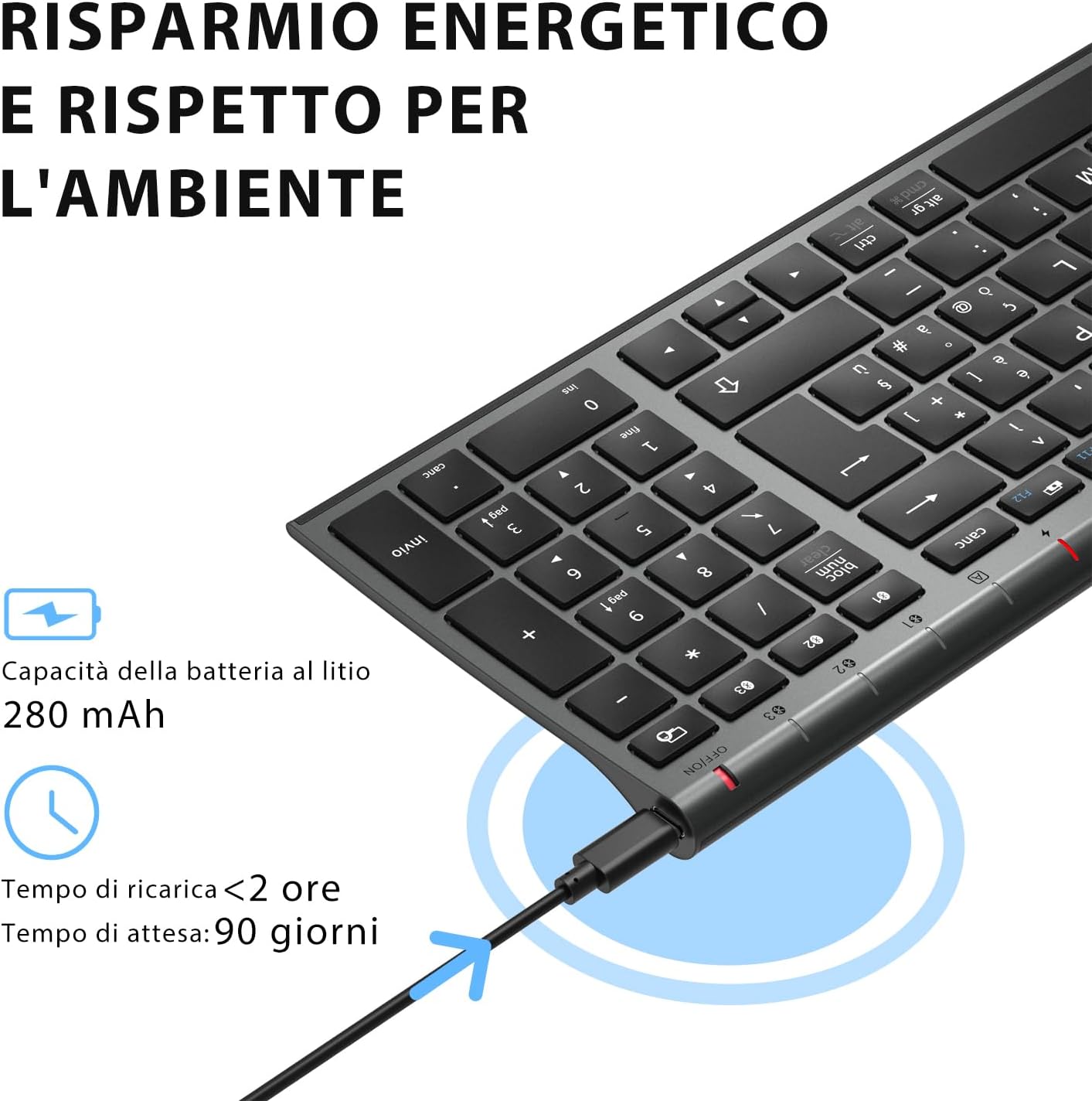
Before first use, fully charge the keyboard. Connect the provided USB charging cable to the keyboard's USB-C port and the other end to a USB power source (e.g., computer, wall adapter). The charging indicator light will show charging status and turn off when fully charged.

The iClever BK10 keyboard connected via USB-C for charging. This image details the 280 mAh lithium battery capacity, a charging time of less than 2 hours, and a standby time of 90 days.
2. Encendre/apagar
Locate the power switch on the keyboard. Slide the switch to the 'ON' position to power on the keyboard. Slide it to the 'OFF' position when not in use to conserve battery.
3. Emparellament Bluetooth
The iClever BK10 keyboard supports connection to up to three devices simultaneously.
- Enceneu el teclat amb l'interruptor d'alimentació.
- Premeu el botó Fn key simultaneously with one of the Bluetooth channel keys (BT1, BT2, o BT3) to select a channel.
- Press and hold the selected Bluetooth channel key (e.g., BT1) for 3-5 seconds until the indicator light for that channel starts blinking rapidly. This indicates the keyboard is in pairing mode.
- Al dispositiu (ordinador, tauleta, telèfon intel·ligent), activeu el Bluetooth i cerqueu els dispositius disponibles.
- Select "iClever BK10" (or similar name) from the list of found devices.
- Follow any on-screen prompts to complete the pairing process. The indicator light will stop blinking and remain solid for a few seconds, then turn off, indicating a successful connection.

The iClever BK10 keyboard demonstrating its ability to connect to an iPad, MacBook, and iPhone via three distinct Bluetooth channels. The image also illustrates key mapping for Windows/Android (Alt/Cmd) and iPad/Mac (Alt/Cmd) operating systems.
Funcionament del teclat
1. Switching Between Paired Devices
Per canviar entre els dispositius emparellats, només cal que premeu la tecla Fn tecla juntament amb la tecla del canal Bluetooth corresponent (BT1, BT2, o BT3) that your device is paired to. The keyboard will automatically connect to the selected device.
2. Tecles de funció (Fn)
The keyboard features a row of function keys (F1-F12) that also serve as multimedia and shortcut keys. To use the secondary function of these keys, press and hold the Fn key while pressing the desired function key.
3. Compatibilitat del sistema operatiu
The iClever BK10 keyboard is designed to be compatible with various operating systems. Key functions may adapt slightly depending on the connected OS. For optimal performance, ensure your device's Bluetooth version is 4.0 or higher.

Close-up of the iClever BK10 keyboard with a hand typing, highlighting the low-profile keys and scissor switch mechanism designed for quiet and comfortable typing.
Manteniment
1. Neteja
To clean your keyboard, power it off and disconnect it from any devices. Use a soft, lint-free cloth slightly dampened with water or a mild cleaning solution. Avoid using harsh chemicals, abrasives, or excessive moisture. Do not spray cleaners directly onto the keyboard.
2. Cura de la bateria
To prolong the battery life of your keyboard:
- Charge the keyboard fully before its first use.
- Eviteu esgotar completament la bateria amb freqüència.
- Guardeu el teclat en un lloc fresc i sec quan no el feu servir durant períodes prolongats.
- Turn off the keyboard when transporting it or when not in use to prevent accidental key presses and battery drain.
Resolució de problemes
1. Keyboard Not Connecting/Pairing
- Assegureu-vos que el teclat estigui encès i completament carregat.
- Assegureu-vos que el Bluetooth estigui habilitat al vostre dispositiu.
- Ensure the keyboard is in pairing mode (indicator light blinking).
- Prova de desvincular i tornar a vincular el teclat des de la configuració de Bluetooth del dispositiu.
- Reinicieu tant el teclat com el dispositiu.
- Ensure your device's Bluetooth version is compatible (BT 4.0+ recommended).
2. Les tecles no responen
- Check if the keyboard is connected to the correct device.
- Ensure the battery is not low. Charge the keyboard if necessary.
- Restart the keyboard and the connected device.
- Clean any debris from around the keys.
3. Connection Drops Frequently
- Assegureu-vos que no hi hagi fonts d'interferències fortes (per exemple, encaminadors Wi-Fi o altres dispositius Bluetooth) a prop.
- Keep the keyboard within the recommended operating range of your device.
- Assegureu-vos que el teclat estigui completament carregat.
Garantia i Suport
iClever products come with a standard warranty. For detailed warranty information, technical support, or customer service, please refer to the warranty card included with your product or visit the official iClever website. Please have your product model number (BK10) and purchase information ready when contacting support.
Producte acabatview Imatges

Un de dalt a baix view of the iClever BK10 Bluetooth Wireless Keyboard, showcasinla seva disposició completa, incloent-hi el teclat numèric i les tecles de funció.
Un costat view of the iClever BK10 keyboard, illustrating its ultra-thin profile with a thickness ranging from 0.16 inches to 0.45 inches.

The iClever BK10 keyboard positioned on a desk in an office environment, alongside a computer monitor, laptop, tablet, and smartphone, illustrating its versatile use in various professional and personal setups.