
1. Introducció
The MiraScreen G2M is a 2.4G wireless WiFi display dongle designed to mirror content from your iOS, Android, or Windows devices to a larger screen such as a TV, projector, or car display. It supports various wireless display protocols including DLNA, Miracast, and Airplay, enabling a seamless viewing experience for multimedia, presentations, and more.
2. Contingut del paquet
- MiraScreen G2M Wireless Display Dongle
- USB WiFi Cable (for power and WiFi signal reception)
- Manual d'usuari
Note: A 5V/1A USB power adapter is required (not included) to power the device. Many TVs have a compatible USB port.
3. Producte acabatview
The MiraScreen G2M dongle features a compact design with an integrated HDMI connector and a micro-USB port for power and WiFi reception. A small button on the device allows for mode switching or resetting.

Imatge 3.1: Views of the MiraScreen G2M Wireless Display Dongle, showing its front, back, and the included USB WiFi cable. The dongle is black and circular with an integrated HDMI connector.
4. Configuració i instal·lació
Follow these steps to set up your MiraScreen G2M dongle:
- Connecta a la pantalla: Plug the MiraScreen G2M dongle directly into an available HDMI port on your TV, projector, or car display.
- Connectar l'alimentació: Connect the USB WiFi cable to the micro-USB port on the dongle. Plug the other end of the USB cable into a 5V/1A USB power adapter (not included) or a USB port on your display device that provides sufficient power.
- Encès: Ensure your display device is powered on and switch its input source to the HDMI port where the MiraScreen dongle is connected.
- Pantalla inicial: The MiraScreen startup screen will appear on your display, showing instructions for connection.

Imatge 4.1: An illustration demonstrating the connection of the MiraScreen G2M dongle to a display device via HDMI and power via a USB port or power adapter.
5. Instruccions de funcionament
The MiraScreen G2M supports various mirroring protocols. The initial screen will display instructions for connecting your device. You may need to switch modes depending on your device and desired mirroring protocol.
5.1. Connecting with iOS Devices (Airplay)
- Ensure the MiraScreen dongle is in Airplay mode (usually the default for iOS). If not, press the small button on the dongle to switch modes.
- On your iOS device (iPhone, iPad), go to Configuració > Wi-Fi and connect to the MiraScreen's WiFi network (SSID and password displayed on the TV screen).
- Obert Centre de control on your iOS device and tap Mirall de pantalla (or AirPlay Mirroring).
- Select the MiraScreen device from the list to begin mirroring.
- For internet access on your iOS device while mirroring, you can connect the MiraScreen dongle to your home WiFi network via its web interface (instructions usually on the initial screen).
5.2. Connecting with Android Devices (Miracast/DLNA)
- Ensure the MiraScreen dongle is in Miracast/DLNA mode. If not, press the small button on the dongle to switch modes.
- On your Android device, enable the wireless display function. This feature may be named differently depending on your device manufacturer (e.g., Smart View, Screen Cast, Wireless Display, MirrorShare, AllShare Cast, etc.). You can usually find it in Configuració > Dispositius connectats or in the quick settings panel.
- Select the MiraScreen device from the list of available devices to connect.
5.3. Connecting with Windows Devices (Miracast)
- Ensure the MiraScreen dongle is in Miracast mode.
- On your Windows 10/11 PC, press Tecla Windows + P.
- Seleccioneu Connecteu-vos a una pantalla sense fil.
- Trieu el dispositiu MiraScreen de la llista.
5.4. Using with Google Home/Chrome (DLNA/Cast)
The MiraScreen G2M can also be used with Google Home for casting content. This typically involves connecting the dongle to your home WiFi network first.
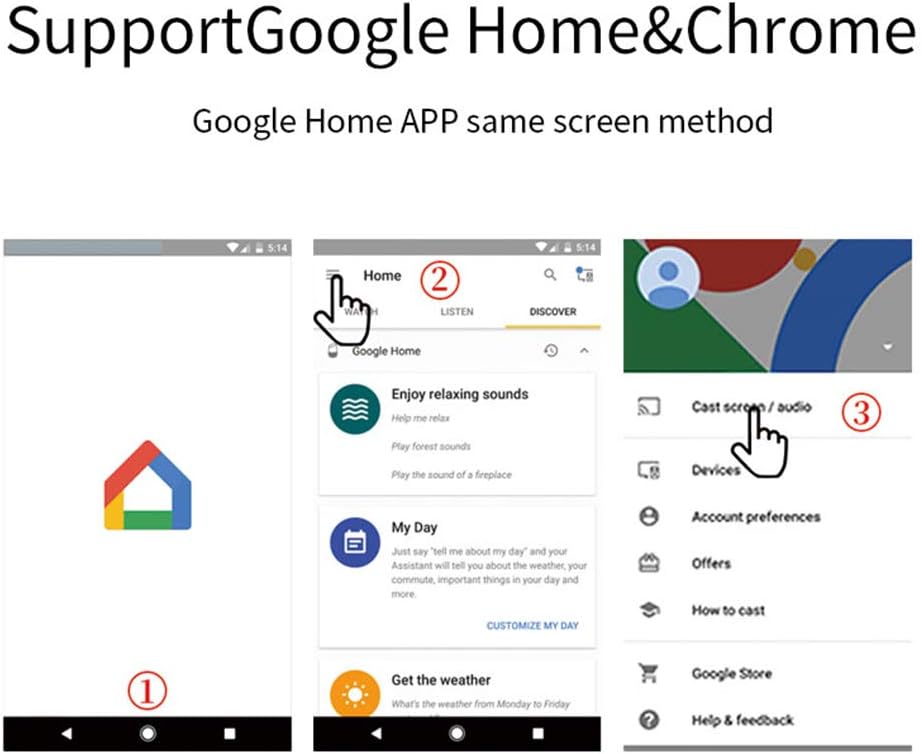
Imatge 5.1: A series of mobile phone screenshots illustrating the process of casting content using the Google Home application, showing steps to access casting options.
The device supports various applications, including home theater use and annotation editing through real-time mirroring.

Imatge 5.2: The MiraScreen G2M dongle connected to a display, showing a mobile phone mirroring content for a home theater experience.
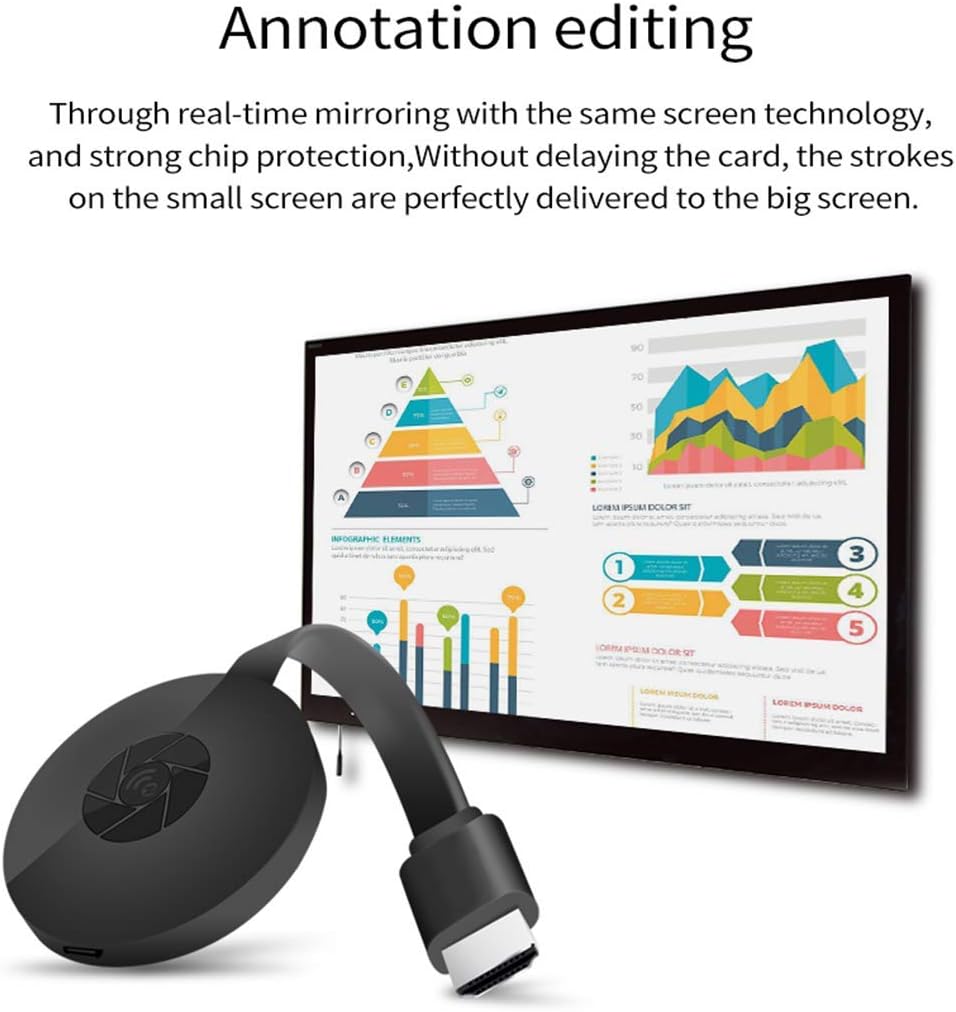
Imatge 5.3: The MiraScreen G2M dongle mirroring a device screen to a larger display, demonstrating its use for real-time annotation and editing.
6. Manteniment
- Mantingueu el dispositiu en un ambient sec.
- Eviteu exposar el dispositiu a temperatures extremes.
- Netegeu el dispositiu amb un drap suau i sec. No utilitzeu netejadors líquids.
- No intenteu desmuntar o reparar el dispositiu vosaltres mateixos.
7. Solució De Problemes
- No display on TV:
- Assegureu-vos que el dongle estigui ben connectat al port HDMI.
- Verify the TV input source is set to the correct HDMI port.
- Check if the dongle is receiving adequate power from the USB source. Try a different USB port or a dedicated 5V/1A power adapter.
- Cannot connect to MiraScreen WiFi:
- Ensure the dongle is powered on and displaying its initial screen.
- Reinicieu el dongle desconnectant i tornant a connectar el cable d'alimentació USB.
- Ensure your device's WiFi is enabled and scanning for networks.
- Screen mirroring is laggy or disconnects frequently:
- Ensure your source device is close to the MiraScreen dongle to maintain a strong WiFi signal.
- Reduir les interferències d'altres dispositius sense fil.
- Ensure the MiraScreen dongle is connected to a stable home WiFi network (if applicable for your mirroring method).
- Check for any firmware updates for the MiraScreen dongle (instructions usually available via its web interfície).
- Sense àudio:
- Check the volume settings on both your source device and the TV.
- Ensure the HDMI connection is secure.
- Device not found for Miracast/Airplay:
- Ensure the MiraScreen dongle is in the correct mode for your device (Airplay for iOS, Miracast for Android/Windows). Press the button on the dongle to switch modes.
- Restart both your source device and the MiraScreen dongle.
8. Especificacions
| Nom del model | G2M |
| Marca | MiraScreen |
| Tecnologia de connectivitat | Wi-Fi (2.4 G) |
| Tipus de connector | HDMI |
| Resolució | Fins a 1080p |
| Sistemes operatius suportats | iOS, Android, Windows |
| Protocols compatibles | DLNA, Miracast, Airplay |
| Color | Negre |
| Pes de l'article | 2.89 unces (aproximadament 82 grams) |
| Dimensions del paquet | 8.7 x 3.11 x 0.94 polzades |
9. Garantia i Suport
Per obtenir informació sobre la garantia i assistència tècnica, consulteu la pàgina oficial de MiraScreen. weblloc web o contacteu directament amb el servei d'atenció al client. Conserveu el rebut de compra per a reclamacions de garantia.
Official MiraScreen Store: Botiga MiraScreen a Amazon