
Introducció
This manual provides detailed instructions for the setup, operation, maintenance, and troubleshooting of your Tera Pro Series 6900 1D Laser Barcode Scanner. Please read this manual thoroughly before using the device to ensure proper functionality and to prevent damage.
Informació de seguretat
- Do not look directly into the scanning light beam.
- Mantingueu el dispositiu allunyat de l'aigua i altres líquids.
- Eviteu deixar caure l'escàner ni sotmetre'l a impactes forts.
- Do not attempt to disassemble or repair the scanner yourself. Contact support if service is required.
Contingut del paquet
Verifiqueu que tots els elements siguin presents al vostre paquet:
- Tera Pro Series 6900 1D Laser Barcode Scanner
- Cable USB
- Smart Stand (for automatic scanning mode)
- Manual d'usuari (aquest document)
Configuració
1. Connexió de l'escàner
The Tera Pro Series 6900 scanner is a Plug & Play device, requiring no driver installation.
- Connect the USB cable to the scanner.
- Connecteu l'altre extrem del cable USB a un port USB 2.0 disponible de l'ordinador.
- The scanner will automatically install necessary drivers and be ready for use.

Image: The Tera 6900 Barcode Scanner connected to a laptop via USB, highlighting its Plug & Play feature and support for multiple keyboard languages.
2. Compatibilitat del sistema
The scanner is compatible with various operating systems and devices:
- Sistemes operatius: Windows, Mac OS, Linux.
- Dispositius compatibles: Desktop Computers, Laptops.
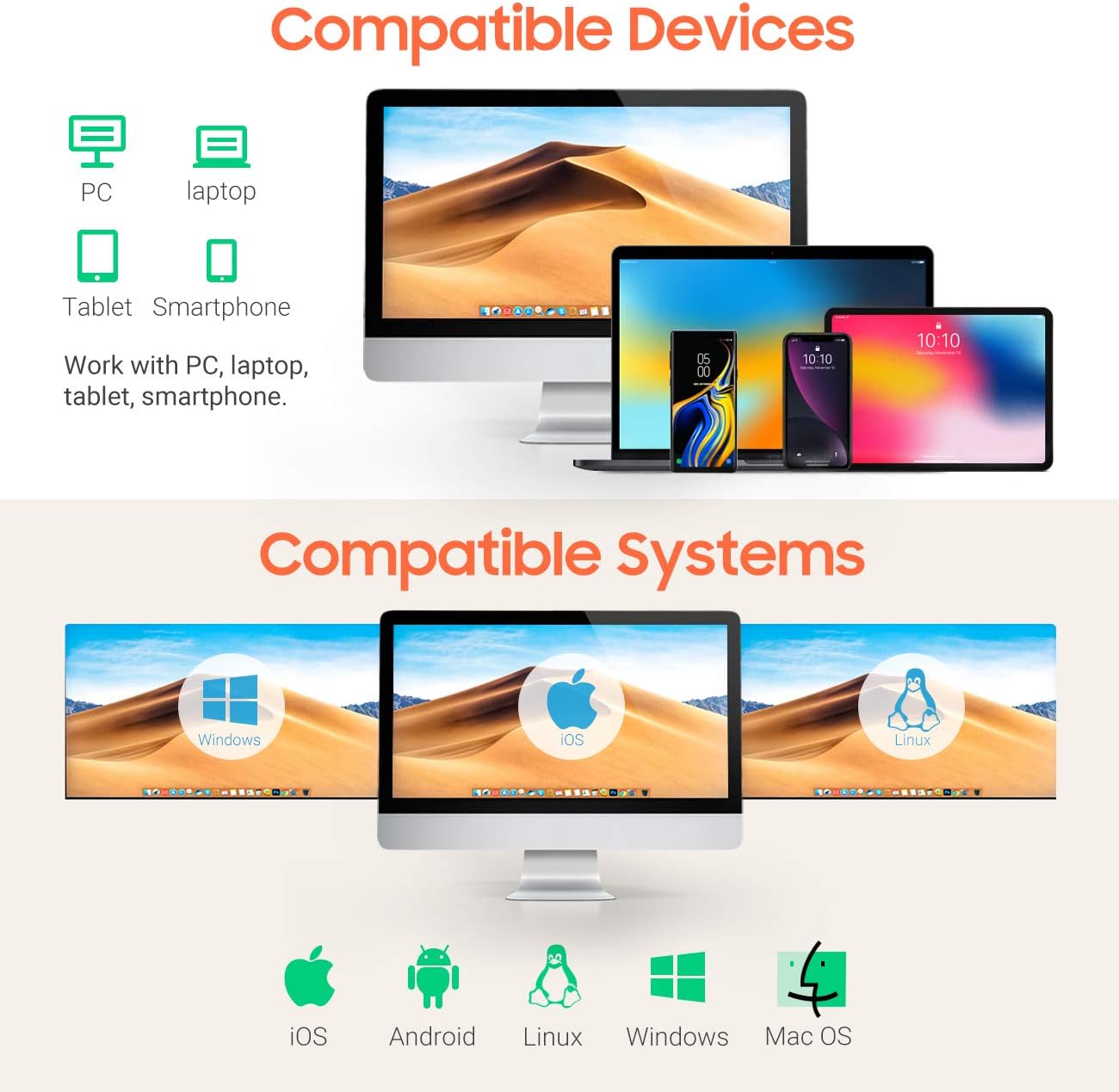
Image: Visual representation of the scanner's broad compatibility with different devices and operating systems.
Instruccions de funcionament
1. Modes d'escaneig
The Tera 6900 scanner supports three primary scanning modes:
- Sensor Activated Mode: The scanner automatically detects a barcode and activates the laser.
- Mode d'activació clau: Press the trigger button to activate the laser and scan a barcode.
- Mode continu: The laser remains continuously active, scanning any barcode that passes through its field.
2. Automatic Scanning with Smart Stand
When the scanner is placed on its intelligent Smart Stand, it automatically switches to sensor-activated mode. The laser will turn on when a barcode is detected, offering hands-free operation. Removing the scanner from the stand will revert it to key trigger mode within seconds.

Image: The scanner positioned on its Smart Stand, ready for automatic, hands-free scanning.
3. Scanning Angle
For optimal scanning performance, position the scanner within the recommended angles:
- Angle of Deflection: ±40°
- Angle of Elevation: ±40°

Image: Visual guide for positioning the scanner to achieve the best scanning results.
4. Decoding Capacity
The Tera 6900 scanner offers super decoding capabilities for various 1D barcode conditions, including:
- Damaged barcodes
- Blurred barcodes
- Scratched barcodes
- Dislocated barcodes
- Colorful barcodes
- Fuzzy barcodes
- Ultra-long and small 1D barcodes (down to 5mm)

Image: Demonstrates the scanner's ability to read difficult-to-scan 1D barcodes.
5. Supported 1D Barcode Types
The scanner supports a wide range of 1D barcode symbologies:
- CODE39, CODE39 Full ASCII, CODE128, CODE 32, CODEBAR, CODE93, EAN13, CODE11, EAN-128, EAN-8, EAN-13, UPC-A, UPC-E, MSI, ISBN, ISBN 13, Industrial 2/5, ITF14, Interleaved 2/5, Standard 2/5, Matrix 2/5, GS1.
6. Output Programmable Features
Customize the scanner's output with various programmable settings:
- Afegeix un prefix/sufix: Afegiu caràcters personalitzats abans o després de les dades escanejades.
- Hide Prefix/Suffix: Remove existing prefixes or suffixes from scanned data.
- Insert Digits: Insert specific digits at a desired position within the scanned data.
- Control de volum: Adjust the beep sound volume.
- Terminator: Configure the end-of-line character (e.g., Enter, Tab).
- Conversió de casos: Convert scanned data to uppercase or lowercase.

Image: Visual guide to customizing barcode output with prefixes, suffixes, and digit insertion.
7. Keyboard Language Support
The scanner supports multiple keyboard languages to ensure correct data input:
- Anglès
- espanyol
- alemany
- japonès
- francès
- italià
- I més.
Manteniment
Per garantir la longevitat i el rendiment òptim del vostre escàner, seguiu aquestes pautes de manteniment:
- Neteja: Feu servir un drap suau i sec per netejar l'exterior de l'escàner. Per a la finestra d'escaneig, feu servir un drap sense borrissol lleugerament humit.ampened with a mild, non-abrasive cleaner. Do not spray cleaner directly onto the device.
- Emmagatzematge: Guardeu l'escàner en un lloc fresc i sec, allunyat de la llum solar directa i de temperatures extremes.
- Cura del cable: Eviteu doblegar o torçar excessivament el cable USB.
Resolució de problemes
| Problema | Causa possible | Solució |
|---|---|---|
| Scanner does not connect to computer. | Loose USB connection, faulty USB port, or system incompatibility. | Ensure the USB cable is securely connected to both the scanner and the computer. Try a different USB port or a different computer to rule out port issues. Verify your operating system is supported (Windows, Mac, Linux). |
| L'escàner no llegeix codis de barres. | Barcode is damaged/unreadable, incorrect scanning angle, or scanner is in the wrong mode. | Ensure the barcode is clear and undamaged. Adjust the scanning angle. Check if the scanner is in the correct operating mode (e.g., Key Trigger, Sensor Activated). Refer to the "Operating Instructions" section. |
| Incorrect characters appear after scanning (e.g., special characters instead of letters). | Incorrect keyboard language setting. | Configure the scanner's keyboard language to match your computer's keyboard layout. Refer to the scanner's programming guide (usually a separate barcode sheet) for language setting barcodes. |
| L'escàner emet un so però no es transmeten dades. | Application not in focus, or data format issue. | Ensure the cursor is in a text field of an active application (e.g., Notepad, Word, Excel). Check programmable output settings for any unintended prefixes, suffixes, or terminators. |
Especificacions
| Marca | Tera |
| Número de model | 6900 |
| Color | Taronja |
| Tecnologia de connectivitat | USB |
| Dispositius compatibles | Computer, Laptop |
| Taxa d'escaneig | 100 imatges per segon |
| Tipus de codis de barres compatibles | 1D (CODE39, CODE128, EAN, UPC, etc.) |
| UPC | 787803926279 |
Garantia
The Tera Pro Series 6900 1D Laser Barcode Scanner comes with a Garantia del fabricant de 1 anys des de la data de compra. Aquesta garantia cobreix els defectes de materials i fabricació en condicions d'ús normal. No cobreix els danys causats per un mal ús, accidents, modificacions no autoritzades o instal·lació incorrecta.
Conserveu el vostre comprovant de compra per a reclamacions de garantia.
Suport
For technical assistance, troubleshooting not covered in this manual, or warranty inquiries, please contact Tera customer support through the official weblloc web o el vostre minorista.
Per a més informació, visiteu el Tera Brand Store.