
MiraScreen G4
MiraScreen G4 Wireless WiFi Display Dongle Receiver
Manual d'usuari
Model: G4 | Marca: MiraScreen
1. Introducció
The MiraScreen G4 Wireless WiFi Display Dongle Receiver is a versatile device designed for seamless screen mirroring. It allows you to wirelessly display the entire screen of your iOS or Android smartphone, tablet PC, or even PC onto a larger display such as an HDTV or projector. This makes it ideal for presentations, watching movies, or sharing content on a big screen.
Les característiques clau inclouen:
- Pantalla sense fils: Supports wireless screen mirroring for iOS and Android devices.
- External WiFi Module: Features an external WiFi module (802.11b/g/n, 2.4GHz) for strong signal and reliable transmission.
- Àmplia compatibilitat: Supports multi-OS (Android, iOS) and protocols like Miracast, Airplay, and DLNA.
- Plug and Play: No driver installation required; easy to operate with a single button switch between modes.
- High Definition Output: Provides Full HD 1080P output via HD interface for clear visuals.
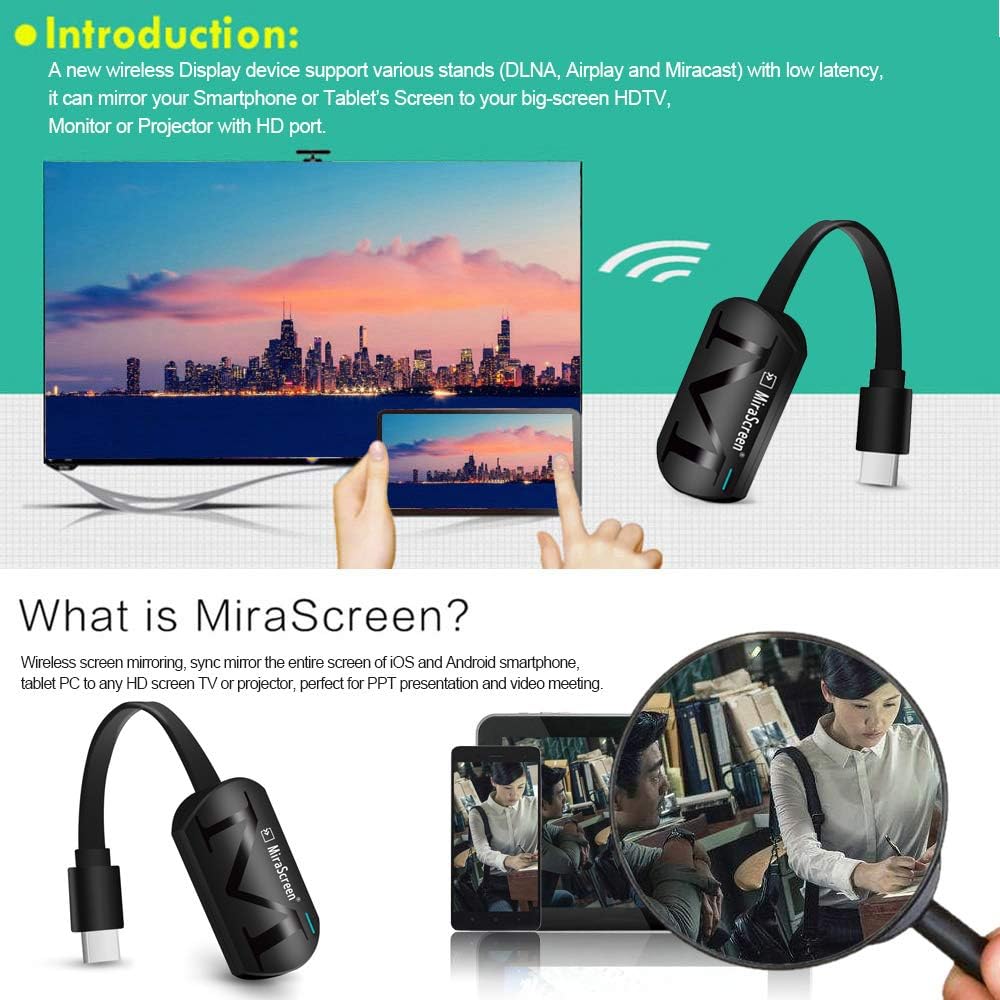
Image: MiraScreen G4 in use, demonstrating wireless display capabilities.
2. Contingut del paquet
Si us plau, verifiqueu que tots els elements que s'enumeren a continuació estiguin inclosos al vostre paquet:
- 1 x MiraScreen G4 WiFi Display Receiver
- 1 x 2-in-1 USB Cable & WiFi Module
- 1 x User Manual (English / Chinese)
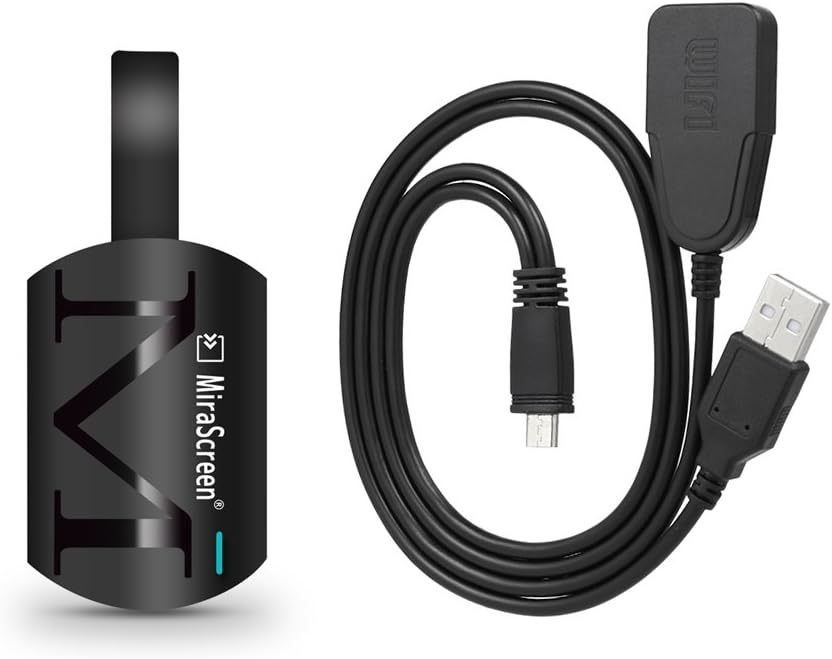
Image: Contents of the MiraScreen G4 package, showing the dongle and its cable.
3. Especificacions
| Característica | Detall |
|---|---|
| Número de model | G4 |
| OS | Linux |
| CPU | AM825X |
| Velocitat de la CPU | 600 MHz |
| RAM | DDR3 128 MB |
| Mòdul WiFi | 8188FTV |
| Freqüència WiFi | 2.4 GHz |
| Màx. Resolució | 1920 * 1080P |
| Poder | 5V 1A |
| Admet File Formats | PDF, MS Word, MS Excel, MS Powerpoint, I Works |
| Formats de vídeo compatibles | AVI, DIVX, MKV, TS, DAT, MPG, MPEG, MOV, MP4, RM, RMVB, WMV |
| Formats d'àudio compatibles | MP1, MP2, MP3, WMA, OGG, ADPCM-WAV, PCM-WAV, AAC |
| Formats de fotos compatibles | JPEG, BMP |
| Color | Negre |
| Main Item Size | 5.8 * 3.8 * 1.9 cm |
| Main Item Weight | 25 g |
4. Configuració
4.1 Connexió inicial
Follow these steps to connect your MiraScreen G4 to your display device:
- Connect the Dongle: Plug the MiraScreen G4 dongle into an available HD port on your HDTV or projector.
- Connectar l'alimentació: Connect the 2-in-1 USB cable and WiFi module to the Micro USB port on the MiraScreen G4 dongle. Plug the USB-A end of the cable into a USB port on your TV/projector for power (ensure it provides 5V 1A) or use an external USB power adapter (not included).
- Seleccioneu l'entrada: On your TV or projector, select the corresponding HD input source to display the MiraScreen G4 interface.
- WiFi Module Placement: Ensure the external WiFi module is placed in front of your TV and there are no obstacles between it and your smart device for optimal signal.

Image: Connection diagram for the MiraScreen G4 to a display.
5. Instruccions de funcionament
5.1 Switching Between Modes (Airplay / Miracast)
The MiraScreen G4 supports both Airplay (for iOS devices) and Miracast (for Android devices). You can easily switch between these modes using the physical button on the device.
- For Airplay Mode (iOS): Ensure the device is in Airplay mode. If not, press the button on the dongle once to switch. Then, on your iOS device, enable Screen Mirroring/Airplay and select the MiraScreen device from the list.
- For Miracast Mode (Android): Ensure the device is in Miracast mode. If not, press the button on the dongle once to switch. Then, on your Android device, enable Wireless Display/Screen Cast/Smart View (names may vary by device) and select the MiraScreen device.

Image: The "One Key Switch" button on the MiraScreen G4 for mode selection.
5.2 Compatibilitat de dispositius
The MiraScreen G4 is designed for broad compatibility with mobile operating systems:
- Per a iOS: Admet iOS 8.0 i posterior.
- Per al sistema operatiu Android: Supports Android OS 4.2 or above.
Please note that the WiFi Wireless Display is primarily compatible with smartphones and tablet PCs, and is generally not compatible with traditional desktop PCs or laptops for direct mirroring.

Image: Visual representation of MiraScreen G4 compatibility with different devices.
6. Manteniment
To ensure the longevity and optimal performance of your MiraScreen G4, please follow these maintenance guidelines:
- Neteja: Feu servir un drap suau i sec per netejar el dispositiu. No utilitzeu netejadors líquids ni aerosols.
- Emmagatzematge: Guardeu el dispositiu en un lloc fresc i sec, allunyat de la llum solar directa i de temperatures extremes.
- Manipulació: Handle the dongle and cables with care. Avoid bending or twisting the cables excessively.
- Medi ambient: No exposeu el dispositiu a l'aigua, la humitat o la humitat elevada.
7. Solució De Problemes
If you encounter issues with your MiraScreen G4, please refer to the following common problems and solutions:
- No Display on TV/Projector:
- Ensure the MiraScreen G4 is securely plugged into the HD port.
- Verify that the TV/projector input source is set to the correct HD port.
- Check if the device is receiving adequate power (5V 1A). Try a different USB power source if available.
- Connection Issues / Lagging Display:
- Ensure the distance between your smart device and the MiraScreen G4 is within 6 meters for optimal transmission.
- Make sure there are no significant obstacles (like walls or large furniture) between the WiFi module and your smart device.
- Restart both the MiraScreen G4 (by unplugging and replugging power) and your smart device.
- Confirm your smart device supports Miracast, DLNA, or Airplay functionality.
- Cannot Mirror Certain Apps (e.g., Netflix, Amazon Video):
- Please note that the MiraScreen G4 is generally not compatible with content protected by HDCP (High-bandwidth Digital Content Protection), which includes streaming services like Netflix, Amazon Video Client, HBO Go, and Honda Motor. This is a limitation due to content rights management.
- Sobreescalfament del dispositiu:
- Ensure the device has adequate ventilation and is not covered.
- Si el sobreescalfament persisteix, interrompeu l'ús i contacteu amb el servei d'assistència.
8. Garantia i Suport
For information regarding warranty coverage, please refer to the warranty card included with your product or contact your point of purchase. If you require technical assistance or have questions not covered in this manual, please reach out to MiraScreen customer support through their official website or contact information provided with your product packaging.
Conserveu aquest manual per a futures consultes.
Ask a question about this manual
Ask about setup, troubleshooting, compatibility, parts, safety, or missing instructions. Manuals+ will review the question and use this page’s manual context to help answer it.