
Introducció
This manual provides comprehensive instructions for the setup, operation, and maintenance of your Oyen Digital Mobius Pro 5C 5-Bay USB-C External RAID Drive Array. Please read this manual thoroughly before using the device to ensure proper functionality and to maximize its lifespan.
The Mobius Pro 5C is a high-capacity, 5-bay external storage solution designed for professionals requiring reliable and fast data storage. It features USB-C connectivity, a built-in USB-C hub, and supports various RAID configurations for data protection and performance optimization.
Què hi ha a la caixa
Verifiqueu que tots els elements que s'enumeren a continuació s'inclouen al vostre paquet:
- Oyen Digital Mobius Pro 5C 5-Bay USB-C External RAID Drive Array
- Cable USB CA
- Cable USB CC
- Cable d'alimentació
- Claus per al bloqueig del panell frontal
- Manual d'usuari (aquest document)
Característiques
The Oyen Digital Mobius Pro 5C offers a robust set of features for advanced data management:
- Alta capacitat: Supports up to 80 Terabytes (using 5 x 16TB Toshiba Enterprise 7200RPM drives).
- Connectivitat USB-C: Compatible with all USB and Thunderbolt 3 devices. Note: Not compatible with Thunderbolt 2.
- Integrated USB-C Hub: Includes a secondary hub port for daisy-chaining up to six Mobius Pro 5C units or connecting additional USB devices. The hub port provides 15W (5V/3A) for bus-powered portable drives.
- Suport RAID: User configurable for RAID 0, 1, 4, 5, and 1+0 using the included full version of SoftRAID for Mac.
- Tray-less Enclosure: Simplifies drive installation and removal.
- Refrigeració eficient: Features dual cooling fans to maintain optimal operating temperatures.
Configuració
Follow these steps to set up your Mobius Pro 5C drive array:
1. Instal·lació de la unitat
The Mobius Pro 5C features a tray-less design for easy hard drive installation. Ensure the device is powered off before installing or removing drives.

Imatge: Frontal view of the Mobius Pro 5C with the front door open, showing the five tray-less drive bays.
- Unlock and open the front door of the Mobius Pro 5C.
- Gently slide each 3.5-inch hard drive into an empty bay until it clicks into place. Ensure the drive is oriented correctly.
- Tanqueu i tanqueu la porta principal.

Imatge: Frontal view of the Mobius Pro 5C with the front door open, showing five hard drives installed.
2. Connexió a l'ordinador
Connect the Mobius Pro 5C to your computer using the provided USB-C to USB-C cable or USB-C to USB-A cable, depending on your computer's ports.
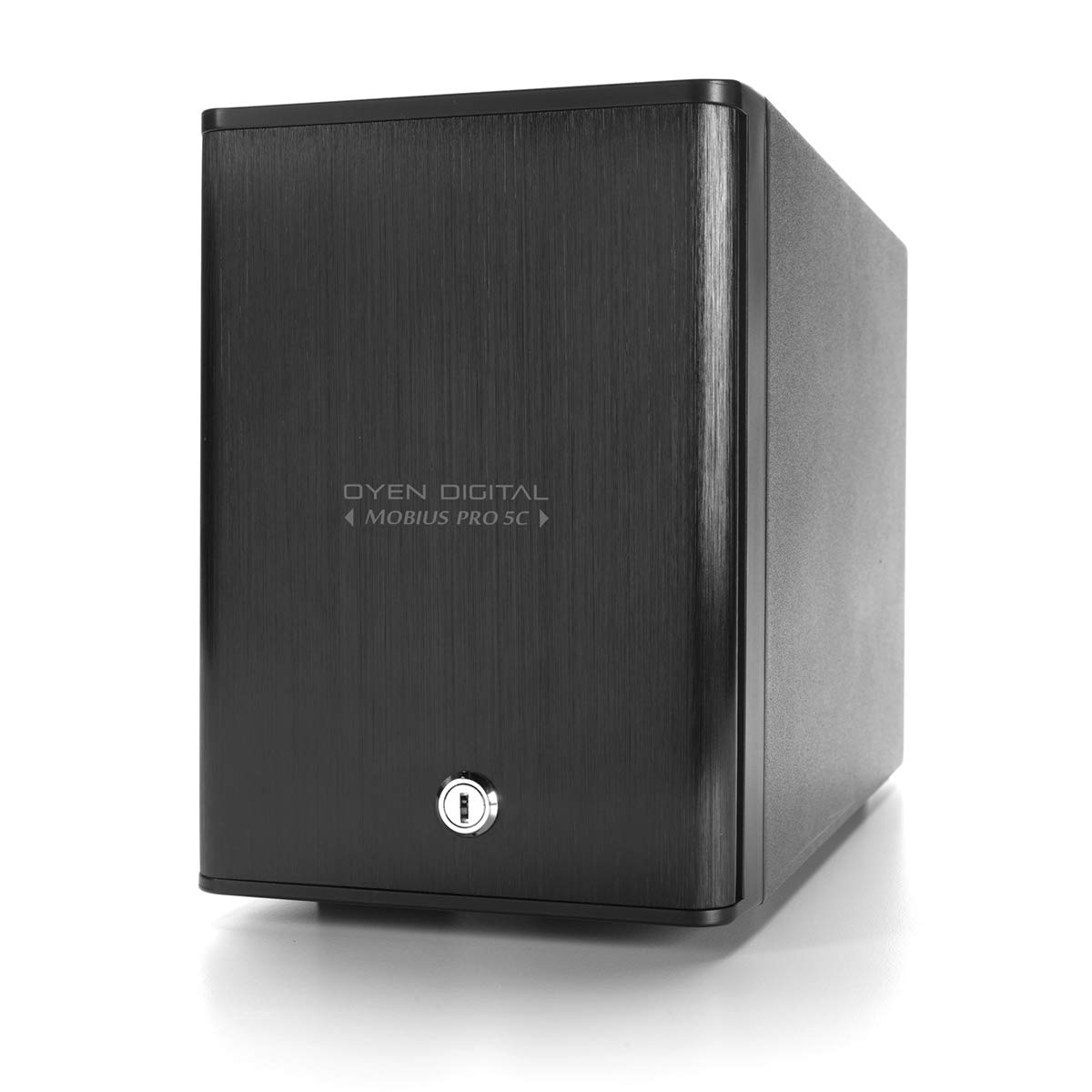
Image: Rear panel of the Mobius Pro 5C, highlighting the power input, power switch, main USB-C port, and USB-C hub port.
- Connect one end of the USB-C cable to the "MAIN" USB 3.1 (10Gbps) port on the back of the Mobius Pro 5C.
- Connect the other end of the USB-C cable to an available USB-C or Thunderbolt 3 port on your computer. If using a USB-A port, use the appropriate cable.
3. Connexió d'alimentació
- Connect the power cord to the power input on the back of the Mobius Pro 5C.
- Connecteu l'altre extrem del cable d'alimentació a una presa de corrent estàndard.

Image: Mobius Pro 5C connected to a laptop and an additional external drive via its USB-C hub, demonstrating daisy-chaining capability.
4. Encès
Flip the power switch on the back of the Mobius Pro 5C to the "ON" position. The power indicator LED on the front panel will illuminate, followed by the individual drive activity LEDs.

Image: Front panel of the Mobius Pro 5C showing illuminated blue LED indicators for power and drive activity.
5. RAID Configuration (Mac Users)
For Mac users, the Mobius Pro 5C includes a full version of SoftRAID. This software allows you to configure your drives into various RAID levels (0, 1, 4, 5, 1+0) to optimize for speed, redundancy, or a balance of both. Refer to the SoftRAID documentation for detailed instructions on creating and managing RAID volumes.
For Windows users, RAID configuration is typically managed through the operating system's Disk Management utility or third-party software.
Instruccions de funcionament
Transferència de dades
Once configured and recognized by your operating system, the Mobius Pro 5C will appear as a single or multiple volumes, depending on your RAID setup. You can drag and drop files, use backup software, or access it like any other external drive.

Image: Mobius Pro 5C connected and in use with a laptop, demonstrating its role in a professional workflow.
Utilitzant el concentrador USB-C
The Mobius Pro 5C features a secondary USB 3.1 (5Gbps) Type-C hub port. This port can be used to:
- En cadena: Connect additional Mobius Pro 5C units or other compatible USB-C devices.
- Connecteu els perifèrics: Attach other USB devices such as card readers, flash drives, or bus-powered portable drives. The hub provides 15W (5V/3A) of power.
Ensure that the total power draw of daisy-chained or connected devices does not exceed the hub's power capabilities.
Gestió d'energia
To safely power off the Mobius Pro 5C, first unmount or eject all volumes from your operating system. Then, flip the power switch on the back of the unit to the "OFF" position. This prevents data corruption.
Manteniment
- Neteja: Feu servir un drap suau i sec per netejar l'exterior de la unitat. No utilitzeu netejadors líquids ni dissolvents.
- Ventilació: Ensure the cooling vents on the back of the unit are not obstructed to allow for proper airflow.
- Salut de la unitat: Regularly check the health of your hard drives using your operating system's disk utility or SoftRAID's monitoring features. Replace failing drives promptly to maintain data integrity, especially in RAID configurations that offer redundancy.
- Actualitzacions de firmware: Periodically check the Oyen Digital website for any available firmware updates for your Mobius Pro 5C.
Resolució de problemes
If you encounter issues with your Mobius Pro 5C, refer to the following common troubleshooting steps:
- Dispositiu no reconegut:
- Assegureu-vos que tots els cables (d'alimentació i USB-C) estiguin connectats correctament.
- Verifiqueu que l'interruptor d'alimentació estigui en la posició "ON".
- Try connecting to a different USB-C or Thunderbolt 3 port on your computer.
- Prova amb un altre cable USB-C.
- Check your computer's Disk Management (Windows) or Disk Utility (Mac) to see if the drives are detected but uninitialized or unformatted.
- Rendiment lent:
- Ensure you are connected to a USB 3.1 Gen 2 (10Gbps) or Thunderbolt 3 port for optimal speed.
- Verify that your RAID configuration is appropriate for your performance needs (e.g., RAID 0 for maximum speed).
- Check for background processes on your computer that might be consuming system resources.
- Drive Activity LEDs Not Illuminating:
- Confirm drives are properly seated in their bays.
- Assegureu-vos que la unitat estigui encès.
- If only one drive LED is off, that specific drive may be faulty or improperly installed.
If issues persist, contact Oyen Digital customer support for further assistance.
Especificacions
| Característica | Detall |
|---|---|
| Marca | Oyen Digital |
| Número de model | 3N5-C-80TB-SR |
| Capacitat d'emmagatzematge digital | 80 TB (Terabytes) |
| Interfície de disc dur | Sèrie ATA-600 |
| Tecnologia de connectivitat | USB-C (USB 3.1 Gen 2), Thunderbolt 3 compatible |
| Factor de forma del disc dur | 3.5 polzades |
| Descripció del disc dur | Mechanical Hard Disk (7200 RPM) |
| Dispositius compatibles | Ordinadors d'escriptori |
| Tipus d'instal·lació | Disc dur extern |
| Velocitat de transferència de dades | Up to 10 Gigabits Per Second (USB 3.1 Gen 2) |
| Pes de l'article | 19 lliures |
| Nombre d'articles | 1 (Drive Array Enclosure) |
| Mitjans integrats | POWER CORD, USB C-A CABLE, USB C-C CABLE |
| UPC | 850015818400 |
Producte acabatview Vídeo
Mireu aquest vídeo oficial del producte per obtenir una visió generalview of the Mobius Pro 5C's features and design.
Vídeo: Un overview of the Oyen Digital Mobius Pro 5C, showcasing its tray-less enclosure, USB-C hub, power supply, and connectivity options in a professional workflow environment.
Garantia i Suport
The Oyen Digital Mobius Pro 5C is backed by a 3 any de garantia.
For technical support, warranty claims, or additional product information, please visit the official Oyen Digital weblloc o poseu-vos en contacte amb el seu departament d'atenció al client.
Recursos en línia: Oyen Digital Store on Amazon