
1. Introducció
This manual provides essential information for the safe and efficient operation of your iProda 2 in 1 Laptop, Model M1169YM. Please read this manual thoroughly before using the device and retain it for future reference. This convertible laptop features an 11.6-inch touchscreen, powered by an Intel N4100 processor, and runs on Windows 10 Pro.

Image: The iProda 2 in 1 Laptop can be used in multiple configurations, including traditional laptop, tent, stand, and tablet modes, showcasing la seva versatilitat.
2. Informació de seguretat
Observeu les següents precaucions de seguretat per evitar danys al dispositiu o lesions personals:
- No exposeu el dispositiu a temperatures extremes, llum solar directa ni humitat elevada.
- Eviteu deixar caure el dispositiu ni sotmetre'l a impactes forts.
- Use only the provided or approved power adapter for charging.
- Mantingueu el dispositiu allunyat de l'aigua i altres líquids.
- No intenteu desmuntar ni reparar el dispositiu vosaltres mateixos. Poseu-vos en contacte amb personal de servei qualificat.
3. Contingut del paquet
Verifiqueu que tots els elements siguin presents al vostre paquet:
- iProda 2 in 1 Laptop (Model M1169YM)
- Adaptador d'alimentació
- Manual d'usuari (aquest document)
4. Producte acabatview
The iProda 2 in 1 Laptop is designed for versatility, offering multiple usage modes and essential connectivity options.
4.1. Característiques clau
- Pantalla tàctil IPS de 11.6 polzades: A responsive 10-point precision touchscreen with 1920x1080 resolution for interactive use.
- Disseny convertible: 360-degree hinge allows seamless transition between laptop, tablet, tent, and stand modes.
- Intel N4100 Processor: Provides efficient performance for daily tasks.
- Windows 10 Pro: Pre-installed operating system for productivity and security.
- Emmagatzematge ampliable: Supports M.2 2242 SSD for additional storage capacity.

Image: Key features of the iProda laptop, including its touchscreen, operating system, display specifications, and camera resolution.

Image: The laptop's 360-degree hinge allows it to convert into a tablet, enabling direct interaction via its precision touchscreen.
4.2. Ports i botons
Familiarize yourself with the various ports and buttons on your laptop:
- Port de tipus C: Used for power supply and data transfer.
- Micro HDMI: Per connectar a pantalles externes.
- Micro USB: Per connectar dispositius USB.
- Ranura per a targetes TF: Per ampliar l'emmagatzematge amb una targeta TF (MicroSD).
- Botó d'encesa: Per encendre/apagar el dispositiu o posar-lo en repòs.
- Botons de volum: To adjust audio output.
- Presa per a auriculars: Per connectar auriculars o altaveus externs.

Imatge: Una imatge detallada view of the laptop's side panels, indicating the location and function of each port and button for easy identification.
5. Configuració
5.1. Carregant la bateria
Before first use, fully charge the laptop's battery. Connect the provided power adapter to the Type-C port on the laptop and plug it into a power outlet. The charging indicator light will illuminate.
5.2. Primer arrencada i configuració de Windows
- Press and hold the Power Button until the screen turns on.
- Seguiu les instruccions que apareixen a la pantalla per completar la configuració inicial del Windows 10 Pro, inclosa la selecció d'idioma, la connexió de xarxa i la creació d'un compte d'usuari.
6. Com fer servir el portàtil
6.1. Ús de la pantalla tàctil
The 10-point precision touchscreen allows for intuitive interaction with Windows 10 Pro. Use gestures such as tapping, swiping, pinching, and stretching to navigate, zoom, and interact with applications.
6.2. Teclat i touchpad
The integrated keyboard and touchpad provide traditional input methods. The touchpad supports multi-touch gestures for scrolling, zooming, and switching applications.

Image: The laptop's full-size American keyboard and responsive touchpad, designed for comfortable typing and navigation.
6.3. Modes convertibles
The 360-degree hinge allows you to switch between various modes:
- Mode portàtil: Configuració estàndard per a la mecanografia i la productivitat.
- Mode tauleta: Fold the screen back completely for a tablet experience, ideal for browsing or drawing.
- Mode tenda: Position the laptop like a tent for media consumption or presentations.
- Mode de peu: Flip the keyboard face down to use the screen as a display, suitable for watching videos.

Image: The laptop configured in tent mode, demonstrating its flexibility for viewing content without the keyboard in the way.
7. Ampliació d'emmagatzematge
The laptop comes with 64GB eMMC storage. You can expand the storage capacity by installing an M.2 2242 SSD (128GB/256GB/512GB, not included).
7.1. Installing an M.2 2242 SSD
To install an M.2 2242 SSD:
- Power off the laptop and disconnect the power adapter.
- Carefully open the back cover of the laptop.
- Locate the M.2 slot.
- Insert the M.2 2242 SSD into the slot and secure it with the appropriate screw (if provided).
- Torneu a col·locar la tapa posterior.
- Upon booting, you may need to initialize and format the new SSD through Windows Disk Management.
Note: If you are unsure about this procedure, it is recommended to seek professional assistance.

Image: Visual representation of the M.2 SSD slot, illustrating how additional storage can be integrated into the laptop.
8. Connectivitat
8.1. Connexió Wi-Fi
The laptop supports dual-frequency 2.4GHz/5GHz Wi-Fi. To connect to a wireless network:
- Click the Wi-Fi icon in the system tray.
- Seleccioneu la xarxa desitjada de la llista.
- Introduïu la contrasenya de xarxa si se us demana i feu clic a "Connecta".
8.2. External Display (Micro HDMI)
Connect an external monitor or TV using a Micro HDMI to HDMI cable. Once connected, you can configure display settings (duplicate, extend, second screen only) through Windows display settings.
8.3. Dispositius USB
Use the Micro USB port or the Type-C port (with an appropriate adapter) to connect peripherals such as a mouse, keyboard, or external storage devices.
9. Manteniment
9.1. Neteja
To clean the laptop, power it off and disconnect the power adapter. Use a soft, lint-free cloth slightly dampened with water or a screen cleaner for the display. Avoid harsh chemicals or abrasive materials.
9.2. Cura de la bateria
Per allargar la durada de la bateria:
- Eviteu descarregar completament la bateria amb freqüència.
- Do not expose the laptop to high temperatures.
- Si guardeu el portàtil durant un període prolongat, assegureu-vos que la bateria estigui carregada al voltant del 50-70%.
10. Solució De Problemes
Aquí teniu solucions a problemes comuns que podeu trobar:
| Problema | Solució |
|---|---|
| El portàtil no s'encén. | Ensure the battery is charged. Connect the power adapter and try again. If still unresponsive, perform a hard reset by holding the power button for 10-15 seconds. |
| La pantalla està en blanc o parpelleja. | Restart the laptop. Check if an external display is connected and interfering. Update display drivers if possible. |
| Problemes de connexió Wi-Fi. | Assegureu-vos que el Wi-Fi estigui habilitat. Reinicieu el router i el portàtil. Comproveu la configuració de xarxa a Windows. |
| La pantalla tàctil no respon. | Restart the laptop. Ensure the screen is clean. Check for any pending Windows updates or driver updates for the touchscreen. |
11. Especificacions
Technical specifications for the iProda 2 in 1 Laptop (Model M1169YM):
| Característica | Detall |
|---|---|
| Marca | iProda |
| Número de model | M1169YM |
| Sistema operatiu | Windows 10 Pro |
| Mida de la pantalla | 11.6 polzades |
| Resolució de pantalla | 1920 x 1080 píxels (1080p) |
| Processador | Intel N4100 (up to 2.4 GHz Burst Frequency) |
| RAM | 4 GB DDR4 |
| Disc dur | eMMC de 64 GB |
| Targeta gràfica | Integrated (UHD 600 Graphics) |
| Tipus sense fil | 2.4 GHz / 5 GHz Dual-frequency Wi-Fi |
| Durada mitjana de la bateria | 8 Hours (3500mAh, 27Wh) |
| Pes de l'article | 3.63 lliures |
| Dimensions del producte | 11.99 x 11.6 x 0.5 polzades |
| Tecnologia de connectivitat | HDMI, USB Type-C, Micro USB |
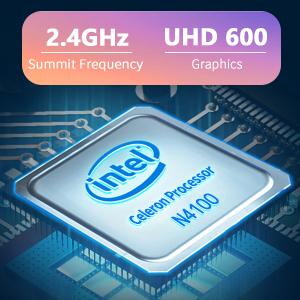
Image: The Intel Celeron N4100 processor, central to the laptop's performance, highlighting its clock speed and integrated graphics capabilities.

Image: The laptop's battery specifications, indicating its power capacity for extended use.
12. Garantia i Suport
For warranty information and technical support, please refer to the documentation included with your purchase or visit the official iProda website. Contact information for customer service can typically be found on the manufacturer's support page.