
Introducció
This manual provides essential instructions for setting up, operating, maintaining, and troubleshooting your Surfans K7 Kids Tablet. Please read this guide thoroughly to ensure proper use and to maximize the tablet's features for a safe and engaging experience for children.
Producte acabatview
Característiques clau
- Sistema operatiu Android 10.0: Provides a secure and fast user experience.
- 7-inch IPS FHD Display: Features a 1920 x 1200 resolution eye-care touchscreen with a 178-degree wide viewangle de ing.
- Processador de quatre nuclis: Ensures smooth performance for apps and games.
- 2GB RAM, 32GB ROM: Sufficient memory for multitasking and storage, expandable via MicroSD card.
- Càmeres duals: Equipped with 2MP front and 5MP rear cameras for photos and video calls.
- Connectivitat: Includes Wi-Fi and Bluetooth for wireless connections.
- Pre-installed iWAWA App: Offers updated educational content including games, videos, e-books, drawing, puzzles, and creative arts.
- Accés a la botiga Google Play: Allows downloading additional applications like YouTube Kids, Netflix, and Hulu.
- Parental Control Mode: Enables parents to manage content, set time limits, and customize child profiles.
- Durable Kid-Proof Case: Comes with a colorful, soft, and high-quality silicone case with an integrated 360-degree adjustable stand, suitable for children aged 2 to 10 years.

Image: The Surfans K7 Kids Tablet showcasing its GMS Certified Android 10.0 operating system and access to various applications via Google Play Store.

Image: The Surfans K7 Kids Tablet in use, illustrating its key features including quad-core processor, Android 10.0, 2GB RAM, 32GB ROM, WiFi, and Parent Mode.
Components de la tauleta
Familiaritzeu-vos amb els components físics de la vostra tauleta:
- Botó d'encesa: Typically located on the side, used to turn the tablet on/off or put it to sleep/wake it up.
- Botons de volum: Ajusta el nivell de sortida d'àudio.
- Port USB-C: For charging the tablet and connecting to a computer for data transfer.
- Conector d'àudio de 3.5 mm: Per connectar auriculars o altaveus externs.
- Ranura per a targeta MicroSD: Allows for memory expansion using a compatible MicroSD card.
- Càmera frontal: Used for video calls and taking selfies.
- Càmera posterior: Per capturar fotos i vídeos.
- Ponent: Provides audio output for media and notifications.
Configuració
1. Càrrega de la tauleta
Before first use, fully charge the tablet. Connect the provided USB cable to the tablet's USB-C port and the other end to the power adapter. Plug the adapter into a wall outlet. The battery indicator on the screen will show the charging status.
2. Encès / apagat
- Per encendre: Press and hold the Power Button until the screen lights up and the Surfans logo appears.
- Per apagar: Press and hold the Power Button until a menu appears on the screen. Select "Power off" and confirm.
- Per dormir/despertar-se: Briefly press the Power Button to put the tablet to sleep or wake it up.
3. Configuració inicial
Upon first power-on, follow the on-screen prompts to configure basic settings:
- Seleccioneu el vostre idioma preferit.
- Connect to a Wi-Fi network (see next step).
- Set up your Google account or create a new one. This is necessary for downloading apps from the Google Play Store.
- Review i acceptar els termes i condicions.
4. Connexió a Wi-Fi
To connect your tablet to the internet:
- Vés a Configuració.
- Toqueu Xarxa i Internet.
- Seleccioneu Wi-Fi i enceneu-lo.
- The tablet will scan for available networks. Select your desired network from the list.
- Enter the Wi-Fi password if prompted, then tap Connecta't.
Instruccions de funcionament
1. Navegació bàsica
The Surfans K7 tablet uses a touchscreen for interaction:
- Toca: Toqueu la pantalla una vegada per seleccionar un element, obrir una aplicació o prémer un botó.
- Llisca: Arrossegueu el dit per la pantalla per desplaçar-vos per pàgines, llistes o canviar entre pantalles d'inici.
- Pessiga per fer zoom: Col·loca dos dits a la pantalla i separa'ls o ajunta'ls per ampliar o reduir la imatge.
- Notificacions i configuració ràpida: Llisca cap avall des de la part superior de la pantalla per accedir a les notificacions i als ajustos ràpids (Wi-Fi, Bluetooth, etc.).
2. Downloading Apps from Google Play Store
With a Google account set up, you can download a wide variety of applications:
- Toqueu Play Store icon on your home screen or app drawer.
- Browse or search for apps, games, movies, and books.
- Select an item and tap Instal·lar per descarregar-lo i instal·lar-lo.
3. Using Pre-installed iWAWA App
The iWAWA app provides a safe and engaging environment for children:
- Localitza i toca el iWAWA icona.
- Explore the various categories such as games, videos, e-books, and creative activities.
- Content within iWAWA is curated to be age-appropriate and educational.
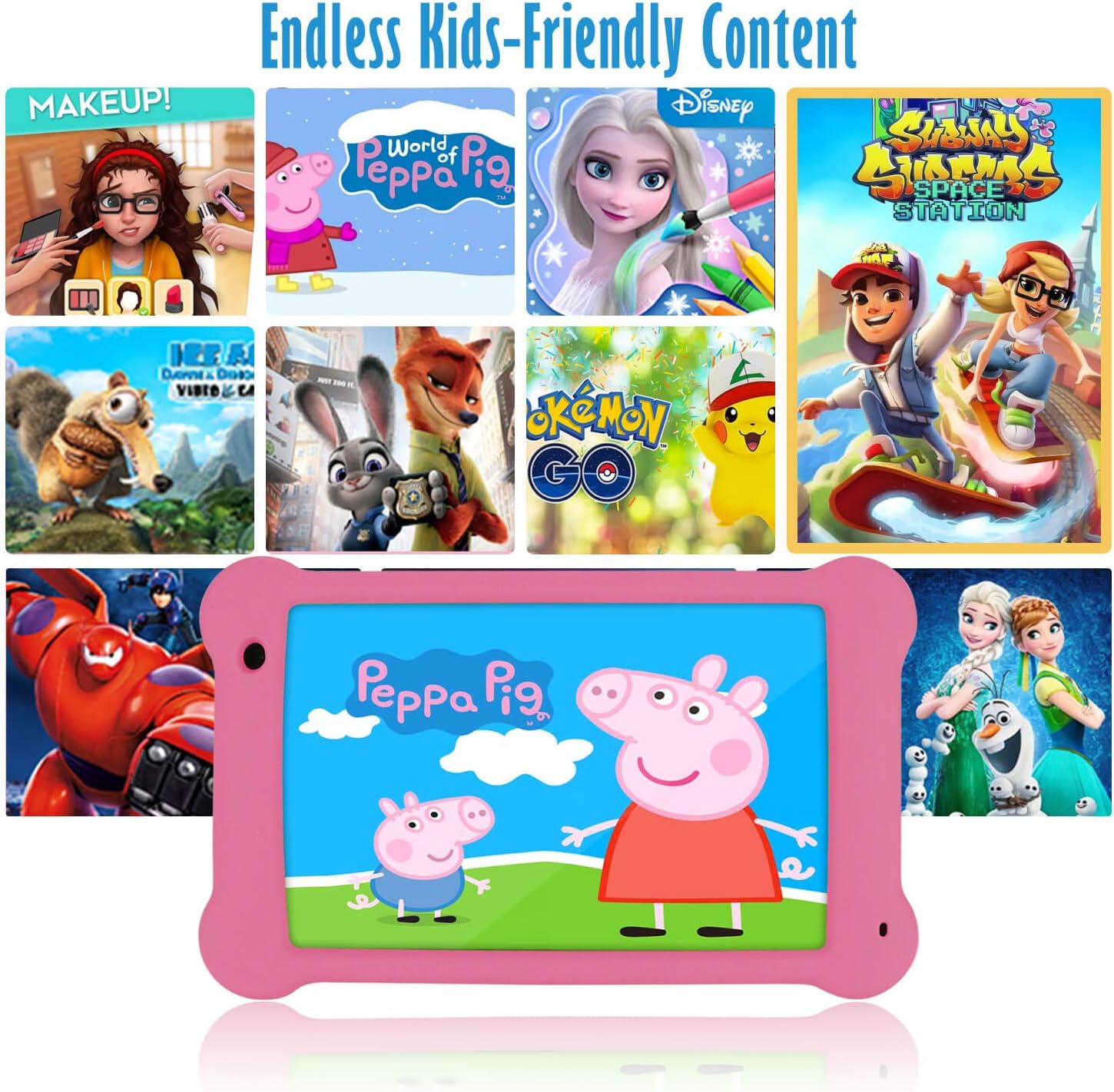
Image: The Surfans K7 Kids Tablet showcasing a variety of popular kid-friendly content, accessible through pre-installed apps and Google Play Store.
Mode de control parental
The Surfans K7 tablet includes a dedicated Parental Control Mode to manage your child's usage and ensure a safe digital environment.
1. Accessing Parental Mode
Per accedir i configurar els controls parentals:
- Localitza i obriu el Mode pare or iWAWA Parent aplicació a la tauleta.
- You will be prompted to set up a password or PIN for secure access. Remember this password.
2. Setting Time Limits
Manage how long your child can use the tablet:
- Configure daily usage limits for the tablet.
- Set specific time blocks during which the tablet can or cannot be used (e.g., bedtime restrictions).
3. Content Filtering
Ensure your child accesses only appropriate content:
- Select and approve specific applications, websites, and media content that your child is allowed to access.
- Block inappropriate content categories or specific webllocs.
4. Managing Child Profiles
Create personalized experiences for each child:
- Crear un professional individualfiles for multiple children.
- Customize settings, content access, and time limits for each profile based on age and preferences.

Image: A parent and child using the Surfans K7 Kids Tablet, demonstrating the ease of setting up and managing parental controls for time limits, child lock, and content filtering.
Manteniment
1. Neteja de la tauleta
To keep your tablet clean and functional:
- Use a soft, lint-free cloth (e.g., microfiber cloth) to gently wipe the screen and tablet body.
- Per a taques persistents, lleugerament dampen the cloth with water. Avoid using harsh chemicals, abrasive cleaners, or excessive moisture, as these can damage the screen or internal components.
- Assegureu-vos que la tauleta estigui apagada i desendollada abans de netejar-la.
2. Cura de la bateria
Proper battery care extends the tablet's lifespan:
- Avoid fully discharging the tablet frequently. Charge the tablet when the battery level is low (e.g., below 20%).
- Do not expose the tablet to extreme temperatures (hot or cold), as this can degrade battery performance.
- Feu servir només el carregador proporcionat o un carregador compatible certificat.
3. Actualitzacions de programari
Keep your tablet's software up-to-date for optimal performance and security:
- Periodically check for system updates by going to Configuració > Sistema > Actualització del sistema.
- Ensure your tablet is connected to Wi-Fi and has sufficient battery charge before starting an update.
4. Protective Case Care
The included kid-proof silicone case offers protection:
- Netegeu la caixa amb l'anunciamp drap si s'embruta.
- Ensure the case is properly fitted around the tablet to provide maximum protection against drops and bumps.

Imatge: Una imatge detallada view of the Surfans K7 Kids Tablet's durable kid-proof case, highlighting its soft silicone material and anti-drop corner design for enhanced protection.
Resolució de problemes
This section addresses common issues you might encounter with your Surfans K7 Kids Tablet.
Tablet Does Not Turn On
- Comproveu la bateria: Ensure the tablet is charged. Connect it to the charger for at least 30 minutes, then try powering it on again.
- Força el reinici: Press and hold the Power Button for about 10-15 seconds until the tablet restarts.
Screen is Black but Audio is Playing
This can sometimes occur:
- Briefly press the Power Button to put the screen to sleep, then press it again to wake it up.
- If the issue persists, perform a force restart by pressing and holding the Power Button for 10-15 seconds.
Problemes de connexió Wi-Fi
- Activa la Wi-Fi: Vés a Configuració > Xarxa i Internet > Wi-Fi and ensure Wi-Fi is turned on.
- Reinicieu l'encaminador: Reinicieu el vostre encaminador i mòdem Wi-Fi.
- Oblida't de la xarxa: Go to Wi-Fi settings, tap on your network, and select "Forget network." Then, reconnect to the network and re-enter the password.
- Intensitat del senyal: If the signal is weak, move closer to your Wi-Fi router.
Apps Are Slow or Crashing
- Tanca les aplicacions no utilitzades: Swipe up from the bottom of the screen (or tap the square navigation button) to view aplicacions recents i, a continuació, llisca-les per tancar-les.
- Reinicia la tauleta: A simple restart can often resolve performance issues.
- Esborra la memòria cau de l'aplicació: Vés a Configuració > Aplicacions > [Nom de l'aplicació] > Emmagatzematge i memòria cau > Esborra la memòria cau.
Tablet is Unresponsive
If the tablet freezes and does not respond to touch:
- Perform a force restart by pressing and holding the Power Button for approximately 10-15 seconds until the device powers off and restarts.
Restabliment de fàbrica (últim recurs)
If all other troubleshooting steps fail, a factory reset may be necessary. Warning: This will erase all data on the tablet, including apps, photos, and user settings. Back up any important data before proceeding.
- Vés a Configuració > Sistema > Opcions de restabliment.
- Toqueu Esborra totes les dades (restabliment de fàbrica).
- Confirma la teva decisió i segueix les instruccions que apareixen a la pantalla.
Especificacions

Image: Visual comparison highlighting the superior clarity of the 1920x1200 FHD IPS display with a 178-degree wide viewing angle on the Surfans K7 Kids Tablet.
| Característica | Especificació |
|---|---|
| Marca | Surfans |
| Nom del model | K7 |
| Sistema operatiu | Android 10.0 |
| Mida de la pantalla | 7 polzades |
| Resolució de pantalla màxima | 1920 x 1200 píxels |
| Marca del processador | ARM (Quad-core 1.6GHz) |
| Installed RAM Memory | 2 GB |
| Capacitat d'emmagatzematge de memòria | 32 GB |
| Emmagatzematge ampliable | Ranura de targeta MicroSD |
| Front Photo Sensor Resolution | 2 MP |
| Màx WebResolució d'imatge de càmera | 5 MP |
| Resolució de gravació de vídeo | FHD 1080p |
| Tecnologia de connectivitat | Bluetooth, USB, Wi-Fi |
| Compatibilitat sense fils | 802.11a/b/g/n |
| Connectivitat de maquinari | 3.5 mm Audio Jack, USB-C Port |
| Tipus de bateria | Polímer de liti |
| Capacitat de la bateria | 3000 mAh |
| Durada mitjana de la bateria | 8 hores |
| Pes de l'article | 450 grams |
| Color | Rosa |
| Descripció del rang d'edat | Baby, Children (2-10 years) |
Garantia i Suport
The Surfans K7 Kids Tablet comes with a standard manufacturer's warranty. For specific warranty terms, conditions, and duration, please refer to the warranty card included in the product packaging or contact Surfans customer support.
For technical assistance, troubleshooting beyond this manual, or further inquiries, please visit the official Surfans website or contact their customer service department through the contact information provided with your purchase or on their weblloc.