
Introducció
This manual provides detailed instructions for setting up, operating, and maintaining your OMOTON Full-Size Multi-Device Bluetooth Keyboard. Designed for Mac OS devices, this keyboard offers a comfortable and efficient typing experience with its multi-device connectivity and ergonomic design. Please read this manual thoroughly before using the product.
Contingut del paquet
- 1 x OMOTON Wireless Bluetooth Keyboard
- 1 x cable de càrrega USB-C
- 1 x Manual d'usuari
Producte acabatview

Descripció de la imatge: Un de dalt a baix view of the OMOTON Full-Size Bluetooth Keyboard in silver, showcasing its complete QWERTY layout with a numeric keypad and Mac-specific function keys.

Descripció de la imatge: Un acabatview of the OMOTON keyboard on a desk setup, highlighting its multi-device capability with three Bluetooth connection indicators (BT1, BT2, BT3) and its rechargeable feature.
Característiques principals:
- Full-Size QWERTY Layout: Standard 19mm key spacing with a numeric keypad for comfortable and efficient typing.
- Construcció duradora: Made from metallic aluminum and ABS material for robustness and wear resistance.
- Tecles de commutació de tisora: Provides a smooth, precise, and quiet typing experience.
- Disseny ergonòmic: Engineered for comfortable long-term use.
- Bateria recarregable: Built-in 450mAh Lithium-polymer battery offers approximately 320 hours of working time on a 2-3 hour charge via USB-C.
- Triple Mode Pairing: Connects to up to 3 devices simultaneously via Bluetooth 4.0, allowing quick switching between them.
- Mac OS Function Keys: Includes dedicated function keys for Mac OS features such as brightness control, Mission Control, Launchpad, and media playback.
- Compatibilitat: Optimized for Mac OS 10.10 or higher, including iMac, Mac Pro, Mac mini, MacBook Air, and MacBook Pro models.

Descripció de la imatge: Un primer pla view illustrating the scissor switch mechanism beneath a keycap, emphasizing the comfortable and precise typing experience.
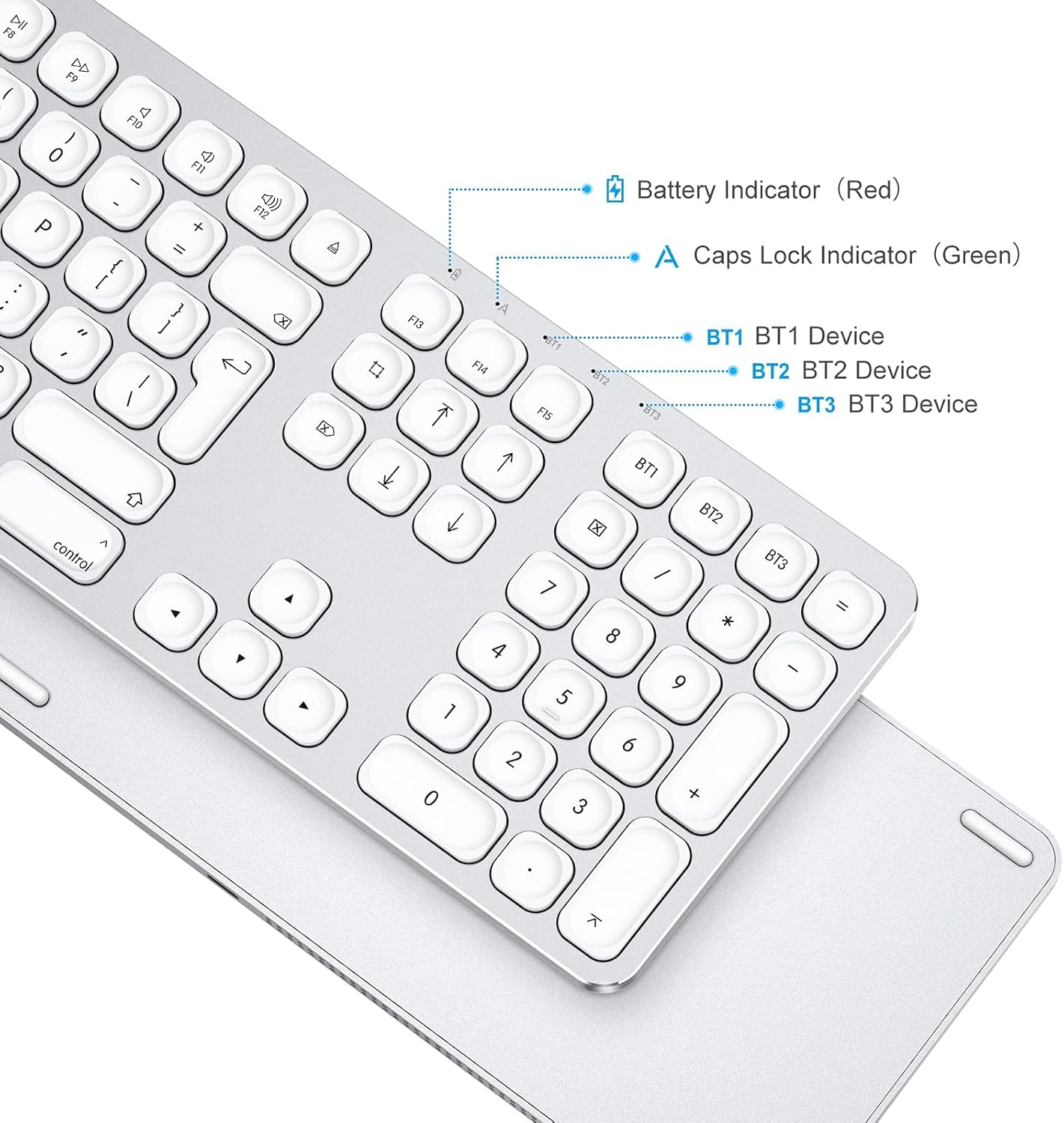
Descripció de la imatge: Un angle view of the keyboard's upper right section, pointing out the Battery Indicator (red), Caps Lock Indicator (green), and the BT1, BT2, BT3 device indicators.
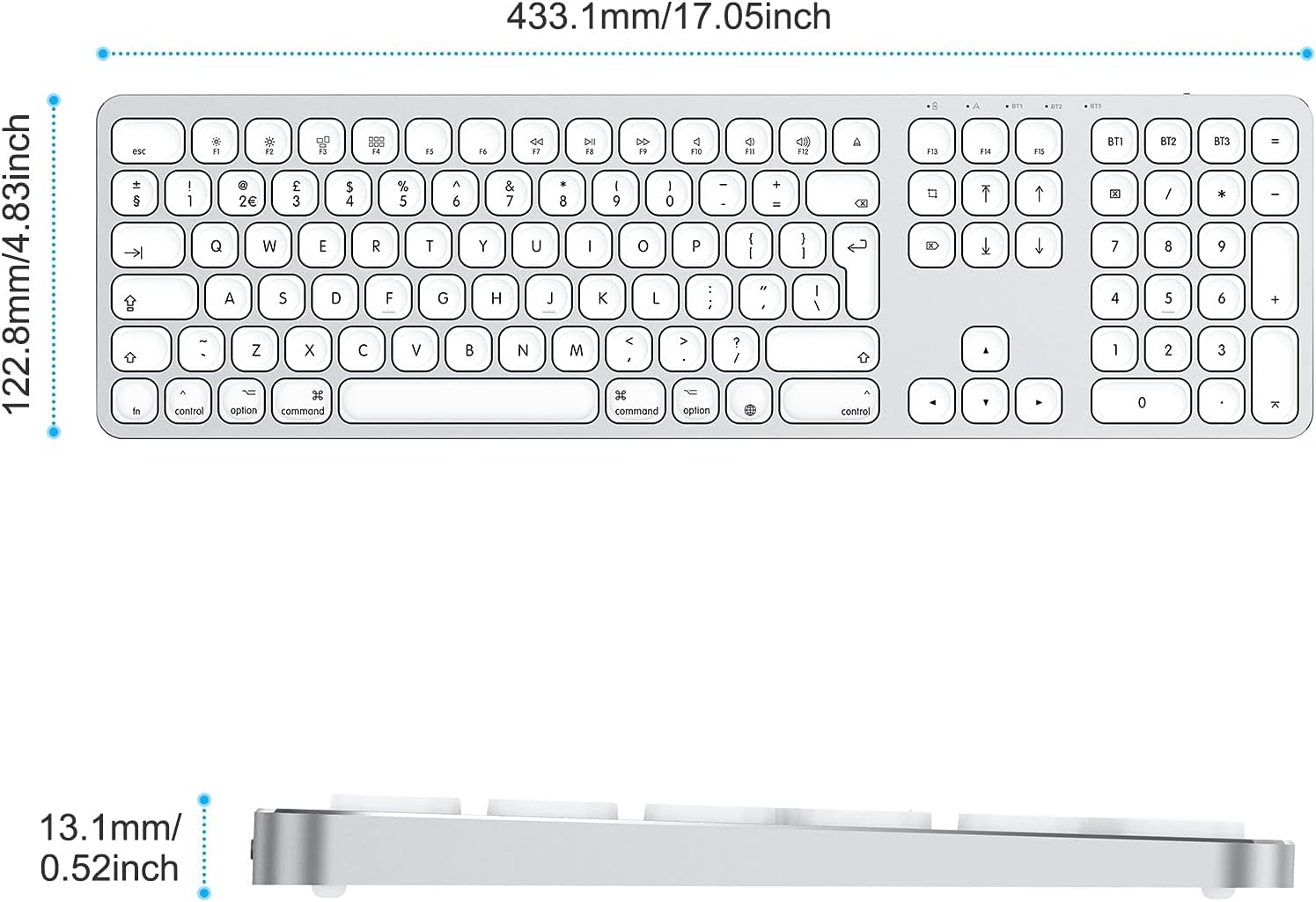
Descripció de la imatge: A diagram showing the top and side dimensions of the keyboard. The top view indicates a width of 433.1mm (17.05 inches) and a depth of 122.8mm (4.83 inches). The side view shows a thickness of 13.1mm (0.52 inches).

Descripció de la imatge: Un professional secundarifile view of the keyboard, highlighting its ultra-slim metallic design.
Configuració
1. Càrrega del teclat
Before initial use, fully charge the keyboard. Connect the supplied USB-C cable to the keyboard's charging port and the other end to a USB power source (e.g., computer USB port, USB wall adapter). The battery indicator will illuminate red during charging and turn off when fully charged.

Descripció de la imatge: A close-up of the keyboard's USB-C charging port with a USB-C cable connected, indicating the built-in 450mAh Li-ion battery and its charging capabilities (320-hour working time, 2-3 hour fast charge).

Descripció de la imatge: Una part inferior view of the keyboard's right side, showing the USB-C Micro Charging Port, the ON/OFF Switch, and anti-slip rubber pads.
2. Encès / apagat
Locate the ON/OFF switch on the right side of the keyboard. Slide the switch to the 'ON' position to power on the keyboard. Slide it to 'OFF' when not in use to conserve battery.
3. Emparellament Bluetooth
The OMOTON Bluetooth Keyboard supports connecting to up to three devices simultaneously. Follow these steps to pair your keyboard with a Mac OS device:
- Assegureu-vos que el teclat estigui encès.
- Select a Bluetooth channel (BT1, BT2, or BT3) by pressing the Fn key simultaneously with the desired BT1, BT2, o BT3 key. The corresponding indicator light will flash slowly.
- Press and hold the selected BT key (e.g., BT1) for 5 seconds until the blue LED indicator flashes rapidly. This indicates the keyboard is in pairing mode.
- On your Mac OS device, go to Configuració del sistema (o Preferències del sistema) > Bluetooth.
- Ensure Bluetooth is turned on. Your Mac will search for nearby Bluetooth devices.
- Locate and click on "OMOTON Keyboard" in the list of available devices to initiate the pairing process.
- Once paired, the blue LED indicator on the keyboard will stop flashing and remain solid for a moment, then turn off. The keyboard is now connected and ready for use.

Descripció de la imatge: A circular diagram illustrating the four steps for Bluetooth pairing: 1. Turn on power switch, 2. Switch channel by pressing Fn+BT button, 3. Press and hold BT key for 5 seconds until blue light flashes, 4. Tap "OMOTON Keyboard" on your device to start pairing.

Descripció de la imatge: An illustration showing the keyboard connected to three different Mac devices (iMac, MacBook, Mac mini) via BT1, BT2, and BT3 channels, demonstrating its 3-channel multi-device capability.

Descripció de la imatge: A visual representation of the keyboard connected to a MacBook, iMac, and iPad, with arrows indicating the ability to quickly switch between the three devices using BT1, BT2, and BT3 channels.

Descripció de la imatge: An image showing the keyboard positioned between a MacBook, an iMac, and an iPhone, with a circular graphic indicating a 33ft (approximately 10 meters) connection distance for Bluetooth.
Instruccions de funcionament
1. Switching Between Paired Devices
To switch between your three paired devices, simply press the Fn tecla juntament amb la tecla del canal Bluetooth corresponent (BT1, BT2, o BT3). The keyboard will connect to the selected device within a few seconds.
2. Mac OS Multimedia Hotkeys
The keyboard features 12 dedicated Mac OS multimedia hotkeys for quick access to various functions:

Descripció de la imatge: A visual guide to the 12 Mac OS multimedia hotkeys (F1-F12) on the keyboard. These include Escape, Decrease Brightness (F1), Increase Brightness (F2), Open Mission Control (F3), Open Launchpad (F4), Previous Track (F7), Play/Pause (F8), Next Track (F9), Mute (F10), Decrease Volume (F11), and Increase Volume (F12), and Eject (F12).
- Esc: escapar
- F1: Disminueix la brillantor
- F2: Augmenta la brillantor
- F3: Obriu el control de la missió
- F4: Obriu el Launchpad
- F7: Pista anterior
- F8: Reproduir/Pausa
- F9: Pista següent
- F10: Silenciar
- F11: Disminuir el volum
- F12: Augmenta el volum
- Expulsar: Eject (functionality may vary based on Mac model and connected drives)
Note: Some function keys, such as brightness and sound control, may require specific Mac OS settings or may not be fully supported on all Mac models.
Manteniment
Neteja del teclat
- Assegureu-vos que el teclat estigui apagat abans de netejar-lo.
- Utilitzeu un drap suau i sense pelusa lleugerament dampEsbandiu amb aigua o una solució netejadora suau per netejar la superfície del teclat.
- Eviteu utilitzar productes químics agressius, netejadors abrasius o dissolvents, ja que poden danyar l'acabat del teclat.
- Per netejar entre les tecles, feu servir aire comprimit per eliminar la pols i les restes.
Cura de la bateria
- To prolong battery life, avoid fully discharging the keyboard frequently.
- Charge the keyboard regularly, especially if it will not be used for an extended period.
- Store the keyboard in a cool, dry place away from extreme temperatures.
Resolució de problemes
El teclat no es connecta/s'emparella
- Comproveu la potència: Assegureu-vos que el teclat estigui encès i que la bateria estigui prou carregada.
- Bluetooth activat: Verify that Bluetooth is enabled on your Mac OS device.
- Mode de sincronització: Make sure the keyboard is in pairing mode (blue LED flashing rapidly) by pressing and holding the desired BT key for 5 seconds.
- Oblida el dispositiu: If previously paired, try removing "OMOTON Keyboard" from your Mac's Bluetooth device list and then re-pair.
- Reinicieu els dispositius: Restart both your keyboard and your Mac OS device.
- Interferència: Move the keyboard closer to your Mac and away from other wireless devices that might cause interference.
Retard d'entrada o desconnexions
- Nivell de bateria: Low battery can affect performance. Charge the keyboard fully.
- Distància: Ensure the keyboard is within the 33ft (10m) operating range of your Mac.
- Interferència: Minimitzar les interferències d'altres dispositius sense fil de 2.4 GHz.
- Torna a emparellar: Prova de desvincular i tornar a vincular el teclat.
Les claus no responen
- Cicle d'alimentació: Apagueu el teclat i torneu-lo a encendre.
- Claus netes: Check for any debris under the keys and clean if necessary using compressed air.
- Prova en un altre dispositiu: If possible, test the keyboard with another compatible device to determine if the issue is with the keyboard or the original device.
Problemes de compatibilitat
- Ensure your Mac OS version is 10.10 or higher.
- Some specific Mac OS features or hotkeys may behave differently depending on your exact Mac model and software configuration.
Especificacions
| Marca | OMOTON |
| Model | Teclat Bluetooth |
| Color | Plata |
| Tecnologia de connectivitat | Bluetooth 4.0 |
| Característiques especials | Ergonòmic, recarregable |
| Dispositius compatibles | Mac OS Laptops, PCs (Mac OS 10.10 or higher) |
| Tipus de bateria | Lithium-polymer (450mAh) |
| Port de càrrega | USB-C |
| Interval d'operació | Fins a 33 peus (10 metres) |
| ASIN | B09129RKPH |
Garantia i Suport
OMOTON products are designed for reliability and performance. For any issues or questions regarding your OMOTON Bluetooth Keyboard, please refer to the following:
- Informació de la garantia: Els detalls específics de la garantia poden variar segons la regió i el distribuïdor. Si us plau, conserveu el comprovant de compra per a qualsevol reclamació de garantia.
- Atenció al client: For technical assistance or further inquiries, please contact OMOTON customer support through the retailer's platform or the official OMOTON weblloc.