1. Introducció
The Fluke Networks LIQ-100 LinkIQ Cable + Network Tester is a versatile tool designed for validating cable performance and diagnosing network issues. It provides frequency-based measurements for cable performance up to 10GBASE-T and offers comprehensive network diagnostics, including advertised data rate, switch name, port number, and VLAN information. Additionally, it features Power over Ethernet (PoE) testing capabilities, displaying cable length, wire map, and distance to open or short circuits. This manual provides essential information for setting up, operating, maintaining, and troubleshooting your LinkIQ tester.
2. Configuració
2.1. Desembalatge i inspecció inicial
Carefully unpack all components from the packaging. Verify that all items listed in the 'What's in the Box' section are present and undamaged. The standard package includes the LinkIQ tester, a remote identifier, a Category 6A patch cord, a coupler, a carry strap, a power supply, and a USB-C cable.
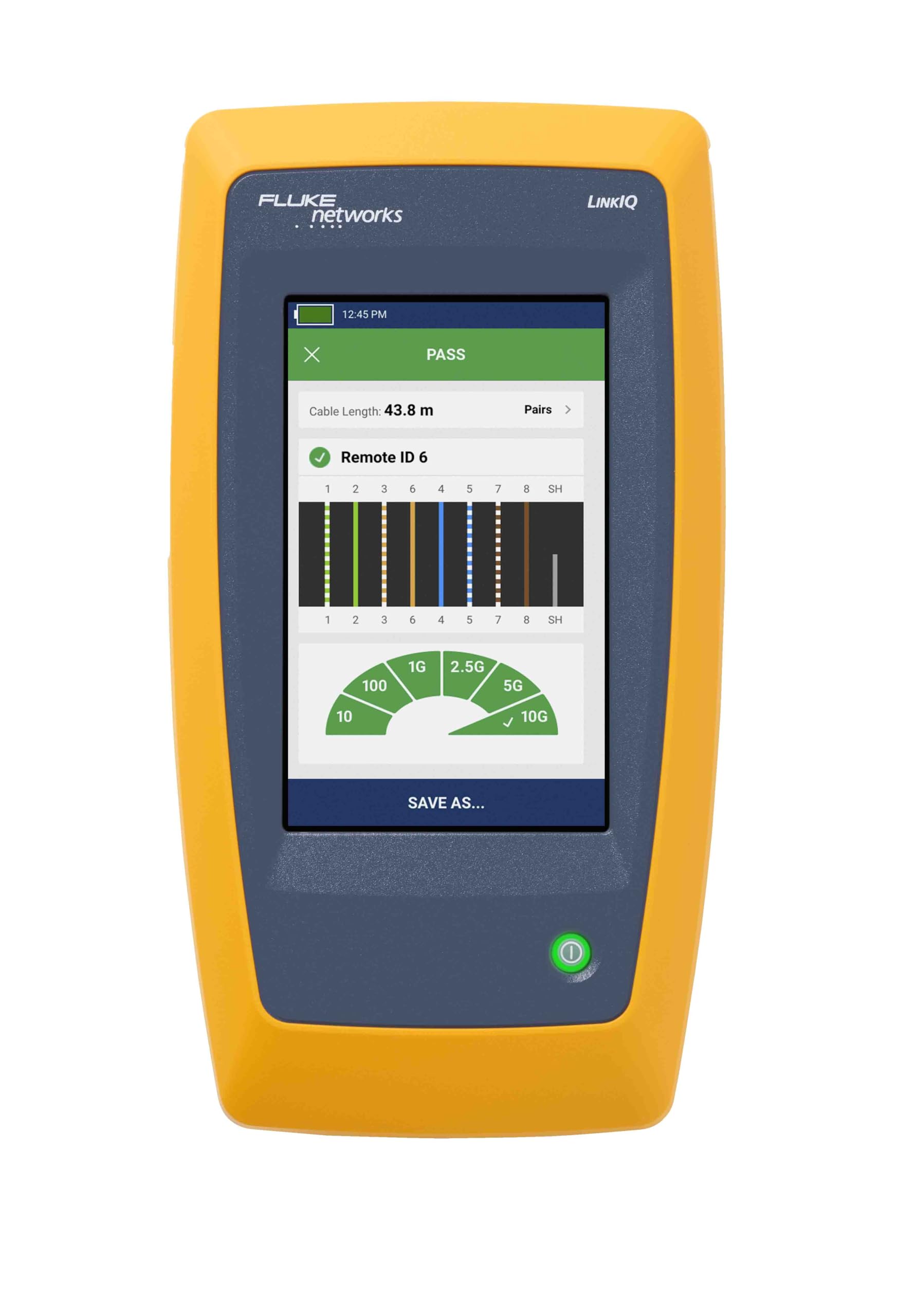
Figure 1: Fluke Networks LIQ-100 LinkIQ Cable + Network Tester.
2.2. Encendre i carregar
To power on the LinkIQ tester, press and hold the power button located on the device. Ensure the device is adequately charged before use. Connect the provided power supply and USB-C cable to the tester and a power outlet for charging. The battery status is indicated on the device screen.
2.3. Cables de connexió
For cable testing, connect one end of the network cable to the RJ45 port on the LinkIQ tester. If using a remote identifier for end-to-end testing, connect the other end of the network cable to the remote identifier.
3. Instruccions de funcionament
3.1. Cable Performance Testing
The LinkIQ tester validates cable performance up to 10GBASE-T using frequency-based measurements. After connecting the cable, select the 'Auto Test' option on the screen. The device will automatically perform tests and display results such as cable length, wire map, and performance capabilities.

Figure 2: LinkIQ tester in use, showing cable test results.
3.2. Network Diagnostics
When connected to an active network, the LinkIQ provides nearest switch diagnostics. This includes the advertised data rate, switch name, port number, and VLAN information. This feature is crucial for quickly identifying network connection details and troubleshooting connectivity issues.

Figure 3: LinkIQ tester displaying network diagnostic information.
3.3. Power over Ethernet (PoE) Testing
The tester performs Ethernet Alliance certified PoE verification. It detects the PoE class (1-8) and available power, and conducts a load test of the available PoE from the connected switch. This ensures that connected devices receive adequate power.
3.4. Cable Length, Wire Map, and Fault Location
The LinkIQ displays the precise cable length, a detailed wire map, and the distance to any open or short circuits. This functionality is essential for quickly locating and resolving physical cable faults.
3.5. Managing Results and Reporting
Test results can be saved and managed directly on the device. For detailed documentation and reporting, results can be transferred to a PC using the LinkWare PC software.
Vídeo 1: Final oficialview of the Fluke Networks LinkIQ Cable + Network Tester, demonstrating its key features and testing capabilities.
4. Manteniment
4.1. Neteja
Per netejar el dispositiu, utilitzeu un suau, damp drap. No utilitzeu productes de neteja abrasius ni dissolvents. Assegureu-vos que tots els ports estiguin lliures de pols i deixalles.
4.2. Emmagatzematge
Store the LinkIQ tester in its protective carrying case when not in use. Keep it in a cool, dry environment away from direct sunlight and extreme temperatures.
4.3. Cura de la bateria
For optimal battery life, charge the device regularly. Avoid fully discharging the battery for extended periods. If storing for a long time, ensure the battery is partially charged (around 50%) and recharge every few months.
5. Solució De Problemes
5.1. Sense poder
If the device does not power on, ensure the battery is charged. Connect the power adapter and try again. If the issue persists, contact customer support.
5.2. Inaccurate Cable Test Results
Verify that the cables are properly connected to both the tester and the remote identifier (if used). Ensure the cables are not damaged. Check for any environmental interference that might affect the readings. Recalibrate the device if necessary, following instructions in the full user manual.
5.3. Problemes de connexió de xarxa
If the LinkIQ cannot detect network information, ensure the cable is connected to an active network port. Verify that the network switch is powered on and functioning correctly. Check the switch diagnostics provided by the LinkIQ for specific error messages or status indicators.
6. Especificacions
- Marca: Fluke Networks
- Model: LIQ-100
- Font d'alimentació: Bateria de liti
- Color: groc
- Pes de l'article: 400 grams
- Tipus de mesura: Ohmmeter, Voltmeter, Ammeter (for PoE)
- Volum de funcionament màximtage: 240 volts (CA)
- Dimensions de l'article: 12.2 x 26.5 x 5.71 polzades
- Especificació complerta: Ethernet Alliance to IEEE-802.3 PoE, Ethernet/IP, Profinet, EtherCAT
7. Informació de la garantia
Warranty information for the Fluke Networks LIQ-100 LinkIQ Cable + Network Tester is not available in the provided product details. Please refer to the official Fluke Networks weblloc web o poseu-vos en contacte amb el servei d'atenció al client per obtenir els termes i condicions detallats de la garantia.
8. Suport
For technical assistance, product registration, or additional resources, please visit the official Fluke Networks website or contact their customer support team. Ensure you have your product model and serial number ready when seeking support.