
Lectrus ES-KTLA133
LECTRUS Android 10 Tablet User Manual
Model: ES-KTLA133
Introducció
This manual provides comprehensive instructions for the setup, operation, maintenance, and troubleshooting of your LECTRUS Android 10 Tablet. Please read this manual carefully before using your device to ensure optimal performance and longevity.

Figure 1: LECTRUS Android 10 Tablet (Front and Rear View)
This image displays the sleek black design of the LECTRUS Android 10 Tablet, showcasing both its front display and the rear panel with the LECTRUS branding and camera module.
Guia de configuració
1. Càrrega inicial
Before first use, fully charge your tablet. Connect the provided USB cable to the tablet's charging port and the other end to a compatible USB power adapter (not always included) or a computer's USB port. The battery indicator on the screen will show charging progress.
The tablet is equipped with a 6000 mAh polymer lithium-ion battery, providing up to 7 hours of usage time on a full charge.
2. Encendre/apagar
- Encès: Press and hold the Power button located on the side of the tablet until the LECTRUS logo appears on the screen.
- Apagar: Premeu i manteniu premut el botó d'engegada fins que aparegui el menú d'opcions d'engegada. Seleccioneu "Apagar" i confirmeu.
- Reinicia: From the power options menu, select "Restart" to reboot the device.
3. Assistent de configuració inicial
En engegar-la per primera vegada, la tauleta us guiarà a través d'un procés de configuració inicial. Seguiu les instruccions que apareixen a la pantalla per a:
- Seleccioneu el vostre idioma.
- Connecteu-vos a una xarxa Wi-Fi.
- Inicia la sessió amb el teu compte de Google o crea'n un de nou. Això és essencial per accedir a Google Play Store i altres serveis de Google.
- Configura el bloqueig de pantalla (PIN, patró, contrasenya).
- Review i acceptar els termes i condicions.
4. Inserció d'una targeta MicroSD (opcional)
The tablet supports expandable memory up to 128GB via a microSD card. To insert:
- Localitza la ranura per a targetes microSD al lateral de la tauleta.
- Gently insert the microSD card into the slot with the gold contacts facing down until it clicks into place.
- To remove, gently push the card inward until it pops out.

Figure 2: Tablet with App Icons and Storage Information
This image illustrates the tablet's capability to support numerous applications, highlighting its 32GB internal storage and expandability for massive app support.
Instruccions de funcionament
1. Navegació per la interfície d'Android 10
Your LECTRUS tablet runs on the Android 10.0 operating system, offering an intuitive and user-friendly experience.
- Pantalla d'inici: The main screen where you can access apps, widgets, and shortcuts.
- Panell de notificacions: Swipe down from the top of the screen to access notifications and quick settings (Wi-Fi, Bluetooth, Brightness, etc.).
- Calaix d'aplicacions: Feu lliscar cap amunt des de la part inferior de la pantalla fins a view totes les aplicacions instal·lades.
- Barra de navegació: Typically located at the bottom of the screen, it includes Back, Home, and Recent Apps buttons.

Figura 3: Interfície del sistema operatiu Android 10.0
This image shows the tablet's display with the "Android 10.0 OS" branding, indicating the operating system version.
2. Connectivitat Wi-Fi
Per connectar-se a una xarxa Wi-Fi:
- Vés a Configuració > Xarxa i Internet > Wi-Fi.
- Activa el Wi-Fi.
- Seleccioneu la xarxa desitjada de la llista.
- Introduïu la contrasenya si us demana i toqueu Connecta't.
3. Ús de les càmeres
The tablet features a 5MP rear camera and a 2MP front camera for photos and video calls.
- Obriu el Càmera aplicació.
- Toqueu la icona del canvi de càmera per alternar entre la càmera frontal i la posterior.
- Toqueu el botó de l'obturador per fer una foto o iniciar/aturar la gravació de vídeo.

Figure 4: Capturing Moments with the Tablet Camera
This image demonstrates the tablet's camera in use, capturing a precious moment, emphasizing its ability to record memories.
4. Multimèdia i aplicacions
The 10.1-inch high-definition screen supports 1080p video playback, providing a clear and realistic viewing experience. You can download and use various applications from the Google Play Store, including:
- Entreteniment: YouTube, Netflix, games.
- Comunicació: Email, Facebook, Twitter, Instagram.
- Navegació: GPS applications.
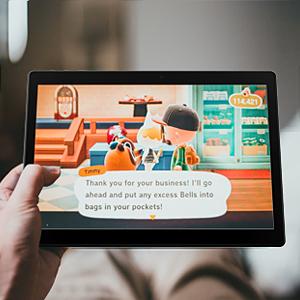
Figure 5: Tablet for Gaming
This image shows the tablet displaying a game, illustrating its use for entertainment.

Figure 6: Tablet for Navigation
This image depicts the tablet displaying a map with a route, highlighting its utility for navigation and GPS functions.
Manteniment
1. Neteja de la tauleta
- Feu servir un drap suau i sense borrissol per netejar la pantalla i el cos de la tauleta.
- Per a taques persistents, lleugerament dampNetegeu el drap amb aigua o un netejador de pantalles dissenyat per a electrònica.
- Eviteu utilitzar productes químics agressius, materials abrasius o aerosols directament sobre la tauleta.
2. Cura de la bateria
- Eviteu les temperatures extremes, ja que poden reduir la durada de la bateria.
- Do not leave the tablet charging for excessively long periods after it's fully charged.
- Si guardeu la tauleta durant un període prolongat, carregueu-la al 50% aproximadament abans d'apagar-la.
3. Actualitzacions de programari
Comproveu i instal·leu regularment si hi ha actualitzacions de programari per assegurar-vos que la tauleta tingui les darreres funcions, pegats de seguretat i millores de rendiment.
- Vés a Configuració > Sistema > Actualització del sistema.
- Seguiu les instruccions que apareixen a la pantalla per descarregar i instal·lar les actualitzacions disponibles.
4. Còpia de seguretat de dades
It is recommended to regularly back up your important data (photos, videos, documents) to a cloud service (e.g., Google Drive) or an external storage device to prevent data loss.
Resolució de problemes
Problemes comuns i solucions
| Problema | Causa possible | Solució |
|---|---|---|
| La tauleta no s'encén. | Bateria baixa; bloqueig del sistema. | Carrega la tauleta durant almenys 30 minuts. Prem i mantén premut el botó d'engegada durant 10-15 segons per forçar el reinici. |
| Problemes de connexió Wi-Fi. | Contrasenya incorrecta; problema amb el router; Wi-Fi de la tauleta desactivat. | Ensure correct password. Restart your Wi-Fi router. Toggle Wi-Fi off and on in tablet settings. |
| Les aplicacions es bloquegen o es bloquegen. | RAM insuficient; error de l'aplicació; aplicació obsoleta. | Tanca les aplicacions en segon pla. Esborra la memòria cau de l'aplicació (Configuració > Aplicacions > [Nom de l'aplicació] > Emmagatzematge > Esborra la memòria cau). Actualitza l'aplicació des de Google Play Store. |
| Rendiment lent. | Massa aplicacions en execució; poc espai d'emmagatzematge; programari obsolet. | Close unused apps. Free up storage by deleting unnecessary files. Check for system updates. |
| Screen not responding. | Error temporal de programari. | Force restart the tablet by holding the Power button for 10-15 seconds. |
Si el problema persisteix després de provar aquestes solucions, poseu-vos en contacte amb l'atenció al client.
Especificacions del producte
| Característica | Detall |
|---|---|
| Marca | Lectrus |
| Número de model | ES-KTLA133 |
| Color | Negre |
| Sistema operatiu | Android 10 |
| Marca del processador | Allwinner |
| Descripció del processador | Quad-core (1.6 GHz) |
| RAM | 2 GB |
| Emmagatzematge intern (ROM) | 32 GB |
| Memòria ampliable | Up to 128 GB (via Micro SD) |
| Mida de la pantalla | 10.1 polzades |
| Resolució de pantalla | 1280 x 800 píxels |
| Càmera posterior | 5 MP |
| Càmera frontal | 2 MP |
| Tipus de connectivitat | Wi-Fi (802.11n) |
| Interfície del maquinari | Bluetooth, USB, Micro SD |
| Capacitat de la bateria | 6000 mAh |
| Durada de la bateria | Fins a 7 hores |
| Dimensions de l'article (L x A x A) | 23.8 x 1 x 16.7 cm |
| Pes del producte | 900 grams |
Garantia i Suport
Informació de la garantia
Specific warranty details for your LECTRUS tablet may vary by region and retailer. Please refer to the warranty card included with your product or contact your point of purchase for detailed information regarding warranty coverage and duration.
Note: Information regarding spare parts availability and guaranteed software updates is not available at this time.
Atenció al client
For technical assistance, troubleshooting beyond this manual, or warranty claims, please contact LECTRUS customer support through their official website or the contact information provided with your purchase. When contacting support, please have your model number (ES-KTLA133) and purchase details ready.
Ask a question about this manual
Ask about setup, troubleshooting, compatibility, parts, safety, or missing instructions. Manuals+ will review the question and use this page’s manual context to help answer it.