
1. Introducció
This manual provides detailed instructions for the OMOTON KB066 Bluetooth Keyboard. Designed for seamless integration with various iOS devices, this ultra-slim wireless keyboard offers a comfortable and efficient typing experience. Please read this manual thoroughly before use to ensure proper setup and operation.
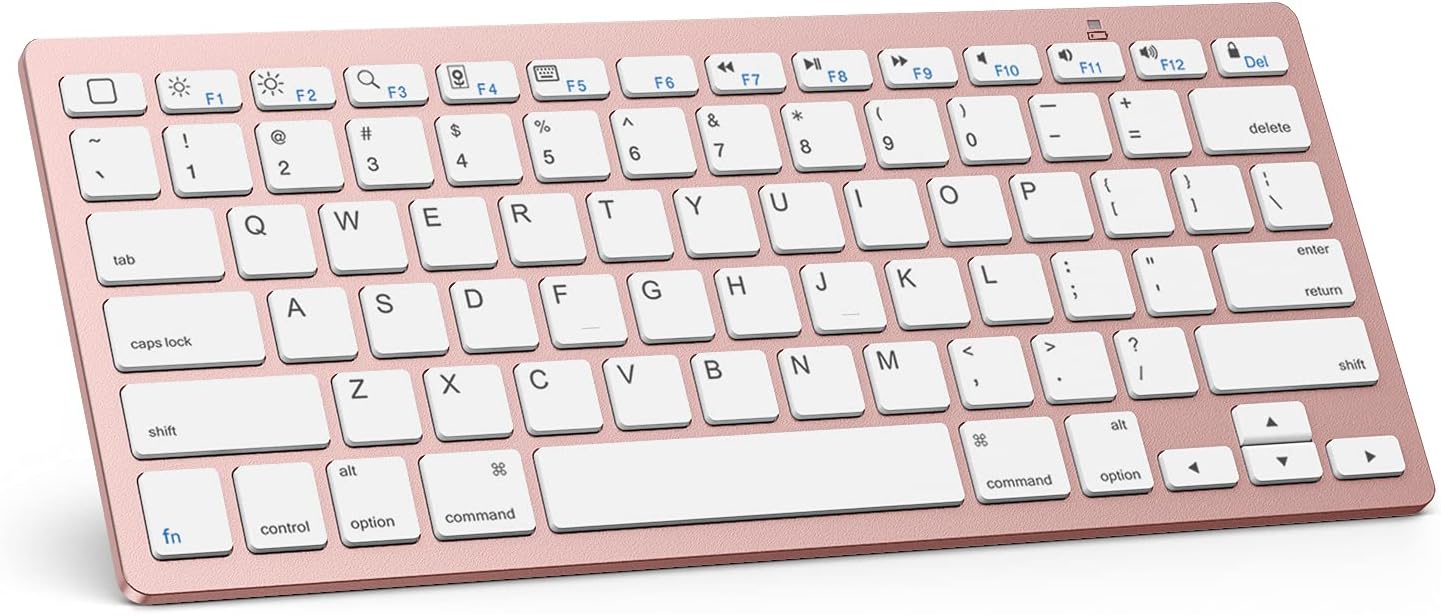
Image 1.1: The OMOTON KB066 Bluetooth Keyboard, showcasinel seu disseny compacte i la disposició de les tecles.
2. Contingut del paquet
- Teclat sense fil OMOTON KB066
3. Especificacions
| Característica | Detall |
|---|---|
| Número de model | OMOTON KB066 |
| Dimensions del producte | 11.22 x 4.72 x 0.24 polzades (284.5 x 119.4 x 5.1 mm) |
| Pes de l'article | 11.3 unces |
| Tecnologia de connectivitat | Bluetooth |
| Font d'alimentació | 2 piles AAA (no incloses) |
| Distància d'operació | Fins a 10 metres (33 peus) |
| Disposició del teclat | QWERTY with Hot Keys |
| Característiques especials | Lightweight, Portable, Automatic Sleep Mode |

Image 3.1: Diagram illustrating the dimensions of the OMOTON KB066 Bluetooth Keyboard.
4. Instruccions de configuració
4.1 Instal·lació de la bateria
- Locate the battery compartment on the back of the keyboard.
- Obriu la tapa de la bateria.
- Introduïu dues piles AAA (no incloses), assegurant-vos de la polaritat correcta (+/-).
- Tanqueu la tapa de la bateria amb seguretat.
4.2 Vinculació Bluetooth
- Turn on the keyboard by sliding the power switch to the 'ON' position. The power indicator light will briefly illuminate.
- Press the 'Connect' button on the back of the keyboard. The Bluetooth indicator light will begin to flash, indicating it is in pairing mode.
- On your iOS device (iPad, iPhone, etc.), go to Configuració > Bluetooth.
- Assegureu-vos que el Bluetooth estigui habilitat al vostre dispositiu.
- Your device will search for available Bluetooth devices. Select 'OMOTON Keyboard' or 'OMOTON KB066' from the list.
- Follow any on-screen prompts to complete the pairing process. Once successfully paired, the Bluetooth indicator light on the keyboard will turn off.

Imatge 4.1: Superior i inferior view of the keyboard, highlighting the power switch, connection button, and battery slot.
5. Instruccions de funcionament
5.1 Mecanografia bàsica
The OMOTON KB066 keyboard features a standard QWERTY layout. Simply open any text input application on your paired iOS device and begin typing.
5.2 Function Keys (Hot Keys)
The top row of keys provides quick access to various functions specific to iOS/iPadOS. These include:
- Fn + F1: Home Screen
- Fn + F2: Brillantor baixa
- Fn + F3Augmenta la brillantor
- Fn + F4: Cerca
- Fn + F5: Show/Hide Keyboard
- Fn + F6: Pista anterior
- Fn + F7: Reproduir/Pausa
- Fn + F8: Pista següent
- Fn + F9: Mut
- Fn + F10: Baixar el volum
- Fn + F11: Pujar el volum
- Fn + F12: Pantalla de bloqueig
- Del: Eliminar
Note: Function keys may not be fully compatible with other operating systems.

Imatge 5.1: Primer pla view of the keyboard highlighting the optimized multimedia function keys.
5.3 Gestió de l'energia
The keyboard features an energy-saving design with an automatic sleep mode. If inactive for a period, the keyboard will enter sleep mode to conserve battery life. To wake it up, simply press any key. The keyboard will automatically reconnect to your paired device.
6. Compatibilitat
The OMOTON KB066 Bluetooth Keyboard is broadly compatible with a range of Apple iOS devices, including:
- iPad 10a generació
- iPad 10.2 (9th/8th/7th Generation)
- iPad Pro 13/12.9/11 inch
- iPad Air 13/11 inch
- iPad Air 10.9 inch (5th/4th Gen)
- iPad mini 6 / 5
- Other iOS devices (function keys may vary)
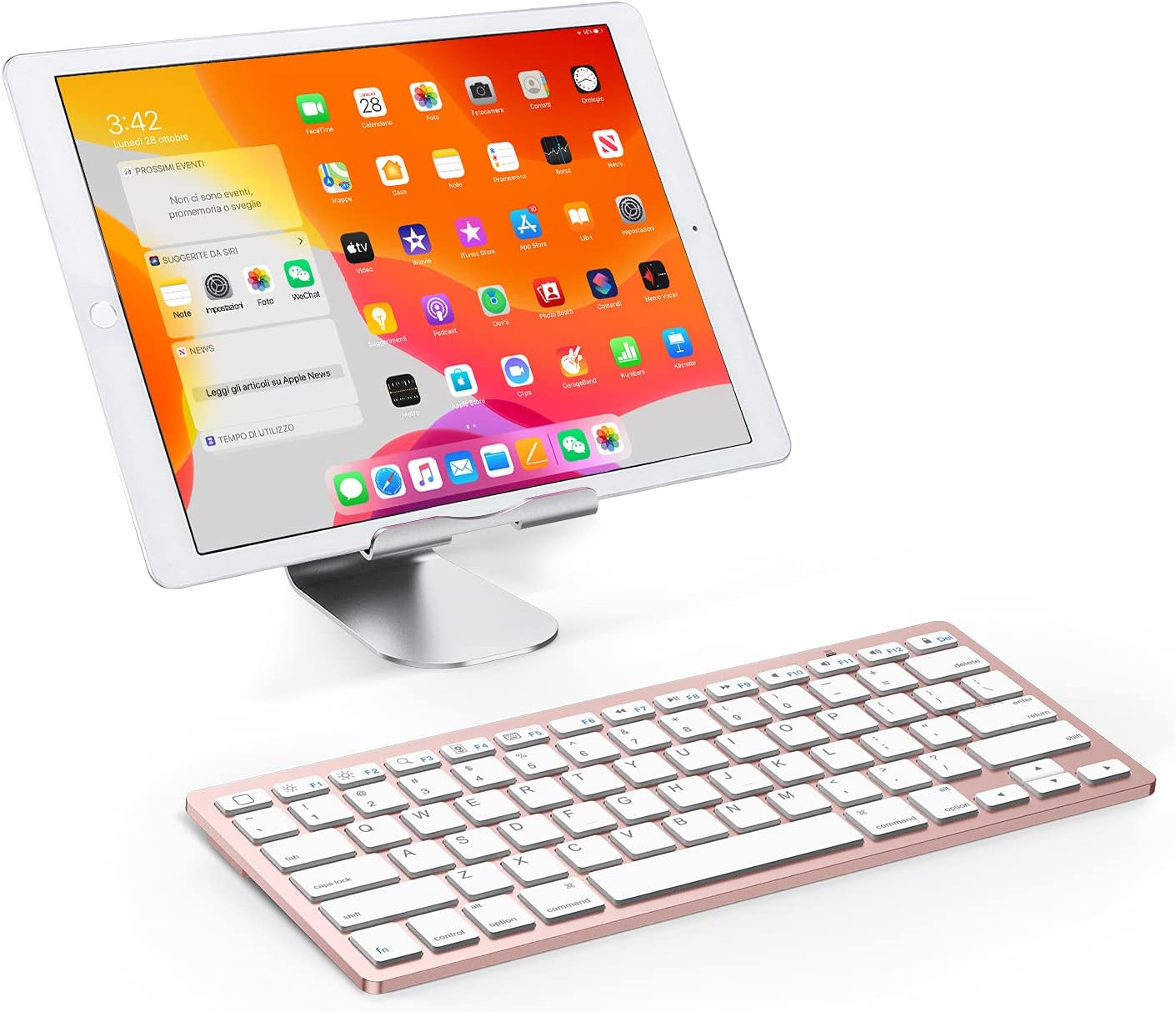
Image 6.1: The OMOTON KB066 keyboard positioned with an iPad on a stand, demonstrating its use with a tablet.
7. Solució De Problemes
7.1 El teclat no es connecta
- Assegureu-vos que el teclat estigui encès i que tingui piles noves.
- Verifiqueu que el Bluetooth estigui habilitat al vostre dispositiu iOS.
- Make sure the keyboard is within the 10-meter operating range of your device.
- If previously paired, try 'forgetting' the device in your iOS Bluetooth settings and re-pairing.
- Restart both the keyboard (turn off and on) and your iOS device.
7.2 Les tecles no responen
- Check battery levels. Low batteries can cause intermittent key responses.
- Assegureu-vos que el teclat estigui connectat correctament mitjançant Bluetooth.
- Clean any debris from around the keys.
7.3 Disconnections During Use
- This can sometimes occur if the keyboard enters sleep mode. Press any key to wake it up.
- Ensure there are no strong interfering signals (e.g., other Bluetooth devices, Wi-Fi routers) nearby.
- Comproveu els nivells de bateria.
8. Manteniment
8.1 Neteja
Per netejar el teclat, netegeu suaument la superfície amb un drap suau iamp, lint-free cloth. Avoid using harsh chemicals or abrasive materials. Do not immerse the keyboard in water.
8.2 Emmagatzematge
When not in use for extended periods, turn off the keyboard to conserve battery life. Store it in a cool, dry place away from direct sunlight and extreme temperatures.
9. Garantia i Suport
OMOTON is committed to providing quality products and customer satisfaction. For any questions, concerns, or technical assistance regarding your OMOTON KB066 Bluetooth Keyboard, please contact OMOTON customer service. Refer to the product packaging or the official OMOTON weblloc per obtenir informació de contacte.