
1. Introducció
Thank you for choosing the MageGee MK1 Mechanical Gaming Keyboard and Mouse Combo. This product is designed to enhance your gaming and work experience with its responsive mechanical keys, customizable LED backlighting, and ergonomic design. This manual provides detailed instructions for setup, operation, maintenance, and troubleshooting to ensure optimal performance.
The combo includes an 87-key mechanical keyboard with blue switches, an ergonomic gaming mouse, and a large mouse pad. The compact keyboard design saves desk space while offering a tactile and audible typing experience, suitable for both gaming and office tasks.

Imatge 1.1: acabatview of the MageGee MK1 87-key mechanical keyboard with blue backlighting.
2. Instruccions de configuració
Follow these steps to set up your MageGee MK1 Keyboard and Mouse Combo:
- Desempaquetar els components: Carefully remove the keyboard, mouse, and mouse pad from their packaging.
- Connecteu el teclat: Connecteu el connector USB del teclat a un port USB disponible de l'ordinador.
- Connecteu el ratolí: Plug the USB connector of the mouse into another available USB port on your computer.
- Col·loca el tapete del ratolí: Position the large mouse pad on your desk for optimal mouse movement.
- Instal·lació del controlador: The keyboard and mouse are plug-and-play devices. Your operating system (Windows 10, 8, 7, Vista, XP, or limited Mac OS support) should automatically detect and install the necessary drivers. No additional software installation is typically required.
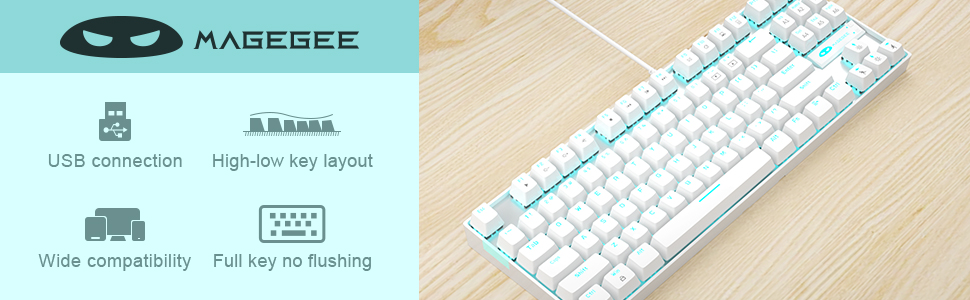
Image 2.1: Key features of the MageGee MK1 keyboard, including USB connection and wide compatibility.
3. Instruccions de funcionament
3.1 Funcions del teclat
The MK1 keyboard features 87 mechanical keys with blue switches, providing a distinct tactile bump and audible click for precise feedback. The compact layout is designed for efficiency and comfort.
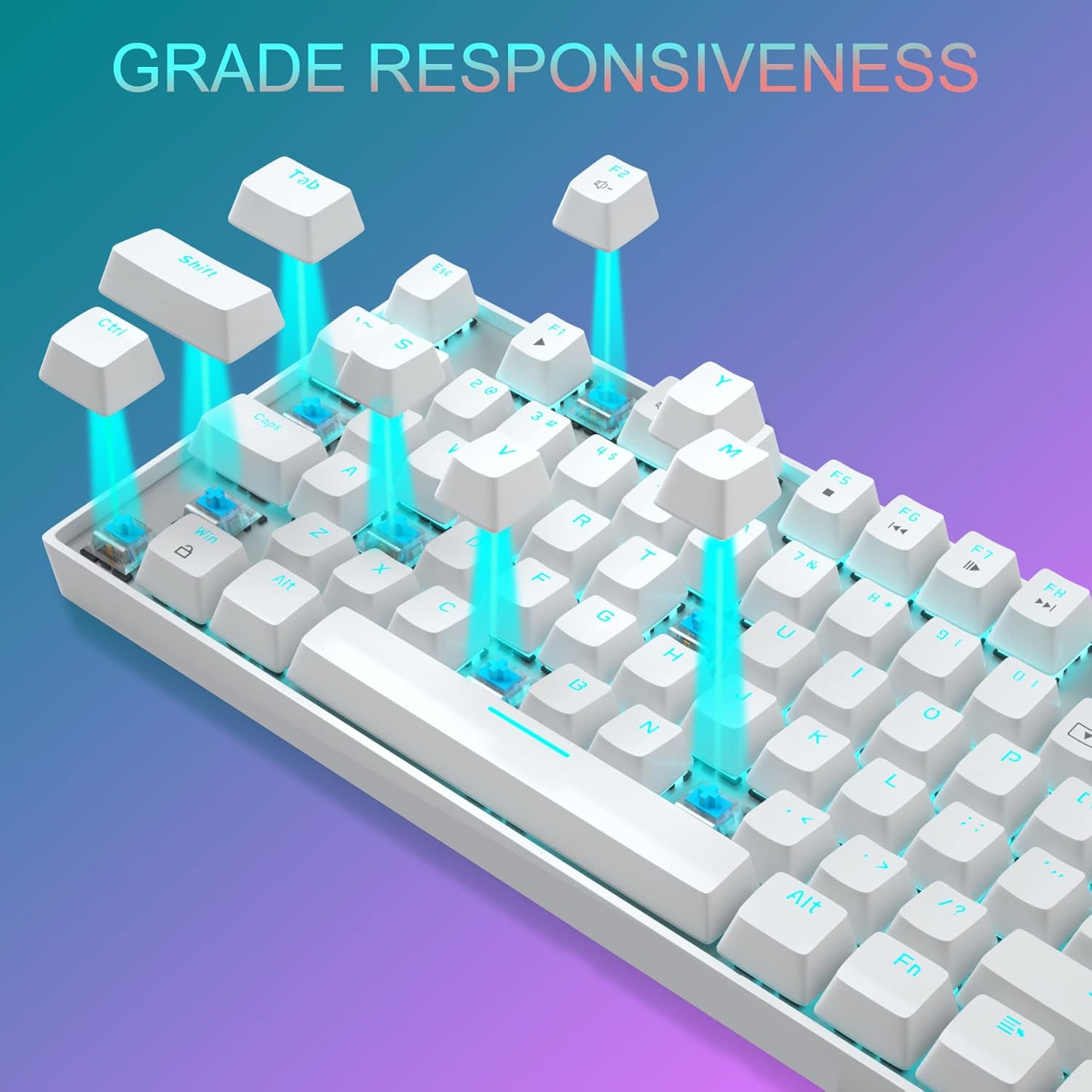
Imatge 3.1: Primer pla view of the keyboard demonstrating the blue mechanical switches for responsive typing.
3.1.1 Backlighting Modes
The keyboard supports 24 different LED breathing backlight modes. Use the following key combinations to control the backlighting:
- FN + INS: Cycle through various preset lighting modes.
- FN + HOME: Cycle through additional lighting effects.
- FN + PGUP: Ajusta la brillantor de la retroiluminació (4 nivells).
- FN + PGDN: Adjust breathing speed (4 levels).
- FN + DEL: Change backlight color in certain modes.
- FN + FIN: Activate or deactivate specific lighting patterns.
You can also customize lighting effects by pressing FN + 1/2/3/4/5 key combinations. The WASD and ARROW keys are interchangeable for user preference.
3.1.2 Tecles multimèdia
The keyboard includes 12 multimedia function keys, accessible by pressing the FN key in combination with the F1-F12 keys. These provide quick access to common functions:

Image 3.2: Chart detailing the FN key combinations for multimedia controls.
- FN + F1: Reproductor multimèdia
- FN + F2: Baixa el volum
- FN + F3: Puja el volum
- FN + F4: Silenciar
- FN + F5: Atureu-vos
- FN + F6: Pista anterior
- FN + F7: Reproduir/Pausa
- FN + F8: Pista següent
- FN + F9: Correu electrònic
- FN + F10: Web/ Inici
- FN + F11: El meu ordinador
- FN + F12: Calculadora
3.2 Funcions del ratolí
The gaming mouse features 7 programmable buttons and adjustable DPI settings for precision control.
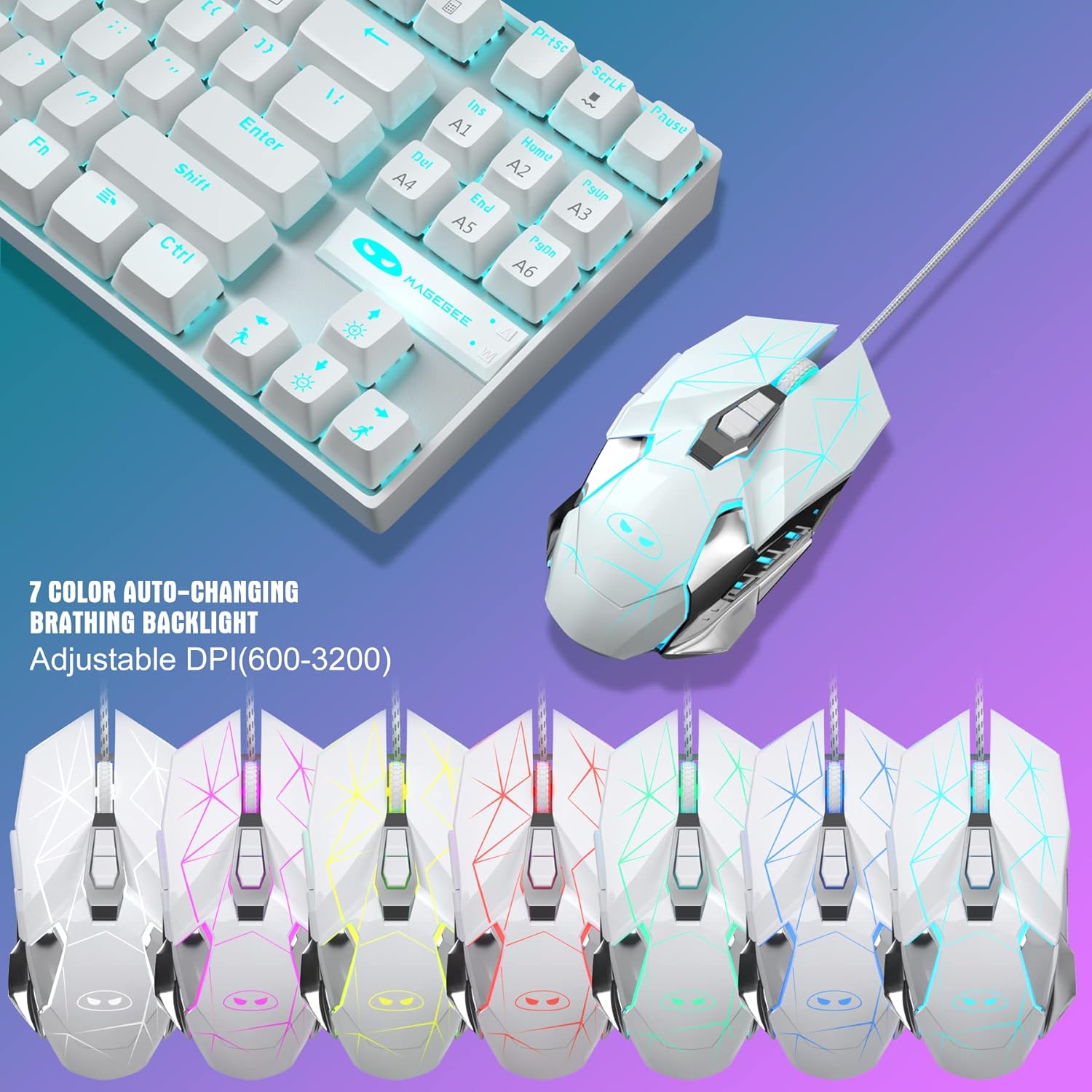
Image 3.3: The MageGee gaming mouse, showcasing its ergonomic design and customizable backlighting.
3.2.1 Ajust de DPI
The mouse offers 6 adjustable DPI levels (600, 800, 1200, 1600, 2400, 3200). Press the DPI button (usually located behind the scroll wheel) to cycle through these settings in real-time. Each DPI level is indicated by a different backlight color:
- groc
- Blau
- Lila
- Verd
- Vermell
- Cian
3.2.2 Mouse Backlight Control
The mouse backlight color changes with the DPI setting. To control the mouse backlight, press the "Forward + DPI" keys simultaneously. This combination allows you to select a single preferred color, enable automatic color flashing, or turn off the backlight.
3.3 Mouse Pad
The included large mouse pad (300x250 mm) features a silk-processed cloth surface for smooth, ultra-precise mouse movements. Its advanced multi-layer surface provides thousands of light-reflecting microscopic points for accurate tracking. The underside is made of natural processed foam rubber, ensuring a stable grip on various surfaces. Stitched edges prevent fraying and curling, enhancing durability. The mouse pad is waterproof and washable for easy cleaning.
4. Manteniment
Proper maintenance ensures the longevity and performance of your keyboard and mouse combo:
- Neteja del teclat: Use a soft, dry cloth to wipe down the keycaps and chassis. For deeper cleaning, you can use compressed air to remove dust and debris from between the keys. Avoid using harsh chemicals or abrasive materials.
- Neteja del ratolí: Netegeu la superfície del ratolí amb un drap suau i lleugeramentamp cloth. Ensure no liquid enters the internal components. Clean the optical sensor area regularly to maintain tracking accuracy.
- Cleaning the Mouse Pad: The mouse pad is waterproof and washable. You can gently hand wash it with mild soap and water, then air dry completely before use.
- Emmagatzematge: Quan no l'utilitzeu durant períodes prolongats, guardeu el combo en un lloc net i sec, allunyat de la llum solar directa i de temperatures extremes.
5. Solució De Problemes
If you encounter issues with your MageGee MK1 combo, refer to the following common solutions:
- El teclat/ratolí no respon:
- Ensure both USB cables are securely plugged into your computer's USB ports.
- Prova de connectar els dispositius a ports USB diferents.
- Reinicieu l'ordinador.
- Test the keyboard/mouse on another computer to determine if the issue is with the device or your system.
- La retroiluminació no funciona o és incorrecta:
- Ensure the backlight is not turned off (check FN key combinations).
- Adjust brightness using FN + PGUP.
- Cycle through different lighting modes using FN + INS/HOME.
- Problemes de seguiment del ratolí:
- Clean the mouse sensor and the mouse pad surface.
- Adjust the DPI setting to a level suitable for your use.
- Ensure the mouse pad is on a flat, stable surface.
- Claus que no es registren:
- Assegureu-vos que el teclat estigui connectat correctament.
- Netegeu al voltant de la tecla afectada per eliminar qualsevol residu.
- If specific keys consistently fail, contact customer support.
6. Especificacions
| Marca | MageGee |
| Model | MK1 |
| Tipus de teclat | Teclat de joc mecànic |
| Tipus de canvi | Interruptors blaus |
| Disseny de claus | 87 Keys (Compact) |
| Llum de fons | LED Backlit (24 modes, adjustable brightness/speed) |
| Connectivitat | USB per cable |
| Nivells de DPI del ratolí | 600, 800, 1200, 1600, 2400, 3200 |
| Botons del ratolí | 7 Botons programables |
| Mida de la catifa de ratolí | 300 x 250 mm |
| Compatibilitat | Windows 10/8/7/Vista/XP, Limited Mac OS support |
| Pes de l'article | 2.59 lliures (aprox.) |
| Dimensions del paquet | 14.92 x 8.94 x 1.77 polzades (aprox.) |
7. Garantia i Suport
The MageGee MK1 Mechanical Gaming Keyboard and Mouse Combo comes with a full 1-year manufacturer's warranty from the date of purchase. This warranty covers defects in materials and workmanship under normal use.
For any questions, technical assistance, or warranty claims, please do not hesitate to contact our friendly customer service team. We are available 24 hours a day, 7 days a week to provide support.
Please refer to the contact information provided with your product packaging or visit the official MageGee weblloc web per obtenir els detalls d'assistència més actualitzats.