
1. Introducció
Thank you for choosing the Vancer Gretxa Wireless Ultralight Gaming Mouse. This manual provides essential information for setting up, operating, and maintaining your new gaming mouse. Please read it thoroughly to ensure optimal performance and longevity of your device.
Contingut del paquet
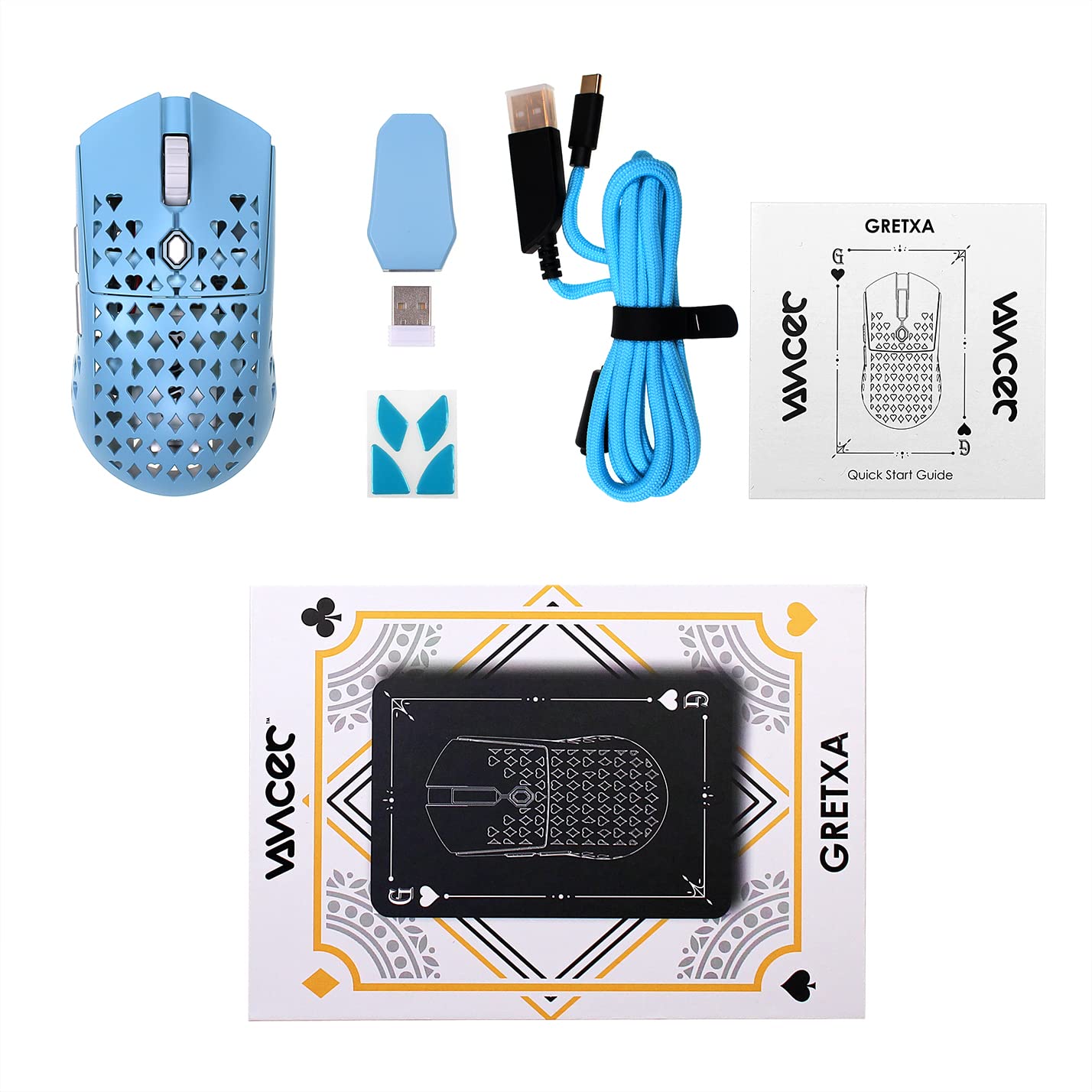
The Vancer Gretxa Wireless Ultralight Gaming Mouse package includes the following items:
- Vancer Gretxa Wireless Gaming Mouse
- USB-C to USB-A Charging Cable (Red)
- USB Extension Dongle
- Dongle receptor sense fil
- Extra Set of PTFE Skates
- Guia d'inici ràpid
2. Configuració
2.1 Connecting the Wireless Receiver
- Locate the wireless receiver dongle.
- Plug the receiver dongle into an available USB-A port on your computer. For optimal signal strength, use the provided USB extension dongle to place the receiver closer to the mouse.
- Engegueu el ratolí amb l'interruptor d'engegada que es troba a la part inferior del ratolí.
- Your computer should automatically detect the mouse. No additional drivers are typically required for basic functionality on Windows 10.
2.2 Càrrega del ratolí
The Vancer Gretxa mouse is equipped with a rechargeable Lithium Ion battery.
- Connecteu l'extrem USB-C del cable de càrrega al port frontal del ratolí.
- Connect the USB-A end of the charging cable to an available USB-A port on your computer or a USB wall adapter.
- El ratolí es pot utilitzar en mode amb cable mentre es carrega.
- A full charge typically takes a few hours. The LED indicator on the mouse will change to indicate charging status (refer to the Quick Start Guide for specific LED behaviors).

2.3 Optional Software Installation
For advanced customization, such as remapping buttons, adjusting DPI steps, or configuring macros, Vancer may provide optional software. Please visit the official Vancer website for the latest software downloads and installation instructions. Note that some features like RGB lighting may be tied to DPI settings.
3. Instruccions de funcionament
3.1 Funcions bàsiques del ratolí
- Clic esquerre: Botó d'acció principal.
- Clic dret: Botó d'acció secundària, sovint per a menús contextuals.
- Roda de desplaçament: Desplaça el contingut verticalment. També es pot prémer per fer clic amb el botó central.
- Botons laterals: Normalment s'utilitza per a la navegació endavant/enrere en web browsers or customizable functions in games/software.
- Botó DPI: Canvia ciclísticament pels nivells de sensibilitat DPI preestablerts.

3.2 Ajust de DPI
The Vancer Gretxa mouse features a dedicated DPI button, usually located behind the scroll wheel or on the underside, to cycle through different sensitivity settings. The default DPI steps are 400, 800, 1800, 3200, 4800, and 6400. Each step may correspond to a different LED color for visual indication. Press the DPI button to switch between these settings to find your preferred sensitivity.
3.3 Ajust de la taxa de sondeig
The polling rate determines how often the mouse reports its position to the computer. The Gretxa mouse supports polling rates of 125Hz (8ms), 500Hz (2ms), and 1000Hz (1ms). Higher polling rates generally provide smoother tracking and lower latency. Adjustment of the polling rate is typically done via the optional Vancer software.
3.4 Mode amb cable
When the USB-C charging cable is connected to the mouse and your computer, the mouse will automatically switch to wired mode. This allows for continuous use even if the battery is depleted, and can be preferred for competitive gaming to eliminate any potential wireless interference.
4. Manteniment
4.1 Neteja del ratolí
Una neteja regular ajuda a mantenir el rendiment i la higiene.
- Exterior: Utilitzeu un drap suau i sense pelusa dampEsbandiu amb aigua o una solució de neteja suau. Eviteu productes químics agressius.
- Sensor: Gently clean the optical sensor on the underside of the mouse with a cotton swab or compressed air to remove dust and debris.
- Roda de desplaçament: Use compressed air to clear any dust or particles that may accumulate around the scroll wheel mechanism.
4.2 Replacing PTFE Skates
The Vancer Gretxa mouse comes with high-quality PTFE skates for smooth gliding. Over time, these may wear down. An extra set of PTFE skates is included in your package for replacement.
- Carefully peel off the old PTFE skates using a thin, non-abrasive tool.
- Ensure the surface where the skates were is clean and free of adhesive residue.
- Peel the backing from the new PTFE skates and carefully align them with the recesses on the mouse's underside.
- Premeu fermament per assegurar una adherència adequada.

4.3 Cura de la bateria
- Eviteu descarregar completament la bateria amb freqüència.
- Guardeu el ratolí en un lloc fresc i sec quan no l'utilitzeu durant períodes prolongats.
- Use only the provided charging cable or a certified USB-C cable to prevent damage.
5. Solució De Problemes
If you encounter issues with your Vancer Gretxa mouse, please refer to the following common solutions:
| Problema | Possible solució |
|---|---|
| El ratolí no respon |
|
| El moviment del cursor és erràtic o brusc |
|
| Els botons o la roda de desplaçament no funcionen |
|
| Poca durada de la bateria |
|
6. Especificacions
Below are the technical specifications for the Vancer Gretxa Wireless Ultralight Gaming Mouse:
| Característica | Detall |
|---|---|
| Model | Gretxa |
| Connectivitat | 2.4GHz Wireless, USB-C (Wired) |
| Sensor | Sensor òptic Pixart 3370 |
| Pes | Aproximadament 69 g |
| Dimensions (L x A x A) | 123 x 62 x 37 mm |
| Configuració de DPI | 400 / 800 / 1800 / 3200 / 4800 / 6400 (Adjustable) |
| Taxa de votació | 125 Hz / 500 Hz / 1000 Hz |
| LOD (distància d'enlairament) | 2mm (default), 1mm (adjustable via software) |
| Interruptors | TTC Gold Switches (V2 improvement) |
| Patins | PTFE |
| Tipus de bateria | Ió de liti (1 inclosa) |
| Sistema operatiu | Windows 10 (and compatible with other modern OS) |
| Dispositius compatibles | Ordinador personal |
7. Garantia i Suport
7.1 Informació de la garantia
For the most current and detailed warranty information regarding your Vancer Gretxa Wireless Ultralight Gaming Mouse, please refer to the official Vancer website or the warranty card included with your product. Warranty terms and conditions, including duration and coverage, may vary by region and are subject to change by the manufacturer.
7.2 Atenció al client
If you require further assistance, have questions not covered in this manual, or need technical support, please visit the official Vancer website. You can typically find FAQs, driver downloads, and contact information for customer service there.