
1. Introducció
Thank you for choosing the DIGITNOW PCIe Capture Card 4Kp60 (Model K801). This device is designed for high-quality video capture and streaming, supporting up to 4K 60Hz input and capturing in 4K30Hz or 1080P 120FPS resolution. It features an ultra-low latency HDMI pass-through, making it ideal for gamers, streamers, and content creators. This manual provides detailed instructions for installation, operation, and troubleshooting to ensure you get the most out of your capture card.

Figure 1: DIGITNOW PCIe Capture Card 4Kp60
2. Què hi ha a la caixa
- DIGITNOW PCIe Capture Card (Model K801)
- Guia d'instal·lació
3. Requisits del sistema
Ensure your system meets the following minimum requirements for optimal performance:

Figure 2: Detailed System Requirements
Requisits de maquinari:
- Interfície: PCIe x1
- Entrada: Play Station 4, Xbox One, Nintendo Switch (unencrypted HDMI) up to 4K 60Hz
- Sortida: HDMI (pass-through) up to 2160p30 (4K30)
- Resolucions de captura: 2160p30, 1080p60, 720p, etc.
Sistema operatiu:
- Windows 11/10/8/7
Recommended PC Specifications:
- Desktop CPU: Intel Core i5-6XXX or higher
- Desktop Graphics Card: NVIDIA GeForce GTX 1060 or higher
- Desktop RAM: 8GB (Dual Channels)
- Laptop CPU: Intel Core i7-7700HQ o superior
- Laptop Graphics Card: NVIDIA GeForce GTX 1050 Ti or higher
- Laptop RAM: 8GB (Dual Channels)
4. Configuració i instal·lació
The DIGITNOW PCIe Capture Card is an internal component designed to be installed directly into your computer's motherboard. Follow these steps for proper installation and connection:
4.1 Instal·lació física
- Apagueu l'ordinador i desconnecteu tots els cables.
- Obriu la caixa de l'ordinador.
- Localitzeu una ranura PCIe x1 disponible a la vostra placa base.
- Carefully insert the DIGITNOW PCIe Capture Card into the slot until it is firmly seated.
- Secure the card with the appropriate bracket (full height for ATX, low profile for Micro ATX, if applicable).
- Tanqueu la carcassa de l'ordinador i torneu a connectar tots els cables.
- Enceneu l'ordinador.
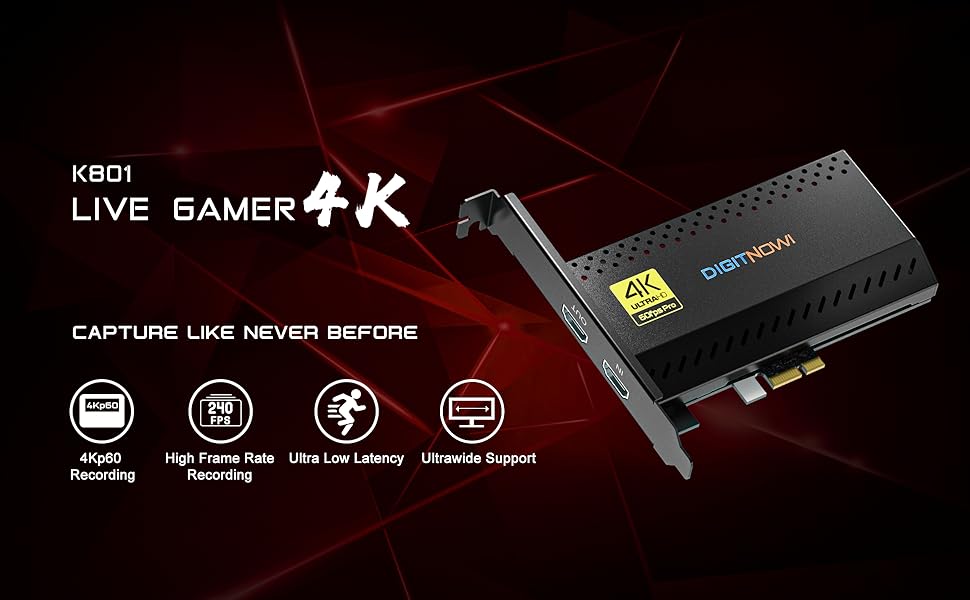
Figure 3: PCIe Capture Card installed in a desktop PC for streaming and recording.
4.2 Connexió de dispositius
Once the card is installed, connect your gaming console or other HDMI source and monitor:
- Connect an HDMI cable from your gaming console (e.g., Nintendo Switch, PS5, Xbox Series X/S) to the Entrada HDMI port a la targeta de captura.
- Connect another HDMI cable from the SORTIDA HDMI port on the capture card to your monitor or TV for zero-lag pass-through.
- Your computer should automatically detect the capture card.
Video 1: Demonstration of connecting a capture card to a device and setting up in OBS. This video shows the physical connections for HDMI input/output and USB to the computer.
5. Instruccions de funcionament
To begin capturing or streaming, you will need compatible software. OBS Studio is a popular free option.
5.1 Software Setup (OBS Studio)
- Download and install OBS Studio from the official weblloc (obsproject.com).
- Launch OBS Studio.
- In the 'Sources' box, click the '+' icon and select 'Video Capture Device'.
- Create a new source or select an existing one, then click 'OK'.
- In the properties window, select 'DIGITNOW PCIe Capture Card' (or similar name) from the 'Device' dropdown.
- Adjust resolution, FPS, and other settings as desired. Ensure the resolution matches your input source for best quality.
- Click 'OK' to add the source. Your console's video feed should now appear in OBS.
- To add audio, click the '+' icon in 'Sources' again and select 'Audio Input Capture'. Choose the capture card's audio device.
- You can now start recording or streaming using the controls in OBS Studio.
5.2 Optimizing Settings
- For ultra-low latency, ensure your monitor is connected to the HDMI OUT port for direct pass-through.
- Experiment with different resolutions and frame rates in OBS to find the best balance for your system and streaming platform.
- Check your console's video output settings to ensure they are compatible with the capture card's input capabilities (e.g., 4K 60Hz).
6. Característiques
- 4K Capture & HDMI Pass-through: Supports input max resolution 4K 60Hz and captures in 4K30Hz or 1080P 120FPS resolution.
- PCIe High-speed Interface: Installed internally, directly to your motherboard, ensuring high-speed data transfer.
- Àmplia compatibilitat: Compatible with Nintendo Switch, PS5, PS4, Xbox Series X/S, Xbox One X, Wii U, and various streaming platforms like Twitch and YouTube.
- Latència ultra baixa: Designed for zero-lag pass-through and high refresh rates for a seamless gaming and streaming experience.
- 5.1/7.1 Surround Sound Support: Records stereo audio at 5.1 or 7.1 surround sound, enhancing your PC setup.
- Ultrawide Recording: Not only captures 4Kp60, but also supports capturing the entire screen at ultrawide resolution.
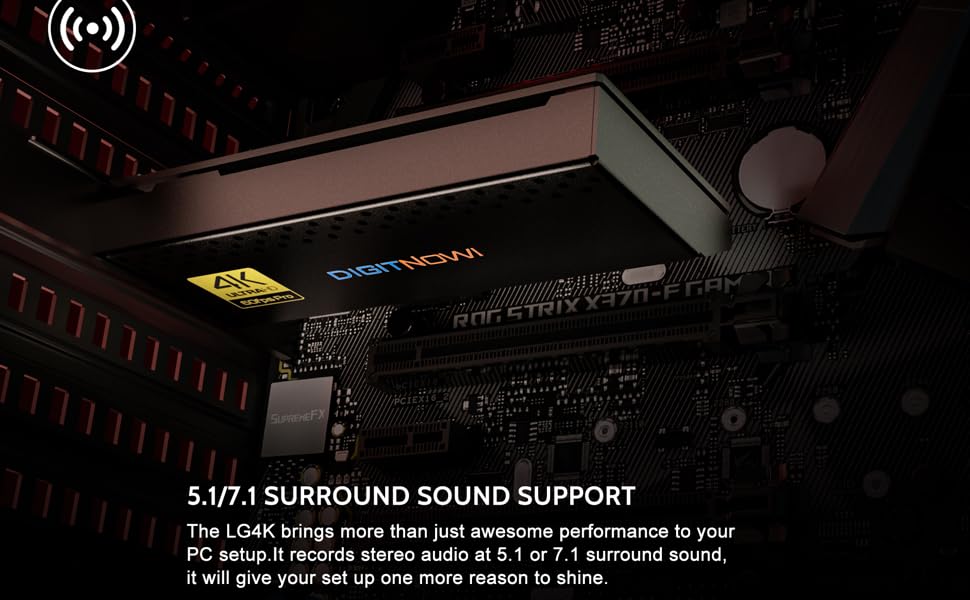
Figure 4: High-resolution capture and pass-through capabilities.
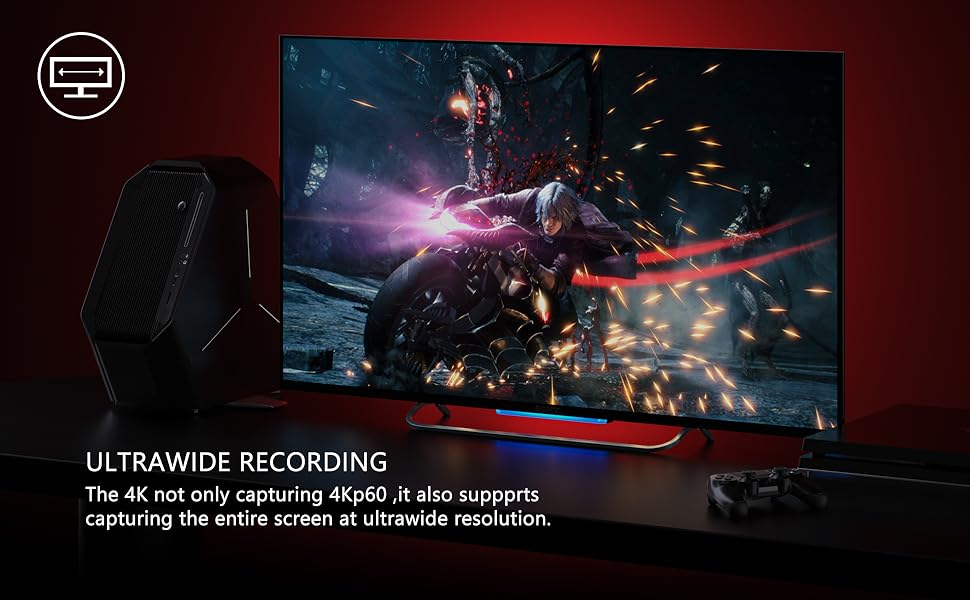
Figure 5: Advanced features for versatile streaming and recording.
7. Solució De Problemes
If you encounter issues with your DIGITNOW PCIe Capture Card, consider the following:
- Sense senyal/Pantalla negra:
- Ensure all HDMI cables are securely connected to the correct IN/OUT ports.
- Verify your gaming console's video output settings are compatible with the capture card's input (e.g., disable HDCP if necessary, adjust resolution).
- Check if the capture card drivers are correctly installed and updated.
- Prova un altre cable HDMI.
- Sense àudio:
- Ensure audio input is correctly configured in your streaming software (e.g., OBS).
- Check your console's audio output settings.
- Verify that the correct audio device is selected in your computer's sound settings.
- Lag/Stuttering:
- Ensure your PC meets the recommended system requirements.
- Close unnecessary background applications to free up CPU/GPU resources.
- Lower the capture resolution or frame rate in your streaming software.
- Actualitzeu els controladors de la vostra targeta gràfica.
- Software Not Detecting Card:
- Reinstall the capture card drivers.
- Proveu de reiniciar l'ordinador.
- Ensure the card is properly seated in the PCIe slot.
8. Especificacions
| Característica | Detall |
|---|---|
| Dimensions del producte | 3.98 x 2.28 x 0.59 polzades |
| Pes de l'article | 14.4 unces |
| Número de model de l'article | K801 |
| Interfície del maquinari | HDMI, PCIE x 1 |
| Resolució de captura de vídeo | 1080p (up to 4K30Hz capture) |
| Sistema operatiu | Windows 11/10/8/7 |
| Fabricant | DIGITNOW |
| Data de primera disponibilitat | 12 de juliol de 2021 |
9. Garantia i Suport
The DIGITNOW PCIe Capture Card comes with a 1-year warranty. For any questions, technical assistance, or warranty claims, please contact our customer service. We offer 24-hour customer service to assist you with any issues.
For further support, please refer to the official DIGITNOW weblloc web o contacteu directament amb el seu equip d'atenció al client.