
Introducció
This manual provides detailed instructions for setting up, operating, maintaining, and troubleshooting your ASUS TUF Gaming VG247Q1A 24-inch 1080P Monitor. Please read this manual thoroughly before using the monitor to ensure proper operation and to prevent damage.

Image: ASUS TUF Gaming VG247Q1A Monitor, front view.
Configuració
Contingut del paquet
Verifiqueu que tots els elements siguin presents al paquet abans de continuar amb la configuració.
- VG247Q1A Monitor
- Cable d'alimentació
- Targeta de garantia
- Guia d'inici ràpid (QSG)
- Cable HDMI
- Cable DisplayPort

Image: Illustration of the items included in the monitor package, including the monitor, cables, and documentation.
Assemblea de monitors
- Traieu amb cura el monitor i els seus components de l'embalatge.
- Attach the stand base to the stand neck, then secure it to the monitor panel. Refer to the Quick Start Guide for specific instructions and diagrams.
- Col·loqueu el monitor muntat sobre una superfície plana i estable.
Connexió del monitor
Connecteu el monitor al vostre ordinador o a altres dispositius mitjançant els cables adequats.
- Connexió d'alimentació: Connecteu el cable d'alimentació a l'entrada d'alimentació del monitor i després a una presa de corrent.
- Connexió de vídeo:
- For optimal performance, use the included DisplayPort cable to connect the monitor to your graphics card's DisplayPort output.
- Alternatively, use an HDMI cable to connect to an HDMI port on your device. The monitor has two HDMI (v1.4) ports.
- Connexió d'àudio: If desired, connect headphones or external speakers to the 3.5mm earphone jack on the monitor.

Imatge: Part posterior view of the monitor highlighting the DisplayPort, HDMI (x2), and earphone jack connections.
The monitor also supports VESA mount (100x100mm) for alternative mounting solutions.
Instruccions de funcionament
Encès/Apagat
Premeu el botó d'engegada que es troba al monitor per engegar-lo o apagar-lo. L'indicador lluminós d'engegada s'il·luminarà quan el monitor estigui actiu.
Menú de visualització en pantalla (OSD).
Access the OSD menu using the joystick or buttons on the back/bottom of the monitor to adjust various settings.
- Navegació: Use the joystick to navigate through menu options.
- Selecció: Press the joystick or corresponding button to select an option.
- Sortida: Use the designated button or move the joystick to exit the menu.
Funcions i configuracions principals
- Freqüència d'actualització (165 Hz): The monitor supports a high refresh rate of 165Hz for smoother motion. Ensure your graphics card settings are configured to utilize this refresh rate.
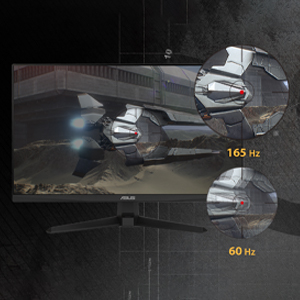
Imatge: Comparació visual que demostra la suavitat d'una freqüència d'actualització de 165 Hz enfront de 60 Hz.
- ASUS Extreme Low Motion Blur (ELMB): This technology provides a 1ms Moving Picture Response Time (MPRT) to reduce motion blur. Activate it through the OSD menu for clearer fast-paced visuals.
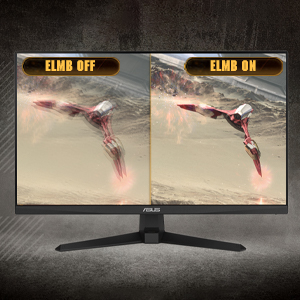
Image: Side-by-side comparison of ELMB off and ELMB on, showing reduced motion blur with ELMB active.
- AMD FreeSync™ Premium: This technology synchronizes the monitor's refresh rate with your AMD graphics card's frame rate to eliminate screen tearing and stuttering. Ensure it is enabled in both the monitor OSD and your graphics card software.
Image: Comparison of screen tearing with FreeSync Premium off versus smooth gameplay with FreeSync Premium on.
- Augment de l'ombra: Enhances image details in dark areas without over-exposing bright areas, providing better visibility in dimly lit game scenes.
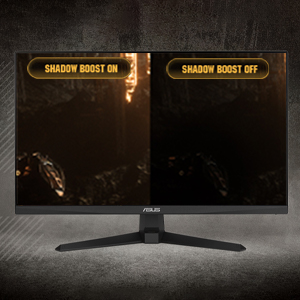
Image: Side-by-side comparison of a dark game scene with Shadow Boost off and Shadow Boost on, showing improved visibility in dark areas.
- Característiques de la cura dels ulls:
- Ultra-Low Blue Light: Reduces harmful blue light emissions to protect your eyes during long viewing sessions. Adjust the blue light filter level in the OSD menu.

Image: Graphic illustrating the effect of Ultra-Low Blue Light technology on screen output.
- Tecnologia sense parpelleig: Eliminates screen flickering to minimize eye strain. This feature is always active.

Image: Side-by-side comparison of a screen with and without flicker-free technology, demonstrating reduced flickering.
- Ultra-Low Blue Light: Reduces harmful blue light emissions to protect your eyes during long viewing sessions. Adjust the blue light filter level in the OSD menu.
- GamePlus: Provides in-game enhancements such as crosshairs, timers, FPS counters, and display alignment tools. Access these features via the OSD menu.
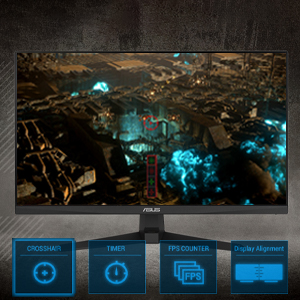
Image: Monitor screen displaying various GamePlus overlays like crosshair, timer, and FPS counter.
- GameVisual: Offers several preset display modes optimized for different content types (e.g., Scenery, Racing, Cinema, RTS/RPG, FPS, sRGB, MOBA). Select the appropriate mode for your current activity.

Image: Side-by-side comparison of a game scene with GameVisual off and GameVisual on, showing optimized visual settings.
Manteniment
Un manteniment adequat garanteix la longevitat i el rendiment òptim del monitor.
- Neteja de la pantalla:
- Apagueu el monitor i desconnecteu el cable d'alimentació.
- Utilitzeu un drap suau i sense pelusa dampRenteu-ho amb aigua o un netejador de pantalles no abrasiu.
- Wipe the screen gently. Avoid applying pressure or using harsh chemicals.
- Neteja de la Casing:
- Feu servir un drap suau i sec per netejar el monitor casing.
- Eviteu utilitzar netejadors abrasius o dissolvents que puguin danyar l'acabat.
- Emmagatzematge:
- If storing the monitor for an extended period, unplug all cables and pack it in its original packaging if possible.
- Emmagatzemar en un lloc fresc i sec, lluny de la llum solar directa i de temperatures extremes.
Resolució de problemes
If you encounter issues with your monitor, refer to the following common solutions.
| Problema | Possible solució |
|---|---|
| No hi ha imatge a la pantalla |
|
| La imatge és borrosa o distorsionada |
|
| No hi ha so dels altaveus/auriculars |
|
| Pantalla trencada o entretallat durant el joc |
|
If the problem persists after trying these solutions, please contact ASUS customer support.
Especificacions
| Característica | Detall |
|---|---|
| Marca | ASUS |
| Número de model | VG247Q1A |
| Mida de la pantalla | 24 polzades |
| Resolució | FHD 1080p (1920 x 1080 píxels) |
| Relació d'aspecte | 16:9 |
| Freqüència d'actualització | 165 Hz |
| Temps de resposta | 1 Milliseconds (MPRT) |
| Tipus de visualització | LCD |
| Tipus de panell | VA (Note: Not explicitly stated, but common for these specifications) |
| Viewangle ing | 170 graus |
| Brillantor | 350 candeles per metre quadrat |
| Relació de contrast | 1000:1 |
| Screen Finish | brillant |
| Connectivitat | 2x HDMI (v1.4), 1x DisplayPort (v1.2), 1x Earphone Jack |
| Tecnologia de sincronització adaptativa | FreeSync Premium |
| Característiques especials | ASUS Extreme Low Motion Blur (ELMB), Shadow Boost, Blue Light Filter, Built-In Speakers, Flicker-Free, GamePlus, GameVisual |
| Dimensions de l'article (D x W x H) | 15.53 "P x 21.3" W x 6.85" H |
| Pes de l'article | 7.3 lliures |
| Muntatge VESA | 100x100mm compatible (Mount not included) |
| Consum d'energia | 14.52 watts |
| Voltage | 240 Volts |
Garantia i Suport
Your ASUS TUF Gaming VG247Q1A monitor comes with a manufacturer's warranty.
- Tipus de garantia: 3 anys de garantia del fabricant
- Descripció de la garantia: 3 Year Warranty with ARR (Advanced Replacement Service)
Per a assistència tècnica, reclamacions de garantia o més ajuda, visiteu el lloc web d'assistència oficial d'ASUS. website or contact their customer service. Refer to the warranty card included in your package for specific contact details and terms.