
Ruko U11S
Manual d'instruccions del dron Ruko U11S
Model: U11S | Brand: Ruko
1. Introducció
The Ruko U11S is a foldable mini FPV quadcopter designed for both beginners and experienced users, featuring a 4K camera, GPS auto return, and extended flight time. This manual provides essential information for the safe and optimal operation of your drone.
Experience the Ruko U11S in action:
Official Ruko U11S Foldable Drone promotional video, showcasing les seves característiques i facilitat d'ús.

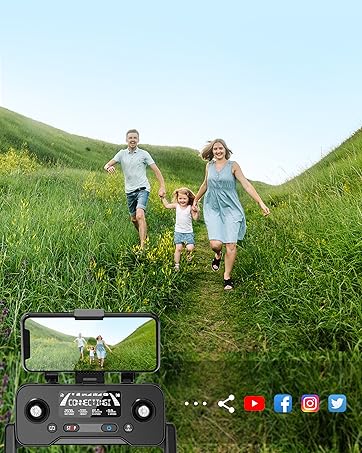
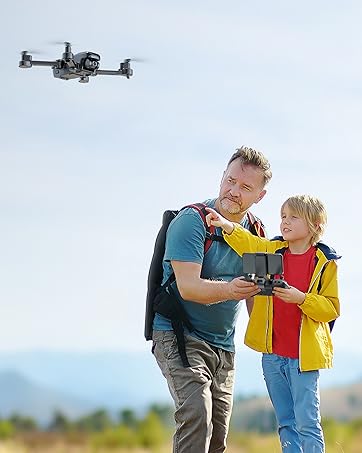
The Ruko U11S drone in flight, demonstrating its suitability for family activities and capturing memories.
2. Què hi ha a la caixa
Upon opening your Ruko U11S package, please verify that all the following components are included:
- Ruko U11S Drone (with Transmitter & Phone Holder) ×1
- Rechargeable Battery ×2
- Cable USB tipus C × 2
- Extra Propeller Blade ×4
- Maleta de transport × 1
- Manual d'usuari × 1
- Tornavís × 1
- Cargols × 10
Contents of the Ruko U11S drone package.
3. Pautes de seguretat
Your Ruko U11S drone complies with FAA Declaration of Compliance for Remote ID. It is crucial to understand and adhere to all local regulations and safety guidelines before operating the drone. Registration may be required in your region. Always fly in open areas, away from people, animals, and obstacles.
Per obtenir informació detallada sobre seguretat, consulteu el PDF oficial d'informació de seguretat: Informació de seguretat (PDF).
The Ruko U11S drone features a built-in Remote ID module for FAA compliance.
4. Configuració
4.1 Càrrega de bateries
Ensure both the drone batteries and the transmitter are fully charged before flight. Use the provided USB Type-C cables for charging. A full charge typically takes several hours.

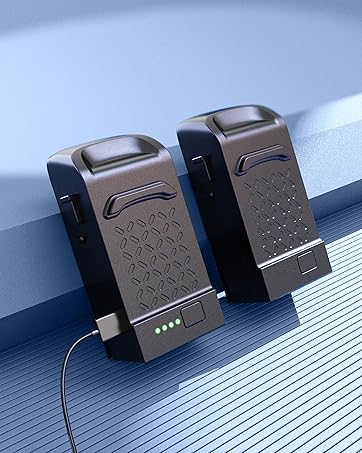
Ruko U11S drone batteries charging, providing up to 40 minutes of flight time with two batteries.

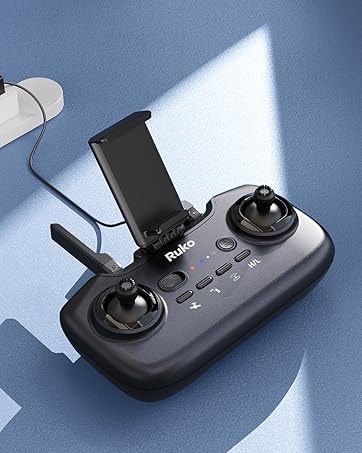
The rechargeable transmitter for the Ruko U11S drone, designed for easy operation.
4.2 Instal·lació de l'hèlix
Fixeu les hèlixs segons les marques (A i B) de les hèlixs i els braços del motor. Assegureu-vos que estiguin ben fixades.
4.3 Controller Setup & App Connection
- Extend the phone holder on the transmitter and securely place your smartphone.
- Download and install the 'RUKO GPS' app from your device's app store.
- Turn on the drone and then the remote controller.
- Connect your phone to the drone's Wi-Fi network (appears after drone and remote are linked).
- Open the RUKO GPS app to view the live feed and access flight controls.
4.4 Comprovacions prèvies al vol
Abans de cada vol, feu les comprovacions següents:
- Ensure batteries are fully charged and securely inserted.
- Check propellers for any damage and ensure they are correctly installed.
- Verify GPS signal strength (for outdoor flight) or optical flow positioning (for indoor flight).
- Confirm a stable Wi-Fi connection between your phone and the drone.
5. Funcionament del dron
5.1 Controls bàsics de vol
The Ruko U11S features one-key functions for simplified operation:
- Enlairament amb una sola clau: Press the designated button to automatically launch the drone and hover at a safe altitude.
- Aterratge d'una sola clau: Press the designated button to initiate an automatic landing sequence.
- Flotant: The drone will automatically maintain its altitude and position using GPS (outdoor) or Optical Flow (indoor) positioning.

The Ruko U11S offers beginner-friendly flight modes for easier control.
5.2 Modes de vol
- Posicionament GPS: For stable outdoor flight, the drone utilizes GPS to maintain precise position and altitude.
- Posicionament del flux òptic: Provides safer and more stable flight indoors or in areas with weak GPS signals.
- Mode principiant: Limits flight distance and altitude for new pilots, ensuring a safer learning experience.
5.3 Funcions de vol intel·ligents
- Mode Segueix-me: The drone will automatically follow the user, capturing dynamic footage.
- Point of Interest (Circle Fly): Set a point of interest, and the drone will autonomously circle around it, maintaining a set radius.
- Waypoint Fly: Draw a custom flight path on the app screen, and the drone will follow the designated route.
- One-Key Return (RTH): The drone will automatically return to its takeoff point. This feature also activates in case of low battery or signal loss.
Intelligent flight modes like Follow-me and Point of Interest enhance the drone's capabilities.
Waypoint Fly allows custom flight paths, and multiple RTH modes ensure drone safety.
5.4 Funcionament de la càmera
The Ruko U11S is equipped with a 4K UHD camera that can be adjusted 90 degrees for optimal viewing angles. Photos and videos are saved directly to your connected smartphone via the app.

The 4K UHD camera provides a broader vision and adjustable angle for capturing high-quality footage.
5.5 Live Transmission
The drone uses 5G Wi-Fi for live video transmission to your smartphone, providing a real-time view from the drone's perspective.
6. Manteniment
6.1 Cura de la bateria
- Always use the Ruko charger for optimal performance.
- Avoid using chargers designed for other devices or those with an output higher than 12V.
- No sobrecarregueu ni descarregueu excessivament les bateries.
- Guardeu les piles en un lloc fresc i sec quan no les utilitzeu.
6.2 Neteja
Regularly clean the drone body and camera lens with a soft, dry cloth. Avoid using harsh chemicals or abrasive materials.
6.3 Emmagatzematge
When not in use, fold the drone and store it in its high-grade carrying case to protect it from dust and damage. Store in a cool, dry environment.

The Ruko U11S drone's compact, foldable design makes it easy to pack and transport.
6.4 Substitució de l'hèlix
If propellers are damaged, replace them with the extra propeller blades provided in the kit. Use the included screwdriver for installation.
7. Solució De Problemes
Aquí teniu alguns problemes comuns i les seves possibles solucions:
| Problema | Solució |
|---|---|
| Wi-Fi network not appearing. | Ensure the drone and remote controller are linked. It is recommended to connect your phone to Wi-Fi before entering the RUKO GPS app. |
| Difficulty refreshing Wi-Fi. | This may occur in environments with many Wi-Fi networks. Try moving to an area with less interference. |
| Wi-Fi disconnected during flight. | Turn on flight mode on your phone and turn off VPN. Disconnection can also be caused by surrounding signal interference or obstacles. Fly in an open environment. |
| Drone unstable or drifting. | Perform IMU calibration. Ensure you are flying in an open area with strong GPS signal (for outdoor flight) or clear ground for optical flow (for indoor flight). Check for propeller damage. |
| Mala qualitat d'imatge de la càmera. | Ensure the camera lens is clean. Check lighting conditions. |
8. Especificacions
| Característica | Detall |
|---|---|
| Marca | Ruko |
| Nom del model | U11S |
| Resolució de captura de vídeo | 4K UHD 2160p |
| Tecnologia de connectivitat | Wi-Fi (5 G) |
| Temps de vol | Fins a 20 minuts per bateria (40 minuts en total amb 2 bateries) |
| Capacitat de la bateria | 1200 milionsamp Hores |
| Pes de l'article | 270 grams (9.5 unces) |
| Dimensions del producte | 9.06 cm de llargada x 7.68 cm d'amplada x 2.36 cm d'alçada |
| Nivell d'habilitat | Principiant |
| Característiques especials | Extended Flight Time, Portable, Speed Adjustment, One-Button Return, Compliance with FAA Remote ID, Follow Me, Circle Fly |
| Material | High-strength ABS plastic and fiberglass |
9. Garantia i Suport
Ruko products are designed for reliability and performance. For any operational difficulties or warranty inquiries, please contact the Ruko Customer Support team. Details regarding specific warranty periods and terms are typically provided with your purchase documentation.
Ruko Customer Support:
- Telèfon: +1 (888) 892-0155
- Email: service@rukotoy.com
- Operating Hours: Mon-Fri: 8 AM to 2 AM (next day) PST; Sat-Sun: 8 AM to 5 PM (PST)
Ask a question about this manual
Ask about setup, troubleshooting, compatibility, parts, safety, or missing instructions. Manuals+ will review the question and use this page’s manual context to help answer it.