
MageGee MKBox
MageGee MK-Box 60% Mechanical Gaming Keyboard User Manual
Marca: MageGee
Model: MK-Box
1. Producte acabatview
The MageGee MK-Box is a compact 60% mechanical gaming keyboard designed for both gaming and office use. It features 68 keys, including separate arrow keys and Fn function keys, providing essential functionality while saving desk space. The keyboard is equipped with mechanical blue switches for a tactile and clicky typing experience, and it boasts charming blue LED backlighting with multiple customizable modes.
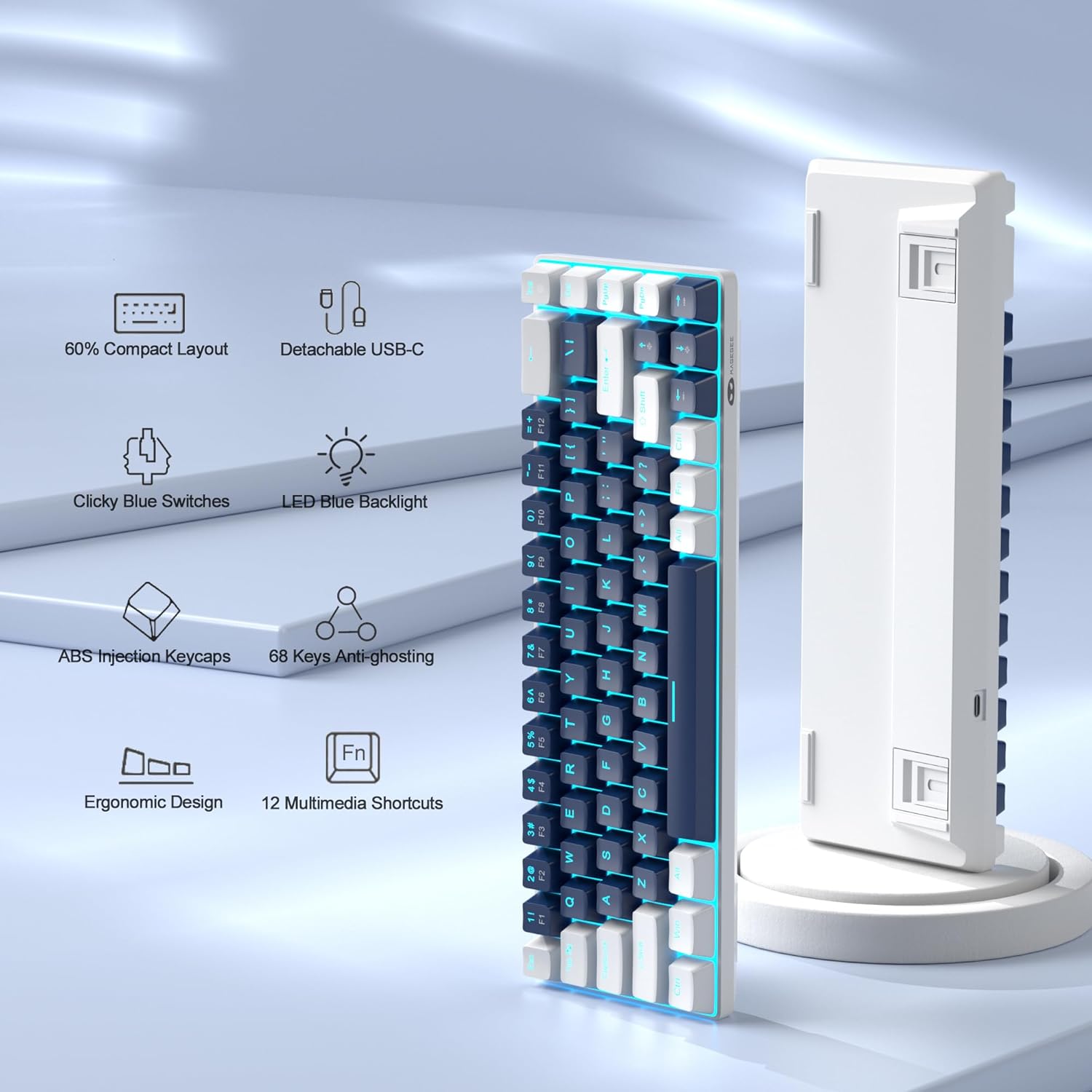
Figure 1: Key features of the MageGee MK-Box keyboard.
2. Guia de configuració
2.1 Unboxing and Connection
Carefully remove the keyboard from its packaging. The MK-Box connects via a detachable USB-C cable, ensuring a stable and reliable connection to your device.

Figure 2: MageGee MK-Box keyboard with its USB cable.

Figure 3: Detachable USB-C connection for easy setup.
Connect the USB-C end of the cable to the keyboard and the USB-A end to an available USB 2.0 port on your computer (Windows, Linux, or Mac). The keyboard is plug-and-play, requiring no additional drivers or software installation.
2.2 Adjusting Typing Angle
The MK-Box features double kickstand feet on its underside, allowing you to adjust the typing angle for improved ergonomics and comfort during extended use.

Figure 4: Adjustable kickstand feet for ergonomic comfort.
3. Instruccions de funcionament
3.1 Keyboard Layout and Function Keys
The MK-Box features a mini portable 60% compact layout with 68 keys. Despite its small size, it includes separate arrow keys and full F1-F12 function keys accessible via the Fn key, making it suitable for both gaming and productivity.
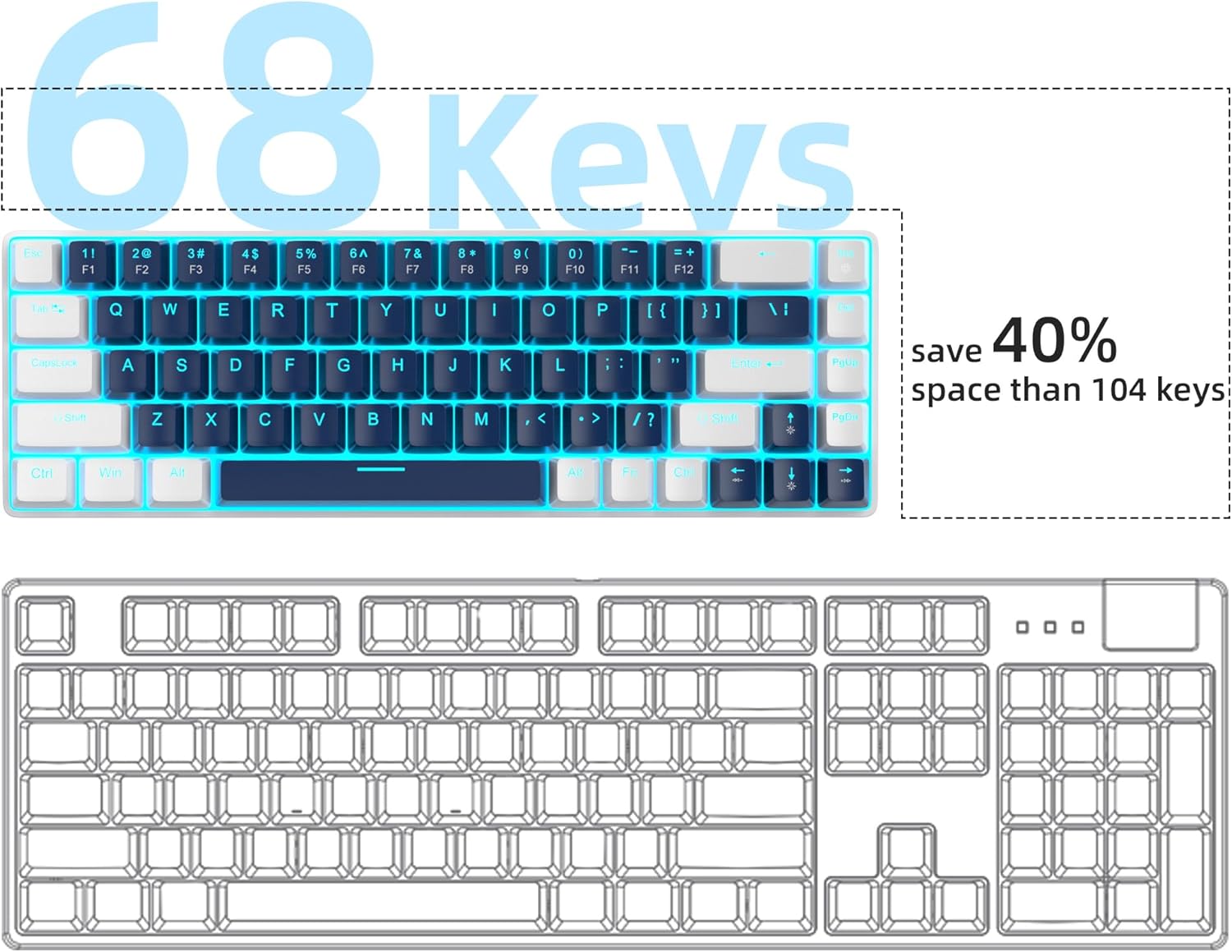
Figure 5: Space-saving 68-key compact layout.
Control de retroiluminació 3.2
The keyboard features classic charming blue LED backlighting with approximately 15 different modes. You can control the backlight effects, brightness, and speed using the following key combinations:
- Fn + Ins: Canvia entre els diferents modes de retroiluminació.
- Fn + ↑ (Up Arrow): Augmenta la brillantor de la retroiluminació.
- Fn + ↓ (Down Arrow): Reduir la brillantor de la retroiluminació.
- Fn + ← (Left Arrow): Disminueix la velocitat de la llum de fons.
- Fn + → (Right Arrow): Augmenta la velocitat de la retroiluminació.

Figure 6: Backlight control key combinations.
3.3 Mechanical Blue Switches
The MK-Box is equipped with mechanical blue switches, known for their distinct tactile bump and audible click sound. These switches provide excellent input feeling and strong mechanical feedback, ideal for typing and gaming.
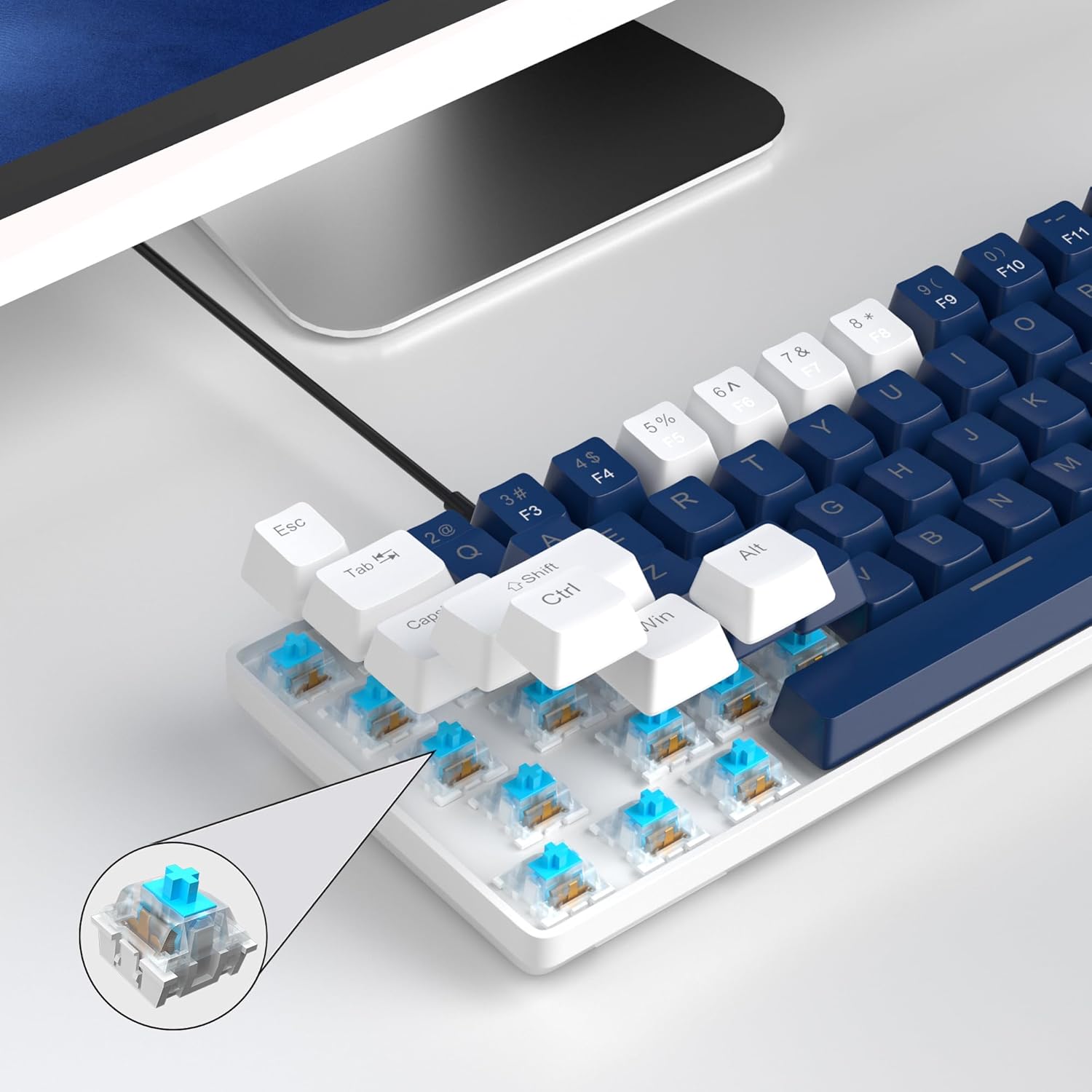
Figure 7: Detail of the mechanical blue switch.
3.4 Anti-ghosting
All 68 keys on the MK-Box feature full anti-ghosting, ensuring that every keystroke is registered accurately, even during rapid and simultaneous key presses in intense gaming sessions.

Figure 8: Full anti-ghosting for accurate input.
3.5 Vídeo oficial del producte
Vídeo 1: Presentació oficial del producte en vídeoasing the MageGee 60% Gaming Keyboard with Blue Switches, including demonstrations of its features and backlighting.
4. Manteniment
To ensure the longevity and optimal performance of your MageGee MK-Box keyboard, follow these maintenance tips:
- Neteja: Regularly clean the keycaps and the area between them using a soft brush or compressed air to remove dust and debris. For stubborn dirt, gently wipe keycaps with a damp tela.
- Gestió de cables: The detachable USB cable allows for easy storage and transport, reducing wear and tear on the cable and port.
- Eviteu líquids: Keep liquids away from the keyboard to prevent damage to the internal components.
5. Solució De Problemes
If you encounter any issues with your MageGee MK-Box keyboard, refer to the following common troubleshooting steps:
- El teclat no respon:
- Assegureu-vos que el cable USB estigui connectat correctament tant al teclat com a l'ordinador.
- Prova de connectar el teclat a un port USB diferent de l'ordinador.
- Prova el teclat en un altre ordinador per determinar si el problema és del teclat o del sistema.
- La retroiluminació no funciona/és incorrecta:
- Premeu Fn + Ins per alternar entre els modes de retroiluminació.
- Ajusta la brillantor amb Fn + ↑ (Fletxa amunt) o Fn + ↓ (Fletxa avall).
- Keys Not Registering (Ghosting):
- The keyboard has full anti-ghosting. If specific keys are not registering, ensure no debris is lodged under the keycap.
- Consider gently removing the keycap (using a keycap puller if available) and cleaning the switch area.
6. Especificacions
| Característica | Detall |
|---|---|
| Dimensions del producte | 12.13 x 3.98 x 1.54 polzades |
| Pes de l'article | 1.5 lliures |
| Fabricant | MageGee |
| Tecnologia de connectivitat | USB (per cable) |
| Descripció del teclat | Mechanical, Gaming, Ergonomic |
| Tipus de canvi | Interruptor blau |
| Nombre de claus | 68 |
| Color de llum de fons | Blue (Single Color) |
| Dispositius compatibles | Laptop, PC (Windows, Linux, Mac) |

Figura 9: Dimensions del teclat.
7. Garantia i Suport
The MageGee MK-Box keyboard comes with a standard manufacturer's warranty. For specific warranty details, claims, or technical support, please refer to the warranty information provided with your product packaging or visit the official MageGee weblloc.
For further assistance, you may also contact MageGee customer support directly. Please have your product model number (MK-Box) and purchase details ready when contacting support.
Assistència en línia: Visit the MageGee Store on Amazon
Ask a question about this manual
Ask about setup, troubleshooting, compatibility, parts, safety, or missing instructions. Manuals+ will review the question and use this page’s manual context to help answer it.