
1. Guia de configuració
This section provides instructions for setting up your FMOUSE M101 Dual Mode Wireless Mouse.
1.1 Instal·lació de la bateria
The FMOUSE M101 requires one AA battery (not included). Follow these steps to install the battery:
- Gently slide open the battery cover located on the underside of the mouse.
- Introduïu una pila AA al compartiment, assegurant-vos de la polaritat correcta (+/-).
- Tanqueu la tapa de la bateria amb seguretat.

Figure 1.1: Battery and USB receiver installation. The image displays the underside of the mouse with the battery cover removed, showing the slot for an AA battery and the storage compartment for the USB receiver.
1.2 Connection Modes (2.4GHz USB Receiver & Bluetooth)
Your FMOUSE M101 supports two connection modes: 2.4GHz wireless via USB receiver and Bluetooth. You can switch between these modes using the switch on the underside of the mouse.
Connexió del receptor USB de 1.2.1 i 2.4 GHz
- Locate the USB receiver stored inside the battery compartment of the mouse (refer to Figure 1.1).
- Plug the USB receiver into an available USB port on your computer (laptop, desktop, etc.).
- Feu lliscar el commutador de mode a la part inferior del ratolí fins a la posició "2.4G".
- The mouse should automatically connect to your device. The indicator light will flash green during connection and turn off when connected.

Figure 1.2: Connecting the mouse via 2.4GHz USB receiver. A laptop is shown with the USB receiver inserted, indicating a wireless connection to the mouse.
1.2.2 Connexió Bluetooth
- Slide the mode switch on the underside of the mouse to the "BT" (Bluetooth) position.
- On your device (MacBook, iPad, PC, Android device), go to Bluetooth settings.
- Cerca available devices and select "FMOUSE M101" to pair.
- The indicator light will flash blue during pairing and turn off when successfully connected.
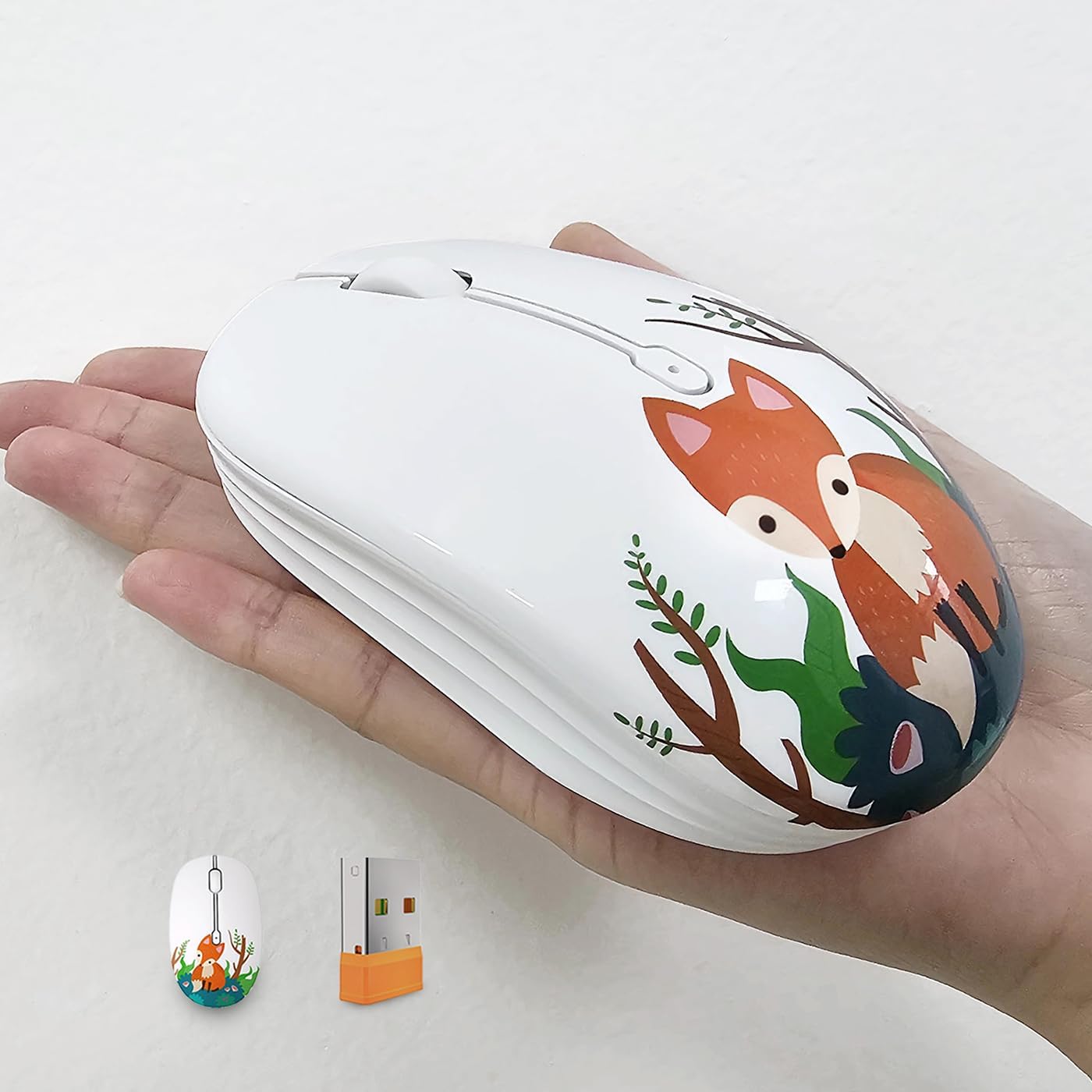
Figure 1.3: Connecting the mouse via Bluetooth. The mouse is positioned next to an iPad, illustrating a Bluetooth connection.
1.2.3 Mode Switch Indicator
The mouse features a mode switch indicator for easy status monitoring:
- Green Light Flash: Indicates 2.4G mode connection.
- Blue Light Flash: Indicates Bluetooth mode connection.
- Red Light Flash (Scroll Wheel): Indicates low battery alert.
- Llum apagada: Indicates successful connection and normal operation.

Figure 1.4: Mode switch indicator. Close-up of the mouse's underside showing the indicator lights for 2.4G, Bluetooth, and low battery status.
1.3 Compatibilitat
The FMOUSE M101 is compatible with a wide range of operating systems and devices, including:
- Windows 7 (x86/x64), Windows 8 (x86/x64), Windows 10 or later
- Mac OSX 10.08 o posterior
- Chrome OS
- Android 5.0 o posterior
- Personal computers, laptops, tablets, and smartphones.
1.4 Guia de vídeo de configuració
Video 1.1: This video demonstrates the setup process for the FMOUSE M101 Wireless Mouse, including battery installation and connecting via 2.4GHz USB receiver and Bluetooth.
Video 1.2: This video provides a quick guide on connecting the FMOUSE M101 via Bluetooth, highlighting the ease of pairing with compatible devices.
2. Instruccions de funcionament
Learn how to effectively use your FMOUSE M101 Dual Mode Wireless Mouse.
2.1 Silent Click Design
The FMOUSE M101 features a silent click design, minimizing noise during use. This allows for a quiet working or studying environment, ideal for libraries, offices, or late-night use.

Figure 2.1: Silent click design. The image highlights the noiseless operation of the mouse buttons.
2.2 Intelligent Power Saving Mode
To conserve battery life, the mouse automatically enters a sleep mode after 10 minutes of inactivity. To wake the mouse, simply click any button.
2.3 Disseny ergonòmic
The mouse is designed with an ergonomic profile to fit comfortably in your hand, ensuring prolonged comfortable use.

Figure 2.2: Ergonomic design. A hand is shown comfortably gripping the mouse, demonstrating its ergonomic shape.
3. Manteniment
Proper maintenance ensures the longevity and optimal performance of your FMOUSE M101.
3.1 Substitució de la bateria
When the scroll wheel flashes red, it indicates a low battery. Replace the AA battery by following the steps in Section 1.1 Battery Installation.
3.2 Neteja
Per netejar el ratolí, feu servir un drap suau i sec. Per a la brutícia persistent, fregueu-lo lleugerament.ampen the cloth with water or a mild cleaning solution. Avoid using harsh chemicals or abrasive materials, as these can damage the mouse's surface or internal components.
4. Solució De Problemes
If you encounter issues with your FMOUSE M101, refer to the following common solutions:
4.1 El ratolí no respon
- Comproveu la bateria: Assegureu-vos que la pila AA estigui correctament instal·lada i que tingui prou càrrega. Substituïu-la si cal.
- Encès: Verify the mouse is switched ON using the power switch on the underside.
- Despertar del son: Click any button to wake the mouse from its intelligent power-saving mode.
4.2 Connection Issues (2.4GHz USB Receiver)
- Receptor USB: Ensure the USB receiver is securely plugged into a working USB port on your device. Try a different USB port if available.
- Interruptor de mode: Confirm the mode switch on the mouse is set to "2.4G".
- Interferència: Move the mouse closer to the USB receiver and away from other wireless devices that might cause interference.
4.3 Connection Issues (Bluetooth)
- Interruptor de mode: Confirm the mode switch on the mouse is set to "BT" (Bluetooth).
- Bluetooth activat: Assegureu-vos que el Bluetooth estigui habilitat al vostre dispositiu.
- Mode de sincronització: If the mouse is not appearing in your device's Bluetooth settings, ensure it's in pairing mode (blue light flashing). You might need to briefly switch the mouse off and then back to BT mode to re-enter pairing.
- Oblida el dispositiu: If previously paired, try "forgetting" or "removing" the mouse from your device's Bluetooth settings and then re-pairing.
5. Especificacions
| Característica | Detall |
|---|---|
| Marca | FMOUSE |
| Nom del model | M101 |
| Color | Fox Pattern |
| Tecnologia de connectivitat | Bluetooth, USB de 2.4 GHz |
| Característica especial | Wireless 2.4 GHz and Bluetooth dual-mode mouse |
| Tecnologia de detecció de moviment | Òptic |
| Quantitat de botons | 3 |
| Orientació de la mà | D'acord |
| Dispositius compatibles | Windows 7/8/10+, Mac OSX 10.08+, Chrome OS, Android 5.0+, PCs, Laptops, Tablets, Smartphones |
| Sistema operatiu | Android, Linux, Mac OS, Windows |
| abast sense fils | 10.0 metres |
| Font d'alimentació | Battery Powered (1 AA battery required, not included) |
| Sensibilitat màxima | 1600 Dots per Inch (DPI) |
| Pes de l'article | 58 grams |
| Dimensions de l'article (L x A) | 4.13" de llargada x 2.44" d'amplada |
| Material | Plàstic |
| UPC | 768494408725 |

Figure 5.1: Mouse dimensions. The image provides a visual representation of the mouse's length and width measurements.
6. Garantia i assistència
6.1 Garantia del fabricant
The FMOUSE M101 Dual Mode Wireless Mouse comes with a 1 any de garantia del fabricant des de la data de compra. Aquesta garantia cobreix els defectes de materials i fabricació en condicions d'ús normal. No cobreix els danys causats per mal ús, accidents, modificacions no autoritzades o causes externes.
Conserveu el vostre comprovant de compra per a reclamacions de garantia.
6.2 Atenció al client
For further assistance, technical support, or warranty inquiries, please contact FMOUSE customer service through the retailer's platform or visit the official FMOUSE weblloc.
També podeu visitar el FMOUSE Store on Amazon per obtenir més informació sobre el producte i recursos d'assistència.