
1. Producte acabatview
The Podofo 7-inch Single Din Car Stereo is a versatile multimedia system designed to enhance your in-car entertainment and connectivity. It features a manually foldable 7-inch 1080P HD digital LCD touchscreen, offering a range of functions including Apple CarPlay, Android Auto, MirrorLink, Bluetooth 4.0, FM Radio, and support for a high-definition backup camera.

Image 1.1: The Podofo 7-inch Flip Out Car Stereo with its screen extended, displaying a user interface.
This unit supports various audio and video formats via 2.0 USB, TF Card, and AUX-in ports. It also includes steering wheel control (SWC) compatibility for convenient operation while driving.
2. Contingut del paquet
Verifiqueu que tots els elements siguin presents al paquet:
- Single Din Car Stereo Unit with 7-inch Flip Out Touchscreen
- Càmera de seguretat HD
- Cable d'alimentació
- Controlador del volant
- Control remot
- Suports de muntatge
- Manual d'usuari (aquest document)
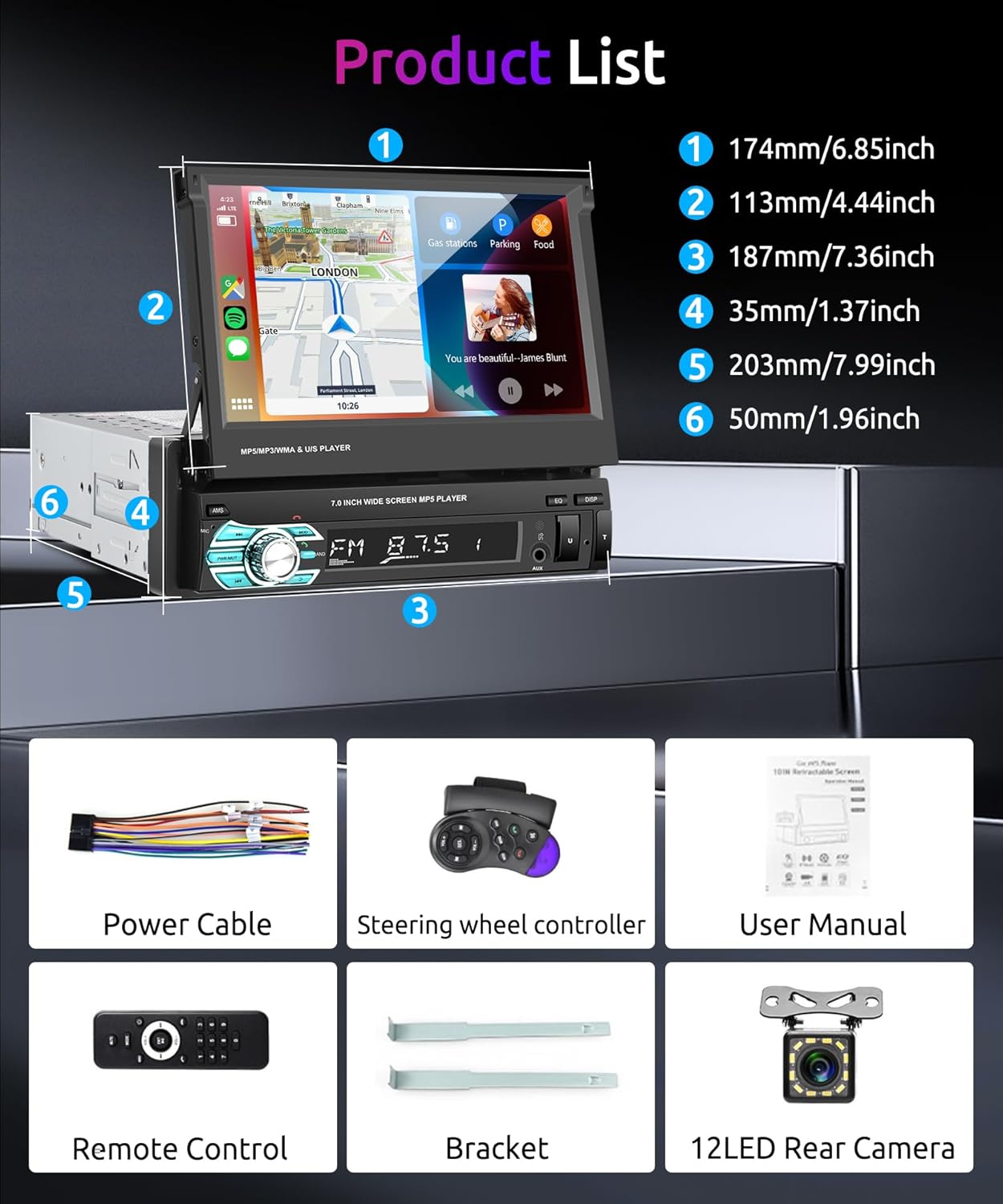
Image 2.1: An illustration of the car stereo unit and its included accessories, such as the power cable, steering wheel controller, remote control, brackets, and backup camera.
3. Configuració i instal·lació
Professional installation is recommended for this car stereo. Ensure the vehicle's battery is disconnected before beginning installation to prevent electrical damage.
3.1 Esquema de cablejat
Refer to the following wiring diagram for proper connection of the car stereo to your vehicle's electrical system and accessories.

Image 3.1: A comprehensive wiring diagram illustrating connections for power, speakers, backup camera, and other inputs/outputs of the car stereo unit.
3.2 Muntatge de la unitat
- Introduïu la funda de muntatge a l'obertura del tauler de control del vehicle.
- Secure the sleeve using the provided mounting brackets or by bending the tabs on the sleeve.
- Connect all necessary wiring harnesses to the car stereo unit.
- Slide the car stereo into the mounting sleeve until it locks into place.
4. Instruccions de funcionament
4.1 Apple CarPlay i Android Auto
Connect your smartphone via a USB data cable to enable Apple CarPlay or Android Auto. This allows access to navigation, music, calls, and other compatible apps directly on the car stereo screen. Split-screen functionality is supported for simultaneous use of multiple applications.

Image 4.1: Visual representation of connecting a smartphone via USB to activate Apple CarPlay or Android Auto on the car stereo.
To connect Apple CarPlay:
- Connect your iPhone to the stereo's USB port using a certified USB cable.
- The stereo will automatically detect and launch CarPlay.
- If not automatic, select the CarPlay icon on the stereo's main menu.
To connect Android Auto:
- Ensure the Android Auto app is installed on your Android phone.
- Connect your Android phone to the stereo's USB port using a certified USB cable.
- The stereo will automatically detect and launch Android Auto.
- If not automatic, select the Android Auto icon on the stereo's main menu.
Video 4.1: A tutorial demonstrating the connection process for Apple CarPlay and Android Auto with the car stereo, including phone interconnection steps.
4.2 MirrorLink (Airplay & Android Cast)
The MirrorLink function allows mirroring your smartphone's screen onto the car stereo display. This enables viewing apps, music, and videos from your phone. This feature supports Android 11.0/iOS 13.4 and below versions.

Imatge 4.2: Un exemple visualample of MirrorLink in action, displaying a smartphone's video content on the car stereo screen.
To use MirrorLink:
- Connect your smartphone to the stereo via USB.
- Select the "MirrorLink" or "PhoneLink" option on the stereo.
- Follow any on-screen prompts on both your phone and the stereo to establish the connection.
4.3 Connectivitat Bluetooth
The built-in Bluetooth 4.0 allows for hands-free calling and wireless audio streaming. This enhances driving safety by enabling calls without handling your phone.

Image 4.3: Depiction of various audio output methods, including Bluetooth for wireless audio and hands-free calls.
Per vincular un dispositiu Bluetooth:
- Go to the Bluetooth menu on the car stereo.
- Activeu el Bluetooth al vostre telèfon intel·ligent i cerqueu els dispositius disponibles.
- Select the car stereo (e.g., "Podofo Car Stereo") from your phone's list of devices.
- Confirma el codi d'emparellament si se't demana.
4.4 Ràdio FM
The FM radio features 18 preset stations and automatic channel searching. Enjoy a wide range of radio broadcasts with clear reception.
To operate the FM Radio:
- Seleccioneu la icona "Ràdio" del menú principal.
- Use the scan function to automatically search and save stations.
- Manually tune or select from preset stations.
4.5 HD Backup Camera
The unit includes an IP68 waterproof night vision 170° wide-view backup camera. When reversing, the image automatically displays on the 7-inch screen, providing enhanced safety and visibility.
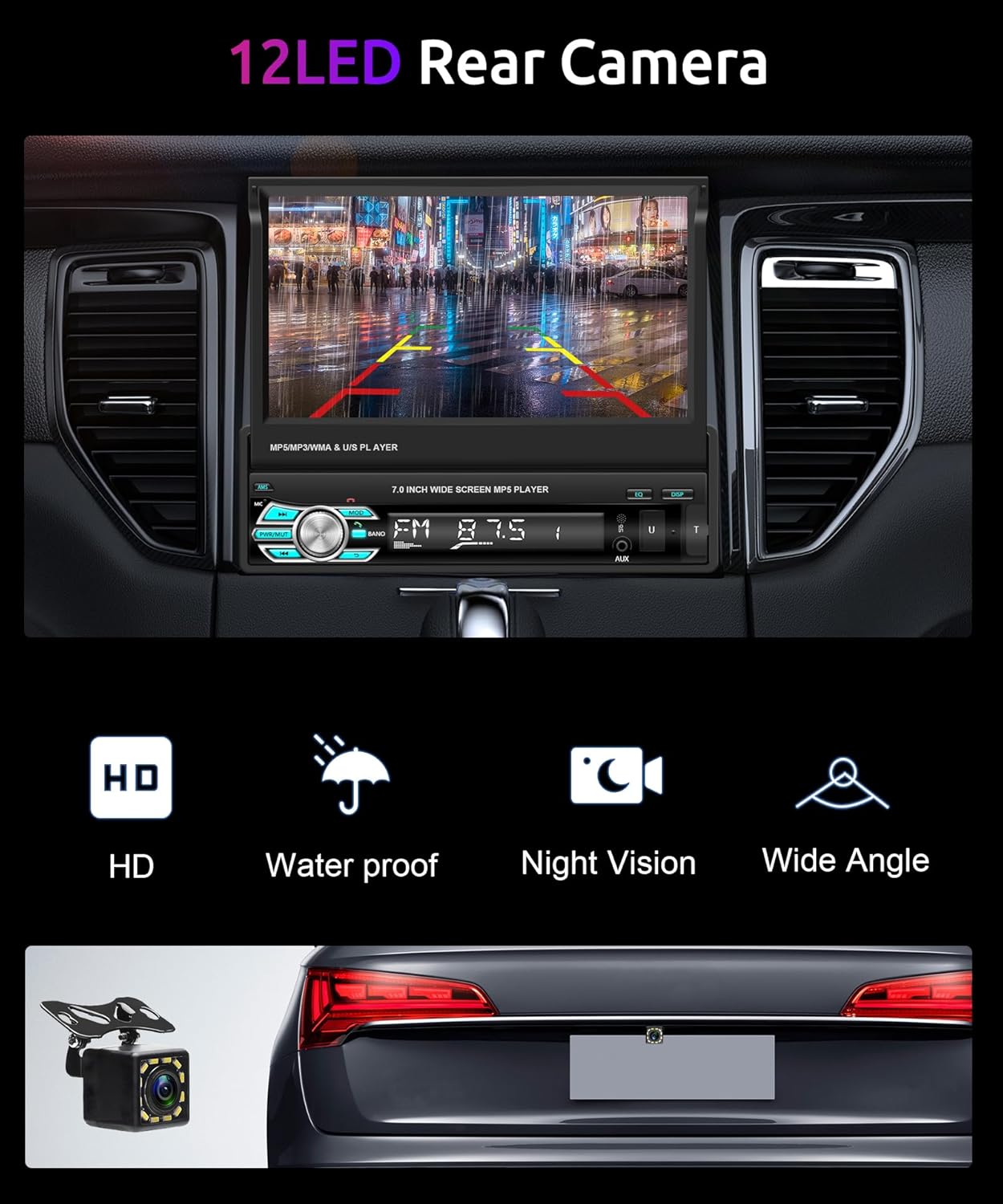
Image 4.4: The car stereo screen displaying the view from the 12LED rear camera, highlighting its waterproof, night vision, and wide-angle features.
To use the backup camera:
- Ensure the backup camera is correctly installed and wired according to the installation instructions.
- When the vehicle is shifted into reverse gear, the stereo screen will automatically switch to the camera view.
4.6 Control del volant (SWC)
The included steering wheel remote control allows for easy switching of songs and volume adjustment without removing your hands from the steering wheel, contributing to a safer driving experience.
To configure SWC:
- Access the "Settings" menu on the car stereo.
- Navigate to the "Steering Wheel Control" or "SWC" section.
- Follow the on-screen instructions to program the buttons on your steering wheel to control the stereo functions.
5. Manteniment
Per garantir la longevitat i el rendiment òptim de l'equip de música del vostre cotxe, seguiu aquestes pautes de manteniment:
- Neteja de pantalla: Use a soft, lint-free cloth to gently wipe the touchscreen. Avoid abrasive cleaners or solvents that may damage the screen.
- Eliminació de pols: Periodically clean dust from the unit's vents and buttons using a soft brush or compressed air.
- Connexions de cable: Regularly check all cable connections for security and signs of wear. Loose connections can lead to intermittent issues.
- Actualitzacions de programari: Comproveu el del fabricant website for any available software or firmware updates to ensure the system operates with the latest features and bug fixes.
6. Solució De Problemes
Si teniu problemes amb l'estèreo del vostre cotxe, consulteu els passos habituals següents per resoldre problemes:
| Problema | Causa possible | Solució |
|---|---|---|
| Sense poder | Connexió d'alimentació fluixa, fusible fundit, problema amb la bateria del vehicle. | Check power cables, inspect vehicle fuses, ensure battery is charged. |
| Sense so | Volum massa baix, font d'àudio incorrecta, cables d'altaveu solts. | Increase volume, select correct audio source, check speaker connections. |
| CarPlay/Android Auto no es connecta | Faulty USB cable, phone software issue, incorrect settings. | Use a certified USB cable, restart phone, check stereo settings for CarPlay/Android Auto activation. |
| La càmera de marxa enrere no es mostra | Cablejat incorrecte, mal funcionament de la càmera, disparador invers no connectat. | Verify camera wiring, ensure reverse trigger wire is connected correctly. |
| Problemes de vinculació de Bluetooth | Device not in pairing mode, interference, incorrect password. | Ensure device is discoverable, try pairing in a different location, re-enter password. |
If the problem persists after attempting these solutions, contact customer support for further assistance.
7. Especificacions
| Característica | Detall |
|---|---|
| Marca | podofo |
| Tecnologia de connectivitat | Auxiliar, Bluetooth, USB |
| Tipus de controlador | Android, iOS |
| Característica especial | Touchscreen, Manually Foldable Screen |
| Dispositius compatibles | Smartphone |
| Tipus de connector | USB 2.0 |
| Mode de sortida d'àudio | MP3/WMA/AAC/APE/OGG/M4A/RA/WAV |
| Codificació de vídeo | H264 DIVX HD(720P 1080I 1080P)AVI/FLV/MKV/RMVB/MPEG/ASF/TS/H264/QT |
| Pes de l'article | 1.5 quilos |
| Potència de sortida | 45 watts (per canal) |
| Wattage (Total) | 180 watts |
| Nombre de canals | 4 |
| Serveis d'Internet compatibles | Maps, Spotify (via connected smartphone) |
| Mètode de control | Touch, Remote Control, Steering Wheel Control |
| Tecnologia sense fils | Android Auto, Android/IOS Phone Mirror Link, Bluetooth, Carplay, FM |
| Mitjans integrats | HD Backup Camera, Single Din Carplay Touchscreen Car Stereo |
8. Garantia i assistència
Aquest producte ve amb un 2 any de garantia covering both labor and parts. For any technical support, warranty claims, or inquiries, please contact Podofo Tech customer service.
Normalment podeu trobar la informació de contacte a la pàgina oficial del fabricant weblloc web o a través de la vostra plataforma de compra.