
Tera HW0004
Tera HW0004 1D Laser Wireless Barcode Scanner User Manual
Model: HW0004
1. Introducció
This manual provides detailed instructions for the setup, operation, maintenance, and troubleshooting of your Tera HW0004 1D Laser Wireless Barcode Scanner. Please read this manual thoroughly before using the device to ensure proper functionality and to maximize its lifespan.
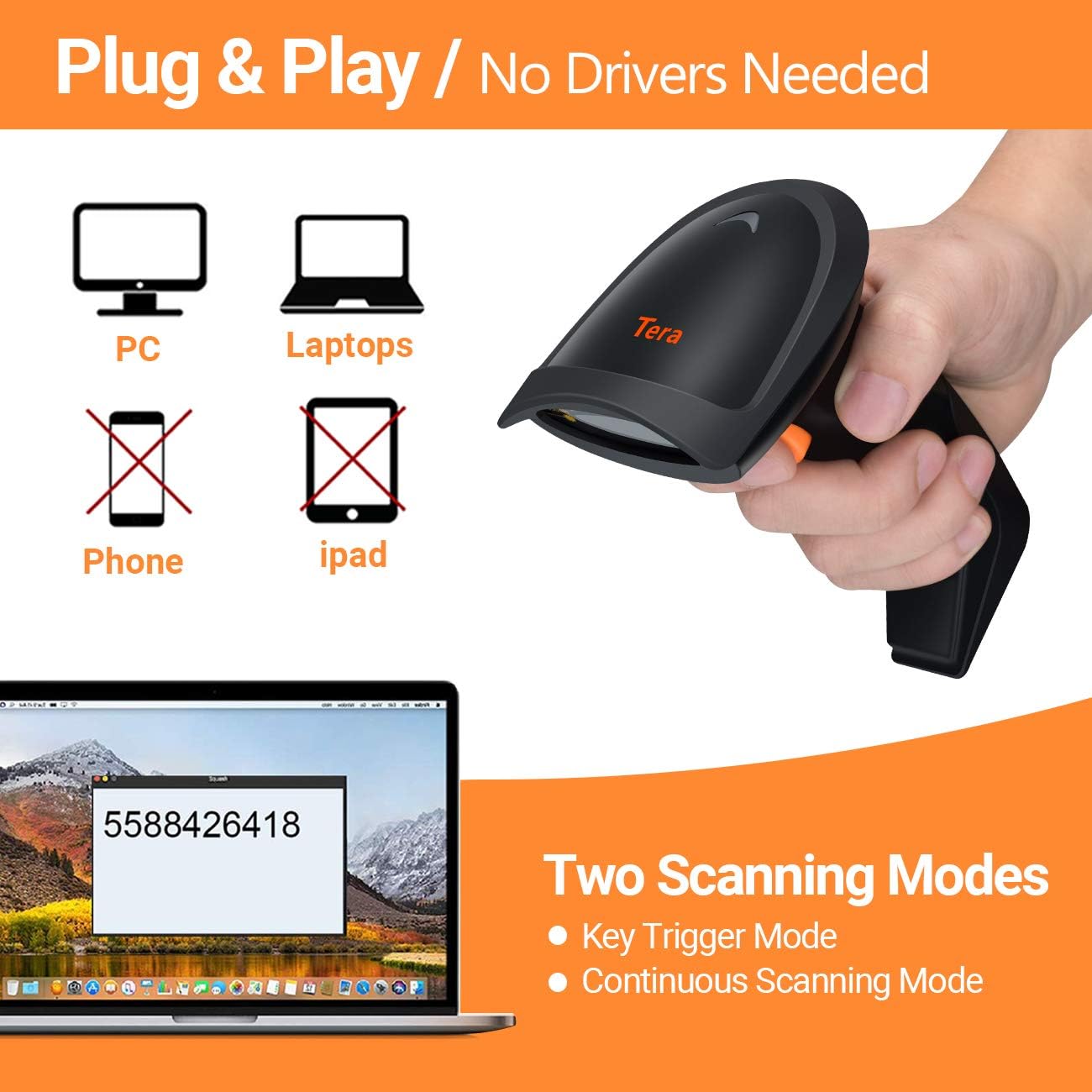
Image: The Tera HW0004 1D Laser Wireless Barcode Scanner, showcasing el seu disseny ergonòmic.
2. Configuració
2.1 Contingut del paquet
- Tera HW0004 Barcode Scanner
- Dongle sense fil de 2.4 GHz
- USB 2.0 Wired Cable
- Manual d'usuari (aquest document)
2.2 Connecting the Scanner (Plug and Play)
The Tera HW0004 scanner offers two connection methods: 2.4GHz wireless and USB 2.0 wired. No driver or software installation is required for either method.

Image: Illustration showing the scanner connecting to PCs and laptops via USB or wireless dongle, indicating no drivers are needed.
Connexió sense fil 2.2.1 de 2.4 GHz
- Insert the 2.4GHz wireless dongle into an available USB port on your computer or device.
- Turn on the barcode scanner.
- The scanner will automatically pair with the dongle. A successful connection is indicated by a specific sound or light indicator (refer to scanner's LED status for details).
2.2.2 USB 2.0 Wired Connection
- Connect one end of the provided USB 2.0 cable to the scanner.
- Connect the other end of the USB 2.0 cable to an available USB port on your computer or device.
- L'escàner es reconeixerà com un dispositiu de teclat HID estàndard.
2.3 Sistemes operatius compatibles
The Tera HW0004 barcode scanner is compatible with a variety of operating systems, including:
- Windows XP, Windows 7, Windows 8, Windows 10
- Mac OS
- Android
- Linux
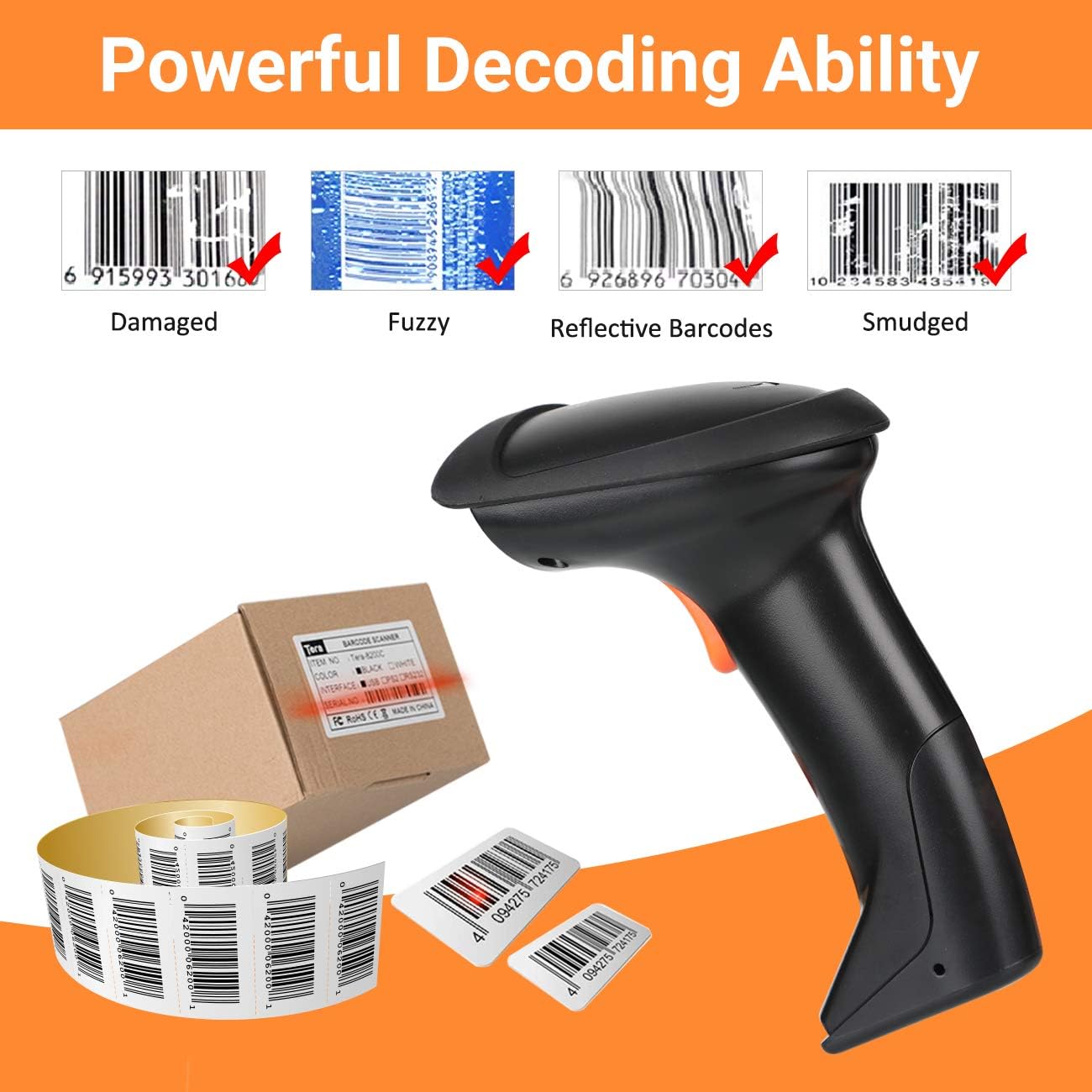
Image: Visual representation of the scanner's multifunction capabilities and compatibility with various operating systems including Windows, Android, and Linux.
3. Funcionament de l'escàner
3.1 Modes d'escaneig
The scanner supports two primary scanning modes:
- Mode d'activació clau: Press the trigger button to scan each barcode individually.
- Mode d'escaneig continu: The scanner continuously emits a laser beam, scanning any barcode that passes within its field of view without needing to press the trigger for each scan.
3.2 Modes de càrrega
The Tera HW0004 offers two data upload modes:

Image: Diagram illustrating the two upload modes: Instant Upload Mode and Storage Upload Mode with 16MB memory.
3.2.1 Mode de càrrega instantània
In this mode, scanned barcode data is immediately transmitted to your connected device. This is suitable for real-time data entry.
3.2.2 Storage Upload Mode
When operating out of wireless signal range, or for batch processing, barcodes can be scanned and stored in the scanner's built-in 16MB memory. Data can then be uploaded to your computer at a later time when a connection is established.
3.3 Supported Barcode Types (1D)
The scanner supports various 1D printed barcode symbologies:
- Codi 39
- UPC-A/UPC-E (including Complement Code)
- EAN13, EAN8
- Codi 93
- Codi 128
- Codabar
- Industrial/Intercalat 2 de 5
- MSI
- Codi 11
- ISBN/ISSN
- Matriu 2 de 5
- And others.

Image: Display of the scanner supporting various 1D printed barcode types and multi-language output.
3.4 Unsupported Barcode Types and Scanning Surfaces
The Tera HW0004 scanner no ho fa suport:
- 2D codes (e.g., QR codes, PDF417)
- Scanning directly from screens (e.g., mobile phones, computer monitors)
3.5 Multifunction Settings
The scanner includes several configurable functions:
- Voice Setting: Adjust or disable audible feedback.
- Stand-by Setting: Configure the idle time before the scanner enters power-saving mode.
- Support Uppercase / Lowercase Setting: Define how character cases are handled.
- Identify Barcode Type: Enable or disable automatic identification of barcode symbologies.
- Add Prefix and Suffix: Customize data output by adding characters before or after the scanned barcode data.
- Hide Characters: Configure the scanner to omit certain characters from the output.
Refer to the programming barcodes provided in the supplementary guide (if applicable) to configure these settings.
4. Manteniment
4.1 Neteja de l'escàner
Per mantenir un rendiment òptim, mantingueu neta la finestra d'escaneig de l'escàner. Feu servir un drap suau i sense borrissol, lleugerament humit.ampened with water or a mild, non-abrasive cleaning solution. Avoid harsh chemicals or abrasive materials that could scratch the window.
4.2 Càrrega de la bateria
For wireless operation, ensure the scanner's internal battery is adequately charged. Connect the scanner to a USB power source using the provided USB cable. The charging indicator light will show the charging status.
5. Solució De Problemes
5.1 Problemes comuns
- L'escàner no es connecta: Ensure the USB cable is securely connected or the wireless dongle is properly inserted and the scanner is powered on. Try a different USB port.
- No data output: Verify the scanner is in the correct upload mode (Instant or Storage). Check if the target application (e.g., Word, Excel) is active and ready to receive input.
- Scanner not scanning: Ensure the laser is emitting. Check for obstructions on the scanning window. Confirm the barcode type is supported.
- Sortida de dades incorrecta: Review multifunction settings for prefixes, suffixes, or character hiding. Ensure the correct keyboard language is set on your computer if experiencing character mapping issues.
5.2 Decoding Ability
The Tera HW0004 features powerful decoding capabilities, allowing it to read various challenging 1D barcodes:

Imatge: Examples of the scanner's ability to decode damaged, fuzzy, reflective, and smudged 1D barcodes.
- Codis de barres danyats: Can often read barcodes with minor damage or tears.
- Fuzzy Barcodes: Capable of decoding barcodes that are slightly out of focus or poorly printed.
- Codis de barres reflectants: Designed to minimize interference from reflective surfaces.
- Smudged Barcodes: Can read barcodes with minor smudges or ink bleed.
For persistent issues, refer to the full programming guide or contact customer support.
6. Especificacions
| Característica | Descripció |
|---|---|
| Model | HW0004 |
| Connectivitat | 2.4GHz Wireless, USB 2.0 Wired |
| Suport de tipus de codi de barres | 1D Laser (Code 39, UPC-A/E, EAN13/8, Code 93, Code 128, Codabar, Industrial/Interleaved 2 of 5, MSI, Code11, ISBN/ISSN, Matrix 2 of 5, etc.) |
| Memòria | 16MB (for Storage Upload Mode) |
| Compatibilitat | Windows, Mac OS, Android, Linux |
| Color | Negre |
7. Garantia i Suport
7.1 Informació de la garantia
Please refer to the warranty card included with your product or visit the official Tera website for detailed warranty terms and conditions. The warranty typically covers manufacturing defects for a specified period from the date of purchase.
7.2 Atenció al client
For technical assistance, troubleshooting, or any inquiries regarding your Tera HW0004 barcode scanner, please contact Tera customer support through their official weblloc web o la informació de contacte que es proporciona a l'embalatge del producte.
Ask a question about this manual
Ask about setup, troubleshooting, compatibility, parts, safety, or missing instructions. Manuals+ will review the question and use this page’s manual context to help answer it.