
Wahoo Fitness ELEMNT Bolt V2
Wahoo ELEMNT Bolt V2 GPS Cycling Computer and Cadence Sensor User Manual
Model: ELEMNT Bolt V2
1. Introducció
The Wahoo ELEMNT Bolt V2 is an advanced GPS cycling computer designed to provide cyclists with comprehensive data, navigation, and training capabilities. Paired with the included Wahoo Cadence Sensor, it offers real-time insights into your ride performance. This manual will guide you through the setup, operation, maintenance, and troubleshooting of your new device.

Image: The Wahoo ELEMNT Bolt V2 GPS Cycling Computer shown alongside the Wahoo Speed and Cadence sensors.
2. Què hi ha a la caixa
Si us plau, verifiqueu que tots els components siguin presents al vostre paquet:
- Wahoo ELEMNT Bolt V2 GPS Cycling Computer
- Wahoo Cadence Sensor
- Wahoo Speed Sensor
- Handlebar Mount for ELEMNT Bolt
- Mounting accessories for Speed and Cadence Sensors
- Cable de càrrega USB

Imatge: Primer pla view of the Wahoo Speed and Cadence sensors.
3. Guia de configuració
3.1. Mounting the ELEMNT Bolt V2
- Attach the handlebar mount to your bicycle's handlebars using the provided hardware. Ensure it is securely fastened and positioned for optimal viewing.
- Slide the ELEMNT Bolt V2 onto the mount until it clicks into place.

Image: The Wahoo ELEMNT Bolt V2 cycling computer securely mounted on bicycle handlebars.
3.2. Installing Cadence Sensor
The Wahoo Cadence Sensor can be attached to your bike's crank arm or shoe. No magnets are required for installation.
- Crank Arm Installation: Use the provided zip ties or adhesive to secure the sensor to the inside of your non-drive side crank arm.
- Shoe Installation: Use the provided shoe mount to attach the sensor to your cycling shoe.
3.3. Installing Speed Sensor
The Wahoo Speed Sensor attaches to your bike's wheel hub. No magnets are required.
- Securely attach the speed sensor to the hub of your front or rear wheel using the provided rubber mount.

Image: A Wahoo Speed sensor attached to the hub of a bicycle wheel.
3.4. Pairing with ELEMNT Companion App
The ELEMNT Bolt V2 connects wirelessly to your smartphone via Bluetooth for initial setup and data management.
- Download the Wahoo ELEMNT Companion App from your device's app store (available for iPhone and Android).
- Turn on your ELEMNT Bolt V2.
- Open the ELEMNT Companion App and follow the on-screen instructions to pair your device. You may need to scan a QR code displayed on the Bolt's screen.
- The app will guide you through connecting your Wahoo Speed and Cadence sensors. Ensure the sensors are awake (e.g., by spinning the wheel or crank arm).

Image: A smartphone displaying the Wahoo ELEMNT Companion App, showing connection status and customization options for the ELEMNT Bolt.
4. Funcionament
4.1. Encès / apagat
- To power on, press and hold the power button located on the side of the device.
- Per apagar-lo, manteniu premut el botó d'engegada fins que aparegui l'indicador d'apagada i, a continuació, confirmeu.
4.2. On-Device Turn-by-Turn Navigation
The ELEMNT Bolt V2 provides automatic turn-by-turn prompts for various route types.
- Routes from GPX, TCX files, Strava, Ride With GPS, and Komoot can be imported and used for navigation.
- Top LEDs and audible cues indicate upcoming turns or if you deviate from the course.
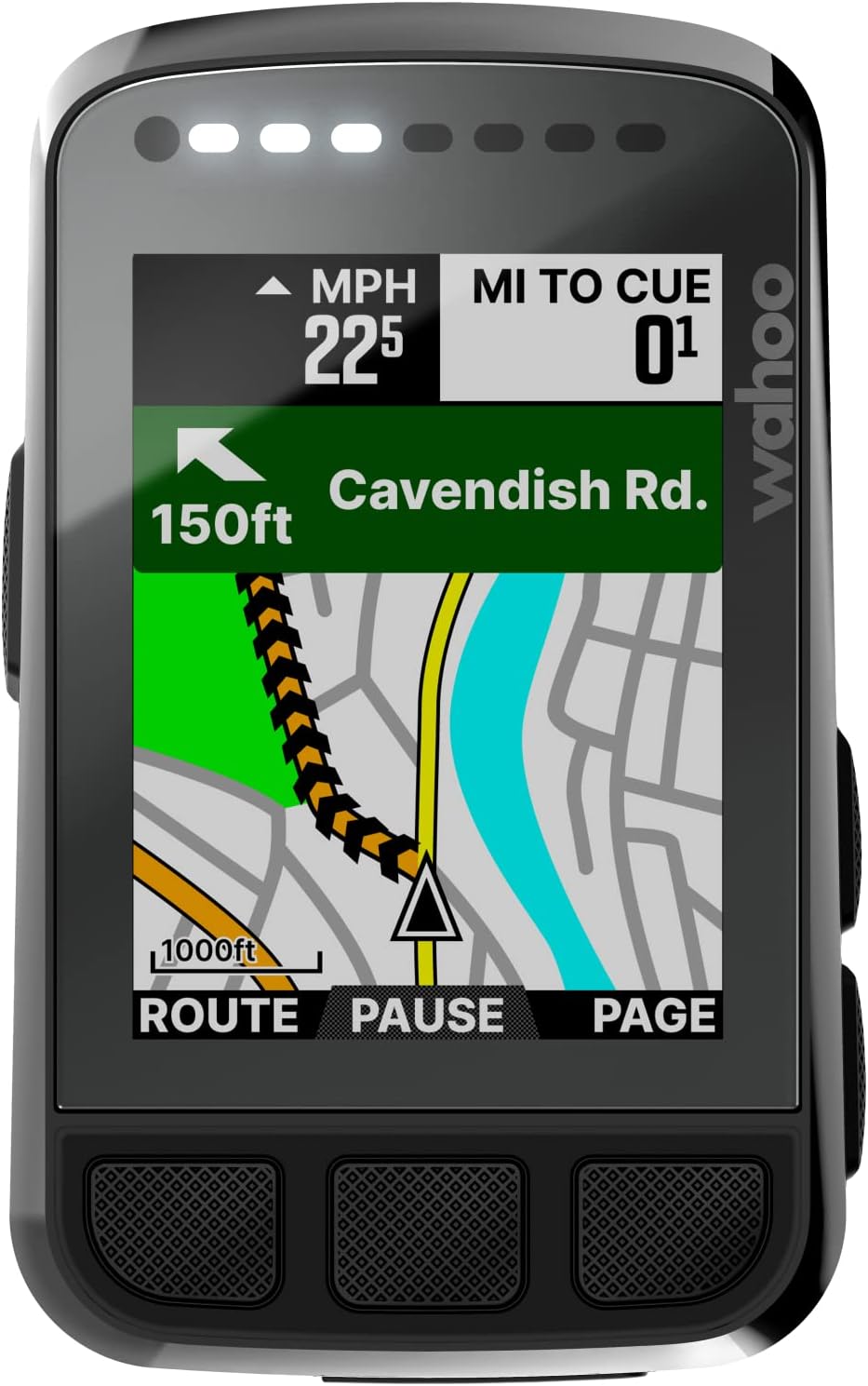
Image: A close-up of the ELEMNT Bolt V2 display, showing a map with a navigation route and turn instructions.
4.3. Take Me To (On-Demand Route Generation)
This feature allows you to create routes directly on the device or via the companion app.
- Al dispositiu: Select a location on the ELEMNT Bolt map page using pan and zoom, or choose from saved locations to generate a route.
- Aplicació complementària: Enter a destination, address, or point of interest in the ELEMNT Companion App to generate a route with turn-by-turn directions, then sync it to the Bolt via Bluetooth.
4.4. ANT+ Radar Integration
Pair your ANT+ Rearview radar with the ELEMNT Bolt for enhanced safety.
- Receive real-time proximity alerts for vehicles approaching from behind.
- Vehicles are represented directly on the computer's screen, and LED indications alert you to approaching cars or clear channels.
4.5. Training Features
The ELEMNT Bolt V2 integrates with popular training platforms:
- Fully integrated with TrainerRoad, TrainingPeaks, and Today's Plan.
- Quickly find and execute structured workouts outdoors or indoors on any Wahoo Smart Trainer.
- Workout data is automatically sent back to the apps for tracking performance goals.
4.6. Speed and Cadence Measurement
The included sensors provide essential cycling metrics:
- Track and capture real-time cycling speed and cadence.
- Data is displayed on the ELEMNT Bolt and can be viewed in compatible training apps.

Image: A smartphone displaying the Wahoo app, showing real-time cycling data including cadence, heart rate, speed, distance, workout time, and power.
5. Manteniment
5.1. Neteja
- Wipe the ELEMNT Bolt V2 and sensors with a soft, damp tela.
- No utilitzeu netejadors abrasius ni dissolvents.
- Ensure the charging port cover is securely closed to prevent water ingress.
5.2. Cura de la bateria
- Charge the ELEMNT Bolt V2 using the provided USB cable.
- Eviteu descarregar completament la bateria amb freqüència per allargar-ne la vida útil.
- The Cadence and Speed sensors use replaceable coin cell batteries. Refer to the Wahoo Fitness website for specific battery types and replacement instructions.
5.3. Actualitzacions de firmware
- Periodically check for firmware updates via the ELEMNT Companion App.
- Updates often include performance improvements, new features, and bug fixes.
- Ensure your device is sufficiently charged before initiating a firmware update.
6. Solució De Problemes
6.1. El dispositiu no s'encén
- Ensure the device is fully charged. Connect it to a power source using the USB cable.
- Try performing a soft reset by holding down the power button for an extended period (e.g., 10-15 seconds).
6.2. Sensors Not Connecting
- Ensure the sensors are awake (e.g., spin the wheel for the speed sensor, rotate the crank arm for the cadence sensor).
- Check the sensor batteries. Replace if necessary.
- Verify that Bluetooth and ANT+ are enabled on your ELEMNT Bolt V2 and smartphone.
- Try unpairing and re-pairing the sensors through the ELEMNT Companion App.
6.3. Problemes amb el senyal GPS
- Assegureu-vos que esteu en una zona oberta amb claredat view del cel.
- Allow the device sufficient time to acquire a GPS signal before starting your ride.
- Assegureu-vos que el firmware del dispositiu estigui actualitzat.
6.4. Data Inaccuracies
- Verify that your sensors are correctly installed and securely attached.
- Check for any physical obstructions or interference near the sensors.
- Ensure the correct wheel circumference is set in the ELEMNT Companion App if using a speed sensor.
7. Especificacions
| Característica | Detall |
|---|---|
| Marca | Wahoo Fitness |
| Model | ELEMNT Bolt V2 |
| Mida de la pantalla | 1.25 polzades |
| Tecnologia de connectivitat | ANT, Bluetooth |
| Tipus de visualització | LED |
| Tipus de muntatge | Muntatge de manillar |
| Entrada de la interfície humana | Botons |
| Components inclosos | Wahoo ELEMNT Bolt V2 GPS Cycling/Bike Computer, Cadence Sensor, Speed Sensor |
8. Garantia i Suport
Wahoo Fitness products are covered by a limited warranty. For detailed warranty information, product registration, and technical support, please visit the official Wahoo Fitness weblloc web. Hi podeu trobar preguntes freqüents, guies de resolució de problemes i informació de contacte del servei d'atenció al client.
Always refer to the latest information available on the Wahoo Fitness weblloc web per obtenir els recursos de suport més actualitzats.
Ask a question about this manual
Ask about setup, troubleshooting, compatibility, parts, safety, or missing instructions. Manuals+ will review the question and use this page’s manual context to help answer it.