
1. Introducció
This manual provides detailed instructions for the setup, operation, maintenance, and troubleshooting of your YiBiChin Universal Replacement Remote Control, Model RU-12. This remote is designed to work seamlessly with various Roku Built-in TV models.
2. Producte acabatview
The YiBiChin RU-12 is a dedicated infrared (IR) replacement remote control for Roku Built-in TVs. It offers direct access to popular streaming services through its 12 shortcut buttons.
2.1 Característiques clau
- No programming or pairing required.
- Compatible with a wide range of Roku Built-in TVs.
- 12 dedicated shortcut buttons for popular streaming apps: NETFLIX, Prime Video, Roku Channel, Disney+, Sling, Hulu, VUDU, YouTube, ESPN+, Fan-NOW, Google Play, and Spotify.
- Infrared (IR) technology for reliable control.
2.2 Compatibilitat
This remote is compatible with the following Roku Built-in TV brands:
- TCL Roku TV
- Hisense Roku TV
- ONN Roku TV
- INSIGNIA Roku TV
- SHARP Roku TV
- Hitachi Roku TV
- Televisor Philips Roku
- Westinghouse Roku TV
- Element Roku TV
- And other Roku Built-in TV models.
2.3 Important Incompatibilities
This remote is NOT compatible with:
- Roku Stick devices.
- Roku Player devices without an IR receiver.
- Any Roku player/box that does not have an IR receiver.
- This is an infrared (IR) remote; it does not feature a pairing button, microphone for voice control, or a headphone jack. It is not an RF (Radio Frequency) model.

Imatge 1: Davant, lateral i posterior views of the YiBiChin RU-12 remote control. The remote is black with blue navigation buttons and various colored shortcut buttons.

Image 2: Visual guide indicating that the remote is compatible with Roku players/boxes that have an IR receiver (labeled 'YES') and incompatible with Roku Built-in TVs, Roku Sticks, and Roku Players without an IR receiver (labeled 'NO').
3. Configuració
Setting up your YiBiChin RU-12 remote control is straightforward and requires no complex programming.
3.1 Instal·lació de la bateria
- Localitzeu el compartiment de la bateria a la part posterior del comandament a distància.
- Obriu la tapa del compartiment de la bateria.
- Introduïu dues (2) piles AAA, assegurant-vos de la polaritat correcta (+ i -) tal com s'indica a l'interior del compartiment.
- Tanqueu bé la tapa del compartiment de la bateria.
Nota: Les piles no estan incloses amb el comandament a distància.
3.2 Ús inicial
Once batteries are installed, the remote is ready for immediate use. No programming or pairing is necessary. Simply point the remote at your Roku Built-in TV and begin operating it.

Image 3: The remote control being used with a television, highlighting that no setup or programming is required after battery installation.
4. Instruccions de funcionament
Familiarize yourself with the buttons on your YiBiChin RU-12 remote control for optimal use.
4.1 Standard Controls
- Power (N/P buttons): Encén o apaga el televisor.
- Navigation Pad (Up, Down, Left, Right arrows): Navega pels menús i les seleccions.
- Botó D'acord: Confirma les seleccions.
- Botó enrere: Torna a la pantalla o menú anterior.
- Botó d'inici: Torna a la pantalla d'inici de Roku.
- Reproduir/Pausa, Avançar ràpidament, Rebobinar: Controla la reproducció de suports.
- Asterisk (*) Button: Accesses options or settings within certain apps.
- Refresh/Replay Button: Replays the last few seconds of content.
4.2 botons de drecera
The remote features 12 dedicated shortcut buttons for quick access to popular streaming applications:
- NETFLIX
- Prime Video
- Canal Roku
- Disney+
- Eslinga
- Hulu
- VUDU
- YouTube
- ESPN+
- Fan-NOW
- Google Play
- Spotify
Simply press the desired shortcut button to launch the corresponding application directly.

Image 4: Visual confirmation that the remote does not include features such as voice search, an earphone jack, or a pairing button.
5. Manteniment
Proper care and maintenance will ensure the longevity of your remote control.
5.1 Neteja
To clean the remote, gently wipe it with a soft, dry cloth. Avoid using liquid cleaners, solvents, or abrasive materials, as these can damage the remote's surface or internal components.
5.2 Substitució de la bateria
Replace batteries when the remote's response becomes sluggish or stops working. Always replace both AAA batteries at the same time with new ones. Do not mix old and new batteries, or different types of batteries.
5.3 Emmagatzematge
When not in use for extended periods, it is recommended to remove the batteries to prevent leakage and potential damage to the remote.
6. Solució De Problemes
If you encounter issues with your remote control, please refer to the following troubleshooting steps:
- El comandament a distància no respon:
- Assegureu-vos que les piles estiguin correctament instal·lades amb la polaritat adequada.
- Substitueix les piles velles per piles AAA noves.
- Check for any obstructions between the remote and your TV's IR receiver. Ensure a clear line of sight.
- Confirm that your TV is a Roku Built-in TV and not a Roku Stick or a Roku Player without an IR receiver.
- No voice control/headphone jack: This remote is an IR remote and does not support voice control, a headphone jack, or a pairing function. These are not malfunctions but inherent design characteristics.
- Shortcut buttons not working: Ensure your TV is powered on and connected to the internet for streaming apps to function correctly.
Si els problemes persisteixen després de seguir aquests passos, poseu-vos en contacte amb l'atenció al client.
7. Especificacions
| Marca | YiBiChin |
| Número de model | RU-12 |
| Color | Negre |
| Tecnologia de connectivitat | Infrarojos (IR) |
| Característiques especials | No programming or setup required |
| Dispositius compatibles | Televisors integrats Roku |
| Piles necessàries | 2 x AAA (no inclòs) |
| Interval màxim | 10 metres |
| Nombre de botons | Standard controls + 12 shortcut buttons |
| Dimensions (aprox.) | Longitud: 13.9 cm (5.5 polzades) Amplada: 4.1 cm (1.6 polzades) Thickness: 2.1 cm (0.8 inches) |
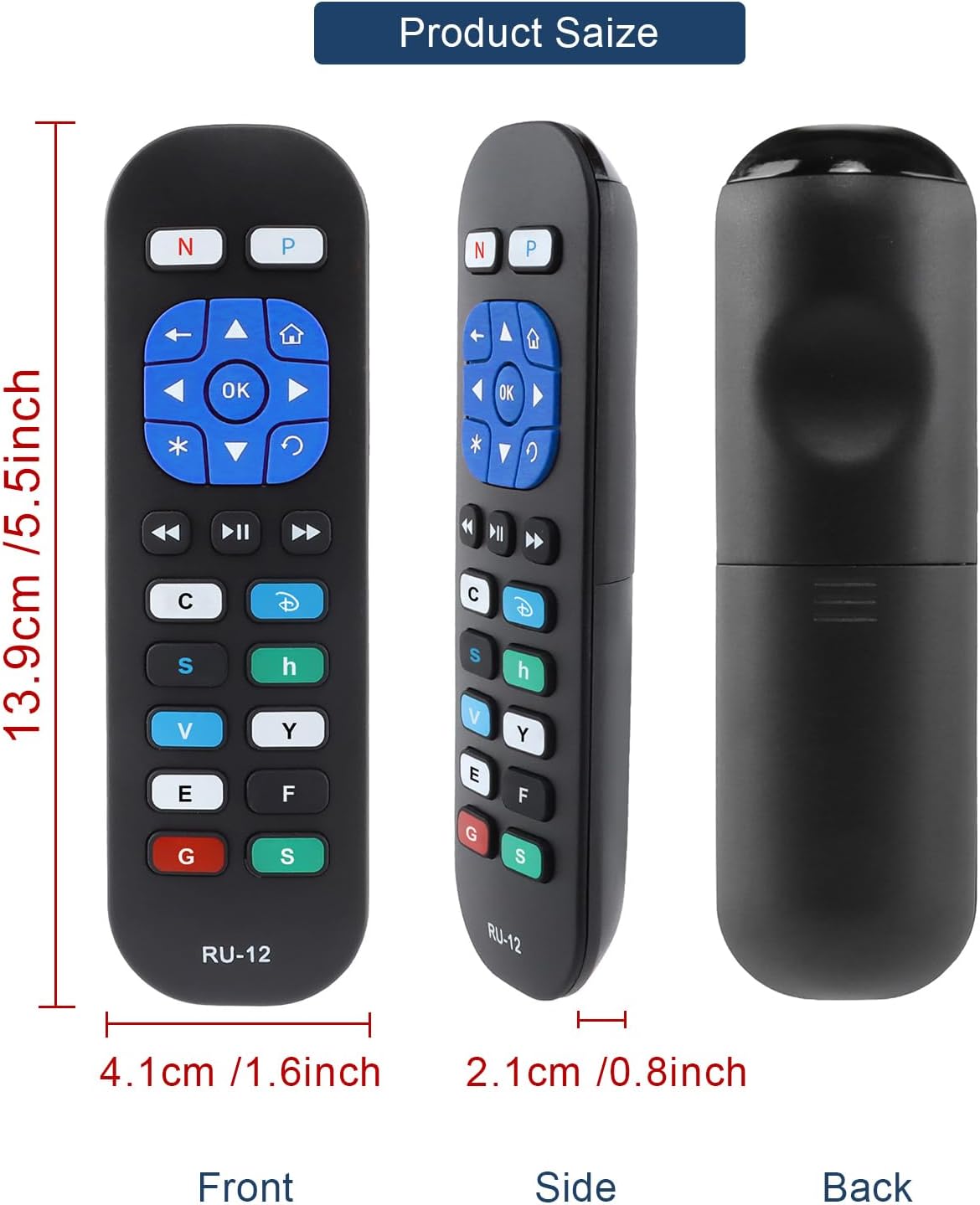
Image 5: Detailed dimensions of the remote control, indicating its length, width, and thickness.
8. Informació de la garantia
Specific warranty details for the YiBiChin RU-12 Universal Replacement Remote Control are not provided in the product information. Please refer to your purchase documentation or contact the seller for any warranty-related inquiries.
9. Suport
For any questions regarding your YiBiChin RU-12 remote control, whether before purchase or during use, please do not hesitate to contact our customer support team. We aim to respond to all inquiries within 24 hours.
Informació de contacte: Please refer to the seller's contact details on your purchase platform or documentation.