
ROFAVEZCO EZ-SW41HA-KVMU3P
ROFAVEZCO USB 3.0 KVM Switch HDMI 4 Computer 1 Monitor User Manual
Model: EZ-SW41HA-KVMU3P
Introducció
This manual provides comprehensive instructions for the installation, operation, and troubleshooting of your ROFAVEZCO USB 3.0 KVM Switch. This device allows you to control up to four HDMI source devices (such as computers, laptops, gaming consoles) from a single set of USB keyboard, USB mouse, and one HDMI monitor. It supports high-resolution video up to 4K@60Hz and offers convenient switching methods including front panel buttons, IR remote control, and keyboard hotkeys.
For optimal performance and to ensure proper functionality, please read this manual thoroughly before setting up and operating the KVM switch.
Característiques del producte
- 4-Port HDMI KVM Switch: Control four HDMI sources/computers with one set of USB keyboard, mouse, and a single HDMI monitor.
- Suport d'alta resolució: Supports 4K@60Hz (4:4:4 8bit HDR Dolby Vision), 1080p@144Hz/120Hz/60Hz 3D.
- Hub USB 3.0: Integrated USB 3.0 ports for high-speed data transmission up to 5Gbps, allowing connection of additional USB devices like printers, scanners, game controllers, and external HDDs.
- Múltiples mètodes de commutació: Easily switch between connected computers using front panel buttons, IR remote control, or keyboard hotkeys.
- Extracció d'àudio: Features SPDIF Optical 5.1CH and Stereo 2.1CH audio extractor outputs.
- HDCP Bypass & CEC Support: Ensures compatibility with various HDMI devices and content protection.
- Àmplia compatibilitat: Compatible with Windows, macOS, Linux, iOS, Android, and various devices including PCs, laptops, PS5, Xbox One S, projectors, and HD cameras.
- Disseny durador: Industrial metal chassis for improved cooling and stable performance.
- Plug and Play: No driver installation required.
Contingut del paquet

Image: The ROFAVEZCO USB 3.0 KVM Switch unit, accompanied by its power adapter, IR remote control, IR extension cable, and four USB 3.0 cables.
- 1 x ROFAVEZCO USB 3.0 KVM Switch (Model: EZ-SW41HA-KVMU3P)
- 1 x adaptador d'alimentació DC 5V 3A
- 4 x cables USB 3.0
- 1 control remot IR
- 1 x IR Extension Cable
- 1 x Manual d'usuari (aquest document)
Product Diagram and Connections

Image: A detailed connection diagram illustrating how various devices such as PCs, laptops, gaming consoles, USB peripherals (mouse, keyboard, printer, camera), and a monitor connect to the KVM switch.
Panell frontal
- USB3.0 Ports (USB1, USB2, USB3, USB4): For connecting USB peripherals like keyboard, mouse, USB drives, etc.
- Hot Key Switch: Toggle switch to enable/disable keyboard hotkey functionality.
- Activity Display (IN1, IN2, IN3, IN4): LEDs indicating the currently active input.
- Botó SELECCIÓ: Used to manually switch between inputs.
- Receptor IR: For receiving signals from the IR remote control.
- IR Ext. Port: For connecting the IR extension cable.
Panell posterior
- USB3.0-PC Ports (USB3.0-PC1 to USB3.0-PC4): Connect these to the USB 3.0 ports on your source computers/laptops.
- HDMI IN Ports (HDMI IN1 to HDMI IN4): Connect these to the HDMI output of your source computers/laptops/consoles.
- SORTIDA HDMI: Connect this to your HDMI monitor.
- DC/5V: Port d'entrada d'alimentació.
- SORTIDA SPDIF: Sortida d'àudio òptica.
- SORTIDA D'ÀUDIO: Sortida d'àudio estèreo de 3.5 mm.
Instruccions de configuració
Apaga tots els dispositius: Before making any connections, ensure all computers, the monitor, and the KVM switch are powered off.
Connecteu les entrades HDMI: Connect the HDMI output of each computer/source device to the corresponding HDMI IN port (HDMI IN1 to HDMI IN4) on the KVM switch using high-quality HDMI 2.0 standard cables (less than 3 meters recommended).
Connect USB Inputs: Connect the USB 3.0 output of each computer/source device to the corresponding USB3.0-PC port (USB3.0-PC1 to USB3.0-PC4) on the KVM switch using the provided USB 3.0 cables. Important: Connect the USB HDMI cable first to wake up the USB switch (allow approximately 20 seconds for recognition).
Connecta el monitor: Connect your HDMI monitor to the HDMI OUT port on the KVM switch.
Connecteu el teclat i el ratolí: Connect your USB keyboard to the USB2 port and your USB mouse to the USB1 port on the front panel of the KVM switch. For optimal performance, ensure the mouse is connected to USB1 and keyboard to USB2.
Connect Other USB Peripherals: If you have other USB devices (e.g., printer, scanner, USB drive), connect them to the remaining USB3.0 ports (USB3, USB4) on the front panel.
Connectar àudio (opcional): If using external audio systems, connect your SPDIF optical cable to the SPDIF OUT port or a 3.5mm audio cable to the AUDIO OUT port.
Connect IR Extension Cable (Optional): If you plan to use the IR remote control from a distance or if the KVM switch is out of direct line of sight, connect the IR extension cable to the IR Ext. port and place the receiver in a suitable location.
Encès: Connect the DC 5V 3A power adapter to the DC/5V port on the KVM switch and then plug it into a power outlet. Power on your monitor and then your computers/source devices.
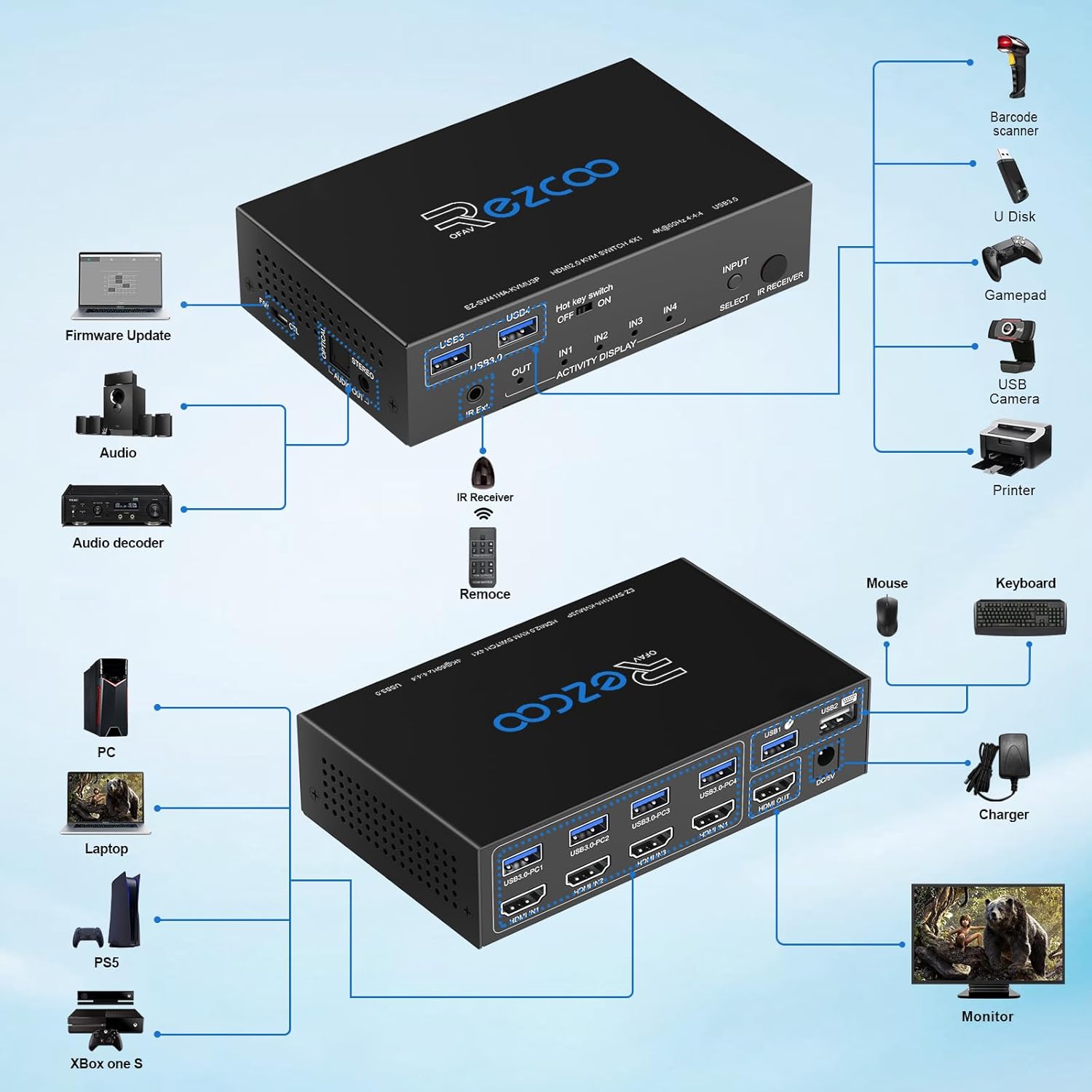
Image: Key considerations for setup, including using HDMI 2.0 standard cables under 3 meters, setting video format to AUTO mode for PS5/Laptop/PC, and ensuring display device compatibility.
Notes importants:
- Please use less than 3-meter AWG26 HDMI 2.0 Standard cables for all HDMI ports.
- The KVM switch does not support down-scaling a 4K source to a 1080p display.
- Set your PS5/Laptop/PC video format to AUTO mode. The KVM switch will copy the EDID of the TV or monitor automatically.
- Ensure your HDMI source and display devices support each other without the KVM switch connected first to rule out compatibility issues.
Funcionament del commutador KVM
The ROFAVEZCO KVM switch offers multiple convenient ways to switch between your connected source devices.
1. Botons del panell frontal

Image: The KVM switch's front panel, highlighting the SELECT button and input indicator lights for manual switching.
Simplement premeu el SELECCIONA button on the front panel to cycle through the connected input sources (IN1, IN2, IN3, IN4). The corresponding LED will illuminate to indicate the active input.
2. Comandament a distància IR
Use the provided IR remote control to switch inputs from a distance. Point the remote towards the IR receiver on the front panel of the KVM switch (or the IR extension cable receiver if connected).
- Press the numbered buttons (1, 2, 3, 4) on the remote to directly select the corresponding input source.
Video: An official product video demonstrating the features and usage of the USB 3.0 KVM Switch, including input switching.
3. Tecles d'accés directe del teclat
Keyboard hotkeys provide a quick and efficient way to switch inputs without needing to reach for the KVM switch or remote. Ensure the "Hot Key switch" on the front panel is set to ON.

Image: A visual guide to the keyboard hotkey combinations for selecting inputs and navigating between ports.
| Comandament de tecla d'accés ràpid | Funció |
|---|---|
| * + 1 | Seleccioneu ENTRADA 1 |
| * + 2 | Seleccioneu ENTRADA 2 |
| * + 3 | Seleccioneu ENTRADA 3 |
| * + 4 | Seleccioneu ENTRADA 4 |
| Ctrl + Ctrl + ← | Select to previous port |
| Ctrl + Ctrl + → | Select to next port |
Note: Please press 'Ctrl+Ctrl+ESC' to reset the KVM switch if you encounter hotkey issues.
Audio and Video Information

Image: The KVM switch facilitating audio output to a soundbar, demonstrating its audio extraction capabilities for an immersive experience.
The KVM switch supports 18Gbps HDMI 2.0 with HDCP 2.2, offering stunning visuals up to 4K@60Hz 4:4:4 8bit HDR Dolby Vision, and high refresh rates like 1080p@144Hz/120Hz/60Hz 3D.
It also features a DE-embedded SPDIF Optical 5.1CH and Stereo 2.1CH Audio Extractor. Please note the following audio behavior:
- If the source plays 2.1ch audio, both SPDIF and Stereo audio outputs will work in sync.
- If the source plays 5.1ch audio, the SPDIF output will work, but the Stereo output will NOT.
- If the HDMI source plays 7.1ch audio, only the HDMI OUT will carry 7.1ch audio; SPDIF and Stereo outputs will NOT work.
Compatibilitat
The ROFAVEZCO KVM switch is designed for broad compatibility with various operating systems and devices:
- Sistemes operatius: Windows, macOS, iOS, Linux, Android.
- Dispositius font: Desktop PCs, Laptops, Mac mini, PS5, Xbox One S, Projectors, HD Cameras.
- Perifèrics USB: Bluetooth mechanical gaming keyboards, standard USB keyboards, USB mice, printers, scanners, game controllers, external HDDs, U Disks, USB cameras, barcode scanners.
Resolució de problemes
If you encounter issues with your KVM switch, please refer to the following common solutions:
| Problema | Possible solució |
|---|---|
| No video output or distorted image. |
|
| El teclat o el ratolí no responen. |
|
| Slow switching between inputs. |
|
| No audio or incorrect audio output. |
|
| KVM switch not powering on. |
|
Especificacions
| Característica | Detall |
|---|---|
| Número de model | EZ-SW41HA-KVMU3P |
| Dimensions del producte | 7.3 x 5.3 x 3 polzades |
| Pes de l'article | 1.32 lliures |
| Versió HDMI | HDMI 2.0 |
| Versió USB | USB 3.0 |
| Resolució màxima | 4K@60Hz (4:4:4 8bit HDR) |
| Altres resolucions admeses | 1080p@144Hz/120Hz/60Hz 3D |
| Compliment HDCP | HDCP 2.2 |
| Sortida d'àudio | SPDIF Optical 5.1CH, Stereo 2.1CH |
| Font d'alimentació | DC 5V 3A |
| Fabricant | EZCOOTECH |
Garantia i Suport
ROFAVEZCO products are manufactured with high standards of quality and performance. For any product-related inquiries, technical assistance, or warranty claims, please contact the manufacturer directly.
If you receive a product with components that do not meet the advertised specifications (e.g., a cable that is not USB 3.0), please contact us for a free replacement.
Manufacturer: EZCOOTECH
For further support, please visit the official EZCOOTECH store on Amazon: EZCOOTECH Store
Ask a question about this manual
Ask about setup, troubleshooting, compatibility, parts, safety, or missing instructions. Manuals+ will review the question and use this page’s manual context to help answer it.