
1. Introducció
This manual provides essential information for the safe and efficient use of your Philips 329P1H 32-inch 4K UHD LCD Monitor. This monitor features a 32-inch 4K UHD (3840 x 2160) display, an integrated USB-C docking station with power delivery, a pop-up webcam with Windows Hello™ facial recognition, and various eye-care technologies. Please read this manual thoroughly before operating the device.
2. Informació de seguretat
Observeu les següents precaucions de seguretat per evitar danys al monitor o lesions personals:
- No exposeu el monitor a la pluja ni a la humitat.
- No obriu el monitor casing. Demaneu totes les tasques de manteniment a personal qualificat.
- Assegureu-vos una ventilació adequada al voltant del monitor.
- Feu servir només l'adaptador de corrent que s'inclou amb el monitor.
- Eviteu col·locar el monitor a la llum solar directa o a prop de fonts de calor.
- Clean the screen with a soft, lint-free cloth. Do not use liquid cleaners directly on the screen.
3. Contingut del paquet
Information regarding the exact contents of the product package is not available. Typically, a monitor package includes:
- Philips 329P1H Monitor
- Cable d'alimentació
- Cable USB-C
- Cable HDMI (pot variar segons la regió)
- Guia d'inici ràpid
4. Configuració
4.1 Configuració física
Carefully remove the monitor and its components from the packaging. Assemble the stand according to the instructions provided in the Quick Start Guide. Place the monitor on a stable, level surface.
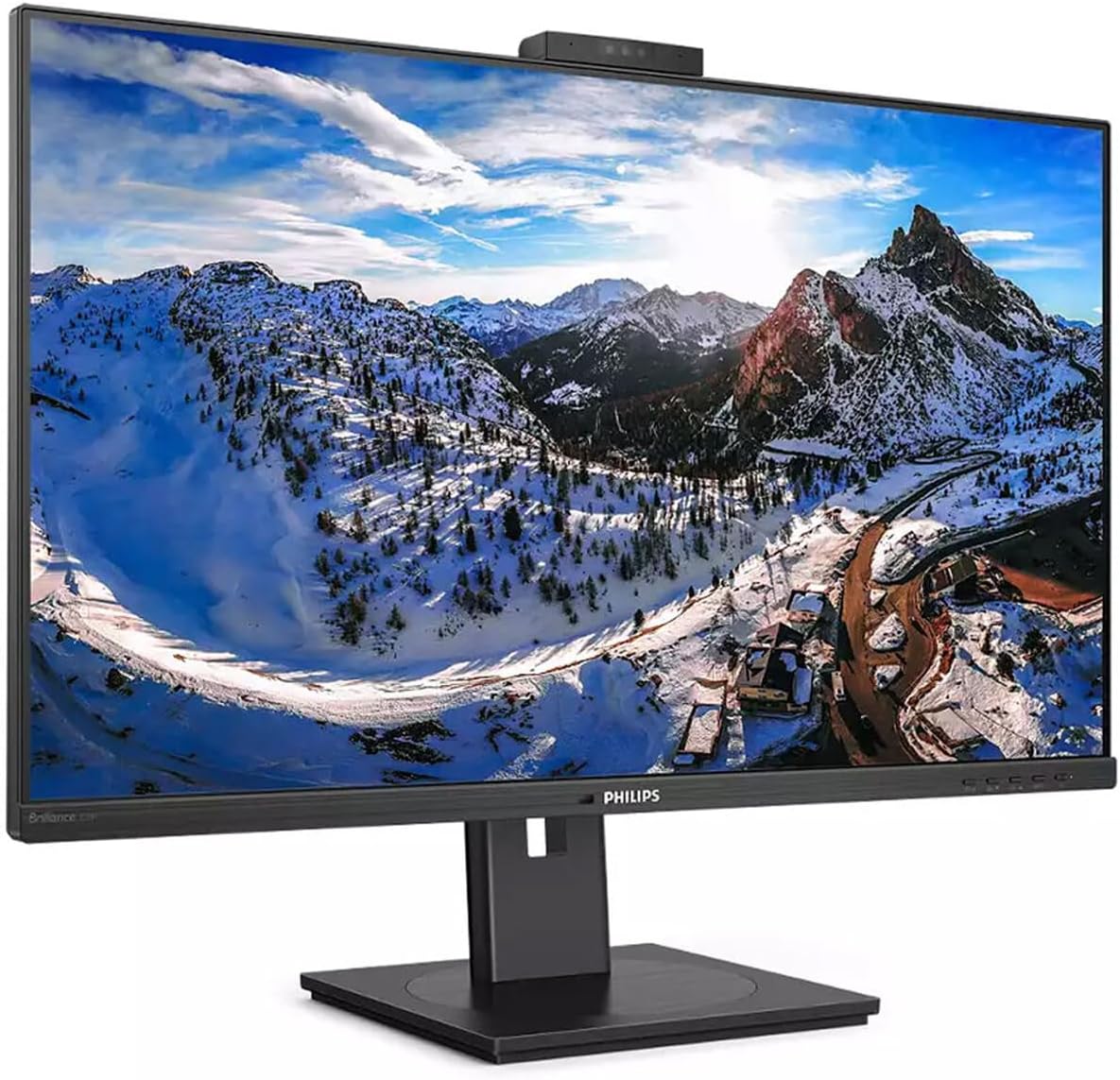
Figura 4.1: Frontal view of the Philips 329P1H Monitor.
4.2 Cables de connexió
- Connexió d'alimentació: Connecteu el cable d'alimentació a l'entrada d'alimentació del monitor i després a una presa de corrent.
- Connexió de vídeo: Connect a video cable (e.g., HDMI, DisplayPort, or USB-C) from your computer to the corresponding input on the monitor. For 4K UHD resolution, ensure your graphics card and cable support the required bandwidth.
- USB-C Docking: If your laptop supports USB-C with power delivery, connect the supplied USB-C cable from your laptop to the monitor's USB-C port. This single cable can provide video, data, and power charging to your laptop.
- Perifèrics USB: Connect your keyboard, mouse, or other USB devices to the USB ports on the monitor.
- Connexió Ethernet: Connect an RJ-45 Ethernet cable from your network router/modem to the monitor's RJ-45 port for network access through the USB-C connection.
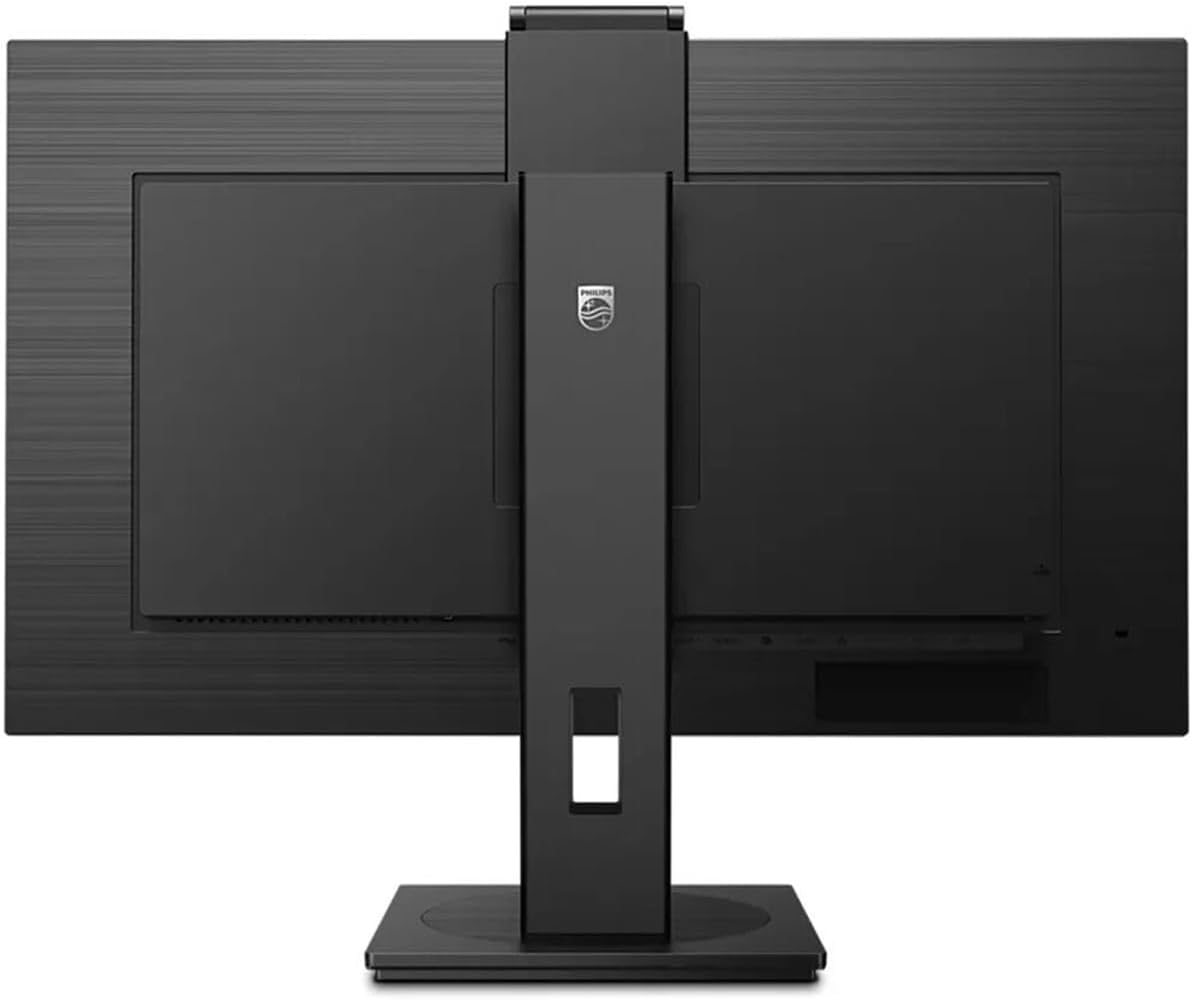
Figura 4.2: posterior view del monitor amb ports d'entrada.
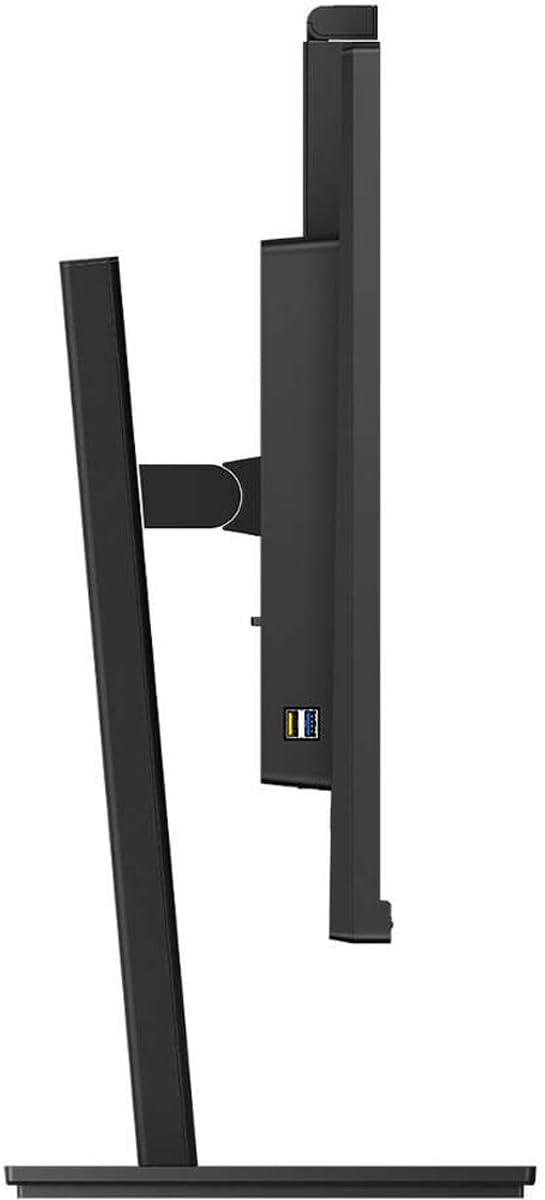
Figura 4.3: lateral view showing USB ports.
4.3 Configuració inicial
After connecting all necessary cables, power on the monitor and your computer. The monitor should automatically detect the input signal. If not, use the monitor's On-Screen Display (OSD) menu to select the correct input source.
5. Instruccions de funcionament
5.1 Encès/Apagat
Premeu el botó d'engegada que es troba al monitor per engegar-lo o apagar-lo. L'indicador lluminós d'engegada s'il·luminarà quan el monitor estigui actiu.
5.2 USB-C Docking Functionality
The integrated USB-C docking station allows for a single-cable solution for video, data transfer, and laptop power charging (up to 90W). Connect your compatible laptop via the USB-C port on the monitor to utilize this feature. Peripherals connected to the monitor's USB ports and the RJ-45 Ethernet port will also be accessible to your laptop.
5.3 emergent Webcàmera amb Windows Hello™
The monitor features an innovative pop-up webcam. When needed, the webcam extends from the top of the monitor. It is equipped with advanced sensors for Windows Hello™ facial recognition, enabling secure and fast login to Windows devices. When not in use, the webcam can be securely tucked back into the monitor for privacy.
5.4 Display Technologies
- UltraClear 4K UHD (3840 x 2160): Provides highly detailed and crisp images for professional applications.
- Tecnologia IPS: Ofertes àmplies viewing angles (178/178 degrees) and consistent color accuracy, suitable for graphic design and professional use.
- Tecnologia sense parpelleig: Regulates brightness to reduce screen flicker, minimizing eye fatigue during extended use.
- Mode LowBlue: A software solution that reduces harmful shortwave blue light emissions, promoting eye comfort.
- PowerSensor: Detects user presence and automatically reduces monitor brightness when the user steps away, saving up to 80% energy.
- LightSensor: Adjusts picture brightness based on ambient room lighting conditions for optimal viewing and minimal power consumption.
6. Manteniment
6.1 Neteja del monitor
Per netejar la pantalla del monitor, netegeu-la suaument amb un drap suau i sense borrissol. Per a marques difícils, netegeu-la suaument.ampen the cloth with water or a mild, non-abrasive screen cleaner. Do not spray liquids directly onto the screen. For the monitor casing, feu servir un drap suau i sec.
6.2 Emmagatzematge
If storing the monitor for an extended period, ensure it is powered off and disconnected from the power source. Store it in a cool, dry place, ideally in its original packaging to protect it from dust and physical damage.
7. Solució De Problemes
Si teniu problemes amb el monitor, consulteu les solucions habituals següents:
| Problema | Causa possible | Solució |
|---|---|---|
| No hi ha imatge a la pantalla | Cable d'alimentació desconnectat; cable de vídeo desconnectat o fluix; font d'entrada incorrecta seleccionada. | Comproveu les connexions del cable d'alimentació i de vídeo. Assegureu-vos que s'ha seleccionat la font d'entrada correcta a través del menú OSD. |
| La imatge és borrosa o distorsionada | Incorrect resolution; Faulty video cable. | Set the display resolution to 3840 x 2160. Try a different video cable. |
| Webla càmera no funciona | USB-C cable not connected or faulty; Webcam privacy setting enabled; Operating system driver issue. | Ensure the USB-C cable is securely connected and supports data transfer. Check privacy settings in your operating system. For Mac Mini users, if the camera disconnects after sleep mode, try restarting the monitor or ensuring the USB-C cable is fully functional. Update USB drivers if necessary. |
| No hi ha so dels altaveus del monitor | Volum massa baix; Sortida d'àudio incorrecta seleccionada a l'ordinador. | Adjust monitor volume via OSD. Select the monitor as the default audio output device in your computer's sound settings. |
8. Especificacions
The following table outlines the key technical specifications for the Philips 329P1H monitor:
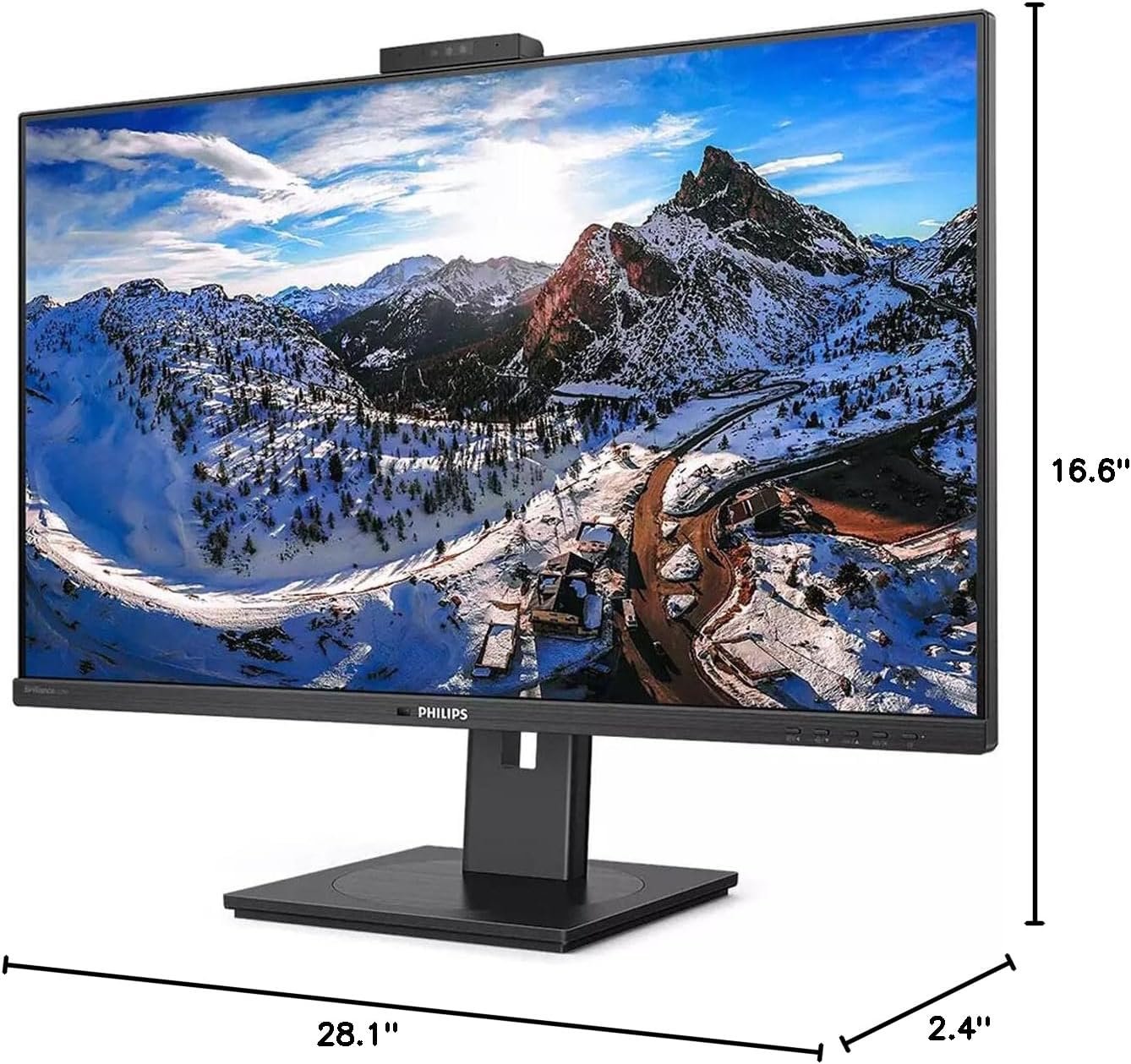
Figura 8.1: Dimensions del monitor.
| Característica | Especificació |
|---|---|
| Número de model | 329P1H |
| Mida de la pantalla | 31.5 polzades (viewcapaç) |
| Resolució de pantalla màxima | 3840 x 2160 (4K UHD) |
| Relació d'aspecte | 16:9 |
| Temps de resposta | 4 ms GTG |
| Brillantor | 350 nits |
| Freqüència d'actualització | 75 Hz |
| Tipus de panell | IPS |
| Tecnologia de retroiluminació | WLED |
| Connectivitat | USB Type-C (with Power Delivery), HDMI, DisplayPort, RJ-45 Ethernet |
| Weblleva | Pop-up with Windows Hello™ |
| Pes de l'article | 18.06 lliures |
| Dimensions del producte (LxWxH) | 2.4 x 28.1 x 16.6 polzades |
| Color | Negre amb textura |
9. Garantia i Suport
For warranty information and technical support, please refer to the warranty card included with your product or visit the official Philips support weblloc web. Conserveu el rebut de compra com a comprovant de compra per a reclamacions de garantia.