
1. Introducció
The Paperang PKT-LP108 is a versatile thermal printer designed for efficient label printing. It supports both Bluetooth and USB connectivity, making it compatible with a wide range of devices including iOS, Android, Mac, and Windows operating systems. This printer utilizes advanced direct thermal technology, eliminating the need for toner or ink, which contributes to cost savings and environmental benefits. It is ideal for printing 4x6 inch shipping labels, warehouse labels, barcode labels, ID labels, and bulk mailing labels.
2. Què hi ha a la caixa
- Impressora tèrmica
- Adaptador
- Cable USB
- Manual d'usuari
3. Guia de configuració
3.1 Engegada i connexió inicials
Before using your Paperang PKT-LP108 printer, ensure it is properly connected to a power source using the provided adapter. The printer features a power button and indicator lights for status feedback.
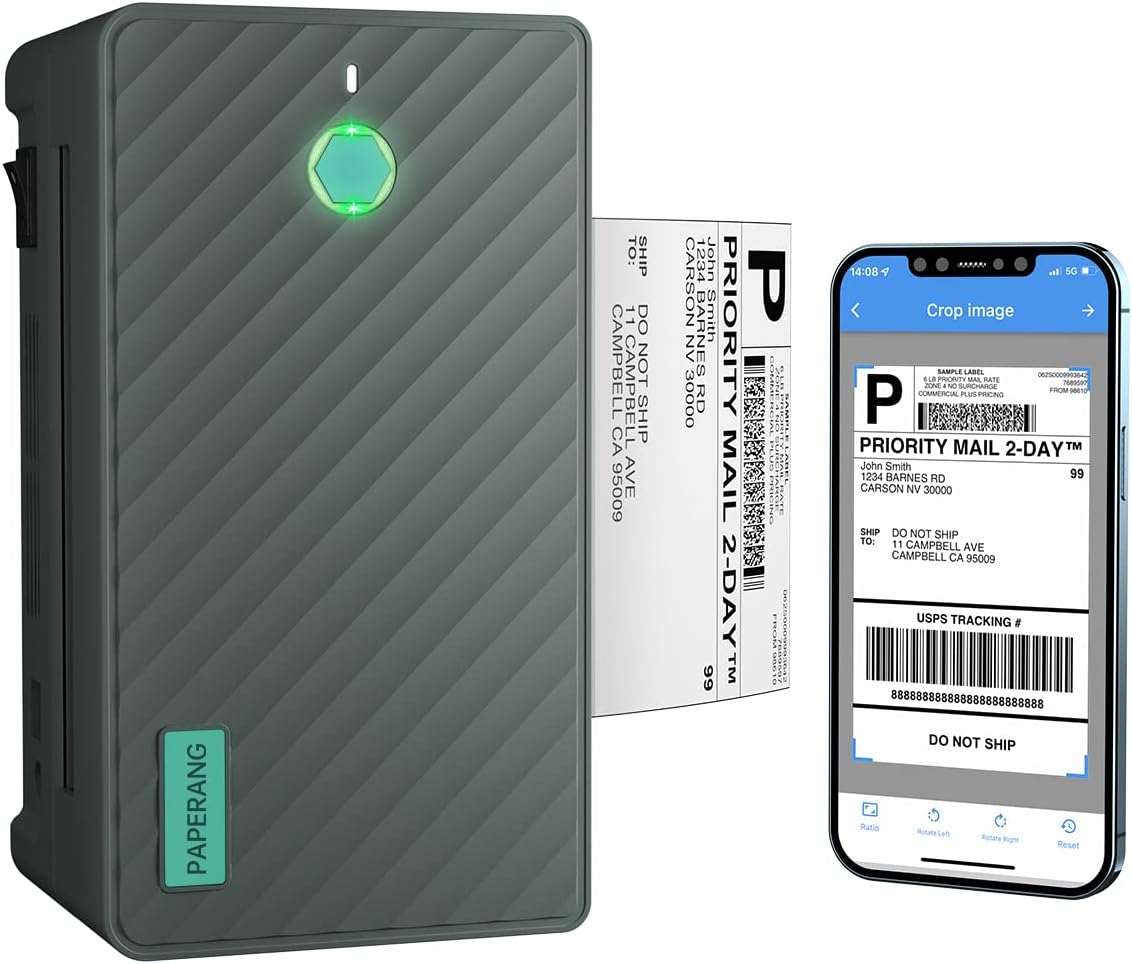
Figure 3.1: Paperang PKT-LP108 Thermal Printer in operation with mobile app.
3.2 Driver Installation for Wired Printing (Mac & Windows)
For wired printing from your Mac or Windows computer, you will need to install the printer drivers. These drivers are typically found on the included USB drive. Follow the instructions below for your specific operating system.
3.2.1 Installing Drivers on Mac OS
To print labels from your Mac OS device, you need to install the appropriate drivers and configure the print settings. Open your shipping label with a PDF reader, then select "Print" from the file menu. From the prompt, select the correct paper size and click "Print".
Video 3.2.1: Instructions on how to install drivers and print labels on Mac OS.
3.2.2 Installing Drivers on Windows OS
For Windows OS, double-click the "Driver for Windows" file from the provided USB drive to initiate installation. Click "OK" to proceed, then "Next" and "Install". Close any Chinese character prompts and click "Finish" to complete. Open your shipping label in a PDF reader, click "Print", then "Page Setup" and "Page Size" to set the label size correctly. Click "OK" and then "Print".
Video 3.2.2: Instructions on how to install drivers and print labels on Windows OS.
3.3 Mobile App Installation (iOS & Android)
The Paperang Biz app allows for wireless printing from your smartphone or tablet. Cerca "Paperang Biz" in your device's app store (Google Play Store for Android, Apple App Store for iOS) and install it. Ensure Bluetooth is enabled on your device for connection.
Video 3.3: Guide on how to install the Paperang Biz app and connect via Bluetooth for printing from iPhone.
3.4 Càrrega d'etiquetes
The printer supports labels from 1.57" to 4.3" wide. To load labels, open the printer cover, align the labels with the guides, and close the cover. The printer will automatically identify the label size.

Figure 3.4: Loading labels into the Paperang PKT-LP108 printer.
4. Instruccions de funcionament
4.1 Printing from Mac OS
After driver installation, open your desired shipping label in a PDF reader. Navigate to the print dialog, select the Paperang PKT-LP108 printer, choose the correct paper size (e.g., 4x6 inch), and initiate the print job. The printer will quickly produce the label.
Video 4.1: Demonstration of printing a shipping label from a Mac computer.
4.2 Printing from Windows OS
Once the Windows drivers are installed, open your label file (e.g., PDF, image) on your computer. Access the print function, select the Paperang PKT-LP108, and ensure the paper size settings match your label dimensions. Confirm the print job to begin printing.
Video 4.2: Demonstration of printing a shipping label from a Windows computer.
4.3 Wireless Printing via Mobile App (iOS & Android)
After installing the Paperang Biz app and ensuring Bluetooth is active, open the app. Select the label file you wish to print. The app allows for cropping and adjusting the image. Once ready, connect to your printer via Bluetooth and initiate the print command. The label will be printed wirelessly.
Video 4.3: Guide on using the Paperang Biz app for wireless printing from a smartphone.
4.4 Auto Label Identification
The Paperang PKT-LP108 features automatic label identification. When labels are loaded, the printer senses their width (from 1.57" to 4.3") and adjusts its settings accordingly, ensuring proper alignment and print quality without manual configuration for height.

Figure 4.4: Automatic label alignment feature of the printer.
5. Manteniment
To ensure optimal performance and longevity of your Paperang PKT-LP108 thermal printer, regular maintenance is recommended.
- Neteja del capçal d'impressió: Feu servir un drap sense borrissol lleugeramentampened with isopropyl alcohol to gently wipe the print head. Ensure the printer is off and cool before cleaning.
- Neteja del rodet de la platina: Rotate the platen roller and wipe it with a damp cloth to remove any adhesive residue or dust.
- Neteja exterior: Wipe the exterior of the printer with a soft, dry cloth. Avoid using abrasive cleaners or solvents.
- Emmagatzematge: When not in use for extended periods, store the printer in a cool, dry place away from direct sunlight and excessive dust.
6. Solució De Problemes
If you encounter issues with your Paperang PKT-LP108 printer, refer to the following common troubleshooting steps:
- La impressora no respon: Ensure the power adapter is securely connected and the printer is turned on. Check the USB cable connection if using wired printing, or Bluetooth connection if printing wirelessly.
- Mala qualitat d'impressió: Verify that you are using direct thermal labels. Clean the print head and platen roller as described in the Maintenance section. Ensure the label roll is loaded correctly and not jammed.
- Etiquetes que no alimenten correctament: Check for any obstructions in the label path. Ensure the labels are properly aligned within the guides. The auto-identification feature should adjust, but manual adjustment of label guides may be needed.
- Problemes de connectivitat: For Bluetooth, ensure the printer is discoverable and your device's Bluetooth is on. For USB, try a different USB port or cable. Reinstalling drivers may resolve persistent issues.
- Incorrect Label Size: Double-check the paper size settings in your printing software (e.g., PDF reader, Word) and in the printer preferences/app settings to ensure they match the physical labels.
For further assistance, please contact Paperang customer support.
7. Especificacions
| Característica | Detall |
|---|---|
| Marca | paperang |
| Nom del model | paperang |
| Número de model de l'article | cf12c78f-4815-4fd1-ac83-49745d63f536 |
| Tecnologia de connectivitat | Bluetooth, USB |
| Tecnologia d'impressió | Tèrmica |
| Característica especial | Portàtil |
| Color | Gris fosc |
| Sortida de la impressora | Monocrom |
| Velocitat màxima d'impressió en monocrom | 72 ppm |
| Resolució màxima d'impressió en blanc i negre | 203 punts per polzada |
| Mètode de control | App |
| Mida màxima del suport | 4 x 6 polzada |
| Mida del full | 2 inch / 3 inch / 4 inch Inches |
| Capacitat màxima del full d'entrada | 4 |
| Dispositius compatibles | Smartphones, PC, Tablets |
| Pes de l'article | 3.41 lliures |
| Dimensions del paquet | 8.39 x 6.85 x 5.16 polzades |
| Capacitat d'emmagatzematge de memòria | 64 MB |
| Components inclosos | Adapter, User Manual, Thermal Printer, USB Cable |
8. Garantia i Suport
The Paperang PKT-LP108 Thermal Printer comes with a Garantia 12-month. Paperang offers premium global customer service via email and remote-desktop to assist with any inquiries or issues you may encounter.
For support, please refer to the contact information provided in your product packaging or visit the official Paperang weblloc.


