
Introducció
This user manual provides essential information and instructions for the safe and efficient operation of your DUODUOGO S9 10-inch Android 11 Tablet. Please read this manual thoroughly before using your device to ensure proper setup and functionality. Keep this manual for future reference.
1. Configuració
1.1 Contingut del paquet
Verifiqueu que tots els elements siguin presents al paquet:
- DUODUOGO S9 Tablet
- Adaptador d'alimentació
- Cable USB
- Quick Guide (refer to this manual for detailed instructions)
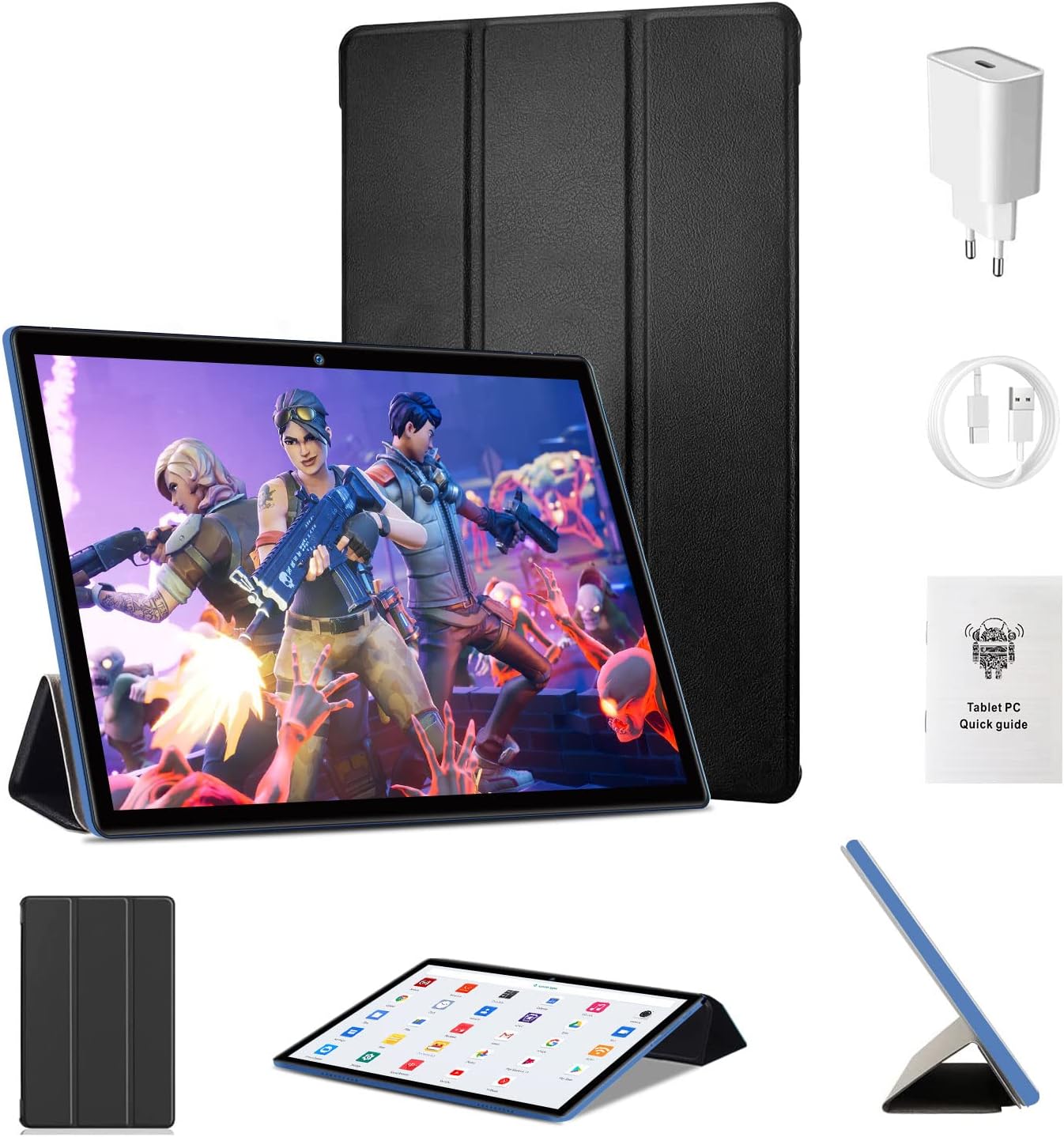
Image: DUODUOGO S9 Tablet with included accessories.
1.2 Càrrega inicial
Before first use, fully charge the tablet. Connect the USB cable to the tablet's charging port and the power adapter, then plug the adapter into a wall outlet. The battery indicator on the screen will show charging status.
1.3 Engegada/apagada
- Per encendre: Press and hold the Power button until the DUODUOGO logo appears.
- Per apagar: Mantingueu premut el botó d'engegada fins que apareguin les opcions d'engegada i, a continuació, seleccioneu "Apagar".
- Per reiniciar: Mantingueu premut el botó d'engegada fins que apareguin les opcions d'engegada i, a continuació, seleccioneu "Reiniciar".
1.4 Assistent de configuració inicial
Upon first startup, the tablet will guide you through an initial setup process:
- Seleccioneu el vostre idioma preferit.
- Connecteu-vos a una xarxa Wi-Fi.
- Configura el teu compte de Google (opcional, però recomanat per a les baixades d'aplicacions).
- Review i acceptar els termes i condicions.
- Configura el bloqueig de pantalla (PIN, patró o contrasenya).

Image: The Android 11 interface with various applications.
1.5 Inserció d'una targeta Micro SD
The tablet supports Micro SD cards up to 256GB for expanded storage.
- Localitza la ranura per a targetes Micro SD al lateral de la tauleta.
- Introduïu suaument la targeta Micro SD a la ranura fins que encaixi al seu lloc.
- Per treure-la, premeu suaument la targeta fins que surti.

Image: Illustration of the TF (Micro SD) card slot and Wi-Fi connectivity.
2. Instruccions de funcionament
2.1 Navegació bàsica
- Toca: Seleccioneu un element o obriu una aplicació.
- Toca i mantén premut: Accedir a menús contextuals o moure icones.
- Llisca: Desplaçar-se per pantalles o llistes.
- Pessigar: Apropar o allunyar les imatges i web pàgines.
2.2 Connexió Wi-Fi
The tablet supports dual-band Wi-Fi (2.4 GHz and 5 GHz) for fast internet access.
- Vés a Configuració > Xarxa i Internet > Wi-Fi.
- Activa/desactiva el Wi-Fi On.
- Seleccioneu la xarxa desitjada de la llista i introduïu la contrasenya si se us demana.
2.3 Vinculació Bluetooth
Connect to Bluetooth 5.0 devices such as headphones or speakers.
- Vés a Configuració > Dispositius connectats > Bluetooth.
- Commuta el Bluetooth On.
- Assegureu-vos que el dispositiu Bluetooth estigui en mode d'emparellament.
- Seleccioneu el dispositiu de la llista "Dispositius disponibles" per emparellar-lo.
2.4 Ús de la càmera
The tablet features a 2MP front camera and a 5MP rear camera.
- Obriu el Càmera aplicació.
- Toqueu el botó de l'obturador per fer una foto.
- Canvieu entre la càmera frontal i la posterior mitjançant la icona de la càmera.

Image: Tablet display showcasing camera and screen specifications.
2.5 Gestió d'aplicacions
- Descàrrega d'aplicacions: Obriu el Google Play Store app, search for your desired app, and tap "Install".
- Desinstal·lació d'aplicacions: Tap and hold the app icon on the home screen or app drawer, then drag it to "Uninstall" or select "App info" and then "Uninstall". Alternatively, go to Configuració > Aplicacions i notificacions, select the app, and tap "Uninstall".
3. Manteniment
3.1 Neteja de la tauleta
Use a soft, lint-free cloth to clean the screen and body of the tablet. Do not use liquid cleaners or aerosols directly on the tablet.
3.2 Cura de la bateria
- Eviteu exposar la tauleta a temperatures extremes.
- No permeteu que la bateria es descarregui completament amb freqüència.
- Feu servir només el carregador proporcionat o un carregador compatible certificat.
3.3 Actualitzacions de programari
The tablet runs on Android 11. Software updates may be released periodically to improve performance and security. You can check for updates in Configuració > Sistema > Actualització del sistema. Please note that information regarding guaranteed software updates is not available.
3.4 Storage Optimization
To maintain optimal performance, regularly manage your tablet's storage:
- Suprimeix les aplicacions innecessàries i files.
- Esborra les dades de la memòria cau de les aplicacions a Configuració > Aplicacions i notificacions > (select app) > Emmagatzematge i memòria cau.
- Utilize the Micro SD card for storing media files.

Image: Visual representation of the tablet's memory and storage capabilities.
4. Solució De Problemes
Si teniu problemes amb la tauleta, consulteu les solucions habituals següents:
| Problema | Solució |
|---|---|
| La tauleta no s'encén | Ensure the tablet is charged. Connect it to the charger for at least 30 minutes. Press and hold the Power button for 10-15 seconds. |
| No es pot connectar a la Wi-Fi | Comprova si el Wi-Fi està activat a Configuració. Reinicia el teu encaminador Wi-Fi. Oblida't de la xarxa i torna a connectar-te. |
| Les aplicacions es bloquegen o funcionen lentament | Clear the app's cache (Settings > Apps & notifications > [App Name] > Storage & cache). Restart the tablet. Ensure sufficient storage space. |
| La tauleta no respon | Perform a force restart by pressing and holding the Power button for approximately 10 seconds. |
| La bateria s'esgota ràpidament | Redueix la brillantor de la pantalla. Tanca les aplicacions que no fas servir. Desactiva el Wi-Fi/Bluetooth quan no estiguis en ús. Comprova l'ús de la bateria a Configuració per identificar les aplicacions que consumeixen molta energia. |
Si el problema persisteix després de provar aquests passos, poseu-vos en contacte amb l'atenció al client.
5. Especificacions
Key technical specifications for the DUODUOGO S9 Tablet:
| Característica | Detall |
|---|---|
| Marca | DUODUOGO |
| Model | S9 |
| Sistema operatiu | Android 11 |
| Processador | Quadre nucli a 1.8 GHz |
| RAM | 4 GB |
| Emmagatzematge intern | 64 GB |
| Emmagatzematge ampliable | Micro SD fins a 256 GB |
| Mida de la pantalla | 10 polzades |
| Resolució de pantalla | 1280 x 800 pixels IPS |
| Càmera frontal | 2 MP |
| Càmera posterior | 5 MP |
| Capacitat de la bateria | 6000 mAh |
| Connectivitat | Wi-Fi (2.4G & 5G), Bluetooth 5.0 |
| Dimensions | 26.7 x 19.6 x 5.3 cm |
| Pes | 890 grams |

Image: Summary of DUODUOGO S9 tablet key features.
6. Garantia i Suport
For warranty information, please refer to the documentation provided at the time of purchase. Information regarding spare parts availability and guaranteed software updates is not available for this product.
If you require further assistance or encounter issues not covered in this manual, please contact DUODUOGO customer support through your retailer or the official brand weblloc.