
White Shark Apache 2
White Shark Apache 2 Gaming Keyboard and Mouse Combo User Manual
1. Introducció
The White Shark Apache 2 Gaming Combo provides a full-size gaming keyboard and a 6-button optical gaming mouse. Designed for PC use, this combo features a durable metal base, vibrant rainbow LED backlighting, and anti-ghosting functionality on 19 keys for enhanced gaming performance. The mouse offers high precision with up to 3200 DPI, ensuring responsive and accurate control.
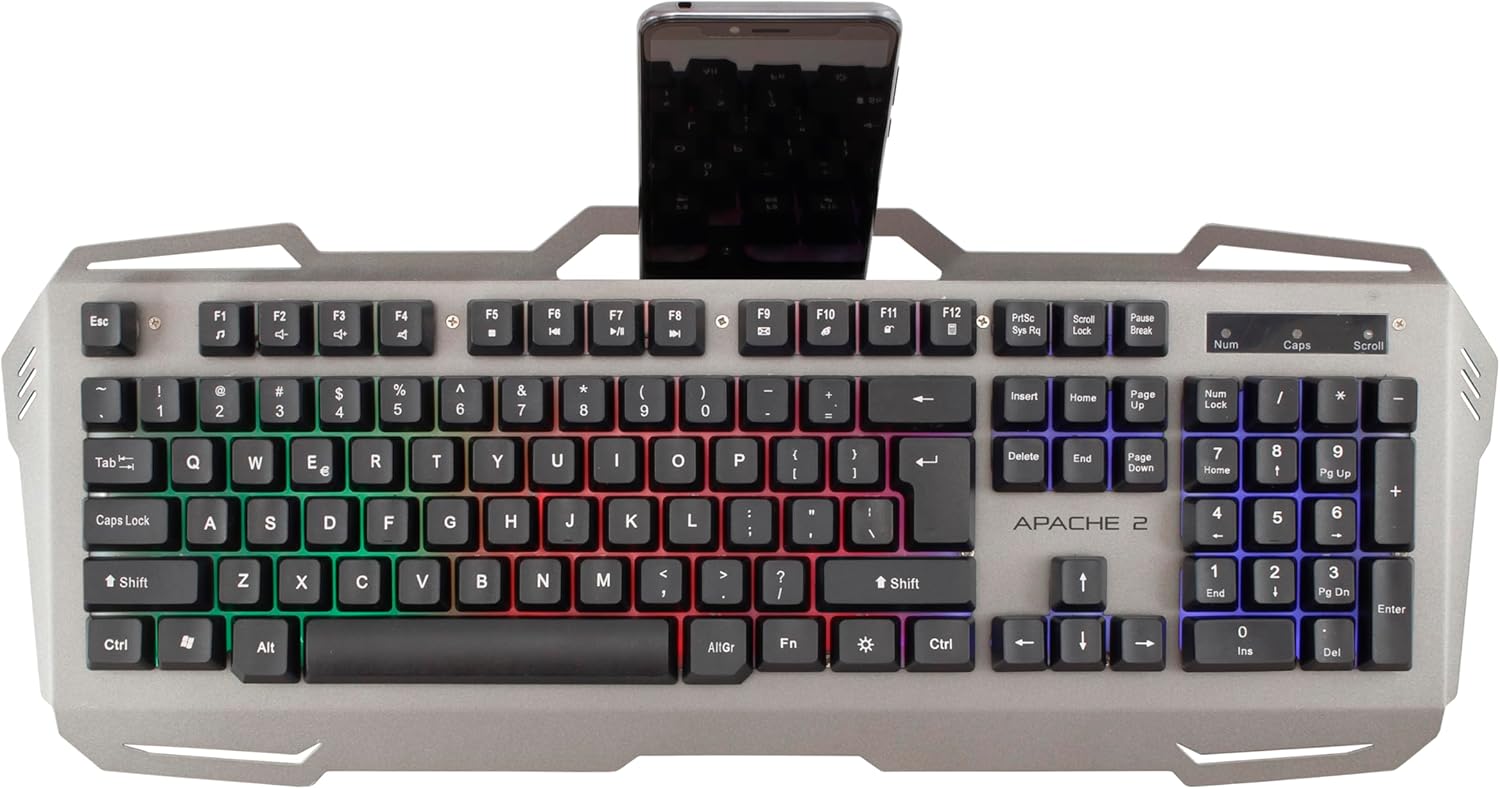
Figura 1: Frontal view of the White Shark Apache 2 gaming keyboard and mouse combo.
2. Contingut del paquet
Si us plau, assegureu-vos que tots els elements estiguin presents al paquet:
- 1x White Shark Apache 2 Gaming Keyboard
- 1x White Shark Apache 2 Gaming Mouse
- 1x Manual d'usuari (aquest document)
3. Instruccions de configuració
Follow these steps to connect your White Shark Apache 2 Gaming Combo:
- Connecteu el teclat: Locate an available USB 2.0 port on your computer. Insert the USB connector from the White Shark Apache 2 keyboard into the port.
- Connecteu el ratolí: Locate another available USB 2.0 port on your computer. Insert the USB connector from the White Shark Apache 2 mouse into the port.
- Reconeixement automàtic: Your operating system (Windows XP/VISTA/7/8/10 or MacOS) should automatically detect and install the necessary drivers for both devices. No additional software installation is typically required.

Figure 2: The White Shark Apache 2 keyboard and mouse connected via USB.
4. Instruccions de funcionament
4.1 Funcions del teclat
- Control de retroiluminació LED: The keyboard features a rainbow LED backlight. Use the Fn + Bloqueig de desplaçament keys to cycle through different lighting modes. Use Fn + Pàg amunt to increase backlight brightness and Fn + Pàg avall per disminuir la brillantor.
- Anti-fantasma: The keyboard supports anti-ghosting on 19 keys, ensuring that multiple simultaneous key presses are registered accurately, which is crucial for gaming.
- Suport integrat per a telèfons intel·ligents: The keyboard includes a built-in slot at the top for holding a smartphone, providing convenient access during use.

Figure 3: White Shark Apache 2 keyboard featuring an integrated smartphone holder.
4.2 Funcions del ratolí
- Ajust de DPI: The optical mouse features a 3200 DPI sensor. A dedicated button located behind the scroll wheel allows you to cycle through different DPI settings to adjust cursor sensitivity to your preference.
- 6 Botons: The mouse is equipped with 6 buttons, including left-click, right-click, scroll wheel, DPI adjustment, and two side buttons, providing versatile control for gaming and general use.
- Taxa de votació: The mouse operates with a polling rate of up to 125 Hz, ensuring a responsive and lag-free experience.

Figure 4: Close-up of the keyboard's LED backlight and the mouse's DPI button.
5. Manteniment
Proper maintenance ensures the longevity and optimal performance of your gaming combo:
- Neteja: Use a soft, dry cloth to gently wipe the surfaces of the keyboard and mouse. For stubborn dirt, a slightly damp cloth can be used, but ensure no liquid enters the devices.
- Eviteu productes químics: Do not use harsh chemicals, abrasive cleaners, or solvents, as these can damage the finish and internal components.
- Emmagatzematge: Store the devices in a clean, dry environment, away from direct sunlight, extreme temperatures, and excessive dust or moisture.
6. Solució De Problemes
Si teniu problemes, consulteu les solucions habituals següents:
- Dispositiu no reconegut:
- Ensure the USB cables are securely connected to your computer's USB ports.
- Try connecting the devices to different USB ports.
- Reinicieu l'ordinador.
- Keyboard LEDs Not Working:
- Check if the backlight is turned off or set to minimum brightness using the Fn + Page Up/Down claus.
- Assegureu-vos que el teclat estigui connectat correctament.
- Mouse Cursor Erratic or Unresponsive:
- Netegeu el sensor òptic de la part inferior del ratolí amb un drap suau i sec.
- Ensure the mouse pad or surface is clean, uniform, and suitable for optical mice.
- Prova de connectar el ratolí a un port USB diferent.
- Specific Keys Not Responding:
- Assegureu-vos que el teclat estigui connectat correctament.
- Test the keys in different applications to rule out software issues.
- Si el problema persisteix, poseu-vos en contacte amb el servei d'atenció al client.
7. Especificacions
| Característica | Detall |
|---|---|
| Tipus de producte | Combinació de teclat i ratolí per a jocs |
| Marca | Tauró blanc |
| Model | Apache 2 |
| Connectivitat | USB 2.0 |
| Disposició del teclat | QWERTY, 104 keys |
| Keyboard Anti-Ghosting | 19 claus |
| Il·luminació de fons del teclat | Rainbow LED, adjustable intensity |
| Keyboard Lifespan | Fins a 5 milions de pulsacions de tecles |
| Tipus de sensor de ratolí | Òptic |
| DPI del ratolí | Fins a 3200 DPI |
| Botons del ratolí | 6 |
| Taxa de sondeig del ratolí | Fins a 125 Hz |
| Mouse Lifespan | Fins a 3 milions de clics |
| Longitud del cable | 150 cm |
| Sistemes operatius compatibles | Windows XP/VISTA/7/8/10, MacOS |
| Material del teclat | Base metàl·lica |
8. Informació de la garantia
White Shark products typically come with a limited manufacturer's warranty. For detailed warranty terms, conditions, and duration, please refer to the warranty card included with your product or visit the official White Shark weblloc web. Conserveu el comprovant de compra per a qualsevol reclamació de garantia.
9. Atenció al client
For technical assistance, troubleshooting beyond the scope of this manual, or warranty claims, please contact White Shark customer support. Contact details, including phone numbers, email addresses, or support portals, can usually be found on the product packaging or the official White Shark weblloc.
Documents relacionatsApache 2


Ask a question about this manual
Ask about setup, troubleshooting, compatibility, parts, safety, or missing instructions. Manuals+ will review the question and use this page’s manual context to help answer it.