
cimetech KF10
cimetech Wireless Keyboard and Mouse Combo
Model: KF10
1. Introducció
Thank you for choosing the cimetech Wireless Keyboard and Mouse Combo. This set offers a compact, full-size keyboard and a high-sensitivity mouse, designed for seamless 2.4G wireless connectivity. Its ultra-thin, sleek design and quiet operation make it ideal for various computing environments, including Windows PCs, desktops, laptops, and notebooks. This manual will guide you through the setup, operation, and maintenance of your new wireless combo.
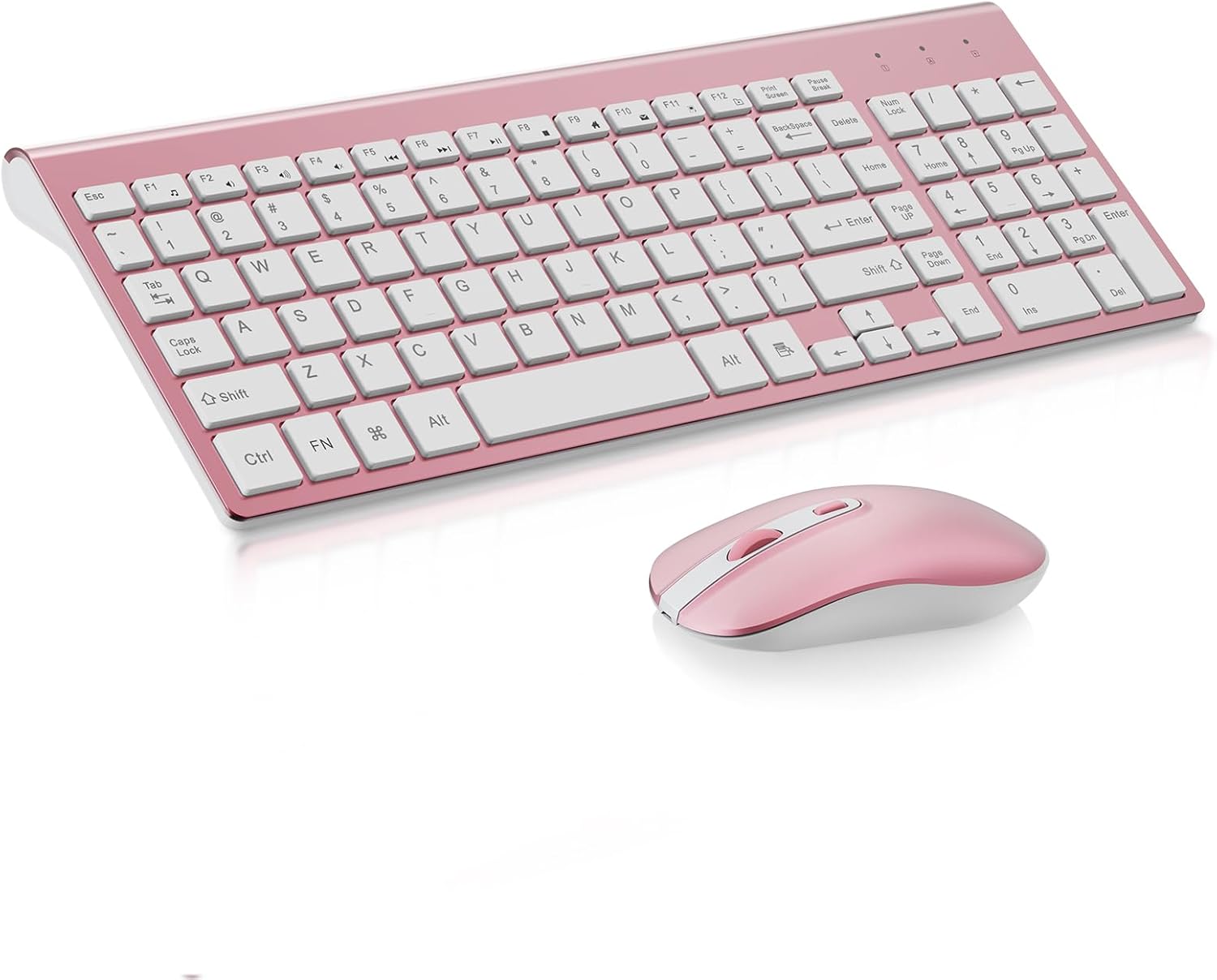
Figure 1: cimetech Wireless Keyboard and Mouse Combo (Rosegold)
2. Contingut del paquet
- 1 x cimetech Wireless Keyboard
- 1 x cimetech Wireless Mouse
- 1 x Receptor nano USB (emmagatzemat dins del compartiment de la bateria del ratolí)
- 1 x Manual d'usuari (aquest document)
3. Instruccions de configuració
Segueix aquests passos per configurar la combinació de teclat i ratolí sense fil:
- Instal·leu les bateries:
- Per al ratolí: Obriu el compartiment de les piles a la part inferior del ratolí. Introduïu una pila AA (no inclosa), assegurant-vos de la polaritat correcta.
- For the keyboard: Open the battery compartment on the underside of the keyboard. Insert two AA batteries (not included), ensuring correct polarity.

Figure 2: Battery saving feature illustration. The combo features auto-sleeping mode and on/off switches to conserve battery life.
- Locate USB Nano Receiver: The nano receiver is conveniently stored inside the mouse's battery compartment. Carefully remove it.
- Connecta el receptor: Plug the USB nano receiver into an available USB port on your computer (PC, desktop, laptop, or notebook).
- Encès: Turn on the keyboard and mouse using their respective on/off switches, usually located on the underside of each device.
- Plug and Play: The devices are designed for plug-and-play operation. Your computer should automatically detect and install the necessary drivers. No additional software is required.

Figure 3: One USB Nano Receiver connects both the keyboard and mouse, saving USB ports.
4. Instruccions de funcionament
4.1 Ús del teclat
The full-size keyboard features a numeric keypad and multimedia hotkeys for quick access to various functions.
- Tecles d'accés directe multimèdia: Access functions like music, internet, email, and volume directly using the dedicated multimedia hotkeys. Note: These hotkeys may not be fully compatible with Mac systems.
- Escriptura silenciosa: The keyboard's noise-reduced keys provide a quiet typing experience, minimizing disturbance in your environment.

Figure 4: Multimedia Hotkeys for quick access to common functions.

Figure 5: Scissor-switch construction provides comfortable and quiet typing.
4.2 Ús del ratolí
- Ajust de DPI: The mouse offers 3 adjustable DPI levels (800, 1200, 1600) to change cursor sensitivity. Press the DPI button (usually located near the scroll wheel) to cycle through the settings.
- Ajust de la taxa de sondeig: Adjust the polling rate between 125Hz and 250Hz by simultaneously pressing the right mouse button and the scroll wheel for 3 seconds.
- Clic silenciós: The mouse features silent click buttons, ensuring a quiet working environment.

Figure 6: The mouse is designed for whisper-quiet clicking, ideal for shared spaces.
5. Manteniment
- Neteja: Feu servir un drap suau i sec per netejar les superfícies del teclat i el ratolí. Per a la brutícia persistent, netegeu lleugerament.ampNetegeu el drap amb aigua o una solució de neteja suau. Eviteu l'excés d'humitat.
- Substitució de la bateria: Replace batteries when performance degrades. Always use new, good quality AA batteries. Dispose of used batteries responsibly.
- Emmagatzematge: When not in use for extended periods, turn off both the keyboard and mouse using their power switches to conserve battery life.
6. Solució De Problemes
- Sense connexió/Retard:
- Ensure the USB nano receiver is securely plugged into a working USB port.
- Comproveu si el teclat i el ratolí estan encesos.
- Replace batteries in both devices if they are low or depleted.
- Move the devices closer to the USB receiver to ensure they are within the 10-meter (33 ft) operating range.
- Prova de connectar el receptor a un port USB diferent de l'ordinador.
- Les tecles no responen/El ratolí no es mou:
- Verifiqueu els nivells de la bateria i substituïu-la si cal.
- Ensure the devices are turned on.
- Re-plug the USB receiver.
- Reinicieu l'ordinador.
- Multimedia Hotkeys Not Working (Mac): As noted, multimedia hotkeys may not be fully compatible with Mac operating systems. This is expected behavior.
7. Especificacions
| Característica | Detall |
|---|---|
| Marca | cimetech |
| Número de model | KF10 |
| Tecnologia de connectivitat | Sense fil 2.4G (receptor USB) |
| Interval d'operació | Fins a 10 metres (33 peus) |
| Dimensions del teclat | 14.57 x 5.31 x 1.97 polzades |
| Pes de l'article | 1.21 lliures |
| DPI del ratolí | 800/1200/1600 (Ajustable) |
| Taxa de sondeig del ratolí | 125Hz/250Hz (Adjustable) |
| Dispositius compatibles | PC, Desktop Computer, Laptop, Notebook |
| Sistemes operatius | Windows XP / Vista / 7/8/10 |
| Tipus de bateria | AA (no inclòs) |

Figure 7: Ultra-slim design with key dimensions.
8. Garantia i Suport
For warranty information, technical support, or any inquiries regarding your cimetech Wireless Keyboard and Mouse Combo, please refer to the product packaging or contact cimetech customer service directly. Contact details can typically be found on the manufacturer's official website or the product's retail page.
Ask a question about this manual
Ask about setup, troubleshooting, compatibility, parts, safety, or missing instructions. Manuals+ will review the question and use this page’s manual context to help answer it.