
1. Introducció
This manual provides essential information for the proper installation, operation, and maintenance of your SUNMI T2s Lite 15.6-inch Android Point of Sale (POS) system. Please read this manual thoroughly before using the device to ensure optimal performance and safety. Keep this manual for future reference.
2. Informació de seguretat
- No exposeu el dispositiu a temperatures extremes, humitat o llum solar directa.
- Eviteu deixar caure o sotmetre el dispositiu a forts impactes.
- Feu servir només l'adaptador de corrent subministrat amb el dispositiu. L'ús d'un adaptador incorrecte pot causar danys o incendis.
- No intenteu desmuntar ni reparar el dispositiu vosaltres mateixos. Poseu-vos en contacte amb personal de servei qualificat.
- Mantingueu el dispositiu allunyat de l'aigua o altres líquids.
- Assegureu-vos que hi hagi una ventilació adequada al voltant del dispositiu durant el funcionament.
3. Contingut del paquet
Verifiqueu que tots els elements siguin presents al paquet:
- SUNMI T2s Lite POS Terminal
- Adaptador d'alimentació
- Cable d'alimentació
- Guia d'inici ràpid (si escau)
- Targeta de garantia (si escau)
Si falta algun article o està malmès, poseu-vos en contacte amb el vostre proveïdor immediatament.
4. Producte acabatview
The SUNMI T2s Lite is an integrated Android-based POS system designed for retail environments. It features a 15.6-inch capacitive touchscreen display and various connectivity options.
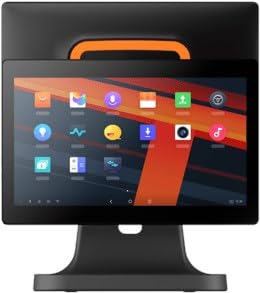
Figura 4.1: Davant view of the SUNMI T2s Lite POS system. This image displays the main 15.6-inch touchscreen, which is the primary interface for operating the device. The design is compact and suitable for various retail settings.
4.1 Components clau
- Pantalla tàctil de 15.6 polzades: High-resolution (1920x1080) capacitive touch interface.
- Botó d'encesa: Located typically on the side or rear for turning the device on/off.
- Ports USB: For connecting peripherals such as barcode scanners, external printers, or cash drawers.
- Port Ethernet: Per a la connectivitat de xarxa amb cable.
- Entrada d'alimentació: Per connectar l'adaptador de corrent.
- Càmera frontal: For specific applications requiring image capture.
5. Configuració
5.1 Desembalatge i col·locació
- Traieu amb cura el dispositiu i tots els accessoris de l'embalatge.
- Place the POS terminal on a stable, flat surface in a well-ventilated area.
- Ensure there is sufficient space around the device for cable connections and heat dissipation.
5.2 Connexió de potència
- Connecteu el cable d'alimentació a l'adaptador de corrent.
- Plug the power adapter into the power input port on the back of the SUNMI T2s Lite.
- Connecteu l'altre extrem del cable d'alimentació a una presa de corrent amb connexió a terra.
5.3 Initial Boot and Network Connection
- Press and hold the power button until the screen lights up. The device will boot into the Android operating system.
- Seguiu les instruccions que apareixen a la pantalla per a la configuració inicial, inclosa la selecció d'idioma i la zona horària.
- Connexió Wi-Fi: Vés a Configuració > Xarxa i Internet > Wi-Fi, select your network, and enter the password.
- Connexió Ethernet: Connect an Ethernet cable from your router/switch to the Ethernet port on the device. The device should automatically connect to the wired network.
5.4 Connexió de perifèrics
- Dispositius USB: Plug USB peripherals (e.g., barcode scanner, external printer, cash drawer) into the available USB ports. The system will typically recognize them automatically.
- Dispositius Bluetooth: Vés a Configuració > Dispositius connectats > Bluetooth, enable Bluetooth, and pair with your desired device.
6. Instruccions de funcionament
6.1 Engegada/apagada
- Per encendre: Manteniu premut el botó d'engegada fins que la pantalla s'il·lumini.
- Per apagar: Press and hold the power button until a power menu appears. Select "Power off" and confirm. Alternatively, a short press of the power button will put the device to sleep.
6.2 Ús de la pantalla tàctil
- Toca: To select an item or activate a button.
- Mantén premut: To open context menus or drag items.
- Llisca: To scroll through lists or navigate between screens.
- Pessiga per fer zoom: Per ampliar o reduir imatges o web pàgines.
6.3 Navegació del sistema operatiu Android
- Pantalla d'inici: The central hub for your applications and widgets.
- Calaix d'aplicacions: Access all installed applications.
- Panell de notificacions: Feu lliscar el dit cap avall des de la part superior de la pantalla fins a view notificacions i configuracions ràpides.
- Configuració: Configure Wi-Fi, Bluetooth, display, sound, and other system options.
6.4 Basic POS Functions
The specific POS functions will depend on the software application installed on your device. Refer to the documentation provided with your POS software for detailed instructions. Generally, you will:
- Launch your POS application from the home screen or app drawer.
- Inicieu sessió amb les vostres credencials d'usuari.
- Process transactions using the touchscreen and connected peripherals (e.g., scanning items, accepting payments).
- Print receipts if an external or integrated printer is configured.
7. Manteniment
7.1 Neteja del dispositiu
- Always power off and unplug the device before cleaning.
- Utilitzeu un drap suau i sense pelusa lleugerament dampened with water or a mild, non-abrasive cleaner to wipe the screen and exterior surfaces.
- No ruixeu líquids directament sobre el dispositiu.
- Eviteu l'ús de productes químics agressius, dissolvents o materials abrasius.
7.2 Actualitzacions de programari
Regularly check for and install system and application updates to ensure optimal performance, security, and access to new features. You can usually find system updates in Configuració > Sistema > Actualització del sistema.
7.3 Emmagatzematge
When not in use for extended periods, store the device in a cool, dry place, away from direct sunlight and extreme temperatures. If storing for a long time, ensure the battery is charged to about 50% to prolong its lifespan.
8. Solució De Problemes
Aquesta secció tracta problemes comuns que podeu trobar. Per a problemes més complexos, poseu-vos en contacte amb l'atenció al client.
- El dispositiu no s'encén:
- Assegureu-vos que l'adaptador de corrent estigui connectat correctament al dispositiu i a una presa de corrent que funcioni.
- Comproveu que la presa de corrent funcioni.
- Try holding the power button for 10-15 seconds to force a restart.
- Touchscreen is unresponsive:
- Reinicieu el dispositiu.
- Ensure the screen is clean and free of debris or liquids.
- Network connection issues (Wi-Fi/Ethernet):
- Check if the Wi-Fi is enabled and you are connected to the correct network with the right password.
- For Ethernet, ensure the cable is properly connected and your router/switch is working.
- Reinicieu el vostre encaminador/mòdem.
- Peripherals (e.g., printer, scanner) not working:
- Assegureu-vos que el perifèric estigui connectat correctament al port correcte.
- Check if the peripheral has its own power supply and is turned on.
- Verify that the necessary drivers or software for the peripheral are installed and configured within your POS application.
9. Especificacions
The following are key technical specifications for the SUNMI T2s Lite:
| Característica | Especificació |
|---|---|
| Marca | SUNMI |
| Fabricant | Sunmi |
| Resolució de visualització nativa | 1920 x 1080 píxels |
| Tecnologia de connectivitat | Bluetooth, Ethernet, USB, WLAN |
| Descripció de la càmera | Frontal |
| ASIN | B0B53FLFT8 |
10. Garantia i Suport
The SUNMI T2s Lite POS system comes with a standard manufacturer's warranty. Please refer to the warranty card included in your package for specific terms and conditions, including warranty period and coverage details.
For technical support, service, or warranty claims, please contact your authorized SUNMI dealer or the customer support channel specified in your purchase documentation. Ensure you have your product model number (T2s Lite) and ASIN (B0B53FLFT8) ready when contacting support.