
Introducció
This manual provides detailed instructions for the setup, operation, maintenance, and troubleshooting of your Pokitter Go Pro Mini Portable Projector. Please read this manual thoroughly before using the product to ensure proper functionality and to extend the lifespan of your device.
The Pokitter Go Pro is a compact and powerful portable projector featuring integrated Android TV 10.0, Google Assistant, 200 ANSI lumens brightness, 1080p Full HD resolution with 4K support, dual-band 2.4G/5G WiFi, and a maximum projection size of 120 inches. It is designed for versatile entertainment, offering a cinematic experience on the go.
Contingut del paquet
Si us plau, verifiqueu que tots els elements siguin presents al paquet:
- Pokitter Go Pro Mini Portable Projector
- Control remot
- Adaptador d'alimentació
- Manual d'usuari (aquest document)
- Corretja de transport

Image: The Pokitter Go Pro Mini Portable Projector, highlighting its compact design and integrated handle for easy portability.
Producte acabatview
Davant View
The front of the projector features the projection lens and ventilation grilles.
posterior View
The rear panel typically includes various ports for connectivity.
- Port HDMI: Per connectar dispositius externs com ara ordinadors portàtils, consoles de jocs o reproductors de Blu-ray.
- Port USB: For connecting USB drives for media playback or external peripherals.
- Sortida d'àudio (connector de 3.5 mm): Per connectar altaveus externs o auriculars.
- Entrada DC: Port d'entrada d'alimentació.
A dalt View
The top surface may include control buttons or indicators.
lateral View
The sides often feature additional ventilation and a carrying handle.
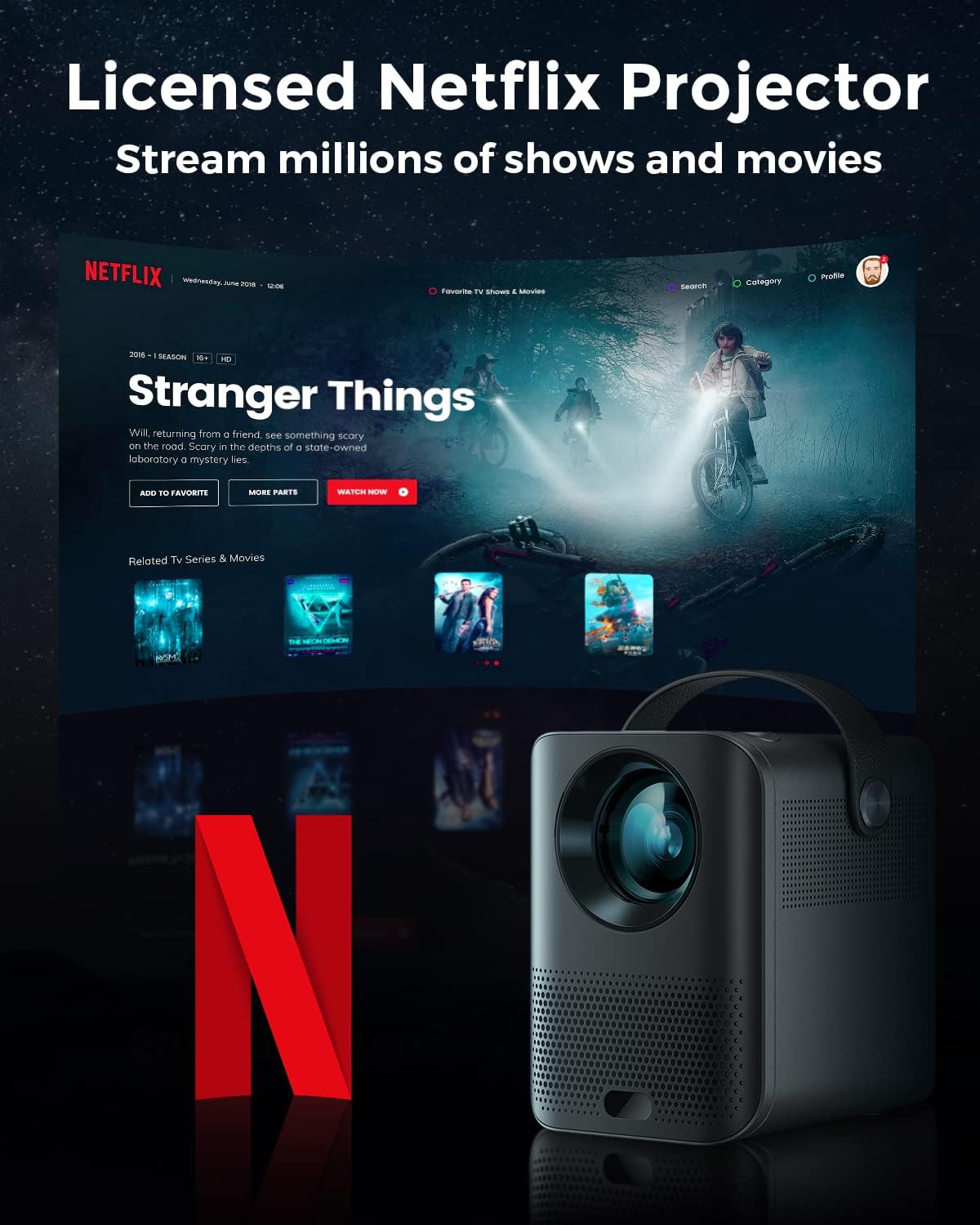
Image: The Pokitter Go Pro projector showcasing its integrated Netflix license and streaming capabilities.

Image: A size comparison of the Pokitter Go Pro projector with a smartphone, illustrating its mini and portable form factor.
Configuració
1. Connexió d'alimentació
- Connect the power adapter to the DC In port on the projector.
- Connecteu l'adaptador de corrent a una presa de corrent.
- La llum indicadora d'alimentació s'il·luminarà.
2. Engegada inicial
- Premeu el botó d'encesa del projector o del comandament a distància per encendre el dispositiu.
- Allow a few moments for the Android TV system to boot up.
3. Ajust del focus
Use the focus ring (if mechanical) or the remote control's focus buttons to achieve a clear image. The Pokitter Go Pro features automatic vertical keystone correction up to 40 degrees.

Image: Illustration of the automatic keystone correction feature, which adjusts the image for optimal viewing even when the projector is not perfectly aligned.
4. Screen Size Adjustment
Adjust the distance between the projector and the projection surface to achieve the desired screen size. The projector supports a screen size up to 120 inches.

Image: Guide for optimal projection distances to achieve screen sizes of 40, 80, and 120 inches.
5. Connexió de xarxa (Wi-Fi)
- Navigate to the Wi-Fi settings in the Android TV interface.
- Seleccioneu la xarxa Wi-Fi que vulgueu de la llista.
- Introduïu la contrasenya si se us demana.
- The projector supports dual-band 2.4G and 5G Wi-Fi for stable and fast transmission.

Image: The Pokitter Go Pro projector demonstrating its 2.4/5GHz WiFi capabilities for seamless wireless screen casting from various devices.
Instruccions de funcionament
Ús del comandament a distància
The included remote control allows full navigation and control of the Android TV interface. Key functions include:
- Botó d'encesa: Encén/apaga el projector.
- Bloc de navegació: For moving through menus.
- Botó D'acord: Confirma les seleccions.
- Botó enrere: Torna a la pantalla anterior.
- Botó d'inici: Torna a la pantalla d'inici d'Android TV.
- Botons de volum: Ajusta el volum de l'àudio.
- Botó de l'Assistent de Google: Activa les ordres de veu.
Interfície d'Android TV
The Pokitter Go Pro runs on Android TV 10.0, providing access to a wide range of streaming applications such as Netflix, YouTube, Amazon Prime Video, and Disney+.
- Navegació de l'aplicació: Use the remote's navigation pad to select and open applications.
- Transmissió de continguts: Log in to your streaming accounts to access content.
- Assistent de Google: Press the Google Assistant button on the remote and speak your commands to search for content, control playback, or get information.

Imatge: Un cop mésview of the Pokitter Go Pro's key features, including its Android TV operating system, Google Assistant integration, and display capabilities.
Screen Mirroring (Chromecast Built-in)
The projector features built-in Chromecast for easy screen mirroring from compatible devices (smartphones, tablets, laptops).
- Assegureu-vos que el dispositiu i el projector estiguin connectats a la mateixa xarxa Wi-Fi.
- Open a Chromecast-enabled app on your device (e.g., YouTube, Netflix).
- Toca la icona de Cast (normalment un rectangle amb un símbol de Wi-Fi) dins de l'aplicació.
- Select your Pokitter Go Pro projector from the list of available devices.
- The content from your device will be mirrored or cast to the projector.

Image: Demonstrating the Chromecast built-in feature, allowing users to stream content from their smartphone to the projector's large display.
Connecting External Devices (HDMI/USB)
- HDMI: Connect an HDMI cable from your external device (e.g., laptop, game console) to the HDMI port on the projector. The projector will automatically switch to the HDMI input or you may need to select it from the input source menu.
- USB: Insert a USB flash drive into the USB port. The Android TV system will typically prompt you to open a file browser to access media files a la unitat.
Manteniment
Neteja de la lent
Use a soft, lint-free cloth specifically designed for optical lenses to gently wipe the projector lens. Do not use abrasive cleaners or excessive force, as this can scratch the lens.
Cleaning the Projector Body
Wipe the exterior of the projector with a soft, dry cloth. For stubborn stains, a slightly damp cloth can be used, followed by a dry cloth. Avoid getting liquids inside the projector.
Ventilació
Ensure that the ventilation grilles are not blocked during operation to prevent overheating. The Pokitter Go Pro features a dust-proof design to maintain picture quality.

Image: An internal diagram of the Pokitter Go Pro, illustrating its dust-proof design for long-lasting, flawless picture quality.
Emmagatzematge
Quan no l'utilitzeu durant períodes prolongats, guardeu el projector en un lloc fresc i sec, allunyat de la llum solar directa i de temperatures extremes. Es recomana utilitzar l'embalatge original o una funda protectora.
Resolució de problemes
| Problema | Causa possible | Solució |
|---|---|---|
| Sense poder | Cable d'alimentació no connectat; Presa de corrent defectuosa. | Assegureu-vos que el cable d'alimentació estigui ben connectat. Proveu una altra presa de corrent. |
| Sense imatge / Imatge borrosa | Lens out of focus; Incorrect input source; Obstruction in projection path. | Adjust focus using the remote or focus ring. Select correct input source. Remove any obstructions. |
| Sense so | Volume too low; Muted; External speakers not connected properly. | Increase volume. Unmute the projector. Check external speaker connections. |
| Problemes de connexió Wi-Fi | Contrasenya incorrecta; Encaminador massa lluny; Interferències de xarxa. | Verifiqueu la contrasenya del Wi-Fi. Acosteu el projector a l'encaminador. Reinicieu l'encaminador i el projector. |
| El control remot no funciona | Dead batteries; Obstruction between remote and projector. | Replace batteries. Ensure clear line of sight to the projector's IR receiver. |
Especificacions
- Model: F1A
- Marca: Pokitter
- Tecnologia de visualització: LED
- Resolució nativa: 1920 x 1080 (Full HD)
- Resolució màxima admesa: 3840 x 2160 (4K)
- Brillantor: Fins a 200 lúmens ANSI
- Mida de projecció: Fins a 120 polzades
- Sistema operatiu: Android TV 10.0
- Assistent de veu: Assistent de Google integrat
- Connectivitat sense fils: 2.4G/5G Dual-band Wi-Fi, Bluetooth 5.1
- Ports de connectivitat: HDMI, USB, 3.5mm Audio Out, DC In
- Ponents: Integrated (2x5W as per infographic)
- Average Lifespan (Light Source): 50,000 hores
- Factor de forma: Portàtil
- Tipus de muntatge: Muntatge de taula

Image: An illustration of the projector's internal speaker system, designed to provide true-to-life sound for a cinematic viewexperiència.
Garantia i Suport
The Pokitter Go Pro Mini Portable Projector comes with a 2 any de garantia. For any questions or professional assistance regarding this product, please contact Pokitter customer support. We are committed to supporting our customers.
For the latest support information, FAQs, and contact details, please visit the official Pokitter weblloc web o consulteu la informació de contacte proporcionada amb la vostra compra.

