
FLAMMA FX200
Manual d'usuari del processador de guitarra multiefectes FLAMMA FX200
Model: FX200
1. Introducció
This manual provides detailed instructions for the operation and maintenance of your FLAMMA FX200 Multi Effects Guitar Processor. Please read this manual thoroughly to ensure proper usage and to maximize the potential of your device.
The FLAMMA FX200 is a versatile multi-effects processor designed for guitarists, featuring a 5-inch LCD touch screen, extensive input/output options, and a wide array of effects, amplifier models, and cabinet simulations.
2. Precaucions de seguretat
- No exposeu la unitat a la pluja, la humitat o les temperatures extremes.
- Eviteu col·locar la unitat a prop de fonts de calor o sota la llum solar directa.
- Feu servir només l'adaptador de corrent especificat.
- No intenteu desmuntar ni modificar la unitat. Encarregueu tot el manteniment a personal qualificat.
- Mantenir fora de l'abast dels nens.
3. Contingut del paquet
Verifiqueu que tots els elements siguin presents al paquet:
- FLAMMA FX200 Multi Effects Guitar Processor
- Adaptador d'alimentació
- Cable USB-C
- Manual d'usuari (aquest document)

Figure 3.1: Contents of the FLAMMA FX200 package.
4. Dispositiu acabatview
4.1 Tauler frontal
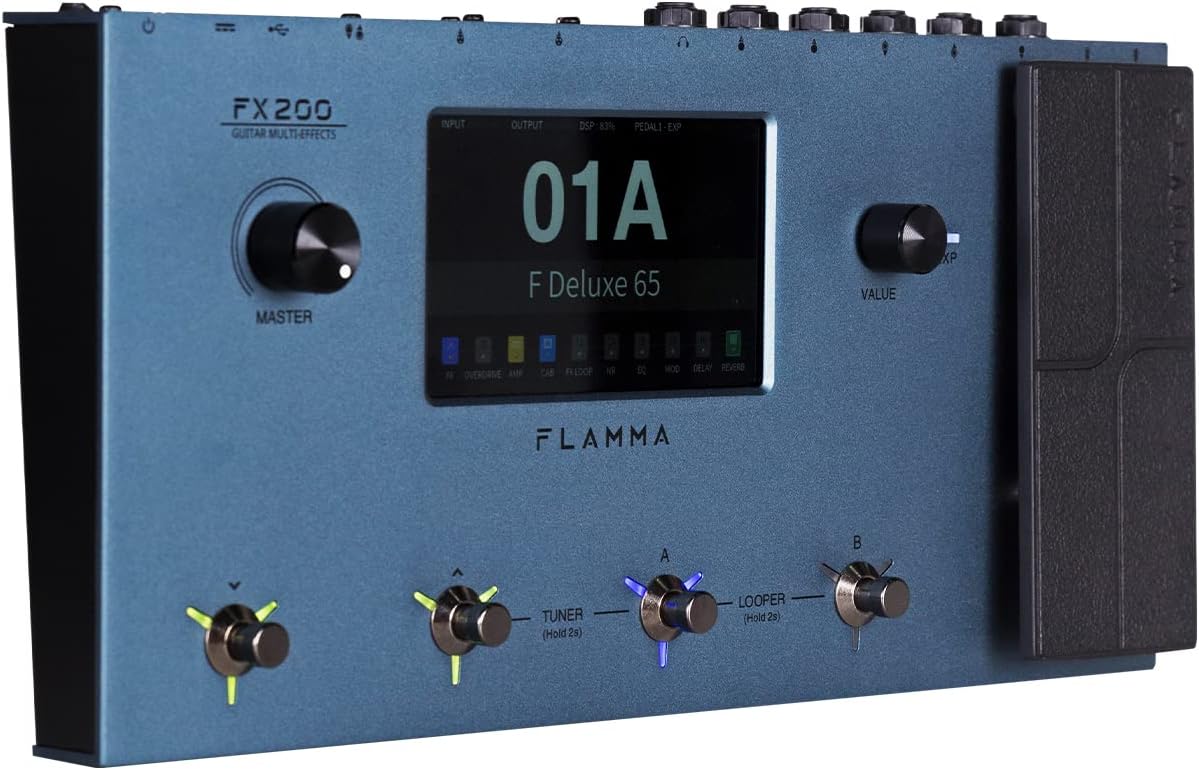
Figure 4.1: Front Panel Layout of the FX200.
- Pom principal: Ajusta el volum de sortida general.
- Pantalla tàctil LCD: 5-inch display for navigation, parameter editing, and preset management.
- Value Knob: Used for data entry and parameter adjustments.
- Pedals (A, B, C, D): Control presets, effects, looper, and tuner functions.
- Pedal d'expressió: Assignable for real-time control of various effects parameters.
4.2 Rear Panel (I/O)

Figure 4.2: Rear Panel Input/Output Connections.
- AUX IN: 3.5mm stereo input for external audio devices.
- EXP2: External expression pedal input.
- ENTRADA: 1/4-inch mono input for guitar.
- ENVIA/RETORNA: Stereo FX Loop for integrating external effects pedals.
- SORTIDA (E/MONO, D): 1/4-inch stereo outputs to amplificador o mesclador.
- TELÈFONS: Sortida d'auriculars estèreo de 3.5 mm.
- GND/LIFT: Ground lift switch to eliminate hum.
- XLR OUT (L, R): Balanced XLR stereo outputs for direct connection to PA systems or audio interfaces.
- ENTRADA/SORTIDA MIDI: 5-pin MIDI connectors for external MIDI control.
- USB DC IN: USB-C port for power and connection to a computer.
- Interruptor d'alimentació: Encén/apaga la unitat.
5. Configuració
5.1 Engegada inicial
- Connect the provided power adapter to the USB DC IN port on the rear panel.
- Connecteu l'adaptador d'alimentació a una presa de CA adequada.
- Flip the Power Switch to the ON position. The unit will power on and display the startup screen.
5.2 Connexió de la guitarra i Ampmés viu
- Connecteu la vostra guitarra al ENTRADA jack utilitzant un cable d'instrument estàndard de 1/4 de polzada.
- Connecteu el SORTIDA L/MONO jack a la teva guitarra amplifier's input using a 1/4-inch instrument cable. For stereo output, connect the SORTIDA R jack a un segon amplifier or mixer input.
- Alternatively, for direct recording or PA system connection, use XLR cables from the XLR OUT L i XLR OUT R ports to your audio interface or mixer.
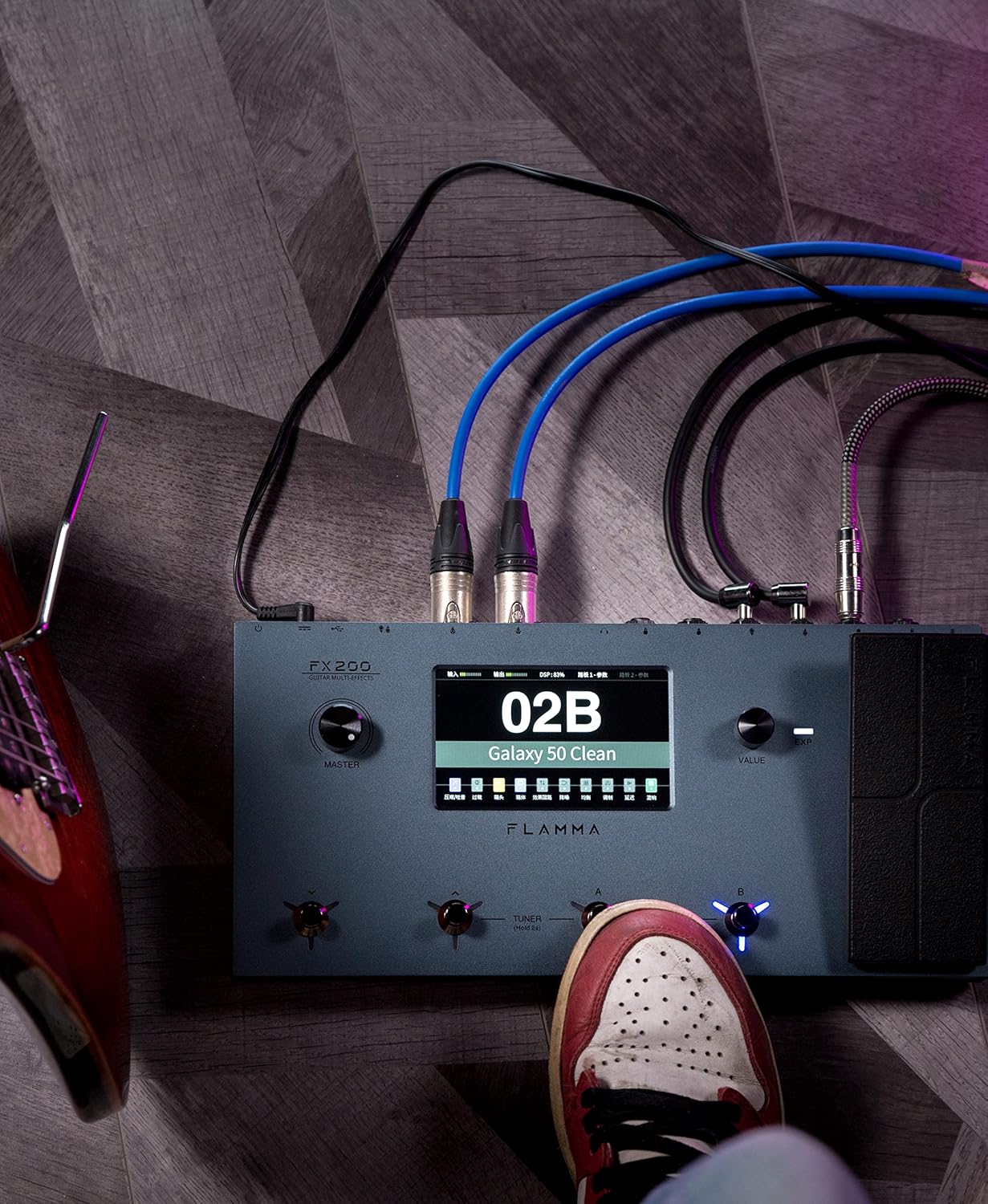
Figure 5.1: Typical connection setup for the FX200.
5.3 Connexió a un ordinador
The FX200 can be connected to a computer for editing presets, firmware updates, and USB audio recording.
- Download the specialized editing software from the official FLAMMA weblloc.
- Connect the FX200 to your computer using the provided USB-C cable.
- Launch the editing software. The software will detect the FX200, allowing you to manage presets, effects, and perform firmware updates.

Figure 5.2: FX200 connected to a computer for software editing.
6. Instruccions de funcionament
6.1 Navegació per la pantalla tàctil
The 5-inch LCD touch screen is the primary interface for controlling the FX200. Tap icons and parameters to select them, and use the Value Knob to adjust values.

Figura 6.1: Interacció amb la interfície de pantalla tàctil.
6.2 Gestió de presets
The FX200 features 200 editable user preset slots. Presets can be selected using the footswitches or by navigating the touch screen.
- Seleccionant preajustos: In Play mode, press footswitches A or B to cycle through presets within a bank. Press footswitches C or D to change banks.
- Edició de presets: Tap on an effect module icon on the touch screen to access its parameters. Adjust settings using the Value Knob.
- Desant els valors predefinits: After editing, tap the 'Save' icon on the touch screen and follow the prompts to store your changes to a user preset slot.
6.3 Effect Modules and Chain
The FX200 includes 10 effect modules with over 160 different effect types, 58 preamp models, and 30 cabinet simulations. The effects chain can be customized.
- Module Order: Drag and drop effect module icons on the touch screen to change their order in the signal chain.
- Activating/Deactivating Modules: Tap an effect module icon to toggle it on or off within a preset.
- Third-Party IRs: The unit supports third-party impulse response files (up to 1024 sampling points) with 50 empty slots for custom cabinet simulations. Use the editing software to load IRs.

Figure 6.2: Customizable effects chain on the FX200.
6.4 Looper i màquina de tambor
The FX200 includes an integrated 52-second looper and 80 drum machine variations with 10 metronome styles.
- Looper: Access the looper function via a dedicated footswitch or the touch screen. Record, overdub, play, and stop loops.
- màquina de tambor: Select drum patterns and metronome styles from the touch screen interface. Adjust tempo and volume.
6.5 USB Audio Recording
The FX200 supports USB audio recording, allowing you to record directly to your computer.
- Connect the FX200 to your computer via USB-C.
- Select the FX200 as your audio input device in your Digital Audio Workstation (DAW) software.
- Adjust input levels on both the FX200 and your DAW for optimal recording.
7. Manteniment
- Neteja: Feu servir un drap suau i sec per netejar la unitat. No utilitzeu productes de neteja abrasius ni dissolvents.
- Emmagatzematge: When not in use for extended periods, store the unit in a dry, cool place away from direct sunlight.
- Actualitzacions de firmware: Regularly check the FLAMMA website for firmware updates to ensure optimal performance and access to new features. Updates are performed via the USB-C connection and editing software.
8. Solució De Problemes
| Problema | Causa possible | Solució |
|---|---|---|
| Sense poder | Power adapter not connected or faulty; Power switch off. | Ensure power adapter is securely connected and plugged into a working outlet. Check power switch. |
| Sense sortida de so | Incorrect cable connections; Master volume too low; Amplifier off; Effect module bypassed. | Verify all audio cables are correctly connected. Increase Master volume. Check amplifier power. Ensure desired effect modules are active. |
| Humming or noise | Ground loop; Faulty cables; Interference. | Engage the GND/LIFT switch. Try different cables. Ensure power supply is stable and away from other electronics. |
| La pantalla tàctil no respon | Error temporal de programari. | Restart the unit by cycling the power switch. If the issue persists, contact customer support. |
| No es pot connectar a l'ordinador | USB-C cable issue; Driver not installed; Software not running. | Ensure USB-C cable is functional. Install necessary drivers. Launch the FLAMMA editing software. |
9. Especificacions
| Característica | Detall |
|---|---|
| Mostra | Pantalla tàctil LCD de 5 polzades |
| Mòduls d'efectes | 10 modules, 160+ effect types |
| Preamp Models | 58 |
| Cabinet Simulations | 30 (IR-based, 1024pts), 50 user IR slots |
| Presets d'usuari | 200 editable slots |
| Looper | 52 segons |
| Màquina de tambor | 80 variations, 10 metronome styles |
| Connectivitat | AUX IN, EXP2, INPUT, SEND/RETURN, OUTPUT (L/MONO, R), PHONES, XLR OUT (L, R), MIDI IN/OUT, USB-C |
| USB Audio Recording | Admet |
| Dimensions (L x A x A) | 13.5 x 6.6 x 2 polzades (34.3 x 16.8 x 5.1 cm) |
| Pes | 3.9 lliures (1.77 kg) |
| Font d'alimentació | 9V DC (via USB-C) |
| Material del cos | Metall |
10. Garantia i Suport
FLAMMA products are covered by a limited warranty. For detailed warranty information, product registration, and technical support, please visit the official FLAMMA weblloc o poseu-vos en contacte amb el seu servei d'atenció al client.
Official FLAMMA Weblloc: www.flamma.com
For any issues not covered in this manual, please refer to the online resources or contact FLAMMA customer support directly.
Ask a question about this manual
Ask about setup, troubleshooting, compatibility, parts, safety, or missing instructions. Manuals+ will review the question and use this page’s manual context to help answer it.