1. Introducció
The FINGERS Lil’Clicks is a versatile mini keyboard designed for seamless connectivity across multiple devices and operating systems. It offers dual connectivity options: Bluetooth and 2.4 GHz Wireless, allowing you to switch between your laptop, tablet, or smartphone effortlessly. This manual provides detailed instructions for setup, operation, maintenance, and troubleshooting to ensure optimal use of your keyboard.

Image 1.1: The FINGERS Lil’Clicks Bluetooth Wireless Mini Keyboard, showcasing el seu disseny compacte.
2. Contingut del paquet
Marqueu la casella per als elements següents:
- 1 x FINGERS Lil’Clicks Bluetooth Wireless Mini Keyboard
- 1 x Wireless USB Receiver (for 2.4 GHz connection)
- 1 x cable de càrrega micro USB
- 1 x Guia d'ús ràpid
- 1 x Nota de marca

Image 2.1: Contents included in the FINGERS Lil’Clicks keyboard package.
3. Configuració i connectivitat
The Lil’Clicks keyboard offers two primary connection methods: Bluetooth and 2.4 GHz Wireless.
3.1. Càrrega del teclat
Before initial use, ensure the keyboard is fully charged. Connect the provided Micro USB charging cable to the keyboard's charging port and the other end to a USB power source (e.g., computer USB port, USB wall adapter). The charging indicator light will show the charging status.
3.2. Connexió sense fil de 2.4 GHz
- Locate the USB Wireless Receiver in the keyboard package.
- Connecteu el receptor USB a un port USB disponible de l'ordinador o dispositiu.
- Engegueu el teclat amb l'interruptor d'engegada, que normalment es troba al lateral o a la part posterior.
- El teclat s'hauria de connectar automàticament al dispositiu. Normalment no calen controladors addicionals.
3.3. Bluetooth Connection (Up to 3 Devices)
The Lil’Clicks keyboard can connect to up to three Bluetooth devices simultaneously.
- Enceneu el teclat amb l'interruptor d'alimentació.
- Manteniu premut el botó Fn clau i una de les claus Bluetooth (BT1, BT2, o BT3) for 3-5 seconds until the corresponding Bluetooth indicator light starts blinking. This indicates the keyboard is in pairing mode.
- On your device (laptop, tablet, smartphone), go to Bluetooth settings and enable Bluetooth.
- Cerca available devices. You should see "FINGERS Lil’Clicks" or a similar name appear in the list.
- Select the keyboard to pair. If prompted, enter the displayed code on the keyboard and press Entra.
- Un cop emparellat, l'indicador lluminós deixarà de parpellejar i romandrà fix durant uns segons abans d'apagar-se.
- To connect another device, repeat steps 2-5 using a different Bluetooth key (BT2 or BT3).
3.4. Canviar entre dispositius connectats
To switch between paired Bluetooth devices or the 2.4 GHz wireless connection:
- For Bluetooth devices: Briefly press the Fn key along with the desired Bluetooth key (BT1, BT2, o BT3).
- For 2.4 GHz Wireless: Briefly press the Fn clau juntament amb la 2.4G key (if available, otherwise ensure the USB receiver is plugged in and no Bluetooth connection is active).

Image 3.1: The Lil’Clicks keyboard demonstrating multi-device connectivity with a laptop, monitor, phone, and tablet.
4. Funcionament del teclat
4.1. Mecanografia bàsica
The keyboard features a standard QWERTY layout. Simply type as you would on any other keyboard.
4.2. Media Controls
The Lil’Clicks keyboard includes 12 soft-touch media control keys. These functions are typically accessed by pressing the Fn key simultaneously with the corresponding function key (F1-F12 or dedicated media keys).
- Fn + F1-F12: Access various media functions such as play/pause, volume control, track skipping, and more. Refer to the quick usage guide for specific key mappings.

Imatge 4.1: Primer pla view of the keyboard layout, highlighting the media control keys and function row.
4.3. Using the Built-in Cradle
The keyboard features a built-in cradle designed to hold most phones and tablets up to 10 mm thick and 265 mm wide. This allows you to position your device at an optimal viewing angle for comfortable typing.
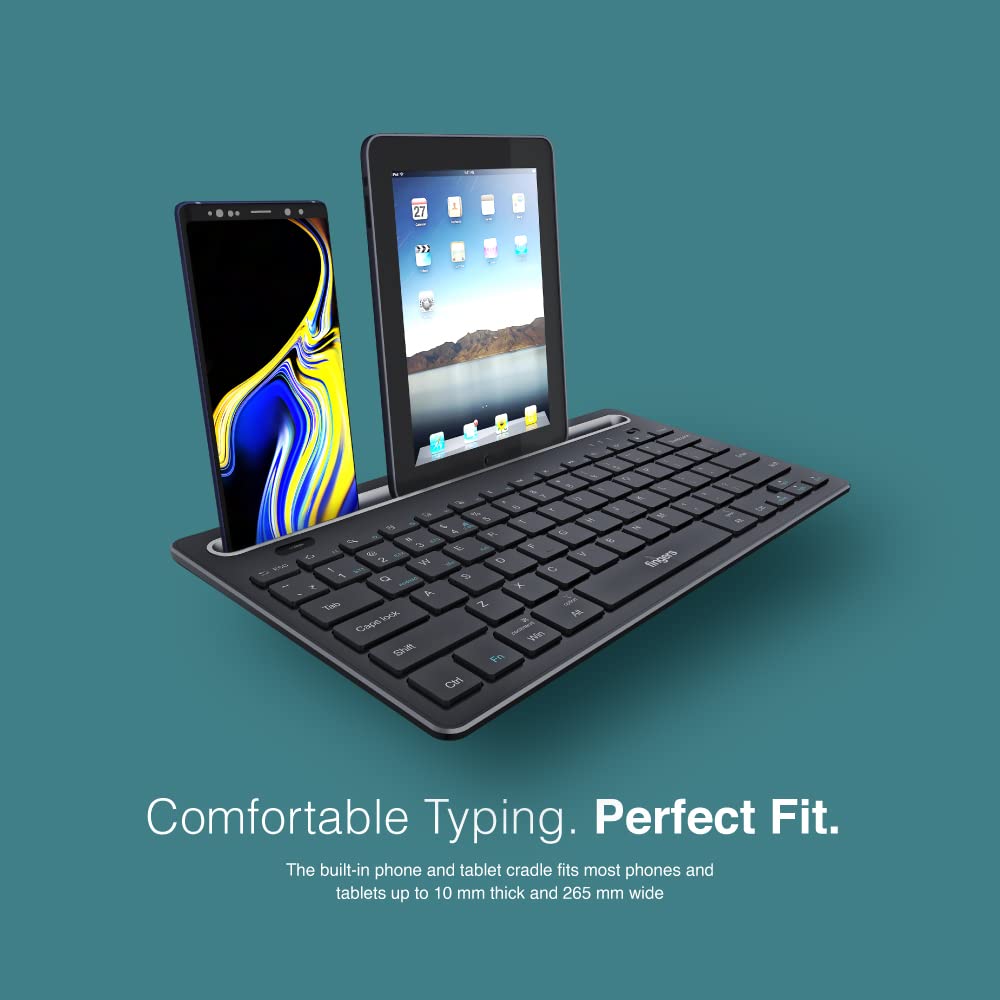
Image 4.2: The keyboard's integrated cradle holding a smartphone and a tablet for ergonomic viewing.
4.4. Compatibilitat del sistema operatiu
The Lil’Clicks keyboard is compatible with a wide range of operating systems:
- Windows
- macOS
- Android
- Linux
- Chrome OS
The keyboard automatically adapts to the connected operating system for optimal functionality. Some function key behaviors may vary slightly depending on the OS.
5. Manteniment
5.1. Neteja
Per netejar el teclat, netegeu suaument la superfície amb un drap suau iamp, lint-free cloth. Avoid using harsh chemicals, abrasive cleaners, or excessive moisture, as these can damage the keyboard. The membrane-coated sheet beneath the keys helps protect against dust and minor spills.
5.2. Cura de la bateria
The keyboard features a long-lasting battery, providing up to 45 days of usage on a single charge. To prolong battery life:
- Carregueu el teclat completament abans del primer ús.
- Eviteu esgotar completament la bateria amb freqüència.
- If storing the keyboard for an extended period, charge it to about 50% and store in a cool, dry place.
5.3. Emmagatzematge
When not in use, store the keyboard in a clean, dry environment away from extreme temperatures and direct sunlight. Its compact and lightweight design makes it easy to carry and store.

Image 5.1: The Lil’Clicks keyboard's portability, shown being carried and used in a cafe setting.
6. Solució De Problemes
If you encounter issues with your FINGERS Lil’Clicks keyboard, please refer to the following troubleshooting steps:
6.1. Keyboard Not Connecting/Pairing
- Comproveu la potència: Ensure the keyboard is turned on and has sufficient battery charge.
- Torna a entrar al mode d'emparellament: For Bluetooth, press and hold Fn + BT1/BT2/BT3 until the indicator blinks. For 2.4 GHz, ensure the USB receiver is securely plugged in.
- Dispositiu Bluetooth: Make sure Bluetooth is enabled on your device and it's discoverable.
- Forget Device (Bluetooth): If previously paired, try removing/forgetting the keyboard from your device's Bluetooth list and then re-pairing.
- Receptor USB: Try plugging the 2.4 GHz USB receiver into a different USB port on your device.
- Interferència: Acosteu el teclat al dispositiu i allunyeu-lo d'altres dispositius sense fil que puguin causar interferències.
6.2. Keys Not Responding or Typing Incorrectly
- Nivell de bateria: A low battery can affect key responsiveness. Charge the keyboard fully.
- Estabilitat de la connexió: Ensure a stable connection. If using Bluetooth, try switching to a different Bluetooth channel (BT1, BT2, BT3) or re-pairing. If using 2.4 GHz, ensure the receiver is firmly connected.
- Interferència: Wireless interference can sometimes cause missed keystrokes. Try moving to a different location or reducing other wireless activity.
- Claus netes: Check for any debris or foreign objects under the keys that might be obstructing their movement.
- Mode del sistema operatiu: Ensure the keyboard is in the correct operating system mode if there are specific key combinations for OS switching (e.g., Fn + Android/Win/Mac keys).
6.3. La bateria no es carrega
- Comproveu el cable: Ensure the Micro USB charging cable is securely connected to both the keyboard and the power source.
- Font d'alimentació: Try a different USB power source (e.g., another USB port on your computer, a different wall adapter).
- Integritat del cable: Inspect the charging cable for any signs of damage. Try using a different Micro USB cable if available.
7. Especificacions
| Marca | DITS |
| Model | Lil’Clicks |
| Connectivitat | Bluetooth, sense fil de 2.4 GHz |
| Compatibilitat | Windows, macOS, Android, Linux, Chrome OS |
| Color | Negre |
| Dimensions (LxWxH) | 29 x 16 x 2 cm |
| Pes de l'article | 400 g |
| Durada de la bateria | Up to 45 days (on a single charge) |
| Vida de teclat | 5 milions de pulsacions de tecles |
| Cradle Dimensions | Fits devices up to 10 mm thick and 265 mm wide |
| Font d'alimentació | Funciona amb bateria |
8. Garantia i Suport
8.1. Informació de la garantia
The FINGERS Lil’Clicks Bluetooth Wireless Mini Keyboard comes with a 1 anys de garantia des de la data de compra. Aquesta garantia cobreix els defectes de fabricació en condicions d'ús normal. Conserveu el rebut de compra com a comprovant de compra per a reclamacions de garantia.
La garantia no cobreix els danys derivats de:
- Accidental damage, misuse, abuse, or negligence.
- Reparació o modificació no autoritzada.
- Desgast normal.
8.2. Manufacturer and Importer Details
Fabricant: Dynamic Conglomerate Pvt. Ltd., 329/330, GIDC Phase II, Near Sardar Chowk, Vapi, Dist. Valsad, Gujarat - 396195.
Importador: Dynamic Conglomerate Pvt. Ltd. 4th Floor, Simba Tower, Vishveshwar Nagar, Goregaon (E), Mumbai - 400063, Maharashtra
8.3. Atenció al client
For technical assistance, warranty claims, or any other inquiries, please contact FINGERS customer support through their official website or the contact information provided in your Quick Usage Guide.