
1. Introducció
The Volcora Wireless 1D/2D Barcode Scanner is a versatile tool designed for efficient data collection in various environments such as retail, logistics, and inventory management. It supports scanning both 1D and 2D barcodes, including QR codes, and offers multiple connectivity options for seamless integration with your existing systems.
This manual provides detailed instructions on how to set up, operate, and maintain your barcode scanner, along with troubleshooting tips and product specifications.
2. Contingut del paquet
Si us plau, verifiqueu que tots els elements que s'enumeren a continuació estiguin inclosos al vostre paquet:
- 1 Barcode Scanner + Stand
- 1 Adaptador sense fil USB
- 1 cable USB
- 1 Manual d'usuari

Image: The package contents, showing the barcode scanner, its stand, a USB wireless adapter, a USB charging cable, and the instruction manual.
3. Configuració
3.1 Càrrega de l'escàner
Before initial use, fully charge the scanner. Connect the provided USB cable to the scanner's charging port and to a power source (e.g., computer USB port or USB wall adapter). A full charge takes approximately 4 hours. The scanner can operate for up to 24 hours of continuous use or remain on standby for up to 30 days.
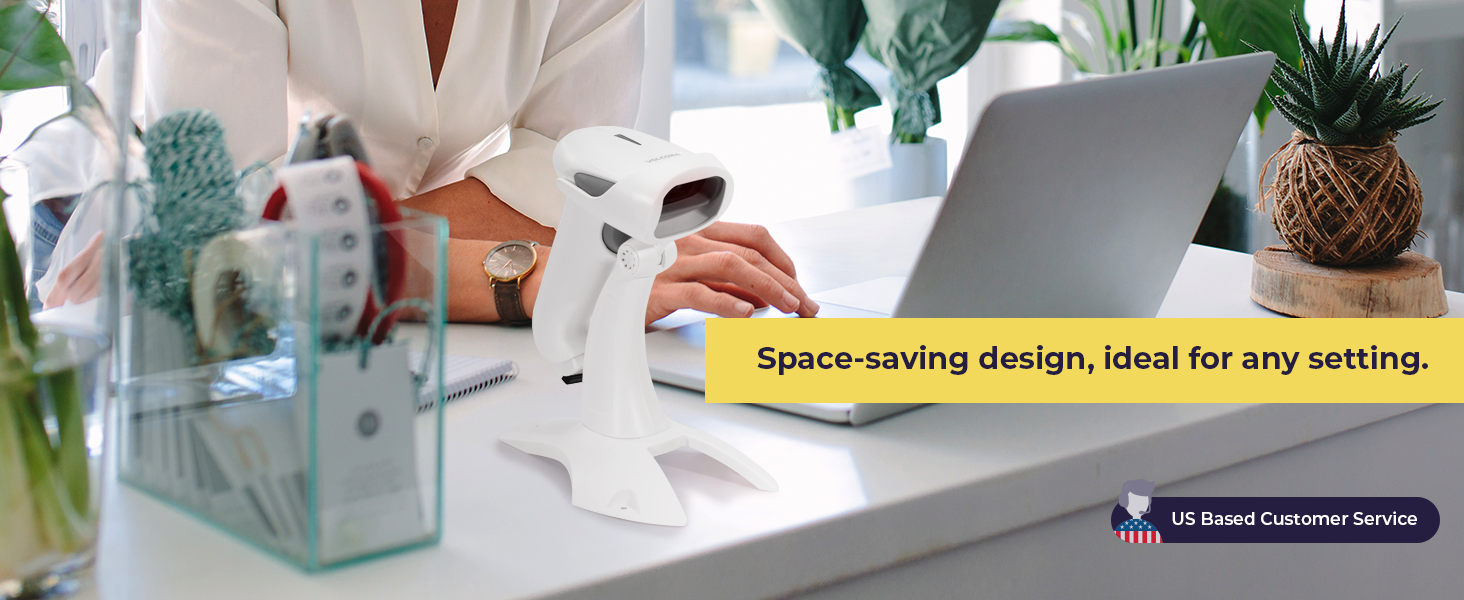
Image: The barcode scanner showing its USB charging port and details about its extended battery life.
3.2 Connexió de l'escàner
The Volcora barcode scanner offers three connection types: Bluetooth, 2.4GHz Wireless, and USB Wired.
- Connexió Bluetooth: Turn on the scanner. Enable Bluetooth on your host device (smartphone, tablet, PC). Cerca available devices and select the Volcora scanner to pair. The transmission distance is up to 49 feet (15 meters) in a barrier-free environment.
- Connexió sense fil de 2.4 GHz: Insert the USB Wireless Adapter into an available USB port on your computer. Turn on the scanner. The scanner will automatically connect to the adapter. The transmission distance is up to 328 feet (100 meters) in a barrier-free environment.
- Connexió per cable USB: Connect the scanner directly to your computer using the provided USB cable. The scanner will function as a wired device and also charge simultaneously.

Image: Visual representation of the scanner's 3-in-1 connection types: Bluetooth, 2.4GHz wireless, and USB wired, connecting to a laptop and a smartphone.
4. Funcionament
4.1 Modes d'escaneig
The scanner supports two primary operational modes:
- Mode de càrrega instantània: In this mode, scanned barcodes are transmitted to the connected device in real-time. This is ideal for immediate data entry.
- Mode d'emmagatzematge: When out of range or not connected, the scanner can store up to 50,000 barcodes in its 16 MB internal memory. Data can be bulk-uploaded to the host device later when a connection is established.

Image: The scanner in its stand, illustrating hands-free scanning and detailing the Instant Upload and Storage modes for data collection.
4.2 Capacitats de descodificació
The scanner is capable of accurately decoding a wide range of 1D and 2D barcodes, even those that are damaged, blurred, dislocated, or scratched. It features omnidirectional scanning for ease of use.
- Supported 1D Barcodes: UPC-A, ISBN, Code 128, and more.
- Supported 2D Barcodes: QR Code, Data Matrix, PDF417, Aztec, Maxicode, and more.

Image: An illustration highlighting the scanner's ability to decode various 1D and 2D barcode types, including those that are damaged, blurred, or scratched.
4.3 Language and Customization Settings
The scanner supports up to 24 languages, including English, Spanish, German, Italian, and Japanese. It also allows for customization of settings such as uppercase/lowercase output, adding prefixes or suffixes, hiding characters, and adjusting volume and scanning speed. Refer to the detailed programming guide (usually found in the full user manual or manufacturer's website) for specific barcode configurations to change these settings.
5. Manteniment
5.1 Neteja
To ensure optimal performance, keep the scanner's scanning window clean. Use a soft, lint-free cloth, slightly dampened with water or a mild cleaning solution. Avoid abrasive materials or harsh chemicals that could scratch the window.
5.2 Emmagatzematge
Store the scanner in a cool, dry place away from direct sunlight and extreme temperatures. When not in use, it is recommended to place the scanner on its stand to prevent accidental damage.
5.3 Cura de la bateria
To prolong battery life, avoid fully discharging the scanner frequently. If storing for an extended period, charge the battery to about 50% and recharge every few months.
6. Solució De Problemes
6.1 Scanner Not Connecting
- Assegureu-vos que l'escàner estigui encès i completament carregat.
- For Bluetooth, ensure Bluetooth is enabled on your device and the scanner is in pairing mode.
- For 2.4GHz wireless, ensure the USB adapter is securely plugged in and recognized by your computer.
- For USB wired, try a different USB port or cable.
6.2 Slow Scanning or Inaccurate Reads
- Clean the scanner's optical window as described in the Maintenance section.
- Ensure the barcode is clear, well-lit, and within the scanner's optimal reading distance.
- Check for any obstructions between the scanner and the barcode.
- If using wireless, ensure you are within the effective transmission range.
6.3 Not Compatible with Square POS
Please note that this scanner may not be compatible with Square Point of Sale (POS) systems. Compatibility can vary with different POS software and hardware configurations. It is recommended to verify compatibility with your specific POS system before purchase or contact Volcora customer support for assistance.
7. Especificacions
| Característica | Detall |
|---|---|
| Número de model | B0BFC29Z3F |
| Tecnologia de connectivitat | Bluetooth, 2.4GHz Wireless, USB Cable |
| Dispositius compatibles | Desktop, Laptop, Tablet, Smartphone (iOS, Android, Linux, Windows, MacOS) |
| Font d'alimentació | Funciona amb piles, elèctric amb cable |
| Tipus de bateria | 1 bateria de ions de liti (inclosa) |
| Temps de càrrega | Aprox. 4 hores |
| Temps de funcionament | Fins a 24 hores (ús continu) |
| Temps d'espera | Fins a 30 dies |
| Emmagatzematge intern | 16 MB (up to 50,000 barcodes) |
| Distància de transmissió Bluetooth | Up to 49 ft (15 M) in barrier-free environment |
| 2.4GHz Wireless Transmission Distance | Up to 328 ft (100 M) in barrier-free environment |
| Codis de barres compatibles | 1D (e.g., UPC-A, ISBN, Code 128), 2D (e.g., QR Code, Data Matrix, PDF417) |
| Dimensions de l'article (D x W x H) | 16"D x 4"W x 16"H (Note: This dimension seems to be for a cash drawer, not the scanner itself. Please refer to product packaging for accurate scanner dimensions.) |
| UPC | 810041567338 |
8. Garantia i Suport
8.1 Garantia de per vida
All Volcora products are backed by a limited lifetime warranty. This warranty covers defects in materials and workmanship under normal use. Please retain your proof of purchase for warranty claims.
8.2 Atenció al client
Volcora provides U.S.-based customer support. If you encounter any issues with your barcode scanner or require assistance with integration, please contact our support team. Contact information can be found on the Volcora official weblloc web o l'embalatge del producte.