
1. Introducció
This manual provides essential information for the proper installation, configuration, and operation of your Teltonika RUT951 4G LTE Router. The RUT951 is a robust industrial cellular router designed for professional applications, offering reliable internet connectivity via 4G LTE, Wi-Fi, and Ethernet. It features dual-SIM support for network redundancy and is powered by RutOS, providing advanced customization and security features.
2. Producte acabatview
2.1 Característiques clau
- Dual-SIM 4G LTE cellular connectivity for reliable network access.
- Integrated Wi-Fi (802.11b/g/n) for local wireless networking.
- Four Ethernet interfaces (3x LAN, 1x WAN) for wired connections.
- Powered by RutOS for advanced customization, automation, and security.
- Robust design suitable for various IoT and industrial scenarios.
2.2 Contingut del paquet
The standard package for the Teltonika RUT951 router typically includes:
- Teltonika RUT951 Router Unit
- Adaptador d'alimentació
- 2 x Mobile Antennas (SMA)
- 2 x Wi-Fi Antennas (RP-SMA)
- Cable Ethernet
- Guia d'inici ràpid
2.3 Router Layout
Familiarize yourself with the router's ports, indicators, and slots.
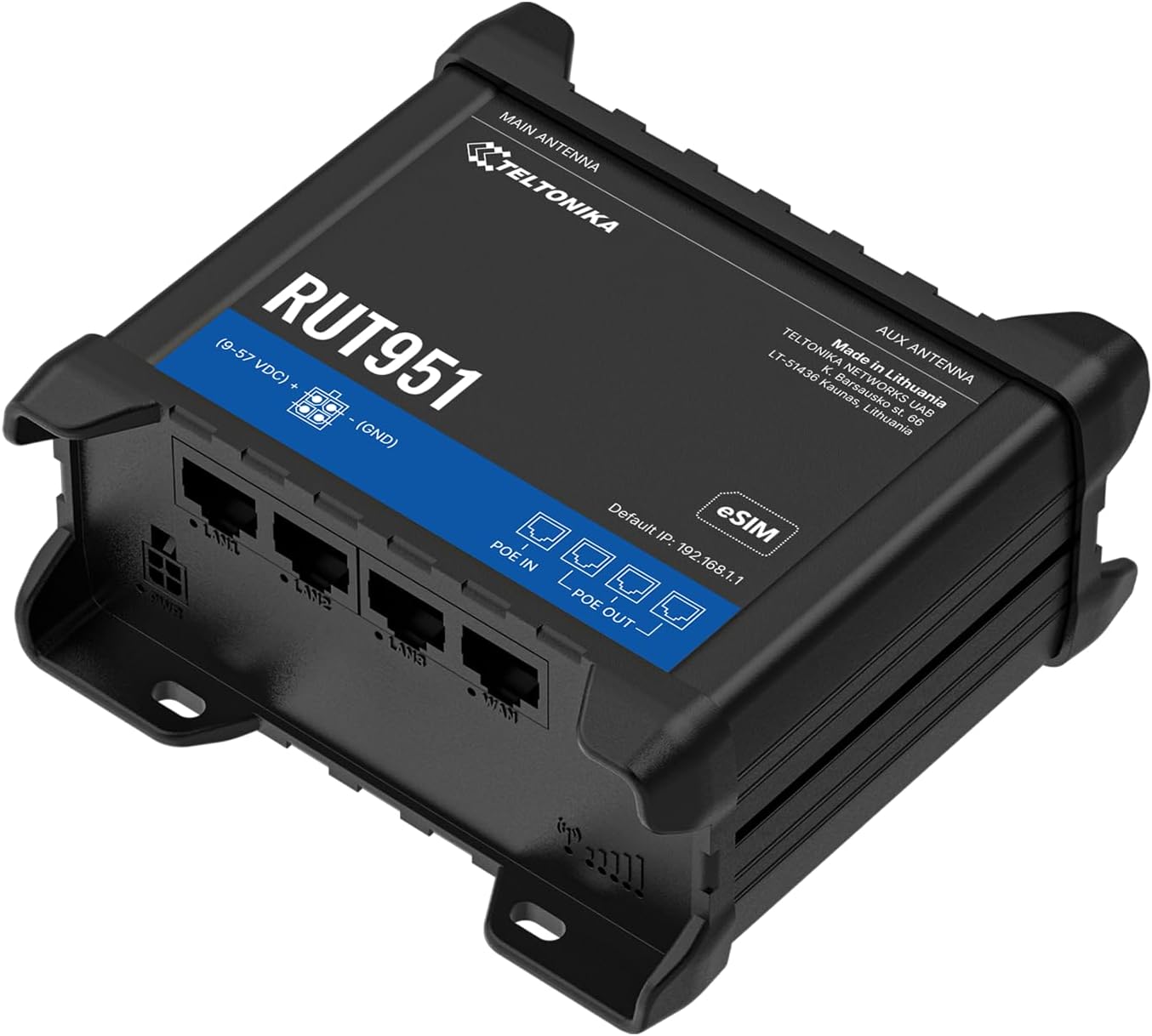
Figura 1: Davant view of the Teltonika RUT951 router, showing the model name and general design.

Figura 2: Detailed diagram illustrating the various ports and indicators on the Teltonika RUT951 router, including mobile and Wi-Fi antenna connectors, SIM slots, Ethernet ports, power socket, and LED indicators.
- Mobile AUX Antenna Connector (SMA female): For secondary mobile antenna.
- Mobile MAIN Antenna Connector (SMA female): For primary mobile antenna.
- SIM1 / SIM2 Slots: For inserting cellular SIM cards.
- Botó de reset: To restore factory settings or reboot.
- Wi-Fi Antenna Connectors (RP-SMA female): For Wi-Fi antennas.
- Endoll: Per connectar l'adaptador de corrent.
- Ports LAN Ethernet: Per connectar dispositius de xarxa local.
- Port Ethernet WAN: For connecting to an external network (e.g., fiber modem).
- Mobile Signal Strength LEDs: Indicate cellular signal strength.
- Mobile Connection Status LED: Indicates cellular connection status.
- LED LAN: Indica activitat als ports LAN.
- LED WAN: Indica activitat al port WAN.
3. Instruccions de configuració
3.1 Instal·lació de la targeta SIM
- Locate the SIM card slots (SIM1 and SIM2) on the top panel of the router.
- Using a SIM ejector tool or a paperclip, gently press the small button next to the SIM slot to open it.
- Insert your activated Mini-SIM card(s) into the slot(s) with the gold contacts facing down and the notched corner oriented correctly.
- Push the SIM tray back into the router until it clicks into place.

Figura 3: A dalt view of the RUT951, highlighting the SIM card slots and antenna connectors.
3.2 Connexió de l'antena
- Screw the two mobile antennas onto the SMA connectors labeled 'MOBILE' (MAIN and AUX) on the top panel.
- Screw the two Wi-Fi antennas onto the RP-SMA connectors labeled 'WIFI' on the top panel.
- Ensure all antennas are securely tightened for optimal signal reception.
3.3 Connexió d'alimentació
- Connect the provided power adapter to the power socket on the router.
- Connecteu l'altre extrem de l'adaptador d'alimentació a una presa de corrent adequada.
- The router will power on automatically. Observe the power LED indicator.

Figura 4: A baix view of the RUT951, showing the Ethernet ports and power input.
3.4 Connexió Ethernet
To connect a device directly to the router:
- Connect one end of an Ethernet cable to any of the LAN ports (LAN1, LAN2, LAN3) on the router.
- Connect the other end of the Ethernet cable to your computer or network device.
- If you are using the router as a WAN gateway, connect your external modem (e.g., fiber modem) to the WAN port.
4. Instruccions de funcionament
4.1 Initial Access to WebUI
- Ensure your computer is connected to the router via Ethernet or Wi-Fi. The default Wi-Fi SSID and password can be found on the router's label.
- Obre a web navegador i introduïu l'adreça IP predeterminada: 192.168.1.1
- You will be prompted for login credentials. The default username is admin. The default password is also admin (or as specified on the router's label).
- Upon first login, you will be guided through a setup wizard to change the default password and configure basic settings.
4.2 Configuració de la xarxa
After initial login, you can configure various network settings through the WebIU:
- Configuració de la WAN: Configure your cellular (4G LTE) connection, including APN settings, or set up the Ethernet WAN port.
- Configuració LAN: Manage the local network IP address range and DHCP server.
- Configuració de Wi-Fi: Change Wi-Fi SSID, password, security protocols, and channel settings.
- Doble SIM: Configure failover or load balancing between the two SIM cards for continuous connectivity.
- VPN: Set up various VPN protocols for secure remote access.
5. Manteniment
5.1 actualitzacions de microprogramari
Regularly updating the router's firmware is crucial for security, performance, and new features. Firmware updates can be performed via the WebUI under the 'System' or 'Firmware' section. Always download firmware from the official Teltonika Networks weblloc.
5.2 Restabliment de fàbrica
Si teniu problemes persistents o oblideu les vostres credencials d'inici de sessió, podeu restablir les dades de fàbrica:
- With the router powered on, locate the RESET button (refer to Figure 2).
- Press and hold the RESET button for approximately 10 seconds until all LEDs flash.
- Deixeu anar el botó. El router es reiniciarà amb la configuració predeterminada de fàbrica.
6. Solució De Problemes
- Sense connexió a Internet:
- Check SIM card insertion and activation.
- Verifiqueu la configuració de l'APN a WebIU.
- Ensure mobile antennas are securely connected.
- Check cellular signal strength LEDs.
- El Wi-Fi no funciona:
- Ensure Wi-Fi is enabled in the WebIU.
- Comproveu les connexions de l'antena Wi-Fi.
- Verify Wi-Fi SSID and password.
- No es pot accedir WebIU:
- Ensure your device is connected to the router (Ethernet or Wi-Fi).
- Verifiqueu la configuració IP de l'ordinador (hauria d'estar configurada per obtenir la IP automàticament).
- Prova d'esborrar la memòria cau del navegador o utilitza un altre navegador.
- Perform a factory reset if you suspect incorrect IP configuration or forgotten password.
7. Especificacions
| Característica | Especificació |
|---|---|
| Marca | Teltonica |
| Nom del model | RUT951 |
| Tecnologia de connectivitat | Wi-Fi, 4G LTE, 3G, 2G |
| Comunicació sense fils estàndard | 802.11b, 802.11g, 802.11n |
| Classe de banda de freqüència | Doble banda |
| Nombre de Ports | 4 (3x LAN, 1x WAN) |
| LAN Port Bandwidth | 100 Mbps |
| Velocitat de transferència de dades | 150 Megabits Per Second (Max Upstream) |
| Sistema operatiu | RutOS |
| Pes de l'article | 287 grams |
| Voltage | 30 Volts |
| Protocol de seguretat | WPS (and others via RutOS) |
| Cobertura | Dual SIM network redundancy |
8. Informació de seguretat
- Utilitzeu només l'adaptador d'alimentació subministrat amb el dispositiu.
- No exposeu el dispositiu a l'aigua, la humitat ni a temperatures extremes.
- Eviteu col·locar el dispositiu a prop de fonts de calor o sota la llum solar directa.
- Assegureu-vos una ventilació adequada per evitar el sobreescalfament.
- No intenteu obrir ni modificar el dispositiu. Això anul·larà la garantia.
- Dispose of the device and its accessories responsibly according to local regulations.
9. Garantia i Suport
The Teltonika RUT951 router comes with a standard manufacturer's warranty. For detailed warranty terms and conditions, please refer to the documentation included with your product or visit the official Teltonika Networks website. For technical support, firmware downloads, and additional resources, please visit the Teltonika Networks support portal or contact your vendor.