
Introducció
The KRUX Neo PRO White RGB Wireless 60% Mechanical Keyboard is designed for users who require a compact keyboard, often referred to as a 'Sixty' layout, to maximize desk space. This keyboard offers both wired and wireless connectivity options, making it suitable for various computing environments, including computer and console gaming setups. It features durable Gateron switches and double injection keycaps for a reliable typing experience.
Contingut del paquet
- KRUX Neo PRO White RGB Wireless 60% Mechanical Keyboard
- Cable USB (per a connexió amb cable i càrrega)
Configuració
Connexió per cable
- Connect the provided USB cable to the USB-C port on the keyboard.
- Connecteu l'altre extrem del cable USB a un port USB disponible de l'ordinador.
- The keyboard will be automatically recognized by your operating system (e.g., Windows 10) and will begin charging.
Connexió sense fil (Bluetooth)
- Ensure the keyboard is charged or connected via USB for initial setup.
- Locate the power/mode switch on the back of the keyboard. Switch it to the Bluetooth mode.
- Al vostre ordinador o dispositiu, aneu a la configuració de Bluetooth.
- Activa el Bluetooth i cerca dispositius nous.
- Select "KRUX Neo PRO" (or similar name) from the list of available devices to pair.
- Si se us demana, introduïu el codi d'emparellament que es mostra a la pantalla.
- Once paired, the keyboard is ready for wireless use.

Figura 1: Esquena view of the KRUX Neo PRO keyboard. Note the product label with model number KRX0113 and the mode switch for wired/wireless operation.
Instruccions de funcionament
60% Layout Functionality
The 60% keyboard layout omits the numeric keypad, function row, navigation cluster, and arrow keys to achieve a compact size. These functions are typically accessed via a Function (Fn) key combination. Refer to the keyboard's specific keycap legends or included quick guide for exact Fn key combinations for F-keys, arrow keys, Home, End, PgUp, PgDn, etc.
Control de retroil·luminació RGB
The KRUX Neo PRO features RGB backlighting. Specific key combinations (often involving the Fn key and other designated keys like 'P' or 'L') are used to:
- Change lighting modes (e.g., static, breathing, wave).
- Ajustar els nivells de brillantor.
- Change lighting colors.
- Adjust animation speed.
Consult the keyboard's quick start guide for detailed instructions on RGB control.
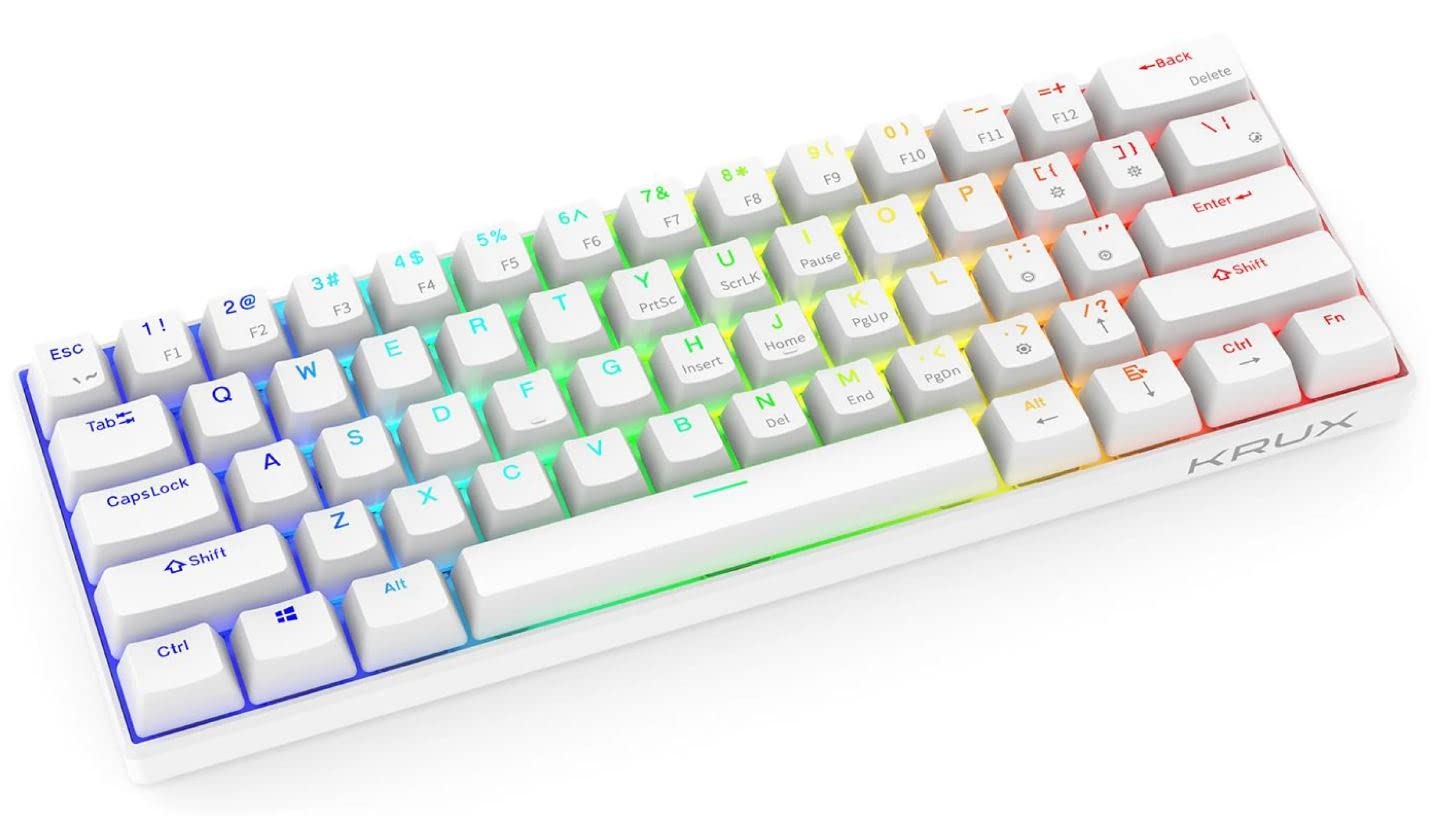
Figura 2: Primer pla view of the KRUX Neo PRO keyboard, highlighting the white keycaps and the yellow Gateron mechanical switches beneath them.
Manteniment
Neteja
- Desconnecteu el teclat de l'ordinador abans de netejar-lo.
- Feu servir un drap suau i sec per netejar la superfície del teclat.
- Per a la brutícia persistent, lleugerament dampNetegeu el drap amb aigua o un netejador suau i no abrasiu. Eviteu la humitat excessiva.
- Feu servir aire comprimit per eliminar la pols i les restes que hi ha entre les tecles.
- Do not immerse the keyboard in water or any cleaning solution.
Emmagatzematge
Guardeu el teclat en un lloc fresc i sec, allunyat de la llum solar directa i de temperatures extremes. Si l'emmagatzemeu durant un període prolongat, assegureu-vos que la bateria estigui parcialment carregada (al voltant del 50%) per allargar-ne la vida útil.
Resolució de problemes
Keyboard Not Responding (Wired)
- Assegureu-vos que el cable USB estigui connectat correctament tant al teclat com a l'ordinador.
- Prova de connectar el teclat a un port USB diferent de l'ordinador.
- Prova el teclat en un altre ordinador per descartar un problema específic de l'ordinador.
Keyboard Not Responding (Wireless)
- Check if the keyboard's battery is charged. Connect it via USB to charge if necessary.
- Ensure the keyboard's mode switch is set to Bluetooth.
- Verify that Bluetooth is enabled on your computer/device.
- Try re-pairing the keyboard with your device. Remove the existing pairing and initiate a new connection.
- Assegureu-vos que cap altre dispositiu interfereixi amb el senyal Bluetooth.
La il·luminació RGB no funciona
- Check the keyboard's brightness settings using the appropriate Fn key combinations.
- Ensure the keyboard is receiving sufficient power (especially in wired mode).
- If using wireless, ensure the battery has enough charge to power the lighting.
Especificacions
| Característica | Especificació |
|---|---|
| Marca | Krux |
| Model | KRX0113 |
| Disposició del teclat | 60% |
| Tipus de canvi | Gateron Mechanical |
| Tecnologia de tecles | Doble injecció |
| Connectivitat | Wired (USB), Wireless (Bluetooth) |
| Il·luminació de fons | RGB |
| Sistema operatiu compatible | Windows 10 |
| Dispositius compatibles | PC (Personal Computer) |
| Dimensions del producte | 29.1 x 10.1 x 3.95 cm |
| Pes | 580 g |
| Tipus de bateria | 1 d'ions de liti |
| Components inclosos | Cable USB |
| Primera data disponible | 1 d'octubre de 2022 |
Garantia i Suport
For warranty information and technical support, please refer to the documentation provided with your purchase or visit the official KRUX weblloc web. Conserveu el comprovant de compra per a reclamacions de garantia.