
1. Introducció
The Fanvil PA2S is a versatile SIP paging gateway designed for media streaming using standard IP/RTP/RTSP protocols. It integrates various functionalities including broadcast, recording, intercom, and security features. This device facilitates audio and video intercom, broadcasting, and security triggers through external device connections, making it suitable for diverse integration solutions.
1.1. Contingut del paquet
- Fanvil PA2S Paging Gateway
- Connector de bloc de terminals
2. Producte acabatview
The Fanvil PA2S offers a compact design with multiple interfaces for comprehensive communication and security applications.
2.1. Característiques clau
- SIP Unified Communication for full connectivity
- HD Audio for clear and far-reaching broadcasts
- Online Broadcasting or MP3 Broadcasting capabilities
- Support for HD Video Linkage
- Cloud Platform for simplified remote management
- Audio line out port for expandable external active speakers
- Recording output via 3.5mm standard audio interface
- NVR video recording with standard RJ45 interface
- Emergency call button interface for active calls
2.2. Disseny del dispositiu

Figura 1: Davant view of the Fanvil PA2S SIP Paging Gateway. This image displays the compact black casing of the device, highlighting its overall form factor.
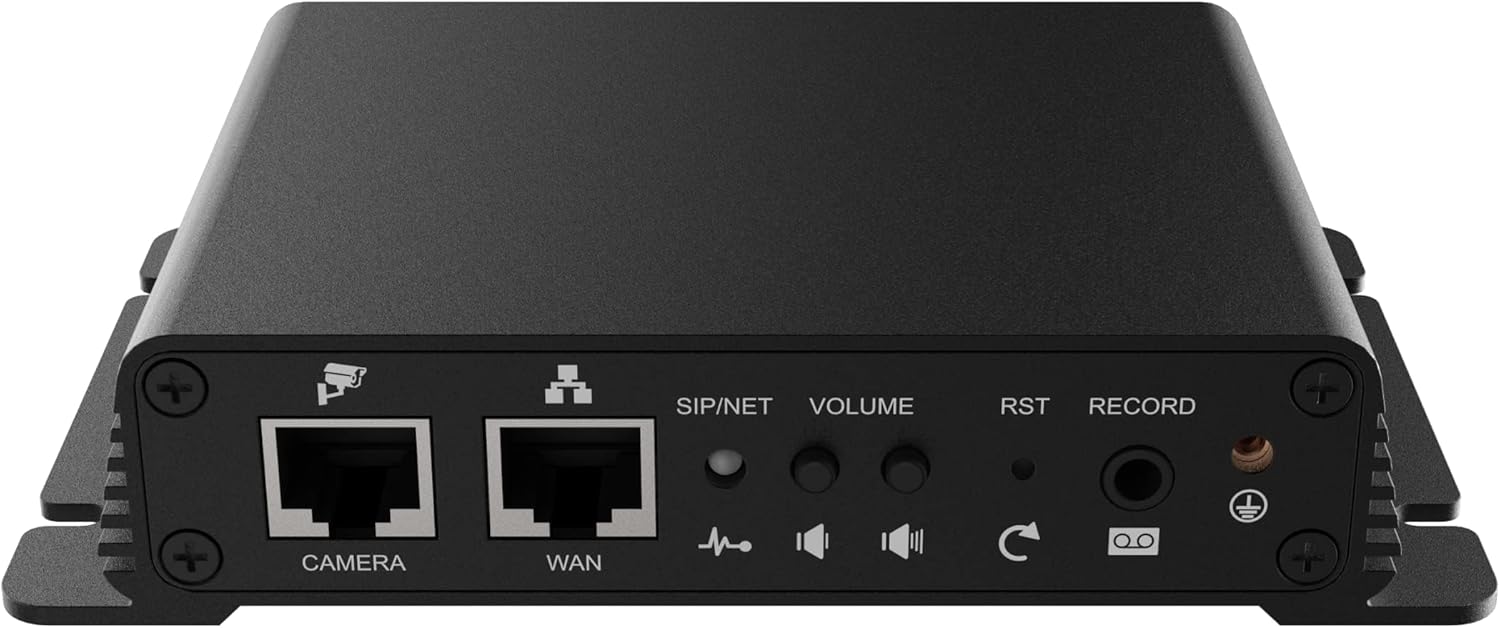
Figura 2: posterior view of the Fanvil PA2S SIP Paging Gateway, showing the various connection ports. From left to right, these include the CAMERA and WAN Ethernet ports, SIP/NET status indicator, VOLUME control, RST (Reset) button, RECORD port, and a ground screw.
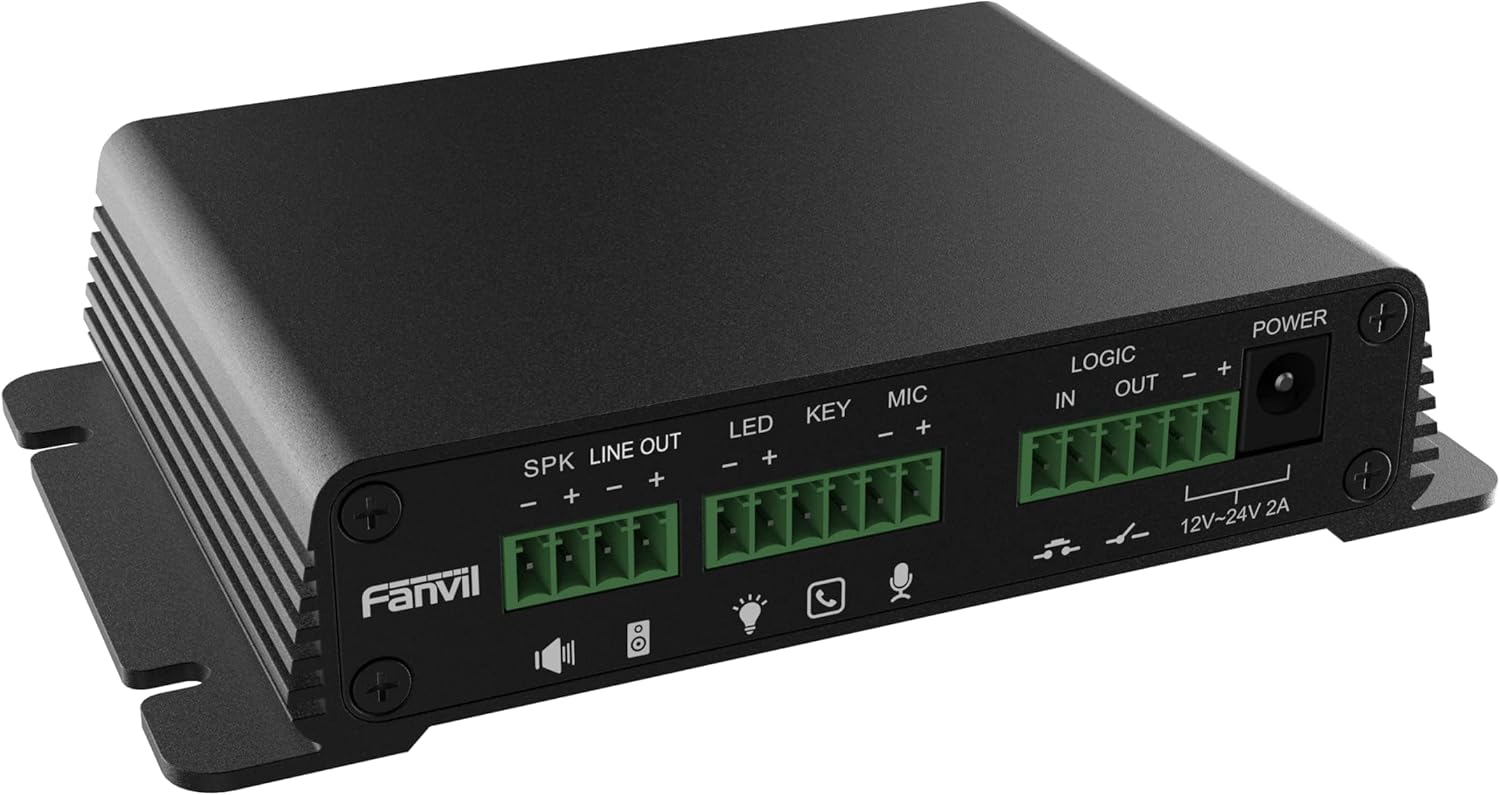
Figura 3: lateral view of the Fanvil PA2S SIP Paging Gateway, detailing the terminal block connectors. These include SPK LINE OUT, LED, KEY, MIC, LOGIC IN/OUT, and POWER input (12V-24V 2A).
3. Configuració
Follow these steps to properly set up your Fanvil PA2S SIP Paging Gateway.
3.1. Connexió d'alimentació
- Connect the provided power adapter to the POWER input terminal block on the side of the PA2S. Ensure correct polarity (+ and -).
- Plug the power adapter into a suitable electrical outlet. The device will power on automatically.
3.2. Connexió a la xarxa
- Connect an Ethernet cable from your network switch or router to the WAN port on the rear of the PA2S.
- The SIP/NET LED indicator will illuminate once a network connection is established and the device obtains an IP address.
3.3. Connexions perifèriques
- Ponents: Connect external active speakers to the SPK LINE OUT bloc de terminals.
- Micròfon: Connecteu un micròfon al MIC bloc de terminals.
- Emergency Button/Key: Connect an emergency call button or other key input to the CLAU bloc de terminals.
- Indicador LED: Connect an external LED indicator to the LED terminal block for status indication.
- Logic In/Out: Utilitzeu el LOGIC IN i SORTIDA LÒGICA terminal blocks for integration with other security or control systems.
- Càmera: If using video linkage, connect an IP camera to the CÀMERA Port Ethernet.
- Recording Device: For external recording, connect a recording device to the REGISTRAR presa d'àudio de 3.5 mm.
4. Instruccions de funcionament
This section outlines the basic operation of the Fanvil PA2S.
4.1. Web Accés a la interfície
- Obtain the IP address of the PA2S (e.g., via a network scanner or by checking your router's DHCP client list).
- Obre a web browser and enter the IP address of the PA2S into the address bar.
- Log in using the default credentials (refer to the device's documentation for default username and password).
- Des del web interface, you can configure SIP accounts, network settings, audio parameters, and other advanced features.
4.2. SIP Configuration
The PA2S functions as a SIP endpoint. It is compatible with various SIP platforms such as Asterisk, Broadsoft, 3CX, Metaswitch, Elastix, and Avaya. Refer to your SIP server documentation and the PA2S web interface for detailed configuration steps to register the device as an extension.
4.3. Paging and Broadcasting
- Once registered to a SIP server, the PA2S can receive paging calls from other SIP devices.
- Audio received via SIP will be output through the connected speakers.
- The device supports online broadcasting and playback of MP3 files (if configured via the web interfície).
4.4. Control de volum
Adjust the output volume using the VOLUM knob located on the rear of the device or through the web configuració de la interfície.
4.5. Emergency Call
If an emergency call button is connected to the CLAU terminal, pressing it can trigger a pre-configured emergency call to a designated SIP extension or number.
5. Manteniment
Proper maintenance ensures the longevity and optimal performance of your PA2S.
5.1. Neteja
- Utilitzeu un drap suau i sec per netejar l'exterior del dispositiu.
- No utilitzeu netejadors líquids ni aerosols directament sobre el dispositiu.
5.2. Actualitzacions de firmware
Consulteu periòdicament el registre oficial de Fanvil website for firmware updates. Firmware updates can provide new features, performance improvements, and security enhancements. Follow the instructions provided with the firmware package for the update process via the web interfície.
6. Solució De Problemes
This section addresses common issues you might encounter with the Fanvil PA2S.
6.1. Sense poder
- Ensure the power adapter is securely connected to both the PA2S and a working electrical outlet.
- Verify the power adapter's specifications match the device requirements (12V-24V 2A).
6.2. Sense connexió de xarxa
- Check that the Ethernet cable is securely connected to the WAN port and your network device.
- Verify that your network switch or router is functioning correctly.
- Confirm that the SIP/NET LED indicator is illuminated. If not, check network settings via the web interface after a direct PC connection.
6.3. Sense sortida d'àudio
- Ensure external speakers are properly connected to the SPK LINE OUT terminal and are powered on.
- Ajusteu el VOLUM knob on the rear of the device.
- Check audio settings in the PA2S web interfície.
- Verify that the SIP call is successfully established and audio is being sent to the PA2S.
6.4. SIP Registration Failure
- Verify SIP account credentials (username, password, server address) in the web interfície.
- Ensure network connectivity to the SIP server.
- Check firewall settings on your network that might be blocking SIP traffic.
6.5. El dispositiu no respon
If the device becomes unresponsive, press and hold the RST (Reset) button on the rear panel for approximately 5-10 seconds to perform a factory reset. Avís: A factory reset will erase all configurations and restore default settings.
7. Especificacions
Technical specifications for the Fanvil PA2S SIP Paging Gateway.
| Característica | Especificació |
|---|---|
| Dimensions del producte (L x A x A) | 5.91 x 5.91 x 3.15 polzades (15 x 15 x 8 cm) |
| Pes de l'article | 11.1 unces (314.7 grams) |
| Font d'alimentació | Corded Electric (12V-24V 2A) |
| Color | Negre |
| Dispositius compatibles | Asterisk, Broadsoft, 3CX, Metaswitch, Elastix, Avaya |
| Tipus de telèfon | Corded (VoIP Phone functionality) |
| Operació multilínia | Operació multilínia |
| Capacitat de trucades de conferència | Bàsica |
| Tipus de contestador | Digital |
8. Informació de la garantia
Fanvil products are covered by a limited warranty. For detailed information regarding warranty terms, conditions, and duration, please refer to the official Fanvil weblloc web o poseu-vos en contacte amb el vostre distribuïdor autoritzat. Conserveu el rebut de compra com a comprovant de compra per a reclamacions de garantia.
9. Suport
For technical assistance, product inquiries, or further support, please visit the official Fanvil support website or contact your local distributor. Online resources, FAQs, and firmware downloads are typically available on the manufacturer's weblloc.
Fanvil Official Weblloc: www.fanvil.com