
1. Introducció
Thank you for choosing the Doohoeek Floating Bluetooth Keyboard. This manual provides detailed instructions for setting up, operating, and maintaining your keyboard, designed to enhance your iPad experience with its floating design, backlit keys, and integrated trackpad. This keyboard is compatible with iPad Air 5 (2022) and iPad Pro 11-inch (2022) models.

The Doohoeek Floating Bluetooth Keyboard with an iPad securely attached, showcasing el seu disseny.
2. Contingut del paquet
- Doohoeek Floating Bluetooth Keyboard Case
- Cable de càrrega USB-C
- Manual d'usuari
3. Configuració
3.1 Càrrega del teclat
Before first use, fully charge the keyboard. Connect the provided USB-C charging cable to the keyboard's charging port and to a USB power adapter (not included). The charging indicator light will show the charging status.
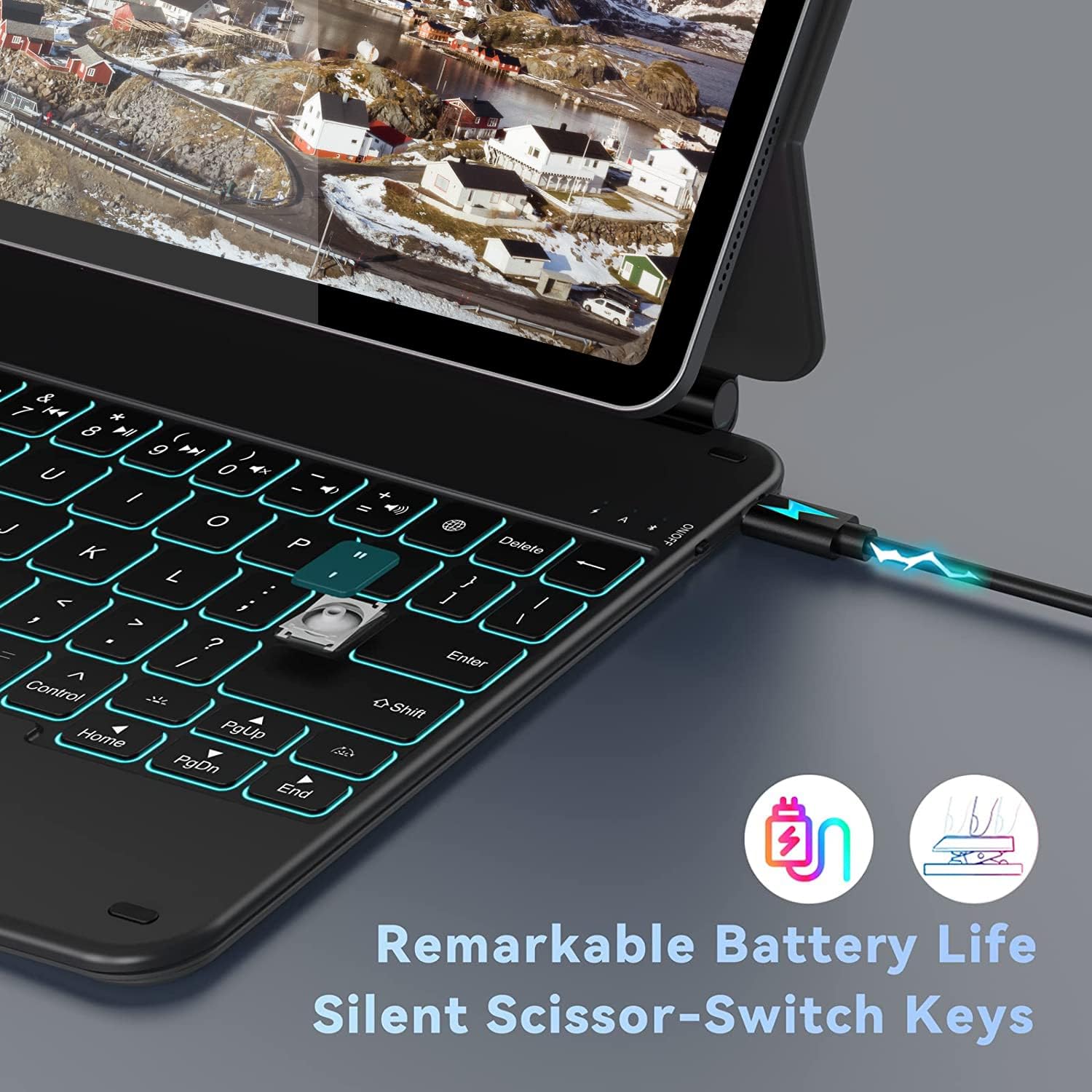
This image shows the charging port, indicating the keyboard's battery life, and emphasizes the silent scissor-switch key mechanism.
3.2 Connectar el vostre iPad
- Obriu la funda del teclat.
- Align your iPad with the magnetic back panel of the keyboard case. The strong magnets will securely attach the iPad.
- Ajusteu el viewing angle to your preference. The floating cantilever design allows for smooth angle adjustments up to 130 degrees.

The floating design allows for smooth angle adjustment, providing comfortable viewing for work or entertainment.
3.3 Vinculació Bluetooth
- Assegureu-vos que el teclat estigui carregat i engegat. L'interruptor d'engegada normalment es troba al lateral o a la part posterior del teclat.
- Al teu iPad, vés a Configuració > Bluetooth.
- Turn on Bluetooth. Your iPad will search for discoverable devices.
- Al teclat, premeu Fn + C keys simultaneously to enter pairing mode. The Bluetooth indicator light will flash.
- Select "Doohoeek Keyboard" (or similar name) from the list of available devices on your iPad.
- Once paired, the Bluetooth indicator light on the keyboard will turn off, and your iPad will show the keyboard as "Connected."
4. Instruccions de funcionament
4.1 Funcions del teclat
The keyboard features a standard QWERTY layout with additional function keys for iPadOS control.
- Tecla Fn: Used in combination with other keys for special functions (e.g., media control, volume).
- Command (Cmd) Key: Functions as the Command key in iPadOS for shortcuts.
- Control (Ctrl) Key: Functions as the Control key in iPadOS.
- Option (Opt) Key: Functions as the Option key in iPadOS.
Control de retroiluminació 4.2
The keyboard features 7-color backlighting with 3 adjustable brightness levels.
- To adjust backlight brightness: Press the Brillant amunt / avall key (often represented by a sun icon) to cycle through brightness levels.
- To change backlight color: Press the RGB key (often represented by a lightbulb icon) to cycle through the 7 available colors.

The keyboard features 7-color and 3-level brightness backlit keys, adjustable for various lighting conditions.
4.3 Ús del trackpad
The integrated trackpad supports multi-touch gestures for seamless navigation within iPadOS.
- Toc amb un sol dit: Click/Select.
- Desplaçament amb dos dits: Desplaça't amunt/avall o esquerra/dreta.
- Two Finger Pinch: Amplia / redueix.
- Lliscament cap amunt amb tres dits: Go to Home Screen.
- Three Finger Swipe Left/Right: Canvia entre les aplicacions obertes.
- Four Finger Pinch: Open App Switcher.
Note: Ensure "Tap to Click" is enabled in your iPad's settings for optimal trackpad performance. Go to Settings > General > Trackpad > Tap to Click.

The built-in trackpad supports familiar iPadOS gestures, offering precise control and navigation.
5. Manteniment
5.1 Neteja
- Use a soft, lint-free cloth to wipe the keyboard and case.
- Per a la brutícia persistent, lleugerament dampal drap amb aigua o un netejador suau i no abrasiu.
- Avoid getting moisture into the charging port or between the keys.
5.2 Cura de la bateria
- Carregueu el teclat regularment per mantenir la bateria en bon estat.
- Eviteu descarregar completament la bateria amb freqüència.
- If storing for an extended period, charge the keyboard to about 50% and store in a cool, dry place.
6. Solució De Problemes
6.1 El teclat no es connecta
- Assegureu-vos que el teclat estigui encès i carregat.
- Turn off and on your iPad's Bluetooth.
- Forget the device in iPad's Bluetooth settings and re-pair.
- Reinicieu el vostre iPad.
6.2 La retroiluminació no funciona
- Assegureu-vos que el teclat tingui prou bateria carregada.
- Press the brightness adjustment keys to ensure it's not set to the lowest level.
6.3 Trackpad Unresponsive
- Assegureu-vos que el teclat estigui connectat correctament mitjançant Bluetooth.
- Check iPad settings for "Tap to Click" and other trackpad options.
- Netegeu la superfície del trackpad.
7. Especificacions
| Característica | Detall |
|---|---|
| Marca | Doohoeek |
| ASIN | B0BKP2H7XJ |
| Descripció del teclat | Sense fil |
| Usos recomanats del producte | Office work, content creation, productivity |
| Keyboard Backlight Color Management | RGB (7 colors, 3 levels) |
| Material | Plàstic |
| Font d'alimentació | Battery Powered (1 Lithium metal battery required) |
| Tipus de canvi | Mecànica |
| Nombre de claus | 78 |
| Generation (iPad Compatibility) | 5 (iPad Air 5th Gen, iPad Pro 11-inch 1st, 2nd, 3rd Gen) |
| Disponibilitat de peces de recanvi | Informació no disponible |
| Actualitzacions de programari garantides fins a | No disponible |
8. Informació de la garantia
Doohoeek products are covered by a limited warranty against manufacturing defects from the date of purchase. Please retain your proof of purchase for warranty claims. For specific warranty terms and conditions, refer to the documentation included with your product or contact customer support.
9. Atenció al client
If you encounter any issues or have questions regarding your Doohoeek Floating Bluetooth Keyboard, please contact our customer support team. Contact information can typically be found on the product packaging or the official Doohoeek weblloc.