
1. Introducció
This manual provides detailed instructions for the setup, operation, maintenance, and troubleshooting of your Joso D3 Wireless Mobile Gaming Controller. Please read this manual thoroughly before using the product to ensure proper functionality and to maximize your gaming experience.
2. Contingut del paquet
- 2 x Joso D3 Mobile Game Controllers (1 Black, 1 Gray)
- 2 x cables de càrrega USB-C
- 2 x manuals d'usuari
3. Configuració
3.1 Càrrega del controlador
Before initial use, fully charge the controller using the provided USB-C charging cable. Connect the USB-C end to the controller's charging port and the USB-A end to a compatible power source (e.g., computer USB port, wall adapter). The charging time is approximately 2-3 hours.

Image: This image illustrates the working time, charging time, and battery capacity of the Joso D3 controller. It shows a working time of 15-18 hours, a charging time of 2-3 hours, and a 400mAh battery capacity.
3.2 Attaching Your Mobile Device
The Joso D3 controller features a telescopic holder designed to securely fit mobile phones between 5.0 and 6.9 inches in length. Gently extend the controller's sides and place your smartphone into the holder. Ensure the device is centered and stable. Nota: This controller is not compatible with iPads or other tablets.
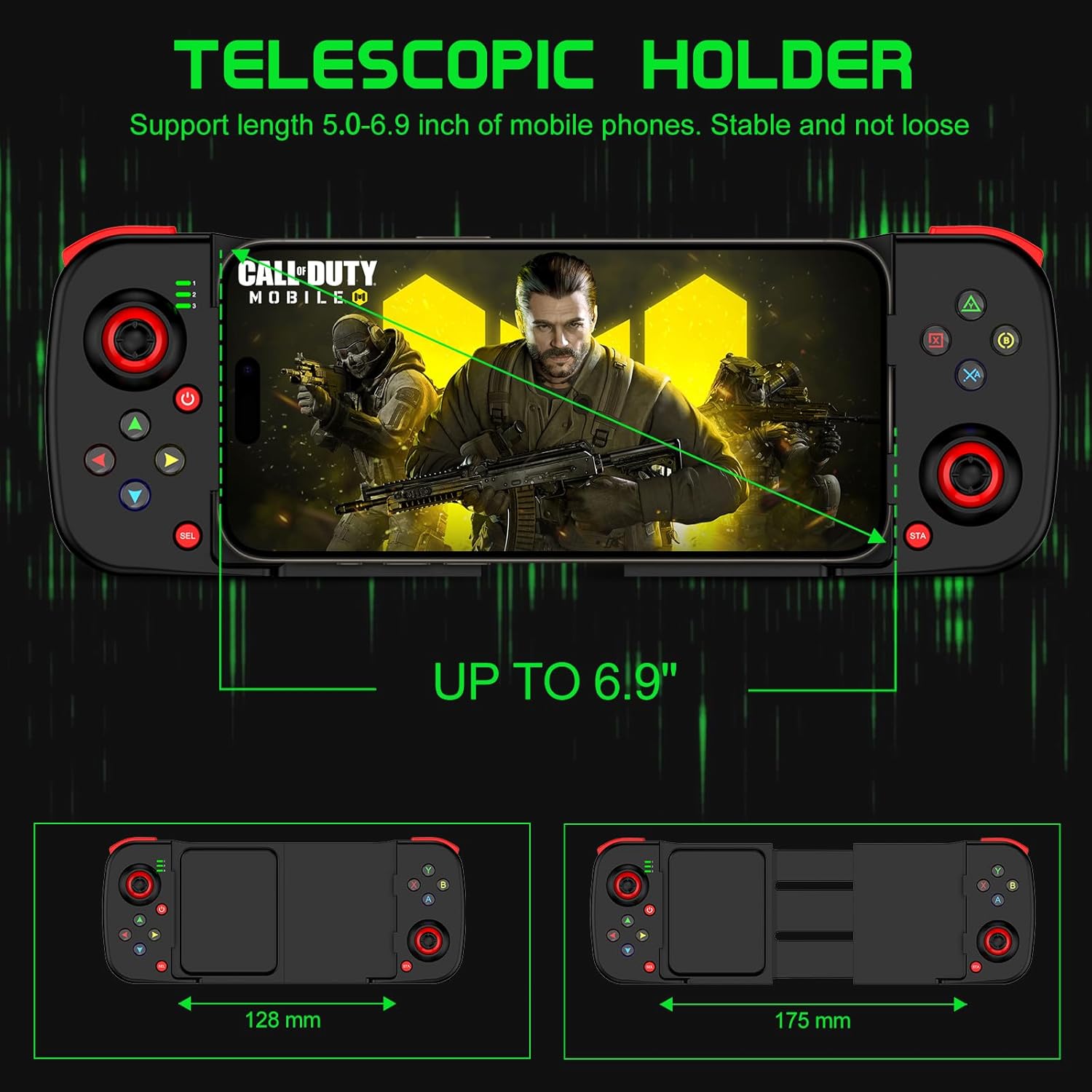
Image: This image demonstrates the telescopic holder of the Joso D3 controller, supporting mobile phones from 5.0 to 6.9 inches. It also shows the controller's dimensions, with a minimum width of 128mm and an extended width of 175mm.
3.3 Vinculació Bluetooth
Follow these steps to pair your Joso D3 controller with your device:
- Ensure the controller is powered off before initiating the Bluetooth pairing connection.
- To boot the controller into the desired mode, hold down one of the following buttons, then press the 'Home' button:
- B + Home: For DUALSHOCK 4 Wireless Controller mode (typically for iOS).
- X + Home: For D3 mode (general Android compatibility).
- RB + Home: For Xbox Wireless Controller mode (for Android or PC).
- On your iPhone, Android device, or PC, navigate to the Bluetooth settings and select the Joso D3 controller from the list of available devices to connect.

Image: This image displays the universal compatibility of the Joso D3 controller with iPhone, Android, and PC. It also provides visual instructions for Bluetooth pairing using specific button combinations (B+Home, X+Home, RB+Home) for different device types.
4. Instruccions de funcionament
4.1 Disseny del controlador
Familiarize yourself with the buttons and joysticks on your Joso D3 controller:
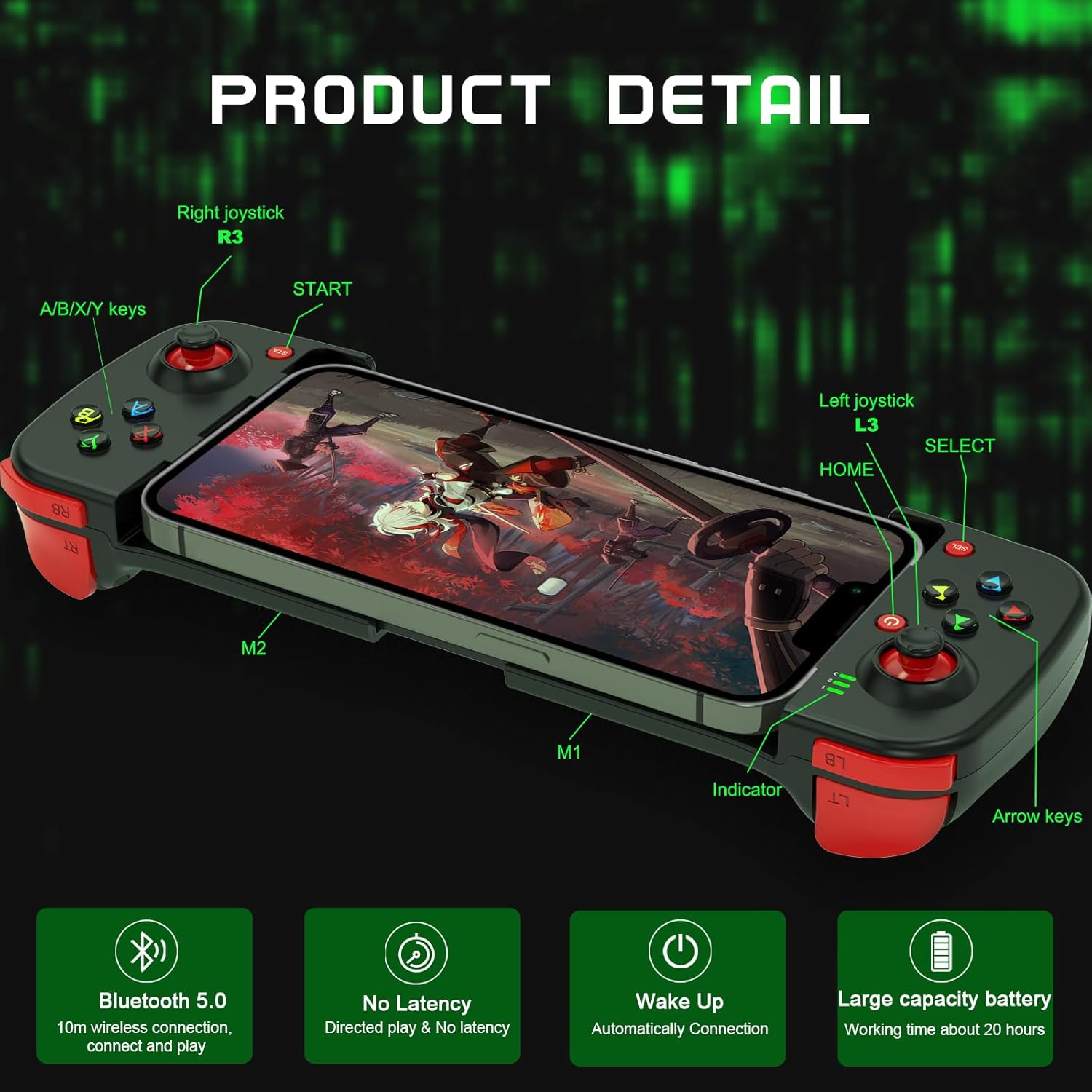
Imatge: Aquesta imatge ofereix informació detallada view of the Joso D3 controller, labeling key components such as the Right joystick (R3), A/B/X/Y keys, START button, Left joystick (L3), HOME button, SELECT button, Indicator light, Arrow keys, and the M1/M2 back buttons.
- Left Joystick (L3): Per al moviment i el control de la càmera.
- Right Joystick (R3): Per al control de la càmera i l'apuntament.
- Botons A/B/X/Y: Botons d'acció, les funcions varien segons el joc.
- Directional Pad (Arrow Keys): Per a una entrada direccional precisa.
- L1/L2 (LB/LT) & R1/R2 (RB/RT) Triggers/Bumpers: Botons a l'espatlla per a diverses accions del joc.
- START/SELECT (Menu/View) Botons: For pausing, accessing menus, or specific game functions.
- Botó HOME: To power on/off and for pairing.
- Botons M1/M2: Customizable back buttons.
4.2 Advanced Gaming Features
The Joso D3 controller is designed to enhance your mobile gaming with several advanced features:
- Six Fingers Operation: The ergonomic design and button placement allow for simultaneous aiming, shooting, moving, and switching angles, providing a competitive edge.
- 360° High Precision 3D Rocker: Experience highly accurate positioning and smooth movement control in your games.

Image: This image highlights the
Ask a question about this manual
Ask about setup, troubleshooting, compatibility, parts, safety, or missing instructions. Manuals+ will review the question and use this page’s manual context to help answer it.